Shortcut configuration in SharePoint
Introduction
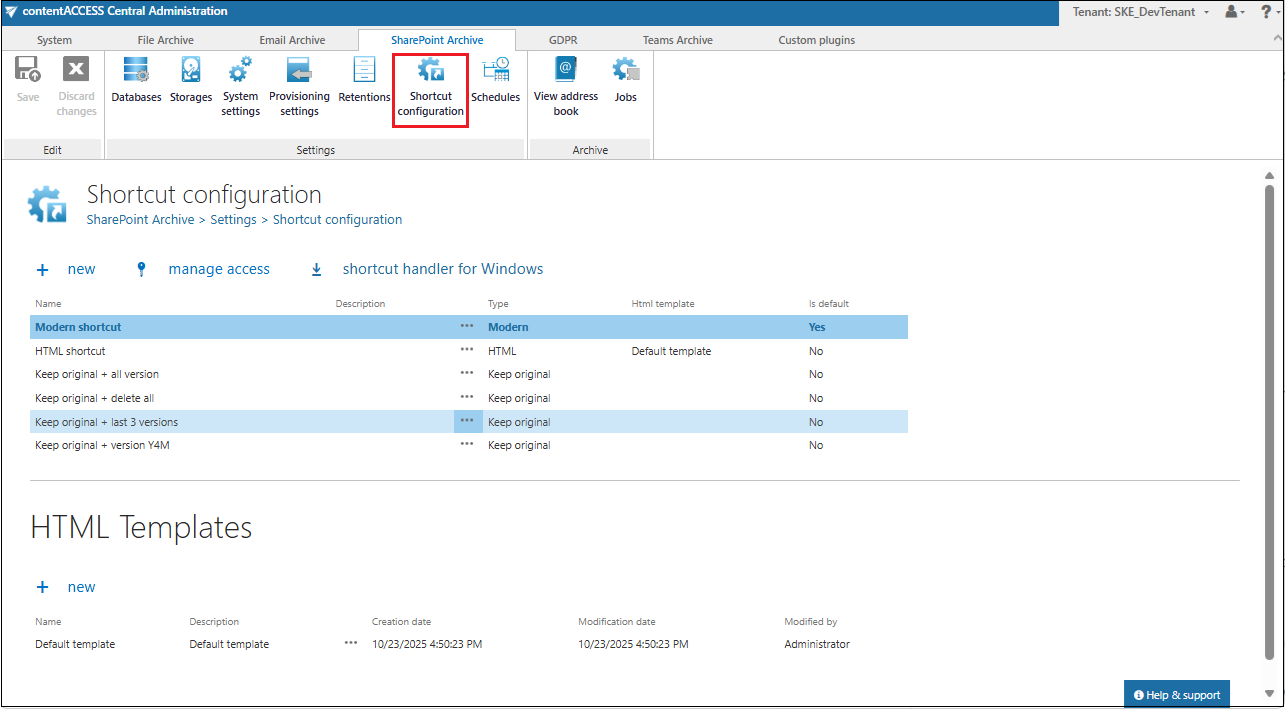
The Shortcut configuration page allows administrators to configure archive methods and shortcut types used by SharePoint Archive jobs. To open it, navigate to SharePoint Archive -> Settings -> Shortcut configuration.
From this page, administrators can review existing shortcut configurations, create new shortcuts, manage HTML templates, and set a default shortcut to be used for manual archiving and for job configuration. Three shortcut types are supported: Modern shortcut, HTML shortcut, and Keep original shortcut.
Shortcut configuration grid
The complete list of already configured shortcuts is available under the Shortcut configuration section. The grid also displays the configuration information of the respective shortcuts. A shortcut shown in bold indicates that it has been set as the default shortcut (used, for example, by manual archiving).
The shortcuts configured by the administrator on this page can be selected when configuring a SharePoint archive job on the job's configuration page.
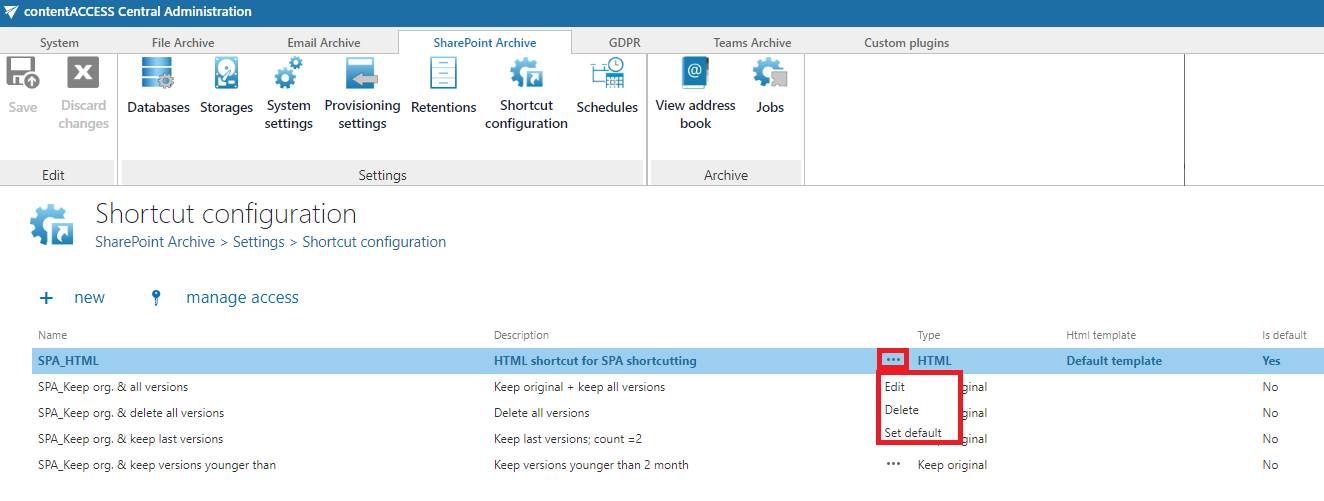
Listed items can be deleted, edited, or set as default from their context menu, opened by clicking the ellipses (…).
Note: The + new option is unavailable to the logged-on user if the "Add repository items" permission on the tenant is not allowed in their role assignment.
The manage access option allows granting access permissions on the selected shortcut configuration to a second user. This option is available to the logged-on administrator if their role assignment contains the "Edit repository item – All allowed" permission on the tenant. Read more in Managing access to contentACCESS objects.
HTML templates
The HTML Templates section lists all HTML templates configured for HTML shortcuts. The templates' grid also shows the date of creation, modification, and the modified by information.
The default template can be downloaded (and edited) by:
- Clicking + new under the HTML Templates section, and then clicking Edit template in the HTML template dialog; or
- Selecting Edit from the context menu, and then clicking Edit template.
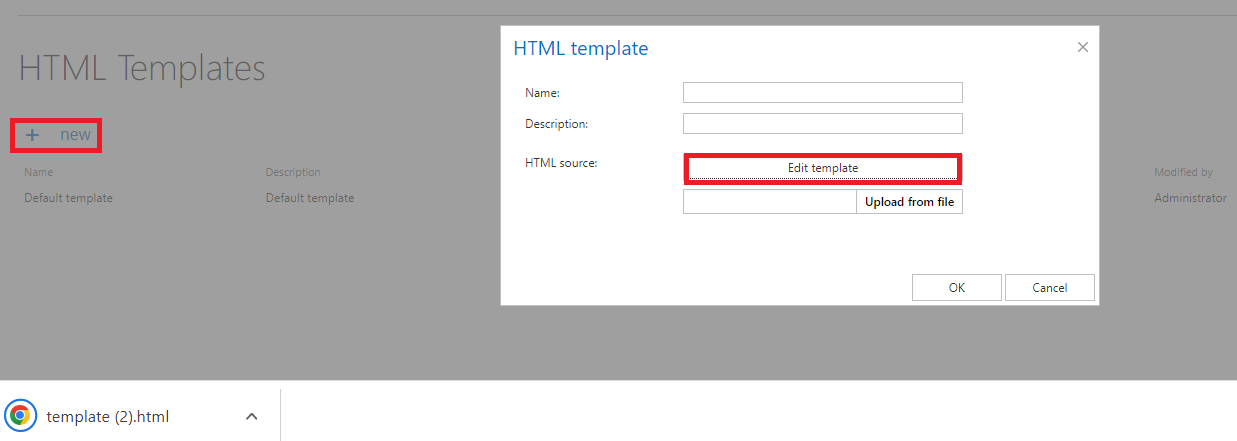 Screenshot: Download the template via the Edit template button.
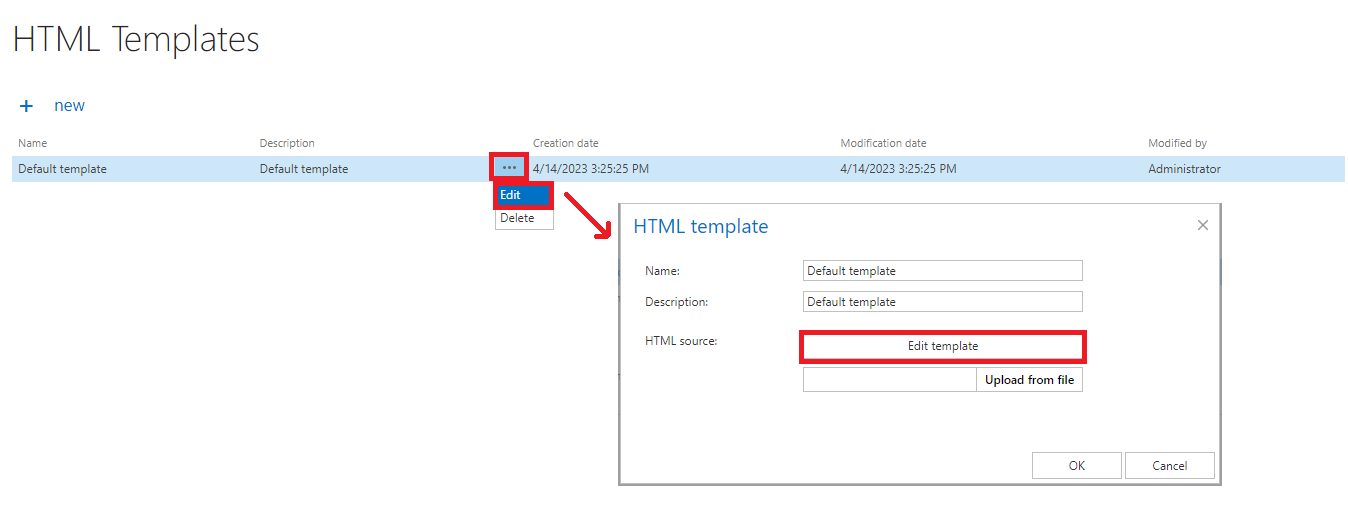 Screenshot: Download the template from the context menu.
After downloading the template, download an HTML editor from the web, edit your template, and save it. The default or edited HTML template can then be uploaded to the template list:
- Under the HTML Templates section, click + new. The HTML template dialog opens.
- Enter a Name for the HTML template and, optionally, fill in the Description field.
- Click Upload from the file and browse for the desired template that you have created.
- Upload it to the template list.
Once your desired template is uploaded, a custom HTML shortcut can be configured:
- Navigate to SharePoint archive -> Settings -> Shortcut configuration.
- Click + new under the Shortcut configuration section. The Shortcut configuration dialog opens.
- Enter a name for the shortcut into the Name field.
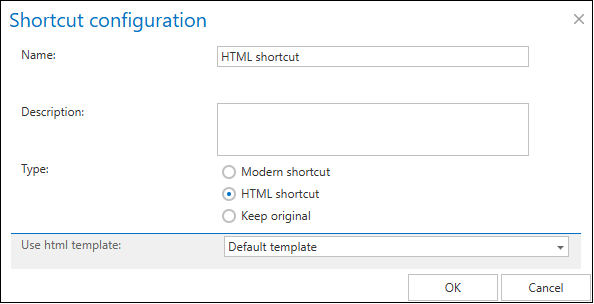
- In the Use HTML template dropdown list, select the HTML template that you have created.
- Click OK after filling in all required data.
Create a new shortcut
To create a new shortcut, click + new under the Shortcut configuration section, and select a shortcut type from the Type list in the Shortcut configuration dialog.
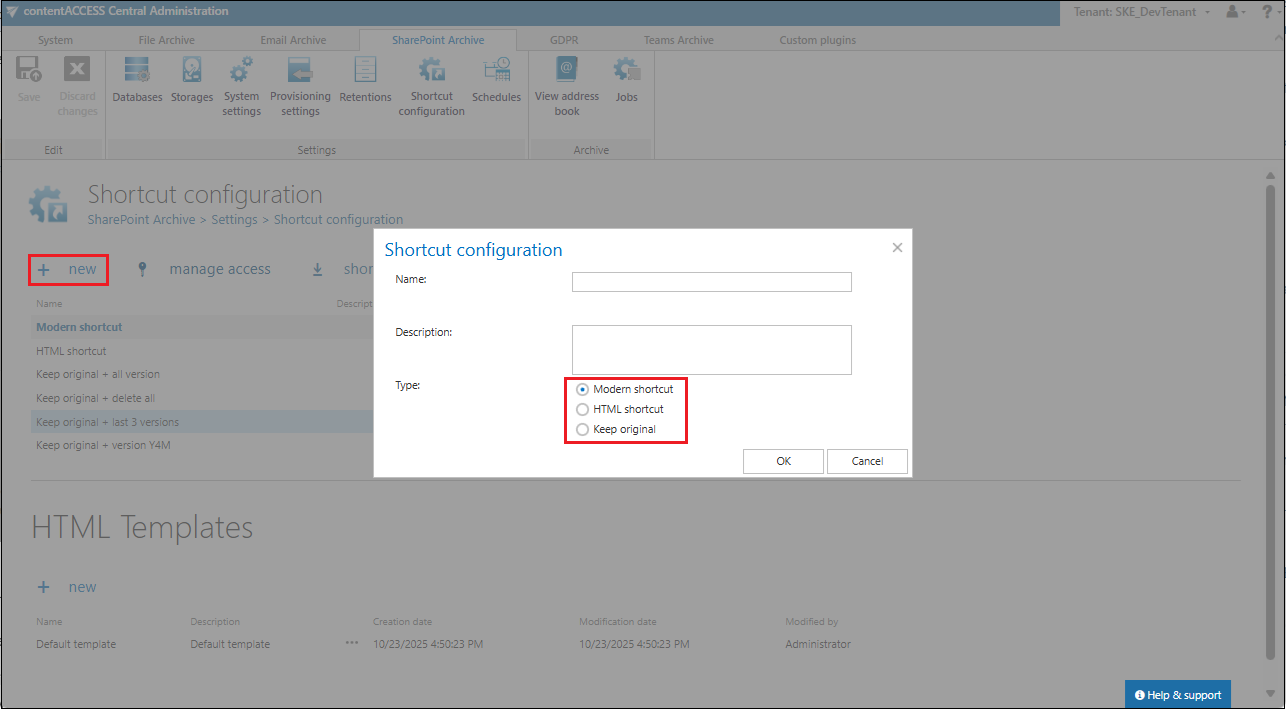
There are three types of shortcuts in contentACCESS's SharePoint Archive:
- Keep original shortcut
- HTML shortcut
- Modern shortcut
Keep original shortcut
By using this option, the original document is kept in its original location/folder. It is recommended to select this processing type for archiving items younger than one year.
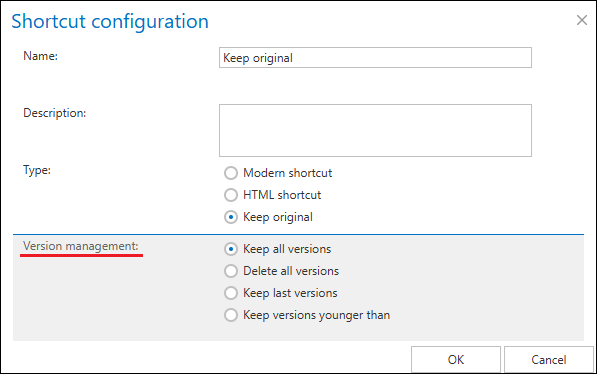
In this case, it is also possible to define the version management option:
- Keep all versions – the archive job will not touch the version history.
- Delete all versions – all previous versions will be deleted, except for the current version.
- Keep last versions – deletes all versions but keeps X last versions (for example, 2 last versions; possible values: 1–100).
- Keep versions younger than – the job keeps versions younger than a selected date, counted in months (for example, versions younger than 2 months).
HTML shortcut
If the user archives with a job using an HTML shortcut, the file is replaced by HTML code based on the HTML template. Currently, the Default template is available for the SharePoint archive. In this template, version management is set to Delete all versions.
Note: The current behavior for ListItems is that the version history is deleted, but the file is not renamed (there is no file for ListItems).
Modern shortcut
The modern shortcut uses a Microsoft 365 technology called M365 File Handler. This allows SharePoint to determine how certain file types (based on their extension) should be opened and where the user should be redirected. In our case, this is implemented through the .alink file extension.
File Handler also supports assigning a custom icon to the file type and adding specific actions to the SharePoint file context menu (right-click menu: restore archived files and open the shortcut through the shortcut handler). The technology works across all SharePoint-based platforms, including SharePoint, OneDrive, and Teams.
Because the file itself is rendered by an external service (in this case, contentACCESS), the shortcut only contains identifiers, while the actual display and logic are handled externally. As a result, the shortcut file is significantly smaller than the HTML shortcut and allows much greater flexibility, including dynamic rendering and language- or user-specific presentation.
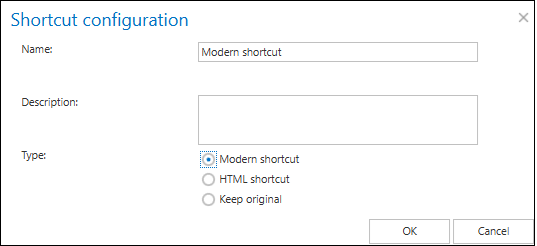
Certain functions and user scenarios have limitations when using the modern shortcut. For more information about these limitations and the related best practices, see Limitations and best practices while using modern shortcuts in SharePoint and OneDrive.
Edit a shortcut
To modify a shortcut:
-
Select the shortcut you would like to modify from the grid and open its context menu.
-
Click Edit and change the settings in the Shortcut configuration dialog so that the shortcut contains the information you require.
You can also set the selected shortcut as default from the shortcut's context menu, or delete the selected shortcut.
For more information about the available shortcut functions and how shortcuts can be used in SharePoint, refer to the Opening shortcuts from SharePoint chapter in the contentACCESS Portal documentation.