Removing objects from Teams archive Address book
Introduction
The Address book in the Teams archive allows administrators to remove teams, groups, users, and AAD groups that have no archived data. Removal behavior differs slightly depending on the object type. This page describes the removal procedure and the specific conditions that apply to each of the following objects:
- Groups
- Teams
- Users
- AAD groups
Removing a group
If you want to remove a group together with all its member teams, the group is removed only if all teams within it have already been removed (that is, all teams are empty in the archive).
You can also remove a group without removing its teams. In this case, all teams — both archived and not archived — remain in the Address book, but the group itself disappears.
To remove a group from the Address book:
-
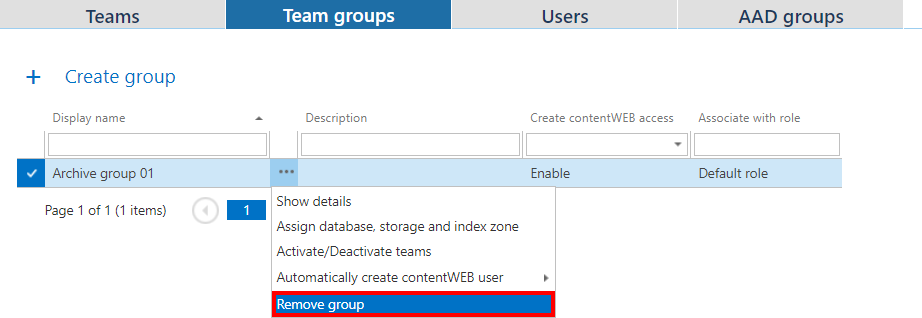
Click Remove group from the group's context menu.
-
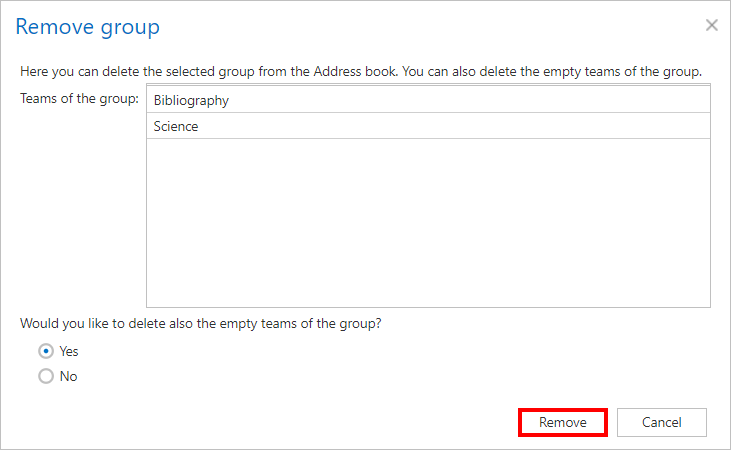
In the next window, select whether you also want to remove empty teams (and their users) from the Address book.
-
Click Remove.
Removing a team
A team can be removed only if it is empty in the archive.
To remove a team from the Address book:
-
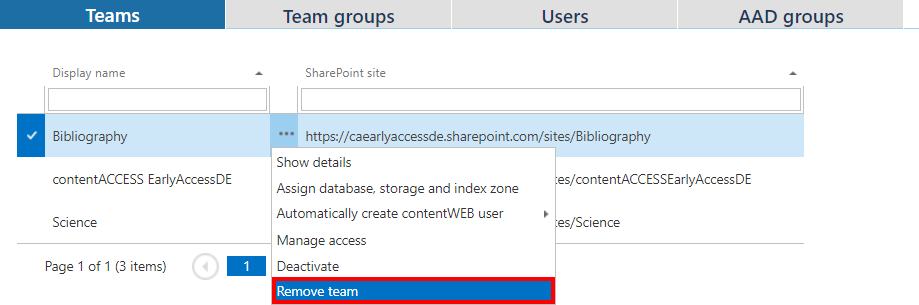
Click Remove team from the team's context menu.
-
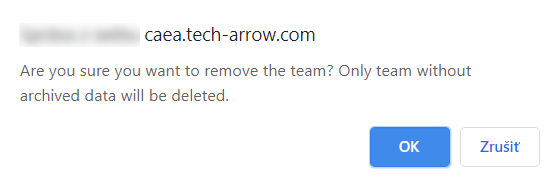
A warning window appears, asking you to confirm the removal and reminding you that only teams without archived data can be removed.
-
Click OK.
Removing a user
To remove a user from the Address book:
-
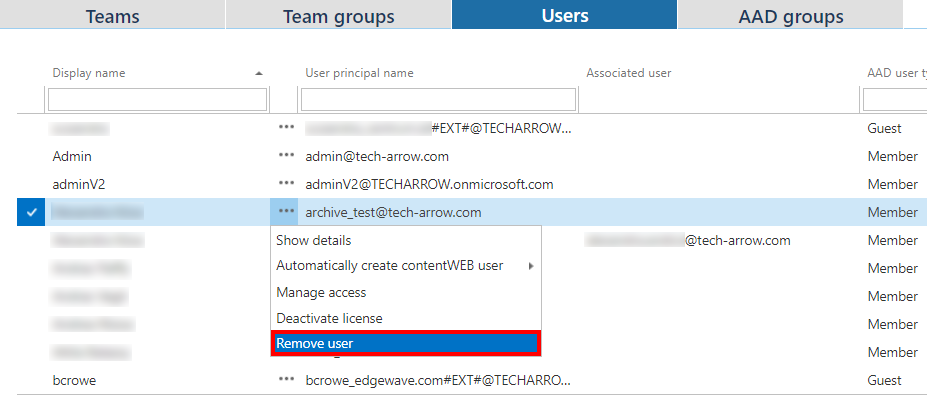
Click Remove user from the user's context menu.
-
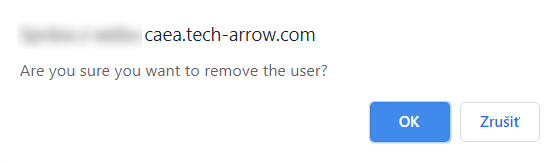
Confirm your choice in the pop-up window.
Removing an AAD group
To remove an AAD group from the Address book:
-
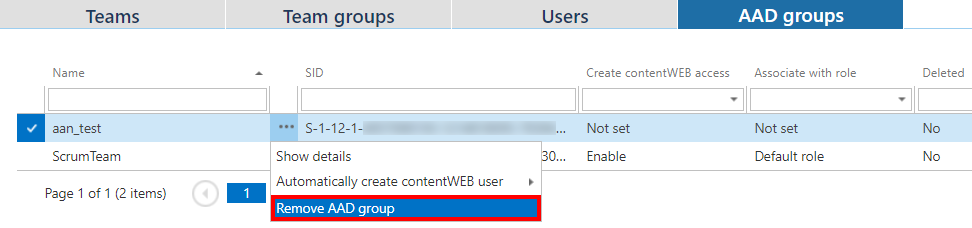
Click Remove AAD group from the AAD group's context menu.
-
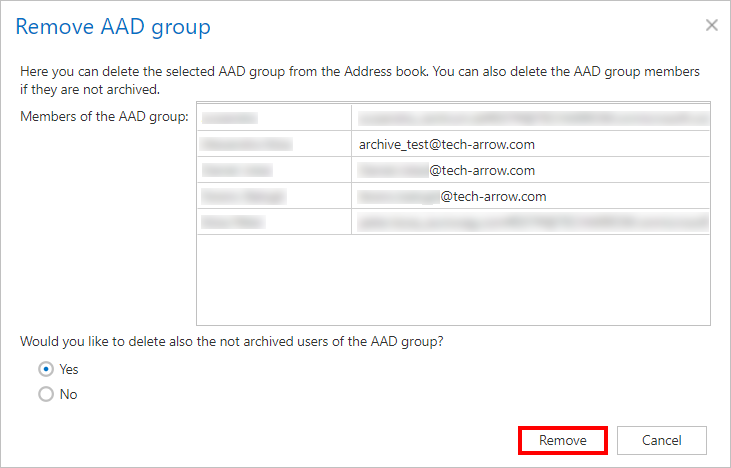
In the next window, select whether you also want to remove not archived AAD users from the Address book.
-
Click Remove.