Configuration of Delete job in Teams chat archive
Introduction
The Delete job in Teams chat archive removes expired messages, including attachments and all versions, deletes text entries that are no longer used, and removes indexed documents from all members whose retention time has expired from the archive.
This page describes how to create and configure a Delete job, including its running mode, scheduling, processing, address book, filtering, notification, and resource settings.
Create a new Delete job
- Go to Jobs.
- Click + new.
- Select the Delete from Teams chat archive job.
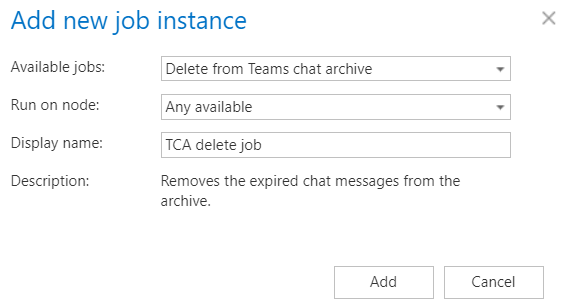
On the job's configuration page, configure the following sections.
Running mode settings (mandatory)
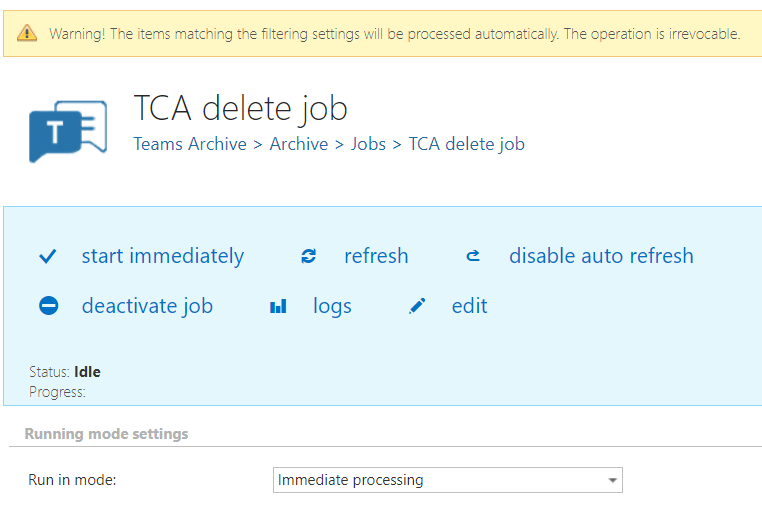
The job can be run in three modes:
-
Immediate processing – collects the expired items and deletes them immediately.
-
Create report – collects the expired chat messages and provides a CSV file with a list of chats and messages. The administrator can delete messages from the list.

-
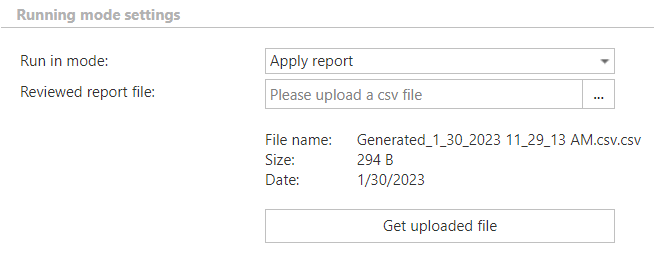
Apply report – requires uploading a CSV file with a list of items to be deleted. The administrator can delete items from the list before running the job, since only the items remaining in the list will be processed. The job reads the list and deletes the items if the messages are expired.
Scheduling settings (mandatory)
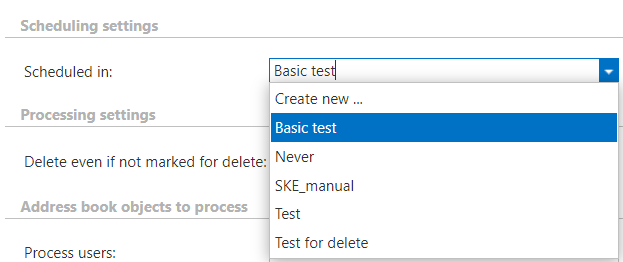
In this section, select the running times of the Delete job. You can either select a scheduler from the list or create a new scheduler using the Create new… option.
Processing settings (optional)
You may check the Delete even if not marked for delete checkbox. If enabled, the Delete job will delete expired items without requiring them to be marked for delete in the Portal. For more information about the Mark for delete function, see Teams chat archive tasks.

Address book objects to process (mandatory)
Select the user(s) to be processed. There are two available options for specifying the list of users:
-
All users – the job deletes items from the chats of all previously provisioned and archived users.

-
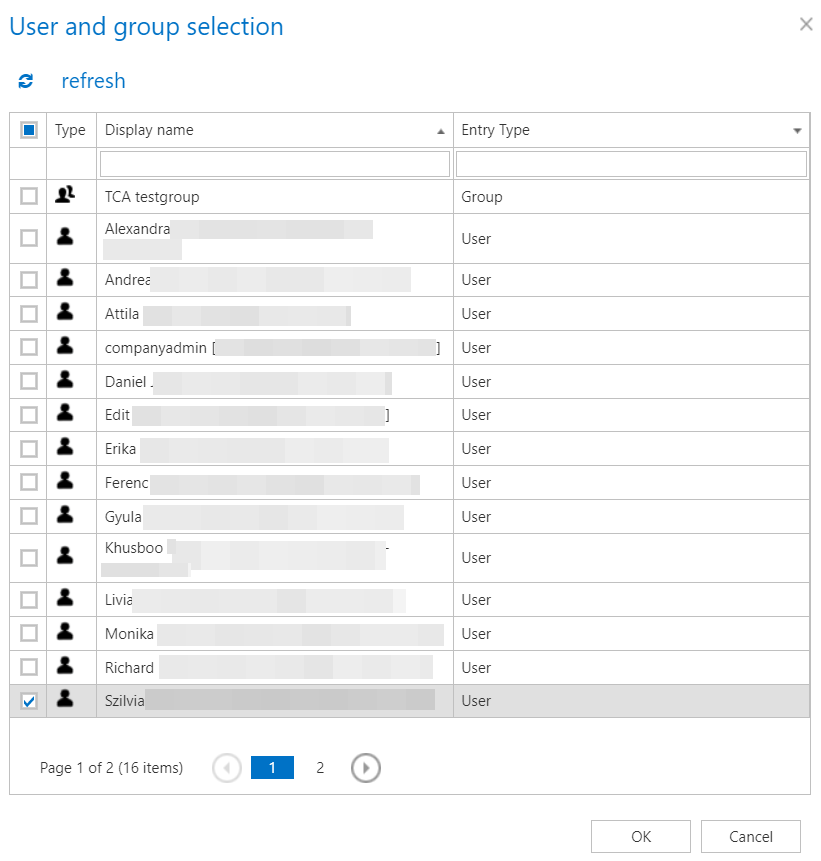
Selected users – users must be added manually, one by one, using the select option. Click select to open the User and group selection dialog.

Filtering settings (optional)
Define which chats and messages of the selected users will be processed during the Delete job.
Without filters, the job processes all chats and messages for the selected user(s).
To configure the filtering settings, click Change filter or not set, and configure the filters according to your needs and regulations. For more information about working with filtering settings, see Filtering in jobs.

-
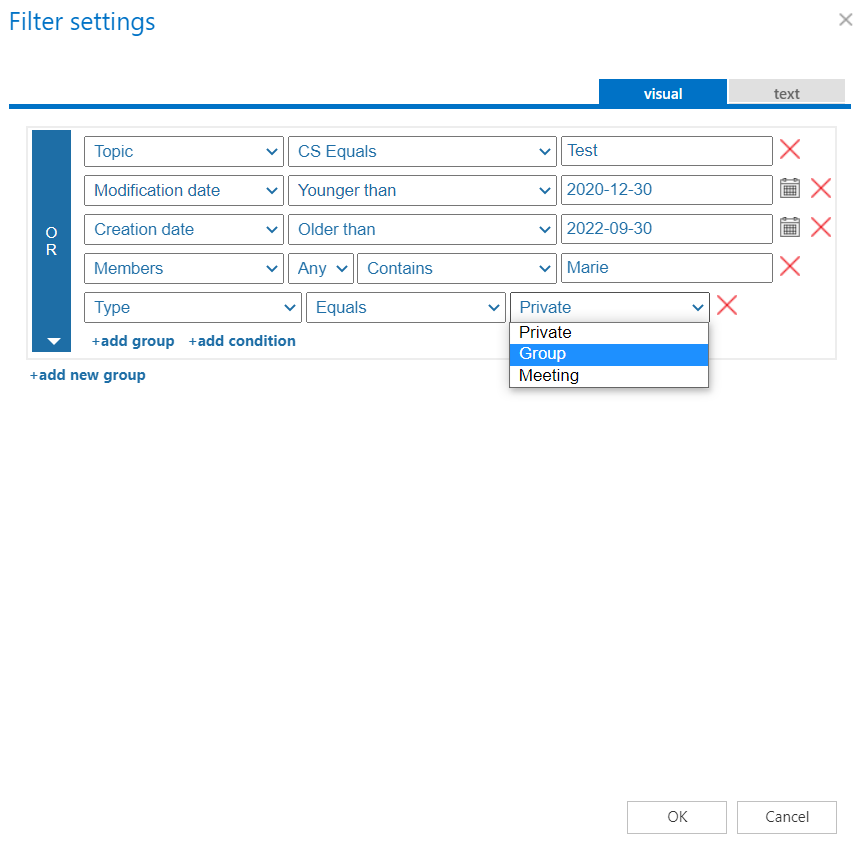
Chat filtering – chats can be filtered based on the following conditions:
-
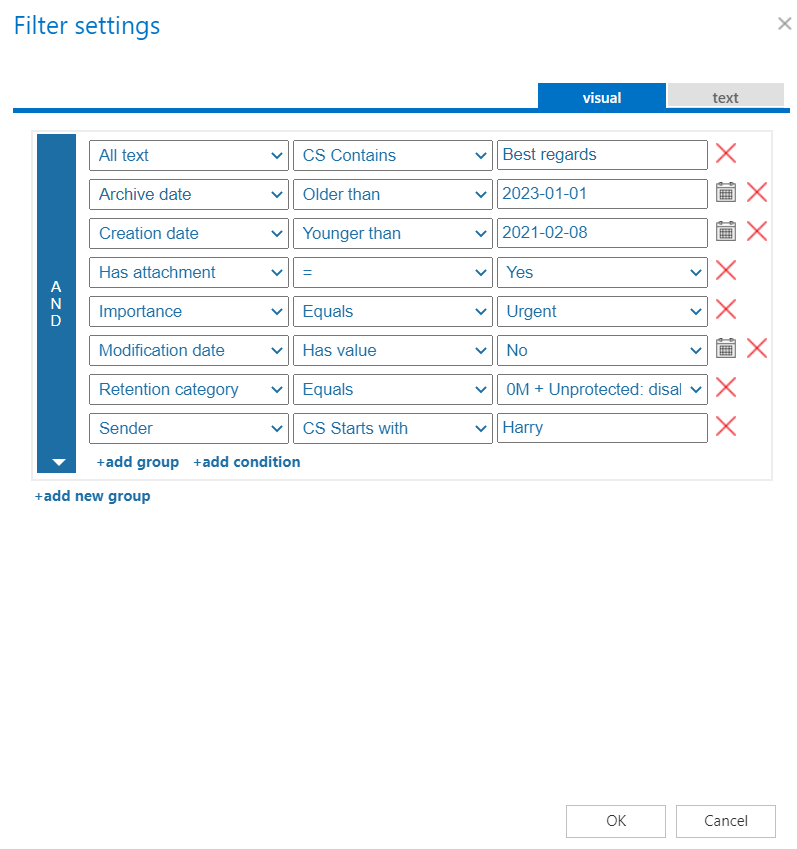
Message filtering – messages can be filtered based on the following conditions:
Notification settings (mandatory)
Specify when notification emails should be sent from the Delete job. Notifications can be set to always, never, or only if an error or warning occurred during processing — for example, if the deletion of one or more items failed. In the Recipients list textbox, enter the email addresses of the people who should receive these emails. If there are multiple recipients, separate the addresses with a comma (,) or semicolon (;).

Resource settings (mandatory)
Set the value that determines how many items will be processed simultaneously by the Delete job. The recommended value is 2.

Save and start the job
Once configuration is complete, click Save in the upper-left corner of the UI to save the job configuration. After saving, the job can be started by clicking Start immediately.