Configuration of Teams archive retention changer job
Introduction
The Teams archive retention changer job changes the retention time of messages and files belonging to selected team(s), provided that retention changes are supported at the storage level. Storages that support this change are Disk, Azure, and Amazon S3.
This page describes how to configure the running mode, scheduling, retention, team selection, processing and filtering, notification, and resource settings for the job.
To create the job, go to Jobs -> click + new -> select Teams archive retention changer.

On the job's configuration page, go through the following sections.
Running mode settings (mandatory)
The job can be run in three modes:
-
Immediate processing – collects the documents/messages and changes their retention.

-
Create report – collects the documents/messages and provides a CSV file with a list of items. The administrator can review and edit the list of affected items.

-
Apply report – a CSV file with a list of items to be processed must be uploaded. The administrator can delete items from the list before running the job (only documents/messages that are in the list will be processed). The job reads the list and changes the retention of the items on the list.

Scheduling settings (mandatory)
In this section, the running times of the retention changer job must be selected. You can either select a scheduler from the list or create a new scheduler via the Create new … option.

Retention settings (mandatory)
Select the new retention to be applied to the items.

Address book objects to process (mandatory)
In this section, select the team(s) to be processed. There are two available options for specifying the list of teams:
-
Process All teams – the retention will change on all previously provisioned and archived teams.

-
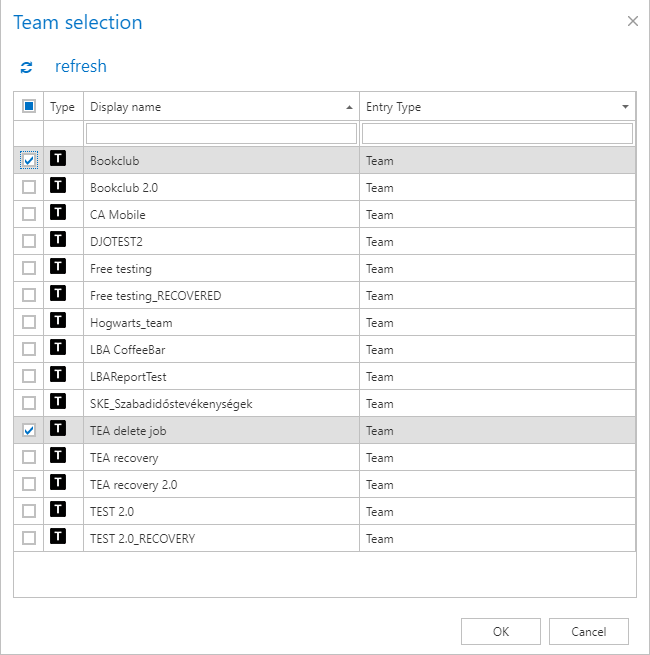
Process Selected teams – the teams are added via the select option and must be added manually one by one. Click select to open the Team selection dialog.

Processing and filtering settings (mandatory and optional)
In this section, select what will be processed during the retention changer job. First, select whether to process all data or selected data. With the all data option, the retention will change on all channels' messages, files, and non-channel related SharePoint data.

When you select the selected data option, the Filter team data settings appear, where the following options can be selected and defined:

-
Process all channels (or filter them out) – the retention can be changed either on all channels' data or only on the channels matching the filtering settings. Channels can be filtered by name or by type (IsPrivate=Yes/No).
infoNote: The default channel in Teams is General, which is created automatically with the team. This channel is displayed in the background as "General" even if users set/use different languages for the Teams client. Because of this, if you want to filter out the default channel by channel name, it must be added in English (other channels can be filtered using the supported languages), otherwise the job will not process this channel.

-
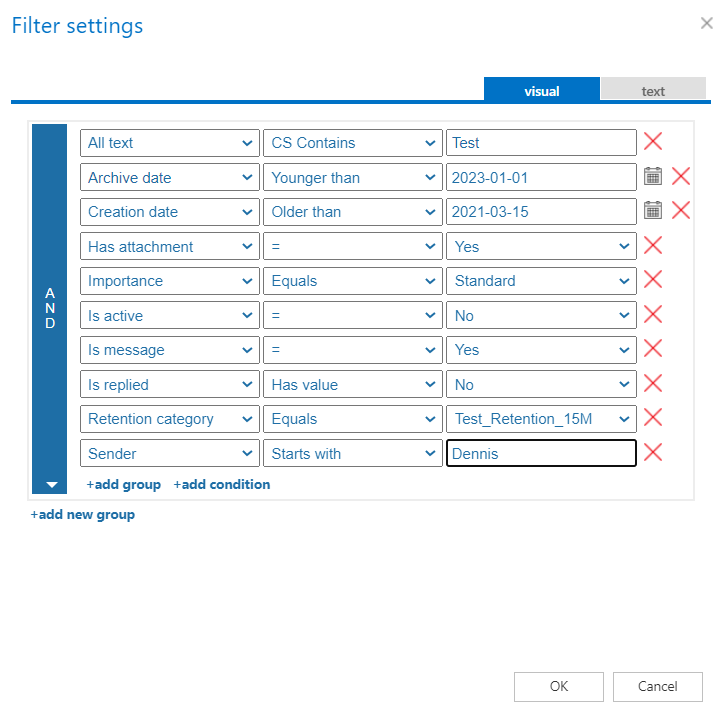
Process messages where filter is [not set] – if this checkbox is selected but no filter is added, then all messages from the defined channels are processed. Clicking the Change filter button (or not set) opens the Filtering settings window, where you can decide which messages will be processed and skipped.
-
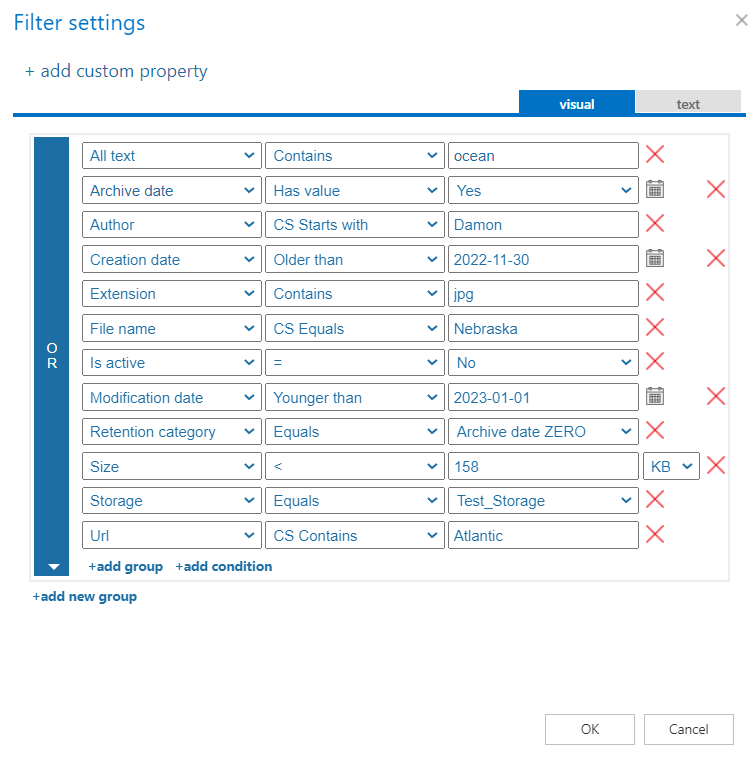
Process files where filter is [not set] – only the files' retention (all or filtered) will be changed if this checkbox is selected. If no filters are added, all files are processed from the defined channels. You can also decide which items are processed and skipped by clicking the Change filter button (or not set), which opens the Filtering settings window, where you can set the filters for the retention changer job.
-
Process non-channel related SharePoint data – SharePoint is deeply integrated into Teams. Files stored in Teams reside in SharePoint sites, and these sites can be used by Teams for file storage (these are called Teams-connected sites). Such sites are created automatically whenever a user creates a team. Files stored in both Teams and SharePoint sites can be processed with the Process files option, but items that are available only on the SharePoint sites (lists, tasks, calendar items, contacts, manually created document/picture libraries) are skipped with that option. To change the retention on those items, select the Process non-channel related SharePoint data option. This option allows you to process or skip custom SharePoint lists/document libraries. For more information about the Teams and SharePoint integration, read this article.
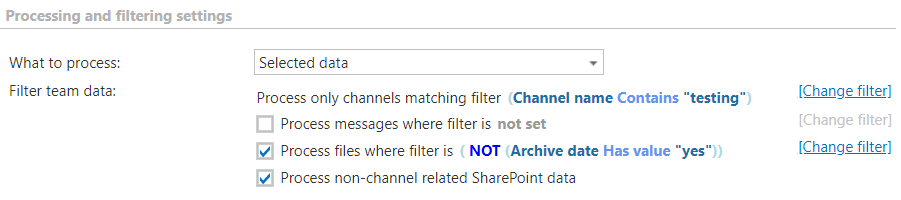
Important: The Process non-channel related SharePoint data function does not work by itself. The Process files option must also be selected, otherwise the job will run without doing anything. However, files can easily be filtered out (for example: AND archive date has value=NO / NOT storage equals CA_ret) so that only the SharePoint data is processed.
Important: Setting the filters is optional, but selecting the items to process is mandatory. If one or all of these options are not selected, the job runs without doing anything.
To set the filtering settings, click Change filter or not set and configure the filtering according to your needs and/or regulations. To learn more about working with filtering settings, see the Filtering in jobs section of the documentation.
Notification settings (mandatory)
Select when notification emails should be sent from the retention changer job. You can choose to always receive a notification email, never receive one, or only receive one if an error/warning occurred during the process—for example, if the retention change of one or more items failed. In the Recipient list textbox, enter the email addresses of the people who should receive these emails; if there are multiple recipients, separate the addresses with "," or ";".

Resource settings (mandatory)
Set the value that determines how many items will be processed simultaneously by the retention changer job. The recommended value is 2.

When configuration is complete, save the job by clicking Save in the upper-left corner of the UI.