Configuration of Teams chat archive retention changer job
Introduction
The Teams chat archive retention changer job changes the retention time of chats, messages, group chats, and meetings for selected Teams chats, provided that retention changes are supported at the storage level. Storages that support this change are Disk, Azure, and Amazon S3.
This page describes how to create and configure a Teams chat archive retention changer job, including its running modes, scheduling, retention, address book object selection, filtering, notification, and resource settings.
Create a new job
- Go to Jobs.
- Click + new.
- Select Teams chat archive retention changer.
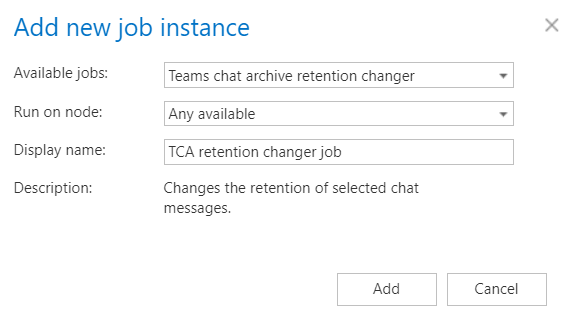
On the job's configuration page, configure the following sections.
Running mode settings (mandatory)
The job can be run in three modes:
-
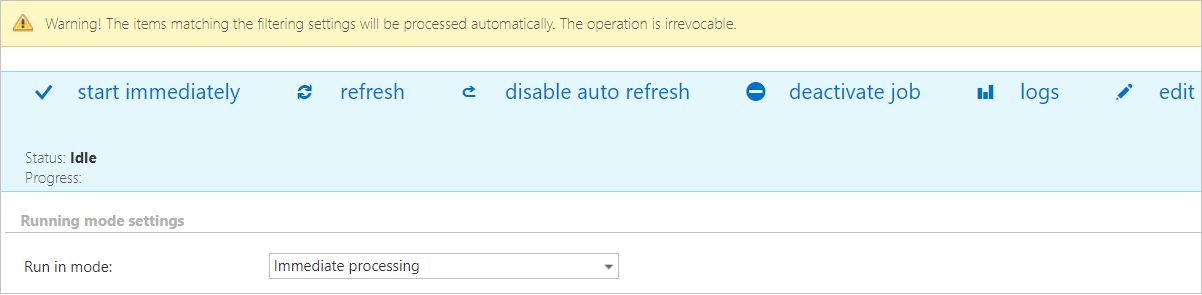
Immediate processing – Collects the chats/messages and changes their retention.
-
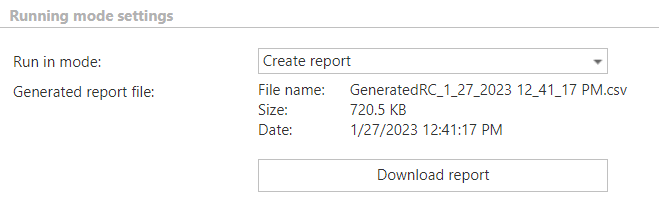
Create report – Collects the chats/messages and provides a CSV file with a list of items. The administrator can review and edit the list of affected items.
-
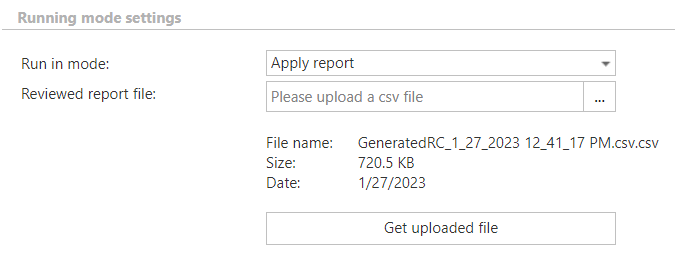
Apply report – Requires uploading a CSV file with a list of items to be processed. The administrator can delete items from the list before running the job — only chats/messages remaining in the list will be processed. The job reads the list and changes the retention of the listed items.
Scheduling settings (mandatory)
In this section, select the running times of the retention changer job. You can either select an existing scheduler from the list or create a new one using the Create new… option.

Retention settings (mandatory)
Select the new retention to be applied to the items.

Address book objects to process (mandatory)
In this section, select the user(s) to be processed. There are two available options for specifying the list of users:
-
All users – The retention will change on all previously provisioned and archived users.

-
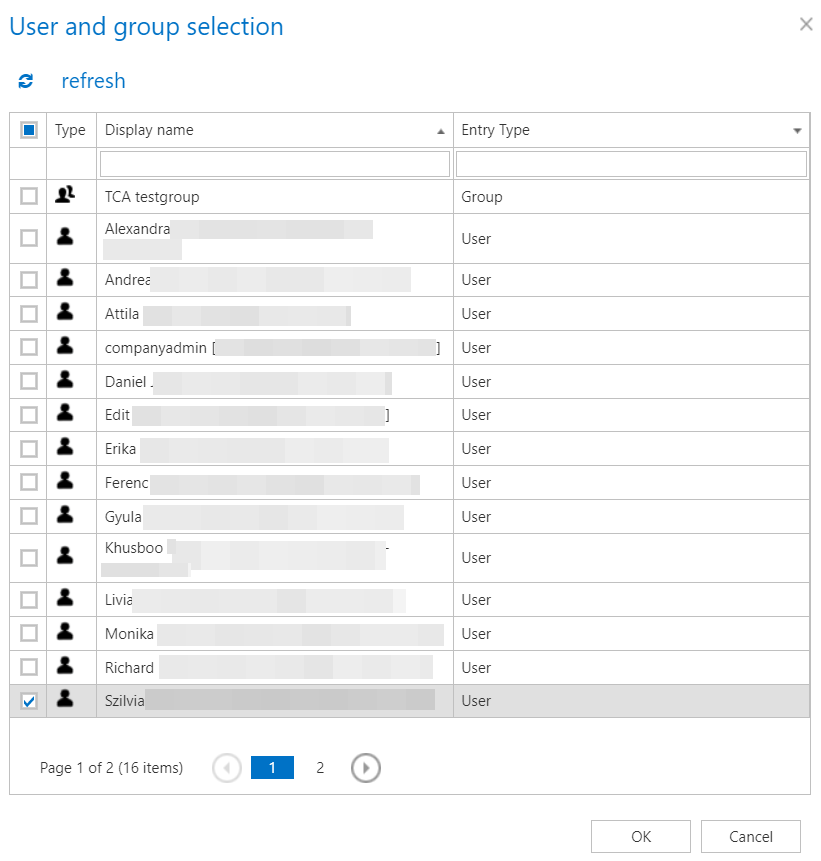
Selected users – Users must be added manually, one by one, via the select option. Click select to open the User and group selection dialog.

Filtering settings (optional)
Define which chats and messages (of the selected users) will be processed during the retention changer job.
Without filters, the job processes all chats and messages for the selected user(s). To configure filtering, click Change filter or not set, and set the filtering according to your needs and/or regulations. To learn more about how to work with filtering settings, refer to the Filtering in jobs section of the documentation.

-
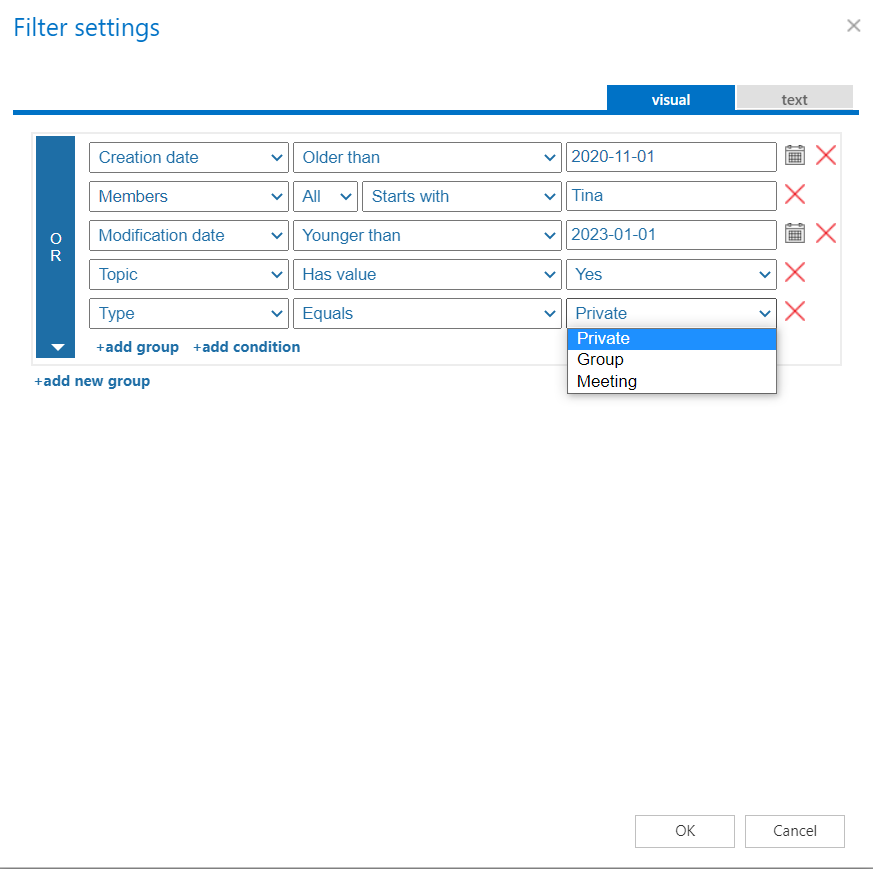
Chat filtering – Chats can be filtered based on the following conditions:
-
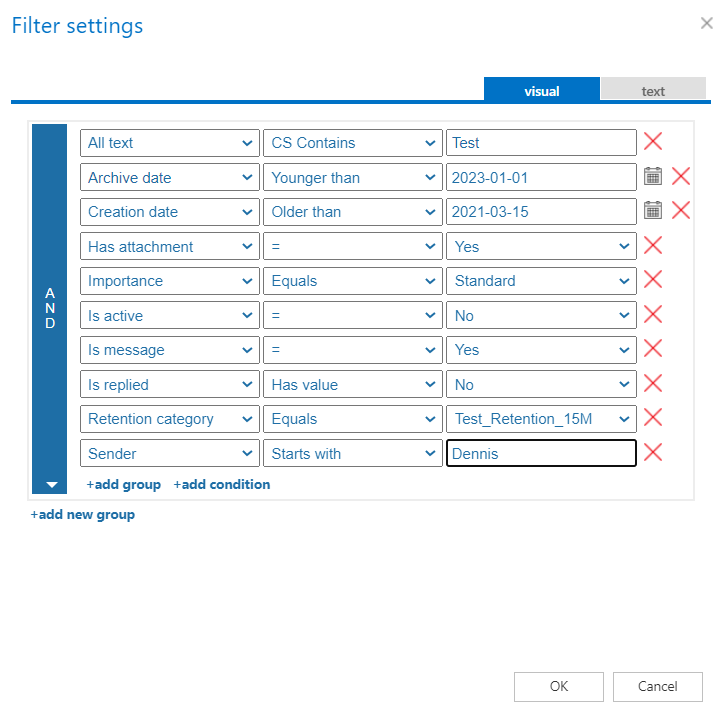
Message filtering – Messages can be filtered based on the following conditions:
Notification settings (mandatory)
Select when notification emails should be sent from the retention changer job. You can configure notifications to be sent always, never, or only when an error/warning occurs during processing — for example, if the retention change of one or more items fails.
In the Recipients list textbox, enter the email addresses of the people who should receive these emails. If there are multiple recipients, separate the addresses with , or ;.

Resource settings (mandatory)
Set the value that determines how many items will be processed simultaneously by the retention changer job. The recommended value is 2.

Save and start the job
After configuring all sections, click Save in the upper-left corner of the UI to save the job configuration.
Once saved, the job can be started by clicking Start immediately.