Teams archive recovery
Introduction
Teams archive recovery jobs are used to recover deleted teams or clone existing teams in Microsoft Teams. The recovery process can recover all team-related data captured by the Teams archive, including team configuration, membership, channels, tabs, chat messages, shared files, and linked SharePoint data.
The Teams archive recovery can reconstruct the entire team structure from the archive: messages and items that have already been archived will be put back into their source location, the structure of channels and tabs (for the apps) will be created in the recovered team, and it is also possible to restore only the SharePoint data to an existing team.
This page describes how to create and configure a Teams archive recovery job, including the available recovery, filtering, scheduling, and notification settings, as well as the current limitations of the recovery process.
The recovery process can recover the following team-related data captured by the Teams archive:
- Team name and team configuration
- Membership information
- Channels
- Tab configuration
- Chat messages and shared files
- SharePoint data linked to the team
Create a recovery job
To create a recovery job:
- Navigate to Teams archive => Archive => Jobs and click the + new button.
- In the Add new job instance dialog, select Teams recovery from the dropdown list.
- Select a node where the job should run from the Run on node dropdown list. If no specific node should be used and the job should run on any available node, select Any available.
- Enter a Display name.
- Click Add.

To configure the job immediately, click Yes in the next pop-up window. Alternatively, configure it later using the Configure option in the job's context menu.
On the job's configuration page, set the following sections.
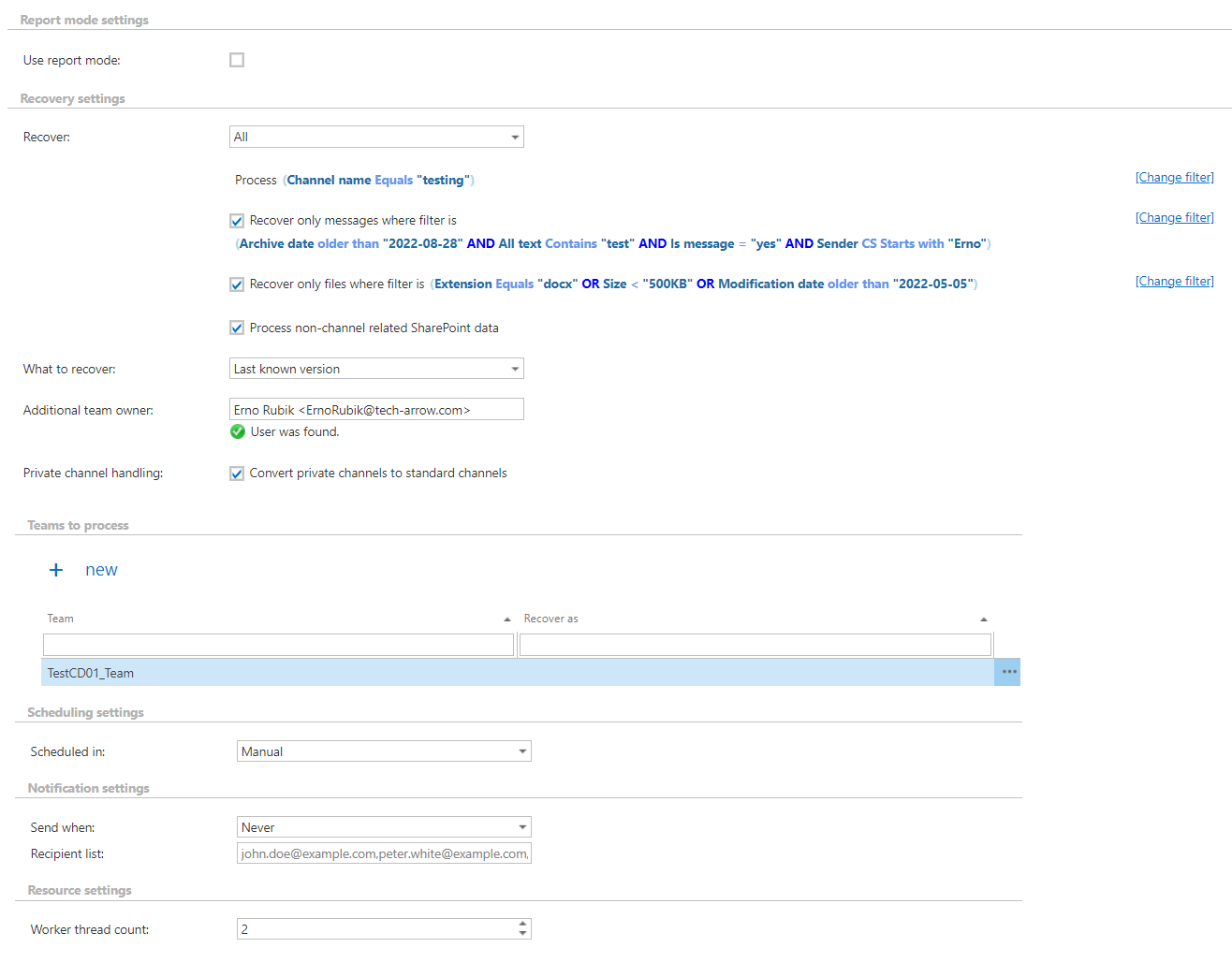
Report mode settings
If the Use report mode checkbox is checked, the job runs in report mode. After the job finishes running in this mode, a .csv report file can be downloaded in this section. The file contains information about the selected team (messages, files, team members), including what will be processed or not during the recovery job.

Recovery settings
In this section, the user configures what will be recovered and how it will be recovered.
Recover
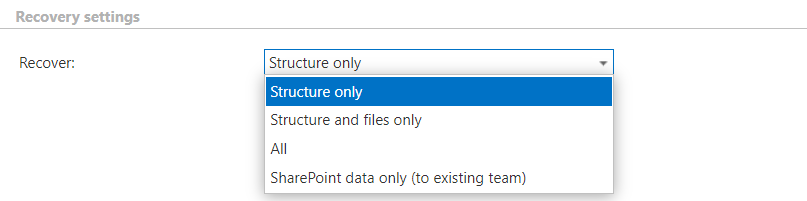
The Recover option determines what will be recovered:
- Structure only – the recovery job creates the archived team structure (Team, users, channels, and SharePoint structure), but no files and messages are recovered.
- If the Process non-channel related SharePoint data option is checked, the job also recovers the custom SharePoint lists/document libraries' structure on the team's site.
- Structure and files only – the recovery job creates the archived team structure and recovers the files and items (uploaded and SharePoint files) from the archive, including the contents of the different tabs (for example, Wiki, Tasks, Calendars).
- If the Process non-channel related SharePoint data option is checked, the job also recovers the custom SharePoint lists/document libraries' structure on the team's site.
- All – the recovery job creates the archived team structure and recovers the messages and files/items from the archive.
- It is also possible to recover the non-channel related SharePoint data by checking the Process non-channel related SharePoint data option. Otherwise, these items are left out of the recovery job.
- SharePoint data only (to existing team) – the recovery job processes an existing team (selected in the Teams to process section). The selected team must exist in Microsoft 365. This option is useful when some files have been lost from the channel(s) and need to be recovered. In this case, the Recover as selection is ignored (even if selected), because the recovery job puts back only the missing files into the existing team.
Filtering settings
The Teams archive recovery job uses the following filtering settings:

-
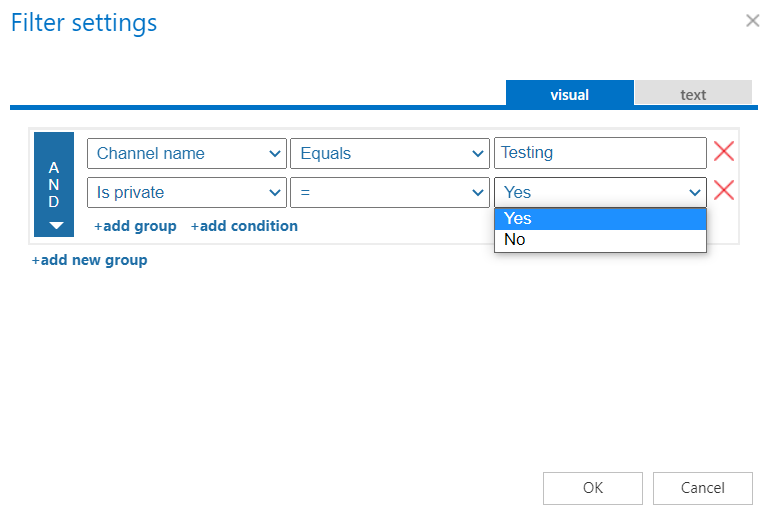
Process all channels (or filter them out) – determines whether all channels will be recovered or just the channels matching the filtering settings. Channels can be filtered by name or by type (
IsPrivate=Yes/No).infoNote: The General channel is always created by the recovery job because it is the default channel of the team, but it will be empty if it is excluded by the filtering settings.
infoNote: The default channel in Teams is General, which is created automatically with the team. This channel is displayed in the background as "General" even if users set or use different languages for the Teams client. Because of this, when filtering out the default channel by channel name, it must be entered in English (other channels can be filtered out using their supported languages), otherwise the job will not process this channel.
-
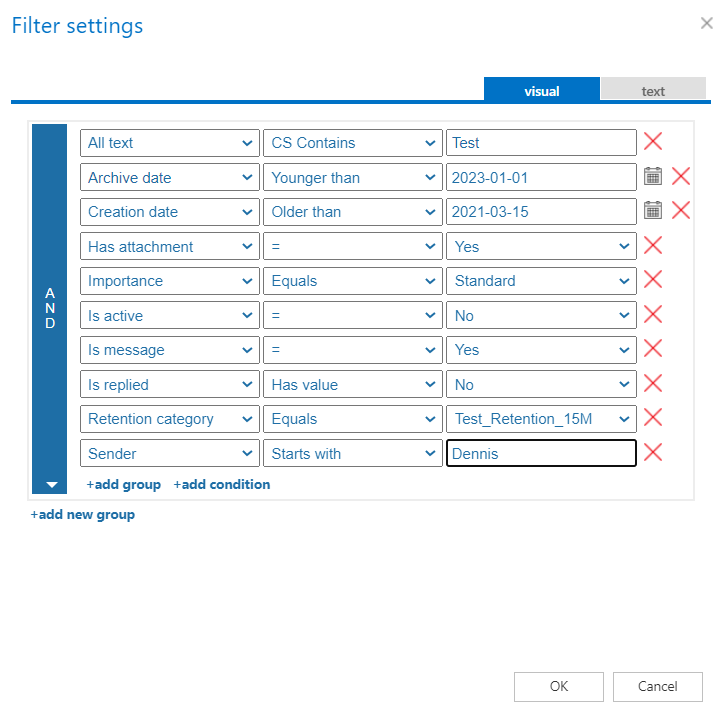
Recover only messages where filter is [not set] – this filter is active only when the All recover option is selected. Clicking Change filter (or not set) opens the Filtering settings window, where it can be defined which messages will be processed and skipped. If this option is not selected, or no filters are added, the recovery job processes all messages from the selected team(s).
-
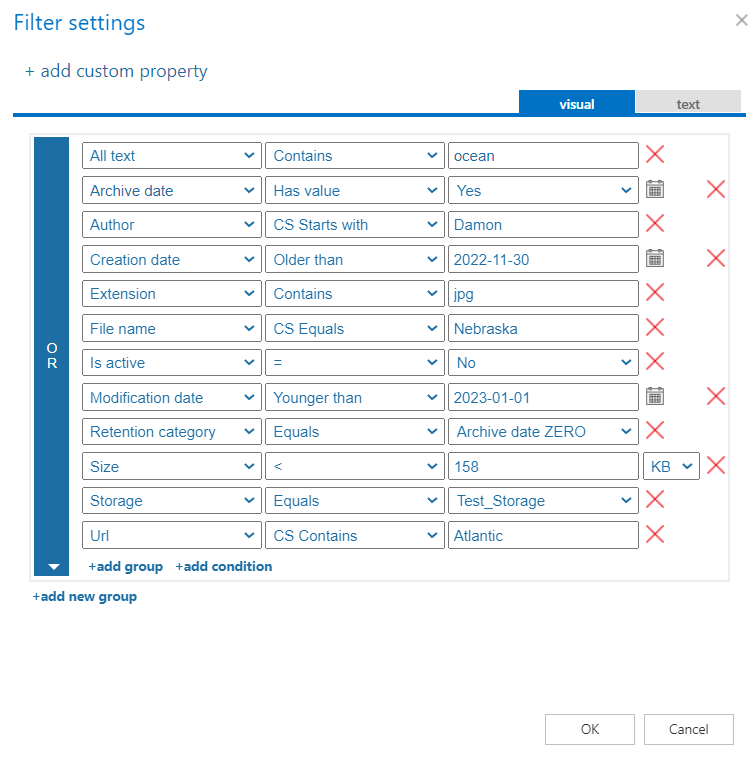
Recover only files where filter is [not set] – select this checkbox to define which files will be processed and skipped during recovery. This option is available when All, Structure and files only, or SharePoint data only (to existing team) is selected. Set the filters by clicking not set or Change filter. If this option is not selected, or no filters are added, the recovery job recovers all files from the selected team(s).
-
Process non-channel related SharePoint data – SharePoint is deeply integrated into Teams. Files stored in Teams are located in SharePoint sites, and these sites can be used by Teams for file storage (referred to as Teams-connected sites). These sites are created automatically whenever a team is created. Files stored in both Teams and SharePoint sites can be processed using the Process files option, but items available only on the SharePoint sites (lists, tasks, calendar items, contacts, manually created document/picture libraries) are skipped by that option. To recover those items, the Process non-channel related SharePoint data option must be selected. This option determines whether custom SharePoint lists and document (or picture) libraries are processed or skipped. For more information about the Teams and SharePoint integration, see this article.
warningImportant: The Process non-channel related SharePoint data option does not work by itself. The Recover only files where filter is [not set] option must also be selected, otherwise the SharePoint data will not be recovered. If the files from the channels should not be recovered, they can easily be filtered out (for example:
AND archive date has value=no/NOT storage equals CA_Test), so that only the SharePoint data is processed.
The filtering settings are only available when Structure and files only, All, or SharePoint data only (to existing team) is selected. When All is selected, both files and messages can be filtered. In this case, excluding files with a certain extension (for example, .pdf) also excludes messages that contain those files. To learn more about working with filtering settings, see the Filtering in jobs section of the documentation.
What to recover
- Last known version – the job recovers the latest version of the item/message from the archive.
- Specific date – the job recovers the version that was valid at the specified time, meaning the version with a modification date older than or equal to the specified date.

Additional team owner
The recovery job recovers users as they were in the original team: owners are recovered as owners, and members are recovered as members. It is also possible to add an additional team owner to the team. These users are added automatically to the recovered team. Type the email address or first name, press Enter, and the selected user is added to the recovery job.
Note: Users who are already members of the team cannot be recovered as owners by the recovery job. To change their status, this must be done manually on the team.

Private channel handling
Currently, private channels cannot be recovered as private channels. However, it is possible to convert them into standard channels and recover them in that form.
Team to process
In this section, one or multiple archived teams that were deleted and need to be recovered from the archive must be specified. It is also possible to clone existing team(s) from the archive.
To add a new team:
- Click New. The Team to recover dialog opens.
- Select the team from the dropdown list.
- Select how to recover the team:
-
Use original name – the team is recovered with the archived/original name.

-
Recover as – the team is recovered under a different name. Selecting this option displays an additional text box in the dialog.

-
Schedule settings
In this step, the running times of the recovery job must be selected. It is possible either to select a scheduler from the list or to create a new scheduler using the create new option.
Recovery jobs are run only in specific cases. In most cases, it is recommended to set a One time scheduler for the recovery job (for example, with a start date of the 7th of September at 6 PM), or to start the job manually from the status bar.
For more information about how to set schedulers, refer to the Schedules section.
Notification settings
This section defines in which cases notifications will be sent from the recovery job. Notification emails can be set to be sent only in case of errors or warnings, or in all cases. In the Recipient list textbox, enter the email addresses of the people who should receive these emails. Notification emails can be used as a tool for the troubleshooting process.
Resource settings
This section determines how many items will be processed simultaneously by the recovery job.
Limitations
Currently, the following items cannot be recovered from the original team:
- Teams chat archive is not supported – chats and private chats cannot be recovered with the Teams recovery job.
- Reactions are not supported.
- Adaptive cards are supported with limitations – cards that require additional data in hosted content are not supported (for example, code snippets), because the only valid content types of hosted content are
image/png,image/jpg, andimage/jpeg. - Guests (external users) cannot be recovered – the recovery job cannot recover guests. They need to be added manually to the team.
- Messages sent by bots are not supported, even if the application that defines the bot is installed for the team. The message sender identity must have the "user" part filled in, otherwise the Graph call fails.
- Tab references in messages cannot be recovered – Graph API ignores attachments of
tabReferencetype. - Previews in messages (if the message contains a link) pasted from a website cannot be recovered – Graph API does not return any information regarding this.
- Wiki tabs – only the content of the default wiki tab can be recovered. If the channel contains additional wiki pages, their content will not be recovered, only the structure of these tabs.
Note: If warnings regarding API permission issues occur, it indicates the need to grant permissions for the Teams archive. This action enables contentACCESS to authenticate and establish a connection with the Microsoft Dataverse environment through a modern and more secure authentication method. For detailed instructions on how to grant these permissions, refer to the Grant permissions for Teams archive section of the documentation.