Teams chat archive job
Introduction
The Teams chat archive job allows administrators to archive Microsoft Teams chat messages for selected users or groups. The job can be configured to process all users or a selected subset, apply filtering rules to chats and messages, and run according to a defined schedule.
This page describes how to create a new Teams chat archive job and configure its available settings, including report mode, scheduling, address book objects to process, filtering, retention, notifications, and resource settings.
Important: The Teams chat archive job cannot archive chats or meetings with external people. Use the Teams Chat Compliance archive job if you need to archive such chats and meetings.
Create a new job
To configure a new Teams chat archive job:
- Navigate to Teams Archive -> Archive -> Jobs.
- Click +new.
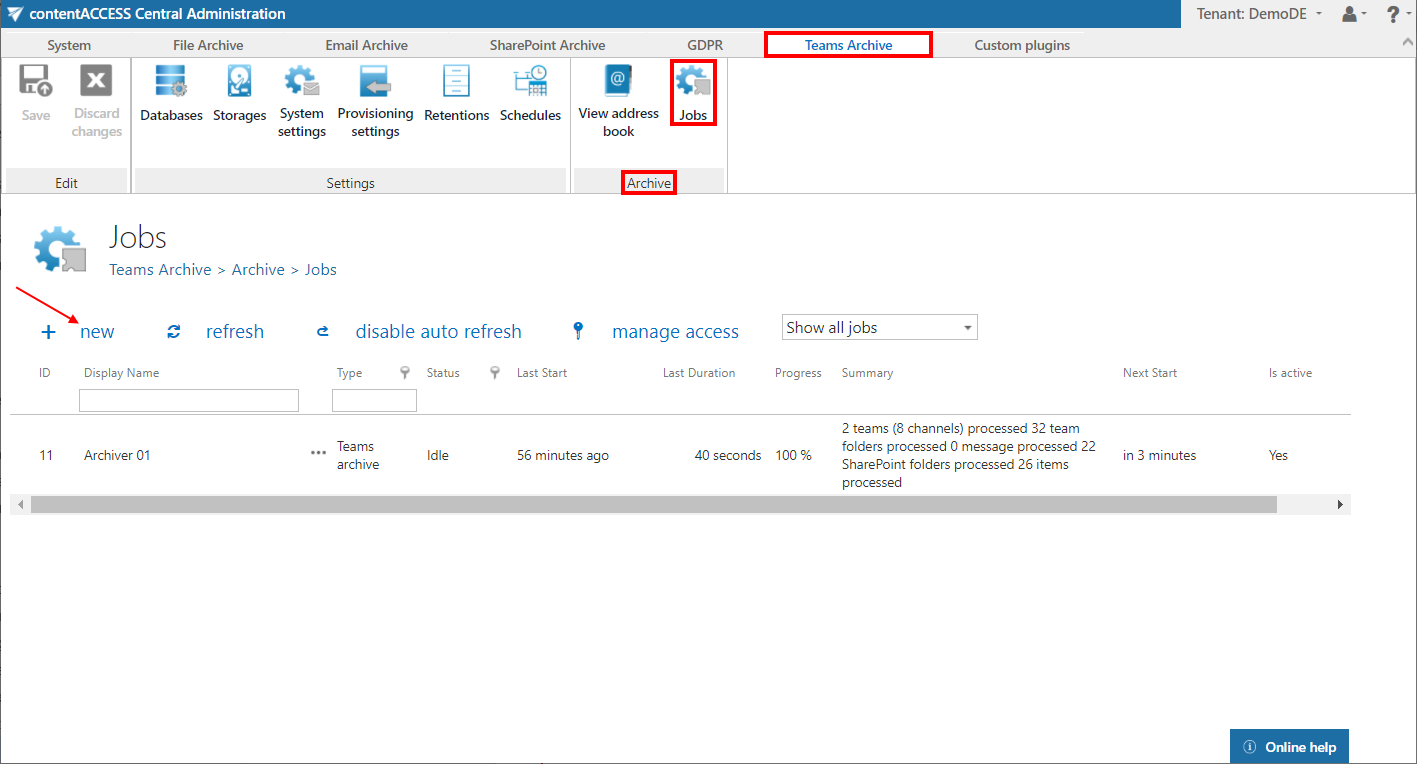
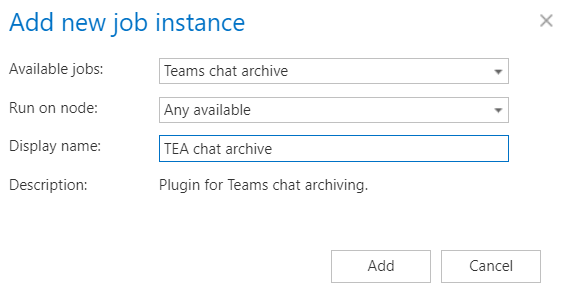
- In the Add new job instance dialog, select Teams chat archive from the Available jobs dropdown list.
- Select the node where the job will run using the Run on node option.
- Enter a Display name for the job.
- Click Add.
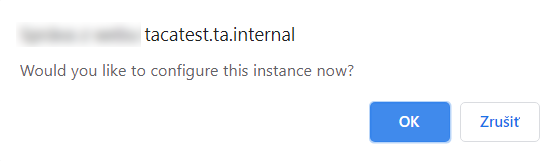
If you want to configure the job immediately, click OK in the pop-up window, and the job configuration page opens automatically. Otherwise, the configuration page can be accessed at any time using the Configure option in the job's context menu.
Configure the job
On the job's configuration page, go through the following sections.
Report mode settings
If the Use report mode checkbox is checked, the job runs in report mode. After the job finishes running in this mode, the user can download a .csv report file in this section. The file contains a list of items belonging to the objects selected in the Address book objects to process section, along with information such as whether each item will be processed or not.

Scheduling settings
Select the running time(s) of the Teams chat archive job. You can either select an existing scheduler from the list or create a new one using the create new … option in the dropdown list. For more information about setting up schedulers, refer to the Schedules page.

Address book objects to process
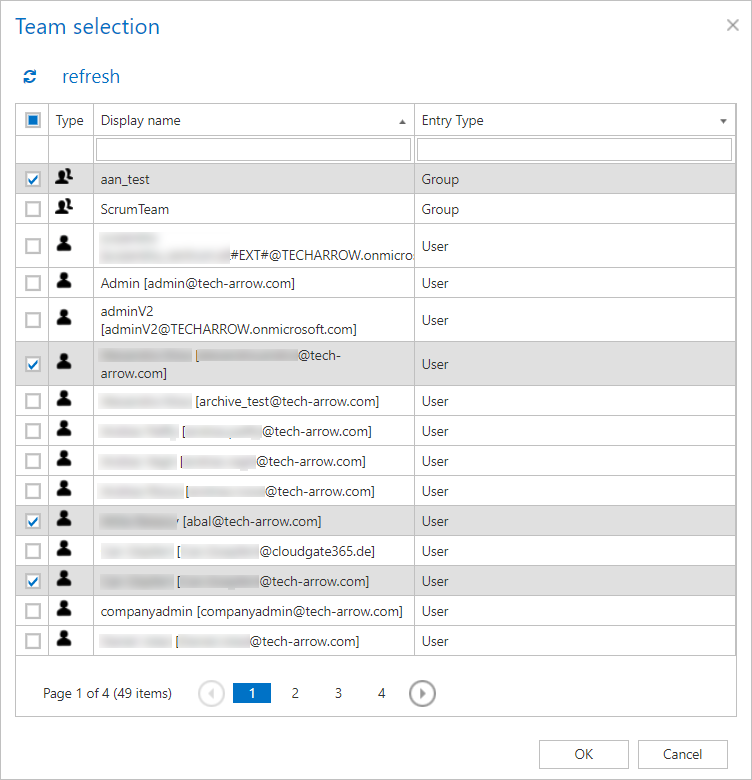
Select the AAD users or groups to be processed by the archive job. The job can run on all users at the same time, or only on selected users.
To select users, click the  select option, check the desired users and groups in the Team selection window, and click OK.

Filtering settings
Define which chats and messages of the selected user(s) will be processed during the archive job. Without filters, the job archives every message and chat for the selected user(s).
To set the filtering settings, click the Change filter or not set button and configure the filtering according to your needs and/or regulations. For more information about working with filtering settings, see the Filtering in jobs page.

-
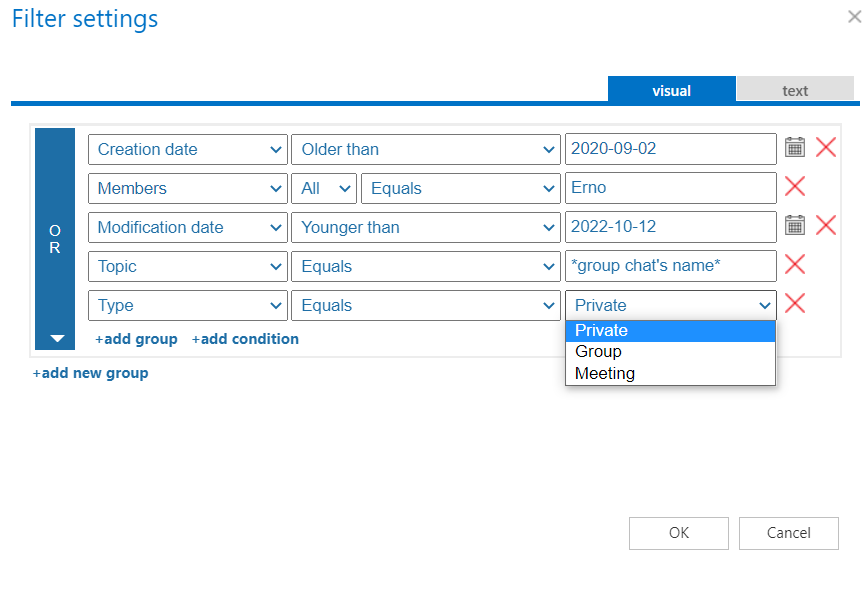
Chat filtering – chats can be filtered based on the following conditions:
-
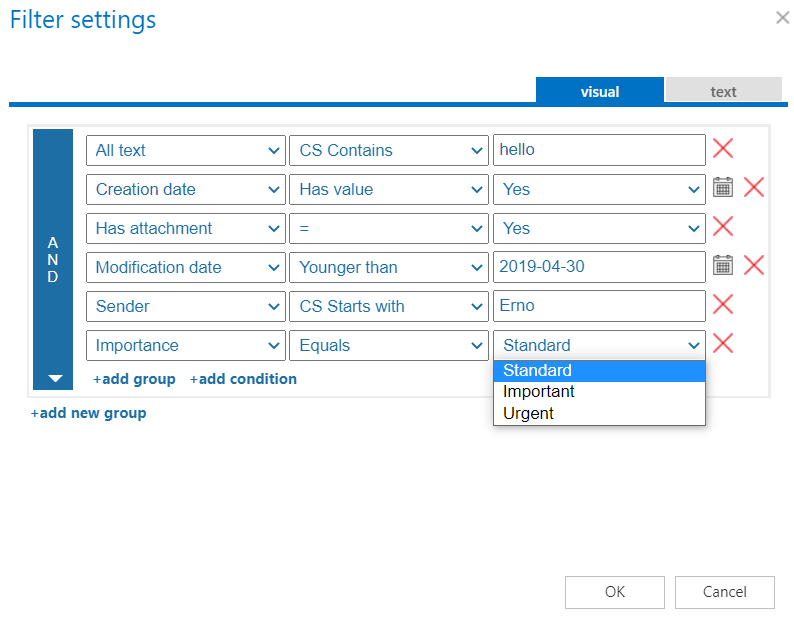
Message filtering – messages can be filtered based on the following conditions:
Retention settings
Choose an already configured retention time from the dropdown list. Archived objects are stored for this period and cannot be deleted during that time. It is highly recommended to select a retention time that complies with the legal requirements of your country. For more information about configuring retentions, see the Retentions page.

Notification settings
Specify when notification emails should be sent from the Teams chat archive job. You can choose to receive notifications always, never, or only when an error or warning occurs during the archiving process — for example, if archiving one or more items failed.
Enter the email address(es) of the recipient(s) in the Recipient list textbox. Notifications should be used if the administrator does not use the System logs feature.

Resource settings
Set the value that determines how many items will be processed simultaneously by the Teams chat archive job. The recommended value is 2.

Save your changes and start the job manually, or wait until the scheduler starts the job automatically.