Teams chat compliance archive job
Introduction
The Teams chat compliance archive job is a backup solution integrated with contentACCESS, similar to the Teams compliance archive job. It serves as a comprehensive content preservation tool designed specifically for archiving deleted messages and their content within Microsoft Teams.
The Teams chat compliance archive job can retrieve messages deleted by users from the Teams client up to 21 days from the time of deletion. This retrieval is made possible through the integration of Teams Export APIs.
- To learn how to export content with the Microsoft Teams Export APIs, refer to the Microsoft documentation.
- For more information about how to enable metered APIs and services in Microsoft Graph, see this article.
Unlike some other archive jobs, the Teams chat compliance archive job does not use report mode or filtering settings. Instead, it runs immediately in real-time mode upon initiation.
This page describes how to create and configure the job, and lists its known limitations.
Create a new job
To configure a new Teams chat compliance archive job:
- Navigate to Teams Archive -> Archive -> Jobs.
- Click +new.
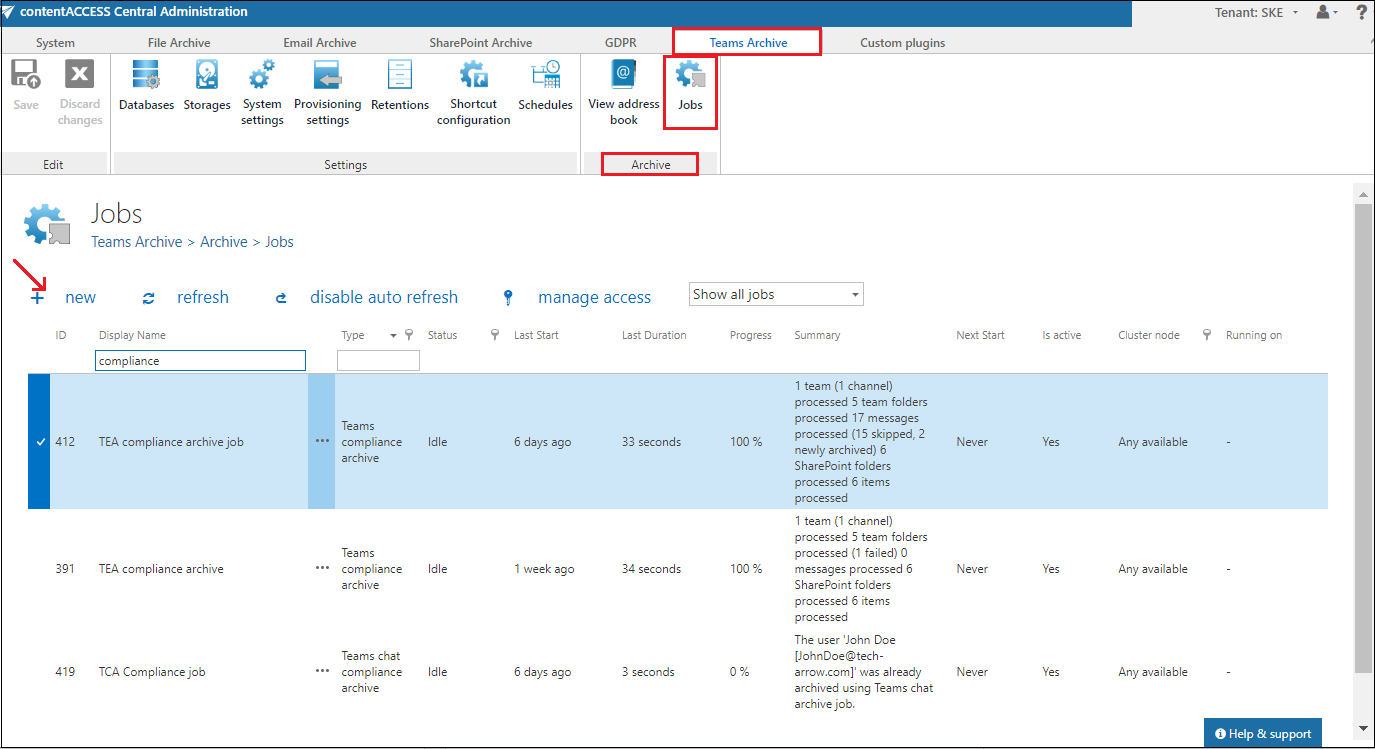
- In the Add new job instance dialog, select Teams chat compliance archive from the Available jobs dropdown list, select the node where the job will run (Run on node), and enter a Display name.
- Click Add.
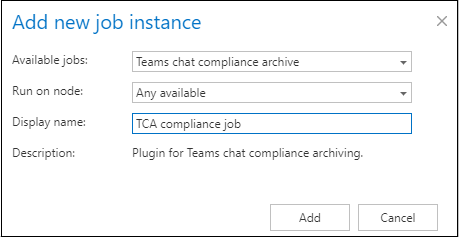
If you want to configure the job immediately, click OK in the pop-up window, and the job configuration page opens right away. Otherwise, the configuration page remains accessible at any time using the Configure option in the job's context menu.
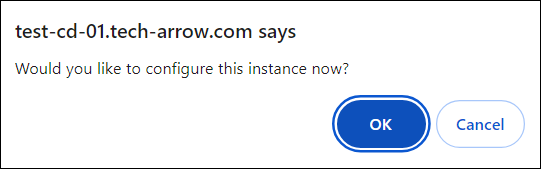
Configure the job
On the job's configuration page, go through the following sections.
Scheduling settings
Select the running time(s) of the Teams chat compliance archive job. You can either select a scheduler from the list or create a new one using the create new … option from the dropdown list. For more information about how to set schedulers, refer to the Schedules section.

Address book objects to process
Select the AAD users or groups that will be processed by the archive job. The job can run on all users at the same time, or only on selected users.

Important: If a chat has already been archived using the Teams chat archive job, it is not possible to re-archive it using the Teams chat compliance job, and vice versa. Attempting to do so will result in an error, and the job won't process anything.
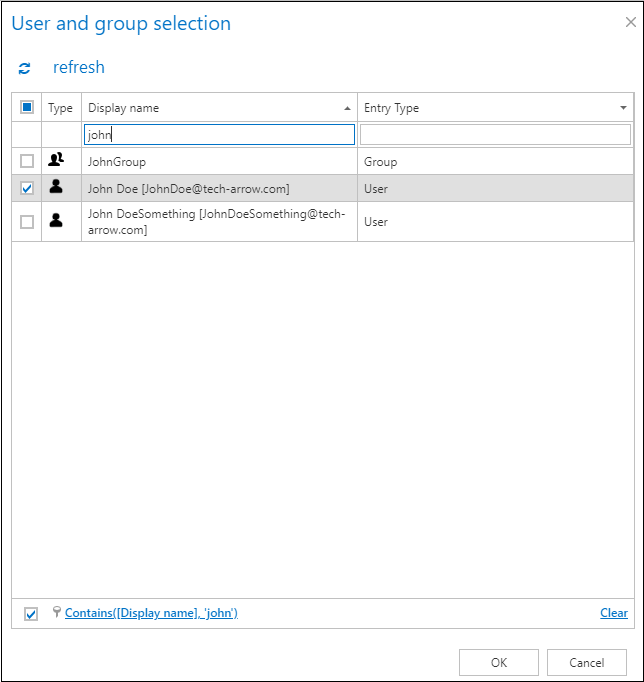
To select users, click the  select option, check the desired users and groups in the Team selection window, and click OK.
Retention settings
Choose an already configured retention time from the dropdown list. The archived objects will be stored in the storage for this time, and it will be impossible to delete them during that period. It is highly recommended to select a retention time that meets the legal requirements of your country. For more information about how to set retentions, see the Retentions section.

Notification settings
Specify when you need to receive notification emails from the Teams chat compliance archive job. You can set the notification to be sent always, never, or only when an error or warning occurs during the archiving process — for example, if the archiving of one or more items fails. In the Recipient list textbox, enter the email address(es) of the person(s) who will receive these notifications. Notifications should be used if the administrator does not use the System logs feature.

Resource settings
Set the value that determines how many items will be processed simultaneously by the Teams chat compliance archive job. The recommended value is 2.

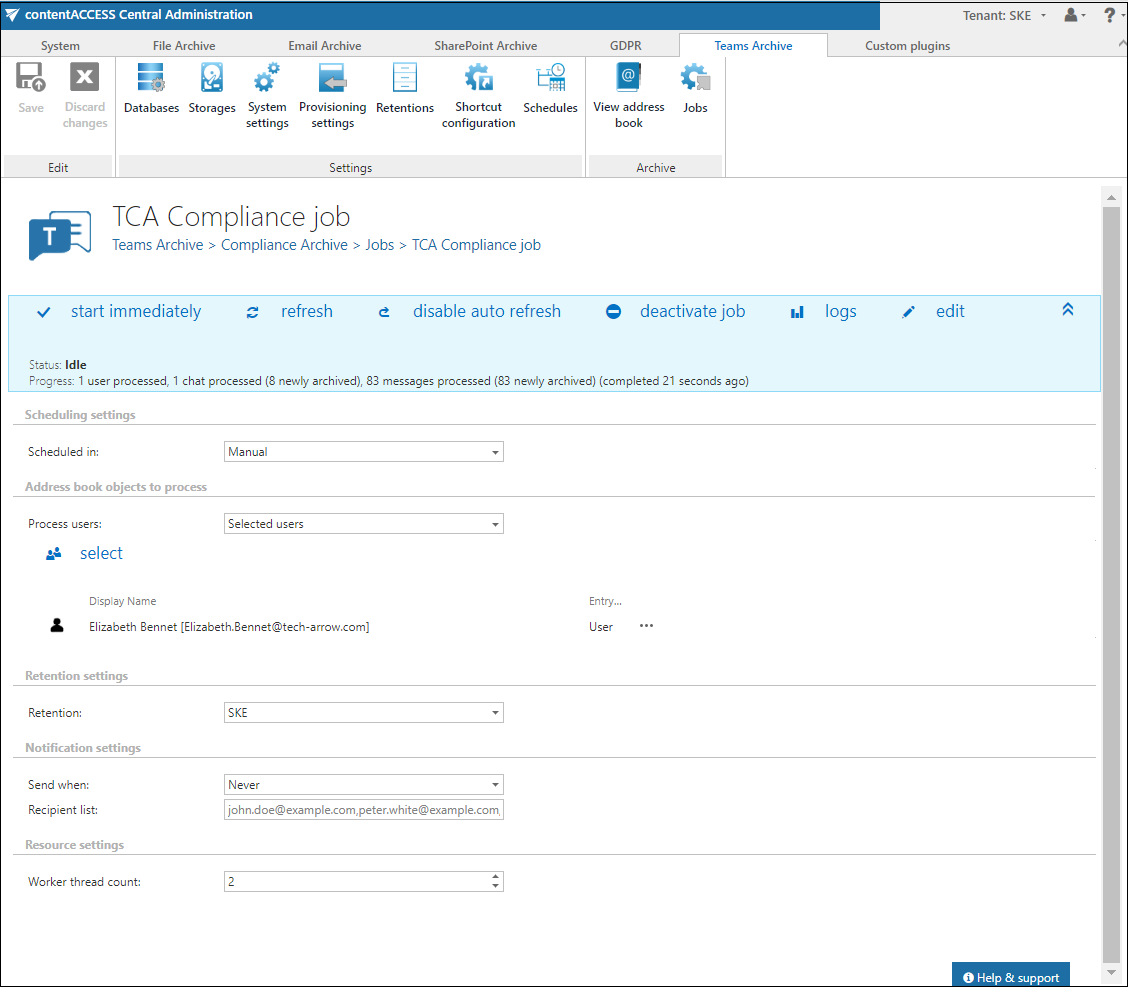
Save your changes, and start the job manually, or wait until the scheduler starts the job automatically.
Known limitations
- The job will not update messages in the archive if a reaction was added to a message after it was initially archived. This is a limitation of the Graph API method used to retrieve Teams messages.
- Processing deleted chats: if an entire chat has been deleted, the Teams chat compliance job will not process this chat, and it will not appear on the Portal. You can only archive deleted messages within an existing chat.
- Hosted content from conversations with external users cannot be archived.