Teams archive System settings
Introduction
The System settings page for Teams Archive allows administrators to configure the core settings required to archive Microsoft Teams data, including database connections, client application credentials, SharePoint access, retention reference dates, and private chat archiving.
To access these settings, navigate to Teams Archive ⇒ Settings ⇒ System settings on the ribbon.
Important: Before configuring the Teams archive, make sure you fulfill the prerequisites for Microsoft 365 archiving.
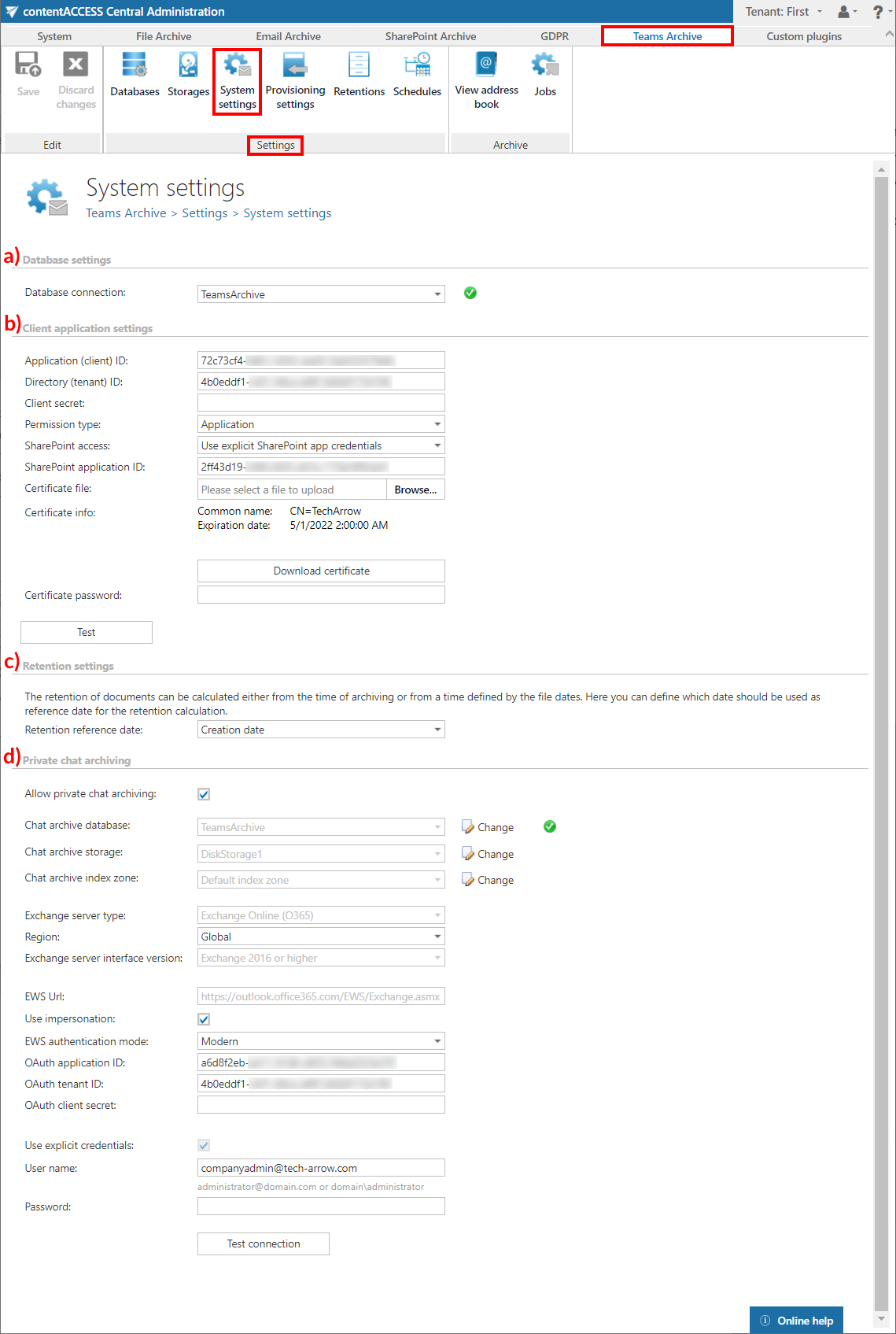
Database settings
Select the Teams archive database from the dropdown list. This database must have been previously configured on the Teams Archive ⇒ Settings ⇒ Databases page (in this example, database MNEtestDB).
The provisioning job uses this database to store metadata during the synchronization process.
Client application settings
This section establishes the connection with the Microsoft Teams application.
- Application ID and Directory ID are automatically generated during the app registration on the Azure portal.
- Client secret can be manually generated in the Certificates & secrets section after the application is registered.
Permission type
The Permission type dropdown list offers two options:
-
Application – Allows you to connect to the Teams endpoint of the Graph API without providing a username and password. To grant this permission type, you must contact Microsoft. For more information, see How to request access to Microsoft Protected API.
The application registered on the Azure portal is used to access the Teams infrastructure, such as teams and channels. By default, this application cannot read channel messages, as doing so requires special permissions approved by Microsoft. If the registered application does not have such permissions, you must enter the credentials (username and password) of a user who can access all the teams to be archived.
The SharePoint account is used to connect to SharePoint, since Teams files are stored in SharePoint.
-
Delegated – If the application permission type is not available, you can specify a user who is able to access all teams to be archived. This superuser must also be the owner of all teams to be archived. The Teams account can also be used to connect to SharePoint, but you have the option to specify explicit credentials for SharePoint access if necessary. With this permission type, private channels are archived only if the specified user is a member of that channel.
SharePoint access
There are two options for SharePoint access:
- Use the Teams app credentials – Select this option if the SharePoint-related permissions and client certificate are added to the Teams app registered on the Azure portal.
- Use explicit SharePoint app credentials – Select this option if the SharePoint-related permissions are registered in a separate app.
When using explicit SharePoint app credentials, configure the following:
- SharePoint application ID: Application ID of the registered SharePoint app. Required when Use explicit SharePoint app credentials is selected.
- Certificate file: The
.pfxfile containing the private and public key of the certificate. This must be the same certificate as the.cerfile uploaded to Azure during app registration. The app can also be registered using this PowerShell script. - Certificate password: The password for the
.pfxfile.
It is recommended to verify the connection by clicking Test.
Retention settings
The date from which item retention is calculated can be selected from the dropdown list. There are three types of retention reference dates:
- Creation date – The date when the item was originally created. If selected, the retention period is calculated starting from when the item was first created.
- Modification date – The date when the item was last modified or updated. If selected, the retention period begins from the last time the item was edited or changed.
- Most recent date – The most recent significant date associated with the item, which could be either the creation date or the last modification date, depending on which is later. If selected, the retention period is calculated from the latest relevant activity on the item.

Private chat archiving
contentACCESS also allows you to archive private Teams chat messages. To enable this, check the Allow private chat archiving checkbox and configure the following settings:
- Chat archive database: Select an already configured database connection from the dropdown list. Chat metadata is stored here. For more information on configuring database connections, see Databases.
- Chat archive storage: Select an already configured storage from the dropdown list. Processed binaries are stored here. For more information on configuring storages, see Storages.
- Chat archive index zone: Set the index zone that will be assigned to items by the archiving job.
Under Exchange server type and Exchange server interface version, select the type and version of the server on which your email provider is running. This is used to access all chat data.
If the user has or uses a German cloud (a dedicated and isolated Microsoft Azure version for Germany), select Germany in the Region dropdown list.
If the predefined settings for Microsoft 365 do not match your expectations or needs, you can select the Custom option from the Region dropdown list and specify your own values.
Choose whether to Use impersonation. By default, this checkbox is turned off. When turned on, the Teams chat archive uses impersonation instead of delegation. Impersonation allows the superuser account to impersonate any other user's account and access their data.
Note: Only accounts with the ApplicationImpersonation role can use impersonation. For more information about configuring impersonation for your account, see this Microsoft page.
If the Microsoft 365 user has a "desktopless" license, their account cannot be used for impersonation, since EWS access is disabled for such users (they are unable to connect to EWS).
Select one EWS authentication mode from the dropdown list. There are two options:
- Basic – An older and less secure authentication method.
- Modern – A more secure and complex authentication method that requires the app (in this case, the Teams archive) to be registered on the Azure portal. For information on how to register the app and obtain the necessary IDs and client secret, see Azure app registration for Microsoft 365 archiving.
Enter the applicable Username and Password to connect to Exchange (use explicit credentials or log in using service credentials). It is recommended to run a test connection using the Test connection button.
Do not forget to click Save to apply your settings.