Virtual drive configurations
Introduction
The Virtual drive configuration page in Central Administration allows administrators to configure the contentACCESS Virtual Drive, including its connection to the contentACCESS server, cache behavior, sharing permissions, and operating mode.
A virtual drive is a virtual file system that presents, or virtualizes, data (files and folders of an actual disk) to the end user. It is a non-existing drive that does not physically exist on the computer but contains the exact structure of the items that have been processed by contentACCESS.
The contentACCESS Virtual Drive was developed by TECH-ARROW and serves as a key access point between the end user and the contentACCESS File Archive. It is a required application for users who have File system Archive and want to use shortcutting. From the Virtual Drive, users can view their archived files, and if they have write access to a file, they can make changes to it by simply opening, editing, and saving it with the associated application. The Virtual Drive detects the change and creates a new version of the file after a short delay (about 30 seconds).
By default, only active items are visible on the virtual drive (active items are items in the archive that have an original file or shortcut in the file system). To also display inactive items, select the Show inactive items checkbox on the Virtual drive configuration page. The virtual drive can also be shared with other users, so they can easily browse for their associated archived files when needed. The original folder and item permissions are applied to the files and folders on the virtual drive, so a user can access only the items for which they have access permissions in the original file system.
Note: If a shortcut pointing to the archived file is opened and edited through the Virtual drive, it must be saved back to the original file location. For more information, see Editing of already archived files, file versions in File system archive.
This page covers:
- opening and loading the Virtual drive configuration
- configuring the contentACCESS server connection (net.pipe, proxy, or direct)
- configuring the connecting user (system user or Windows user)
- configuring the remaining Virtual drive settings
- starting and stopping the Virtual drive
Open the Virtual drive configuration page
After the Virtual Drive has been installed (the link to the Virtual drive setup is available in the Tools section of the contentACCESS setup package), its settings must be configured on the Virtual drive configuration page.
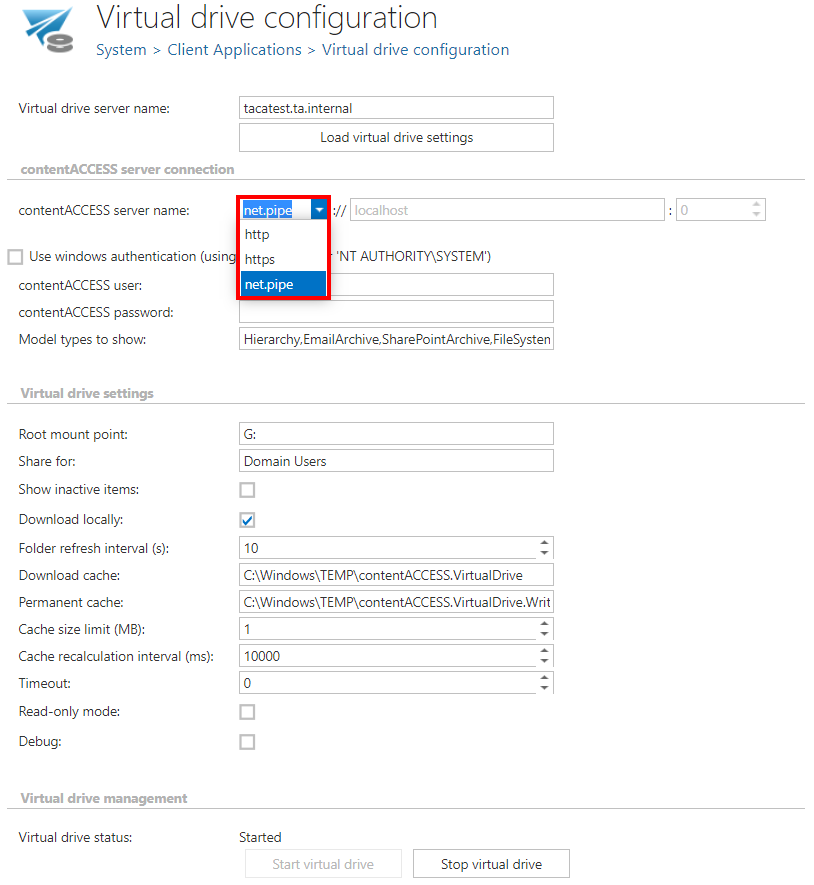
In contentACCESS Central Administration, navigate to System ⇒ Client Applications ⇒ Virtual drive configuration to open this page:

Enter the name of the server on which the Virtual Drive (referred to below as "VD") is installed into the Virtual drive server name textbox. To load the current settings of the VD, click Load virtual drive settings.

Configure the contentACCESS server connection
The Virtual Drive can connect to contentACCESS in one of the following ways:
- net.pipe connection
- through the contentACCESS proxy, using either a secure (HTTPS) or insecure (HTTP) connection
- directly, over an HTTP connection
The net.pipe connection is the fastest communication method between the Virtual Drive and contentACCESS, since it uses shared memory for communication. It is only possible if the Virtual Drive and the contentACCESS server are installed on the same server. In such cases, this is the recommended communication type.
Connecting through the proxy is recommended if the Virtual Drive is installed in the cloud or on a server other than the contentACCESS server. A direct connection (without the proxy) is recommended if the Virtual Drive and contentACCESS are installed on the same server.
Secure communication over the proxy
The proxy must be installed with an HTTPS connection (the HTTPS connection option must be selected during the proxy installation process).
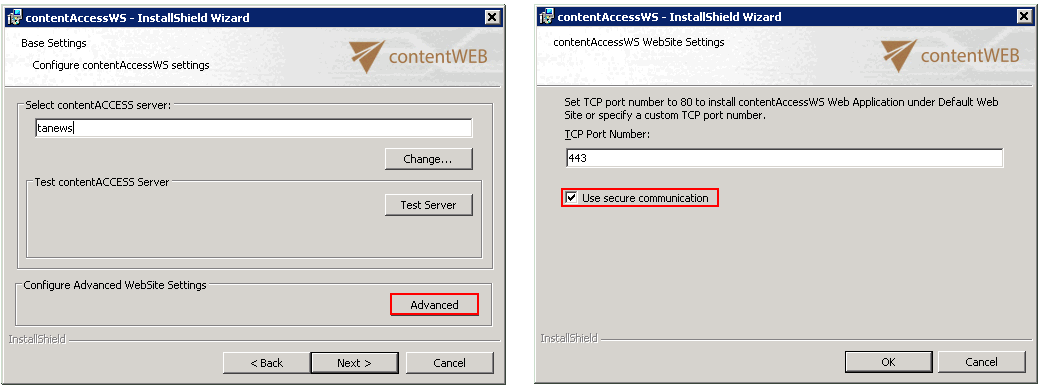
On the Virtual drive configuration page in Central Administration, the connection from the Virtual Drive to contentACCESS must be established over HTTPS, using port 443 in the connection URL.

Direct connection to the contentACCESS server
On the Virtual drive configuration page in Central Administration, select the HTTP connection option when specifying the contentACCESS server name URL. Since the Virtual Drive and contentACCESS are installed on the same server, the localhost URL can be used. Enter 8736 as the port number.

net.pipe connection
Use this configuration when the Virtual Drive and contentACCESS are installed on the same server.

Configure the connecting user
The next step is to specify the user with which the VD will connect to contentACCESS.
To establish the connection with the contentACCESS server, either the contentACCESS system user or a Windows user can be used. The Virtual Drive connects to contentACCESS using these credentials. By default, the contentACCESS system user is used for this connection. If you do not want to change these connection settings, leave the Use Windows authentication checkbox unchecked.
To enable the connection with a Windows account, perform the following steps:
-
When installing the Virtual Drive, specify the Windows user credentials to be used. This VD service (
GATE.contentAccess.VirtualDrive.Service) user will be used to log in to contentACCESS.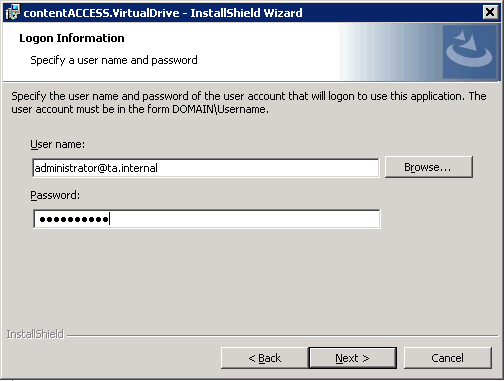
-
In contentACCESS, create the corresponding Windows user login: navigate to System ⇒ Security ⇒ Users, double-click the user, add a Windows user login in the User logins section, and fill in the required fields in the Add new login dialog.

-
On the Virtual drive configuration page, select the Use Windows authentication checkbox:

The main advantage of using a Windows user is that if the system user credentials are changed and the administrator forgets to update the Virtual Drive settings accordingly, the Virtual Drive will be unable to connect to contentACCESS. Using a Windows user avoids this problem.
Configure the remaining Virtual drive settings
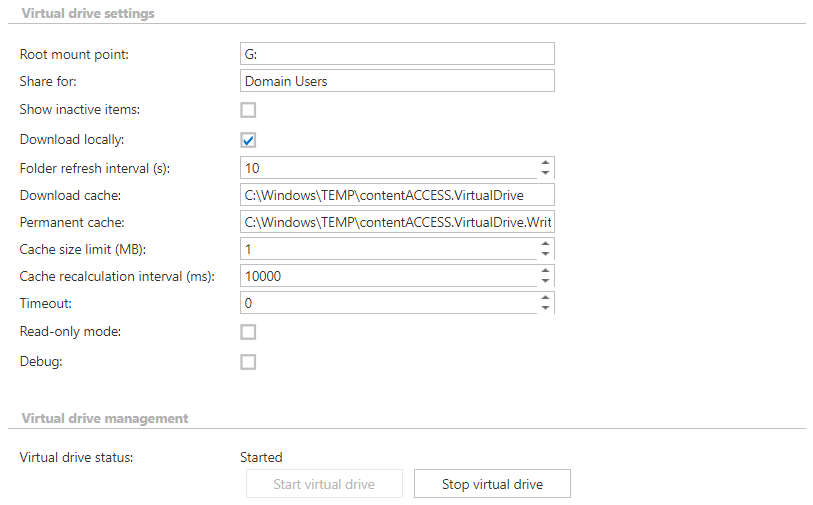
To finalize the VD configuration, configure the following settings. Some of them are set by default and can be left as they are:
-
Root mount point: The available disk to use for the Virtual Drive. By default, this is disk
G, but it can be changed. -
Share for: The Active Directory group for which the Virtual Drive will be shared. It is recommended to specify a domain group that contains all the users who should have access to the Virtual Drive, usually
Domain UsersorEveryone. -
Show inactive items: Determines whether inactive items (items in the archive that do not have an original file or shortcut in the file system) are shown in the virtual drive. By default, only active items are shown.
-
Download locally: contentACCESS data can be stored either as files in the cache or as content in memory. If this option is checked, files are stored in the cache.
-
Folder refresh interval(s): The time interval at which the virtual drive folder is refreshed. Newly archived files become visible in the virtual drive folder after each refresh.
-
Download cache: The folder where the Virtual Drive saves temporary files.
-
Permanent cache: The folder where the Virtual Drive saves all changes. While users are editing files, all changes are stored here until they are committed to the archive. This folder must have plenty of free space.
infoNote: The Permanent cache is used to hold changes until the file is closed or after a set number of seconds of inactivity. Once a new version is created in the archive, the file is removed from the Permanent cache.
It is also recommended to set different folders for the Download cache and the Permanent cache (they can be on the same disk, but in different folders).
-
Cache size limit (MB): When archived data is opened, the processed data is cached to reduce unnecessary operations on the Virtual Drive and to shorten access time to that data, unburdening the VD server. This setting defines the maximum size of data that the Virtual Drive will download and store. For example, this limit can be set to
1MB. -
Cache recalculation interval (ms): The time interval at which the cache is "cleaned". At each interval, the system checks whether the cache size limit has been exceeded.
-
Timeout: The maximum duration for all operations. After this period, an operation is interrupted. A value of
0means the operation will wait indefinitely. -
Read-only mode: If the Virtual Drive is in read-only mode, files cannot be edited and no new versions are created from them.
warningImportant: After this setting is changed and saved, the Virtual Drive must be restarted.
-
Debug: If this checkbox is selected, all detected errors and warnings are written to the
.logfile or to the debug view. It is recommended to enable this option only when troubleshooting issues with the Virtual Drive, since these notifications may otherwise slow down operations.
Virtual drive status
The Virtual drive status shows the current state of the Virtual Drive. Use the buttons below the status to start or stop the Virtual Drive. To connect to the configured drive (for example, the G drive) and start the Virtual Drive, click Start virtual drive.
Do not forget to save the configuration.