Exchange connections
Introduction
Exchange connections define how contentACCESS connects to the Exchange server that hosts the mailboxes to be crawled. Configuring an Exchange connection is required whenever an Exchange-based job is set up.
Exchange connections can be configured in Central Administration in two places, depending on the type of job:
- On the Exchange connections page, for Custom jobs.
- On the System settings page, for Email Archive jobs.
This page describes how to configure Exchange connections in both locations, including authentication modes, impersonation, PowerShell settings, and connection performance options.
Exchange connections for custom jobs
For Custom jobs, Exchange connections are configured on the Exchange connections page (Custom jobs ⇒ General group ⇒  Exchange connections button).
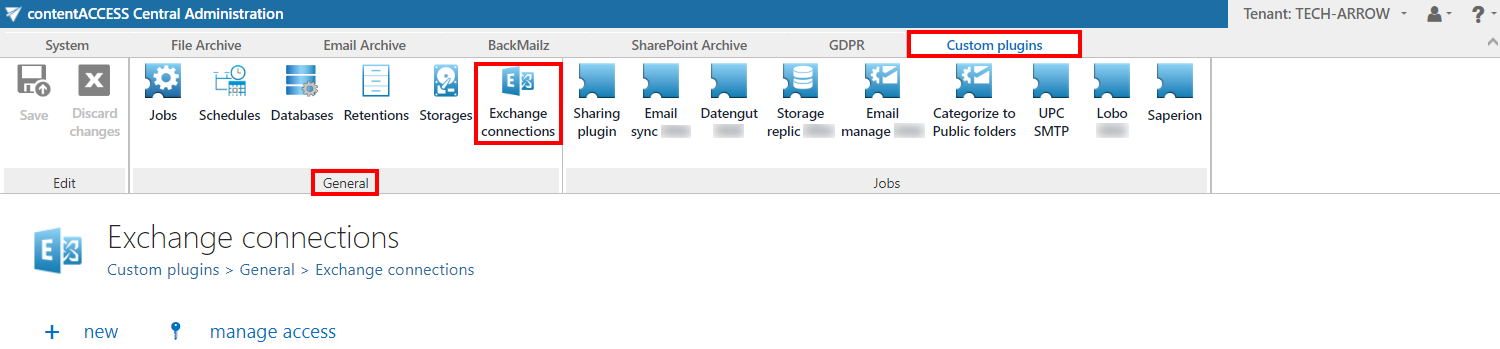
Select + new and specify the necessary data in the Exchange connection repository window. For custom jobs, it is possible to configure multiple Exchange connections.
Note: The + new option above the item list is unavailable to the logged-on user if the "Add repository items" permission on the tenant is not allowed in their role assignment.
The manage access option allows granting access permissions on the selected Exchange connection to a second user. This option is available to the logged-on administrator if their role assignment contains the "Edit repository items – All allowed" permission on the tenant. For more information, see Managing access to contentACCESS objects.
Exchange connections for Email Archive jobs
For Email Archive jobs, the Exchange connection is configured on the System settings page (Email Archive ⇒ Settings ⇒ System settings, under the EWS settings section).
Note: If the user configured as Admin for email archiving has MFA enabled, an app password must be used instead of the regular password in Email archive → System settings → EWS settings.
For Email Archive, either an Exchange Online (Microsoft 365) or an on-premise Exchange server connection can be configured within one tenant. If multiple Exchange server versions are used in a company (for example, both Exchange Server 2013 and Exchange Server 2010), always define the highest Exchange server version in System settings. For more information, see the Mixed Exchange environments chapter.
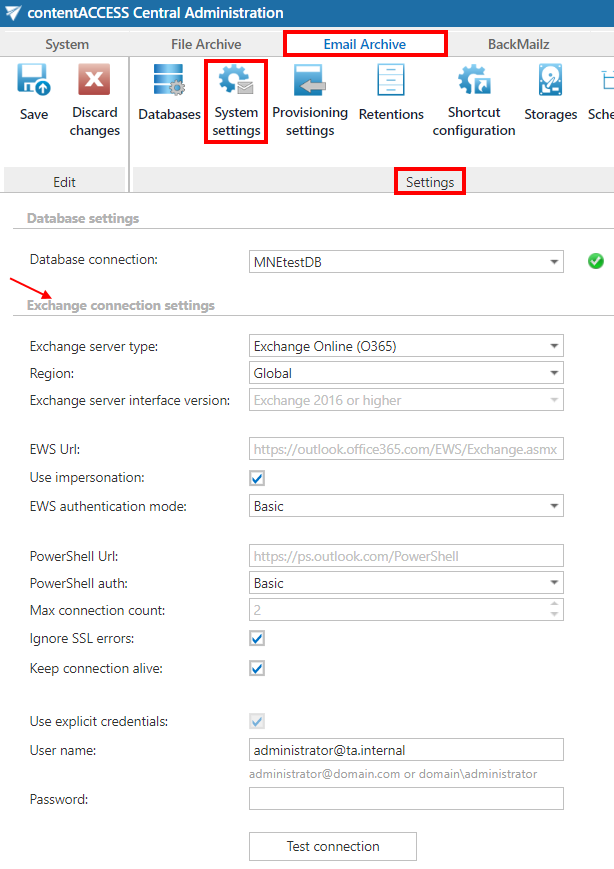
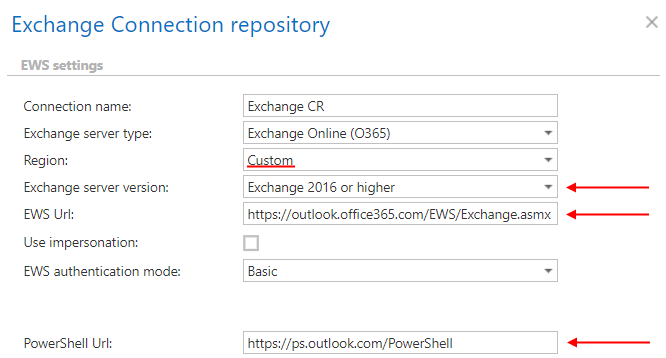
If you are configuring an EWS connection for custom jobs, a Connection name must also be entered in the Exchange connection repository dialog.
Server type and connection settings
-
Exchange server type and Exchange server version: Select the type and version of the server used by your email provider.
-
EWS URL: Enter the EWS URL provided by your email provider.
-
Region: If the user has or uses a German cloud (a dedicated and isolated Microsoft Azure version for Germany), select Germany in the Region dropdown list.
If the predefined settings for Microsoft 365 and PowerShell do not match your needs, select the Custom option from the Region dropdown list and specify your own values.
Impersonation
Use impersonation: By default, this checkbox is turned off. When turned on, impersonation is used instead of delegation (for more information, see this section).
Impersonation allows the superuser account to impersonate any other user's account and access their mailboxes.
Note: Only accounts with the ApplicationImpersonation role can use impersonation. For more information about configuring impersonation for your account, see this Microsoft page.
If the Microsoft 365 user has a "desktopless" license, their account cannot be used for impersonation, because EWS access is disabled for such users (they are unable to connect to EWS).
Authentication
EWS authentication mode: Select one authentication mode from the dropdown list. There are two options:
- Basic: Used by default in previous versions, when no other authentication type could be selected.
- Modern: A more secure and complex authentication method that requires the app to be registered in the Azure portal. For information on how to register the app and obtain the necessary IDs and client secret, see this section.
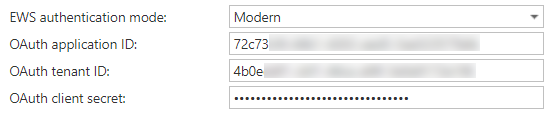
Specify the PowerShell URL and select the PowerShell authentication type. PowerShell can also use Basic or Modern authentication.
The EWS and PowerShell data must be requested from your email provider. The configuration properties are the same for on-premise and hosted Exchange.
Connection performance and reliability
-
Max. connection count: Defines the number of parallel connections maintained by the system when connecting to PowerShell.
-
Ignore SSL errors: When checked, disregards any SSL errors.
-
Keep connection alive: When turned on, the connection between contentACCESS and the Exchange server is cached, which increases performance. If the Exchange environment is load balanced, some requests can land on a different Exchange server, which can cause errors in contentACCESS. In such cases, turning off Keep connection alive destroys the connection after each request and rebuilds it on the next request.
Recommended settings:
- If you are communicating with one Exchange server: turn it on to increase performance.
- If you have a load balanced Exchange environment with communication problems: it is recommended to turn it off.
Credentials
If you want to use an explicit user for the Exchange connection, check Use explicit credentials and enter the User name and Password. Alternatively, you can log in using service credentials, in which case Use explicit credentials must be left unchecked.
Run a test connection using the Test button, and save the changes when finished.
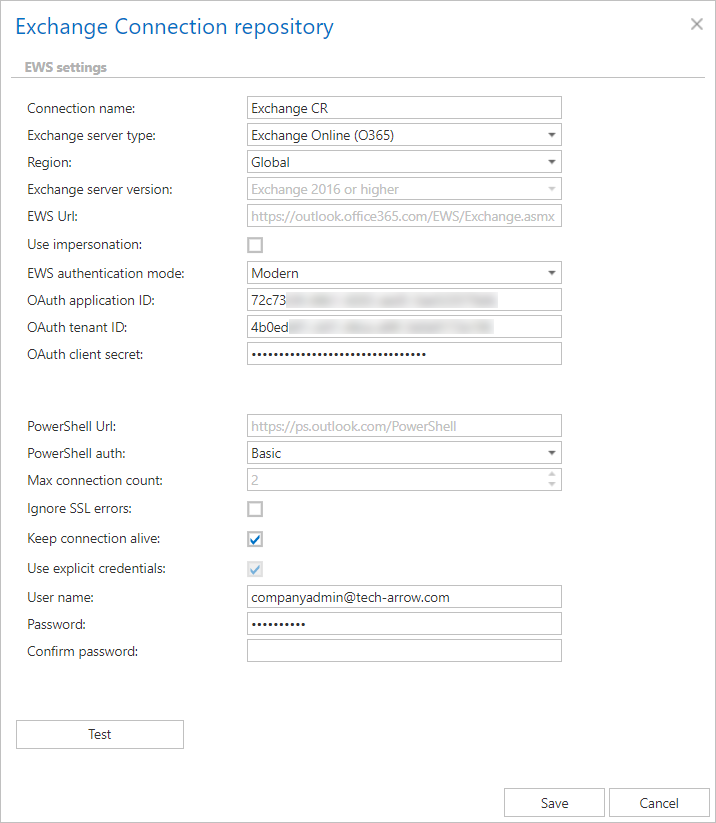 Screenshot: Exchange connection configuration for custom jobs.
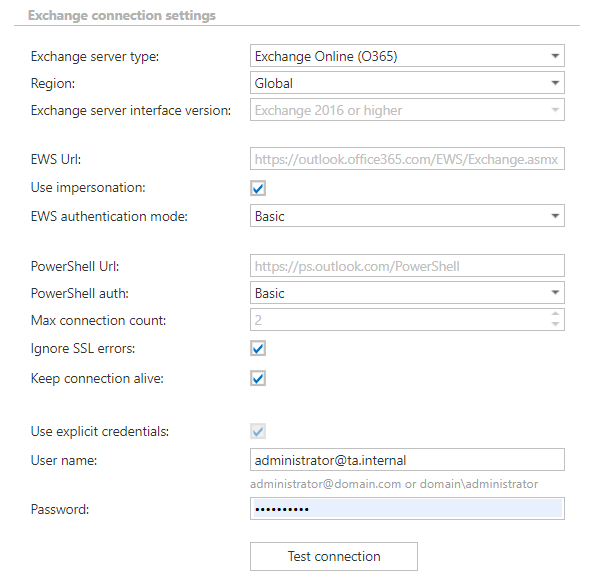 Screenshot: Exchange connection configuration in Email Archive system.
Important: The user configured under Exchange connections must have full access to the mailbox(es) to be archived, unless Impersonation is used. The Provisioning job requires the "View-Only Organization Management" right on Exchange. The roles Org Custom Apps, Org Marketplace Apps, and User Options must be assigned to the EWS user on the Email archive System settings page, in the EWS settings section, if contentACCESS MailApp will also be used. These roles enable an administrator to install and manage custom apps for the organization. Read more about these roles here.
Note: To speed up email archiving processes, TECH-ARROW has implemented the MAPI protocol for communication with the Exchange server. MAPI can be used only if the customer has an on-premise Exchange server (Exchange 2013 or earlier) and uses contentACCESS with an Email Archive license (MAPI cannot be selected for custom jobs). MAPI can be selected only on the Email Archive/restore/recovery job's configuration page. By default, contentACCESS uses EWS settings to connect to Exchange. Some functionalities still require EWS settings, so EWS settings must be configured as well.
Important: Microsoft is retiring Remote PowerShell (RPS) for Exchange Online starting in June 2023. After this date, clients will no longer be able to use the RPS protocol to connect to Exchange Online, which means the contentACCESS configuration must be changed to connect to Exchange Online PowerShell. For more information about the deprecation of Remote PowerShell, see this article.
Solution: contentACCESS can use modern authentication to connect to Microsoft 365 Exchange Online. This requires an Azure App registration to be configured on the Microsoft 365 tenant. The procedure for creating the App registration is described in this chapter.
For more information about configuring contentACCESS to use modern authentication for PowerShell on Exchange Online, see this section of the manual.
Related topics
- Managing access to contentACCESS objects
- Region setting (German cloud)
- PowerShell scripts for setting up Email Archive
- Azure App registration for Microsoft 365 archiving
- Email archive System settings
- contentACCESS MailApp in OWA 2013 or on MS Outlook 2013 desktop version
- How to reconfigure your Email Archive to use modern authentication for PowerShell