Importing contentACCESS configurations from files
Introduction
The Import feature in contentACCESS allows administrators to add configuration data from files instead of entering each entry manually. This simplifies populating configuration sections with large amounts of data.
contentACCESS supports importing from the following file formats:
- CSV
- XML
- Tab delimited files
- Space delimited files
When importing, administrators can choose whether existing items should be overwritten, updated, or skipped. A sample file can also be downloaded to verify that the file to be imported contains all the columns required by the respective configuration section. Column names are displayed in the sample file when the First row is header option is enabled in the importer dialog.
After browsing to the file and configuring the importer, the file can be uploaded. Once uploaded, the file's columns can be mapped to the importable entry's fields by dragging the column headers. When the mapping is finished, the newly imported entries are added to the configuration section.
This page describes which configuration sections support importing from files and explains the general procedure for importing a file.
Important: When importing Email archive and Email restore configuration sections, it is highly recommended to define the mailbox folders to be imported using wildcards (for example, %INBOX%). Wildcards ensure that the given mailbox folder (for example, the "INBOX" folder) is processed regardless of the mailbox's language settings. This is particularly important for companies archiving mailboxes in different languages.
Since the backslash (\) is used as a path separator, it cannot be used in folder names. If a folder name to be included or excluded contains a backslash, enter it as \_|\_ instead of \.
Configuration sections that support importing folders
contentACCESS allows importing folders to be archived, restored, recovered, or excluded in the following configuration sections.
File archive, File restore, and File recovery jobs
The import option is available on the respective job configuration page, under the Folders to process and Exclude folders sections:

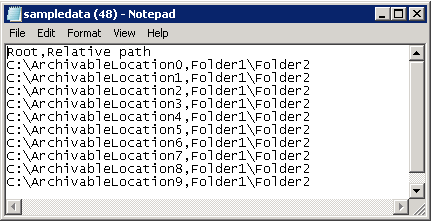
An importable file for Folders to process contains the following columns:
- Root – mandatory
- Relative path – nullable
Example of a CSV file:
An importable file for Folders to exclude contains the Exclude pattern column. For example, if a folder called "test" needs to be excluded, the CSV file looks like this:

Email archive, Email restore, and Email recovery jobs
The import option is available on the respective job configuration page, under the Exclude folders and Exclude addresses sections:


An importable file for Excludable folders contains the Exclude pattern column. For example, if a mailbox folder called "test" needs to be excluded, the CSV file looks like this:
An importable file for Exclude addresses contains the following columns:
- Address(es) to include
- Exclude type(s) – Sender/Recipients/All
Example of a CSV file:

File Archive provisioning job
The File Archive provisioning job, used to synchronize Active Directory users with contentACCESS, also uses this feature to import the objects to be provisioned:

The importable file must include the following columns:
- Name
- Object type
Example of a tab delimited file:

Other importable configurations
-
The root folders used in File Archive can also be imported into contentACCESS from files. For more information, see Importing File Archive root folders to be archived.

-
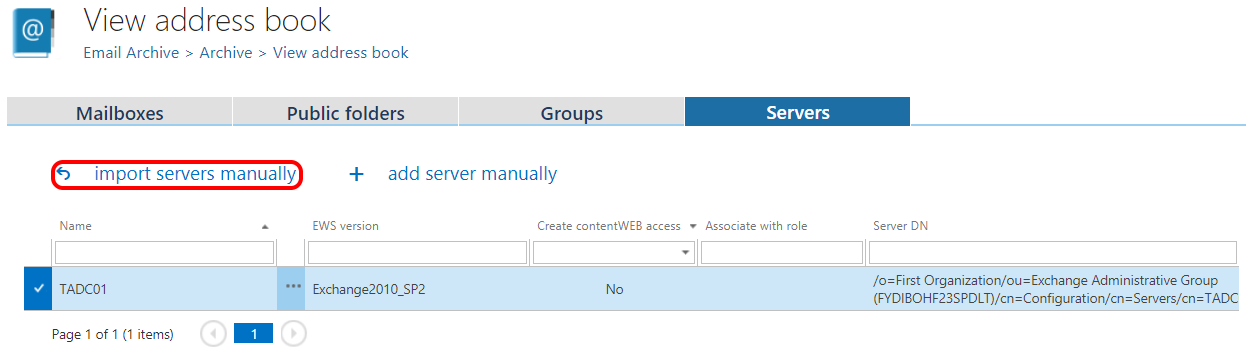
Servers, groups, and mailboxes can be imported from files into the contentACCESS Address book using the Import servers manually, Import groups manually, and Import mailboxes manually options on the respective tabs. For more information, see Manual import of Exchange servers, groups, mailboxes to the contentACCESS Address book.
Import a file
To import a file, follow these steps:
-
Click the Import button on the respective configuration page. The importer dialog opens.
-
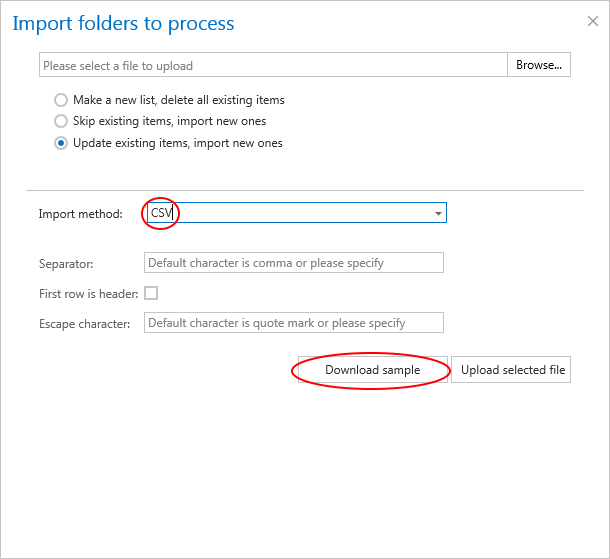
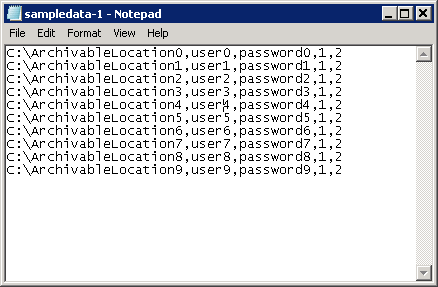
From the Import method dropdown list, select the import method to be applied (for example, CSV) and download a sample file using the Download sample option. Based on the sample file, prepare the file to import and verify that it contains all the information required for the respective configuration section.
-
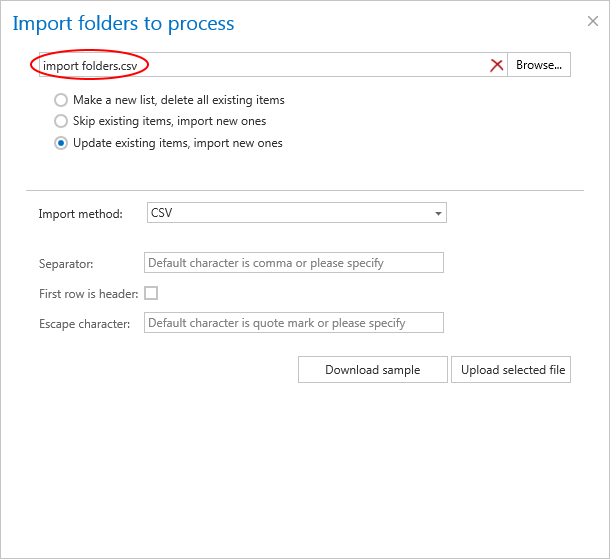
Click Browse and locate the file to be imported. (In the example below, a CSV file has been selected.)
-
Specify how the selected file should be imported. Choose one of the following options (available options are configuration-specific; not all options are available for every configuration):
- Make a new list, delete all existing items – creates a completely new list of items; any already configured items are deleted.
- Skip existing items, import new ones – adds the new items from the list; already configured items are skipped.
- Update existing items, import new ones – available for importing root folders from files; use this option if a password has changed and needs to be updated.
-
Depending on the selected import method, specify the following settings:
-
CSV: Specify the CSV separator (for example, a comma). If the first row in the CSV file is a header, select the First row is header checkbox. Also specify the escape character, if one is used in the file (for example, quotation marks).

-
Tab delimited file: If the first row of the file is a header, select the respective checkbox. Also specify the escape character, if one is used in the file.

-
Space delimited file: If the first row of the file is a header, select the respective checkbox. Also specify the escape character, if one is used in the file.

-
XML: No further settings are required.

-
-
Click Upload selected file to upload the file with the desired items.
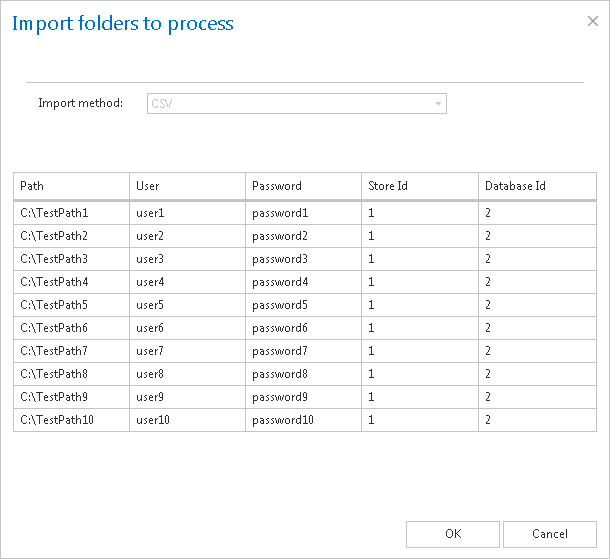
-
Click OK. The list of imported items is added to the respective section.
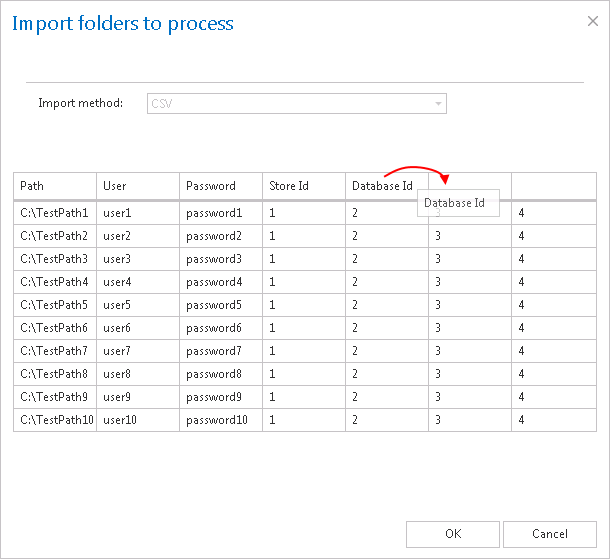
In a file containing multiple columns, you can specify which column should be imported by dragging and dropping the column header (in the example below, the Database ID header) over the respective column that should be imported.