Retentions
Introduction
The Retentions page allows administrators to view already configured retentions and set up new retention times to be used by processing jobs. Retention times define how long archived documents must be kept before they are eligible for deletion, helping organizations comply with country-specific legal requirements or internal company regulations.
The Retentions page can be accessed from:
- Email Archive ⇒ Settings ⇒ Retentions
- File Archive ⇒ Settings ⇒ Retentions
- SharePoint Archive ⇒ Settings ⇒ Retentions
- Custom jobs ⇒ General ⇒ Retentions
Only retentions configured on the Retentions page can be selected when configuring a processing job.
Retention time
Retention time represents the period of time for which a document should be kept, or "retained," electronically. Retention requirements differ between countries, so it is recommended to set a retention time that complies with the requirements of the competent organization in your country or with your company's internal regulations.
During the retention time, documents cannot be deleted by the Delete job, nor manually from the archive. Once the retention time expires, documents can be deleted by the Delete job, but they must first be marked for delete in contentACCESS Portal.
Note: If the Delete even if not marked for delete checkbox is checked in the Delete job configuration, expired items will be deleted without needing to be marked for delete.

Unprotected retention time
Unprotected retention time represents the period of time during which a document will not be deleted automatically by the Delete job, but can still be deleted manually.
Once the unprotected retention time expires, the item can be deleted by the Delete job without needing to be marked for delete in contentACCESS Portal.
Reference date
The reference date determines the starting point from which retention time is calculated, and is set in the system settings of each archive:
- Email archive: only Sent date is available as the reference date.
- File archive: Creation date, Modification date, or Last date.
- SharePoint archive: Creation date, Modification date, or Last date.
Create a retention
To set up a new retention:
- Click + new.
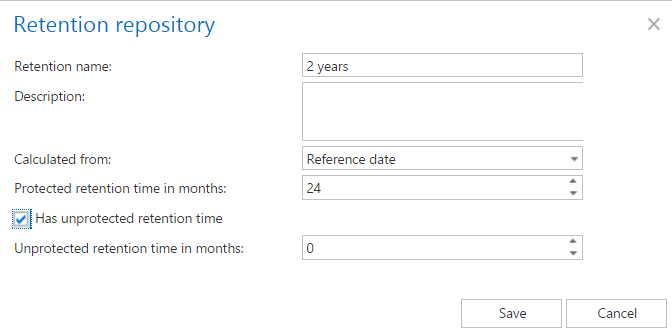
- In the Retention repository dialog, enter the Retention name.
- Fill in the Description.
- Choose whether the retention will be calculated from the Archivation date or the Reference date.
- Set the Retention time in months.
- If applicable, check the Has unprotected retention time checkbox and set the corresponding time in months.
- Click Save.
Manage retentions
Existing retentions can be modified, deleted, or set as default from the retention's context menu, accessed by clicking … next to the retention's name.
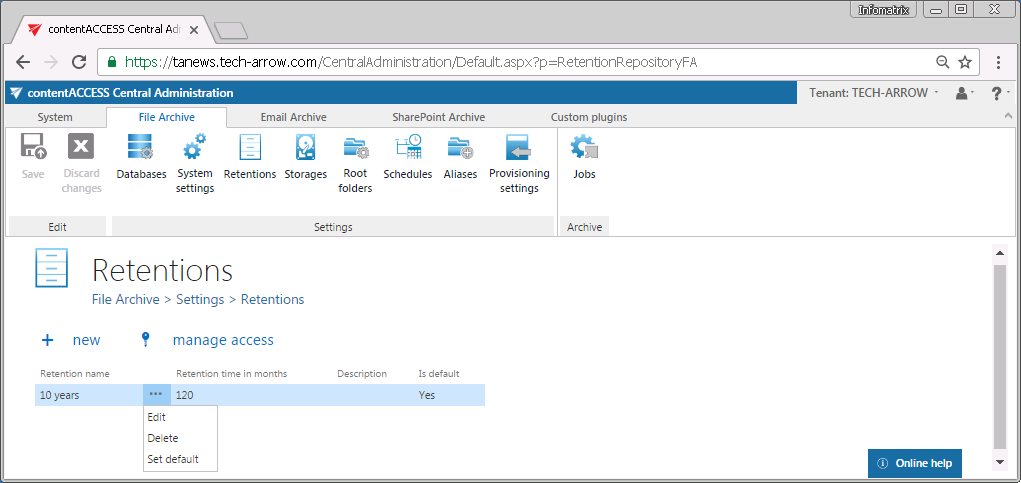
Default retentions are used for manual archiving or manual restoring of emails directly from the mailbox.
Note: The + new option above the item list is unavailable to the logged-on user if the Add scheduler permission is not allowed in their role assignment on the tenant.
The manage access option allows granting access permissions on the selected scheduler to a second user. This option is available to the logged-on administrator if their role assignment contains the Edit scheduler – All allowed permission on the tenant. Read more in Managing access to contentACCESS objects.