Wasabi storage
Introduction
Wasabi storage is an Amazon S3-compatible storage type that can be configured in contentACCESS to store archived or backed-up data. Wasabi is a high-performance, cost-effective cloud storage service positioned as a direct alternative to Amazon S3, offering highly durable and scalable object storage with a simple pricing model, free from egress fees or API request charges often associated with other cloud providers.
Wasabi is an excellent storage option for contentACCESS, especially for managing archived or backed-up data. With its combination of scalability, cost-efficiency, and robust security features, Wasabi ensures that valuable data is safely stored and easily accessible whenever needed. Its Amazon S3 compatibility allows seamless integration with contentACCESS, leveraging existing workflows and configurations to create a reliable and efficient data archiving solution.
The storage demands of modern businesses often include the need for cost-efficient yet high-performance options. Wasabi excels in these areas by providing a storage platform designed for large-scale archiving and backup tasks. contentACCESS users can leverage Wasabi to keep archived or backed-up data organized, safe, and accessible over the long term, aligning with best practices for data compliance, governance, and disaster recovery.
This page describes how to configure a Wasabi storage in contentACCESS.
Note: For more details about Wasabi's capabilities, features, and configuration options, visit the official Wasabi website and its documentation section.
Configure the Wasabi storage
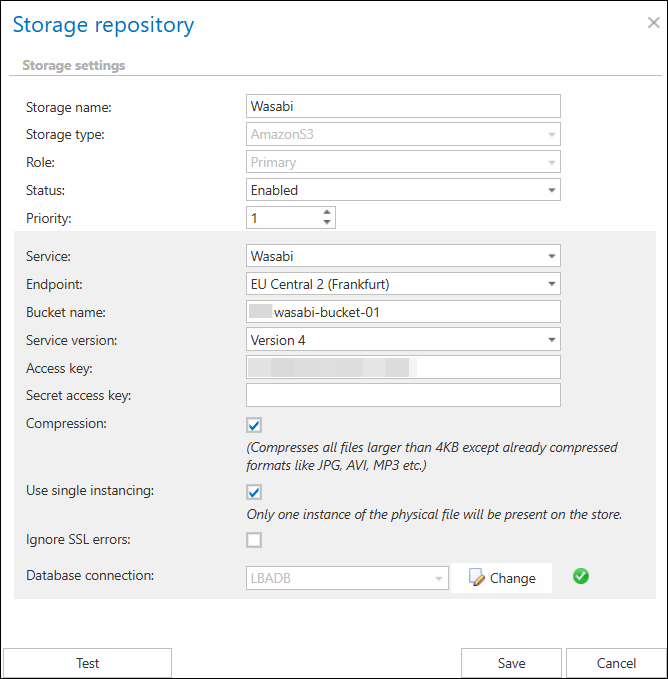
Set the following general storage properties:
- Storage name: A descriptive name for the storage.
- Type: Select Amazon S3.
- Role: None or Primary.
- Status: Enabled, Disabled, Unavailable, or Removed.
- Priority: The priority of the storage relative to other configured storages.
Note: For more information about Role and Status, refer to the Storages chapter of the documentation.
Once the storage Type (Amazon S3) is selected and the Role and Status are set, choose Wasabi from the service dropdown menu. In contentACCESS, the service endpoints for Wasabi are preconfigured, but you can choose a more fitting option from the menu if needed.
Next, configure the Wasabi-specific settings:
- Bucket name: The name of the bucket created on the Wasabi store.
- Version: Specifies which communication version to use for the service endpoint (the service version is specified by the endpoint service). For Wasabi, service version 4 must be selected.
- Access Key and Secret Access Key: Required to authenticate with Wasabi storage. These are provided when an access key is created in the Wasabi Console.
This storage type also supports compression and single instancing, which can save a significant amount of space.
Always use the Test button to verify the connection to the Wasabi bucket. Once the test succeeds, click Save to finalize the setup.