Central login page
Introduction
The Central login page is a separate component included in the contentACCESS installation package. It provides a unified authentication entry point for all contentACCESS applications and enables the use of third-party and social login providers, such as Windows, Google, and Microsoft 365.
The Central login page allows users to authenticate once and access multiple contentACCESS applications, supports single sign-on and social login providers, and provides users with a profile page to manage their login sessions and accounts. This page describes the deployment options, features, and configuration of the Central login page.
Deployment
The Central login page can be deployed:
- On the same server as the contentACCESS server, or
- On any other server, separately from the other contentACCESS components.
It is a mandatory component that enables login through third-party and social login providers. Using this page, users can log in to the respective application with their Google, Microsoft 365, Windows, or other supported account:
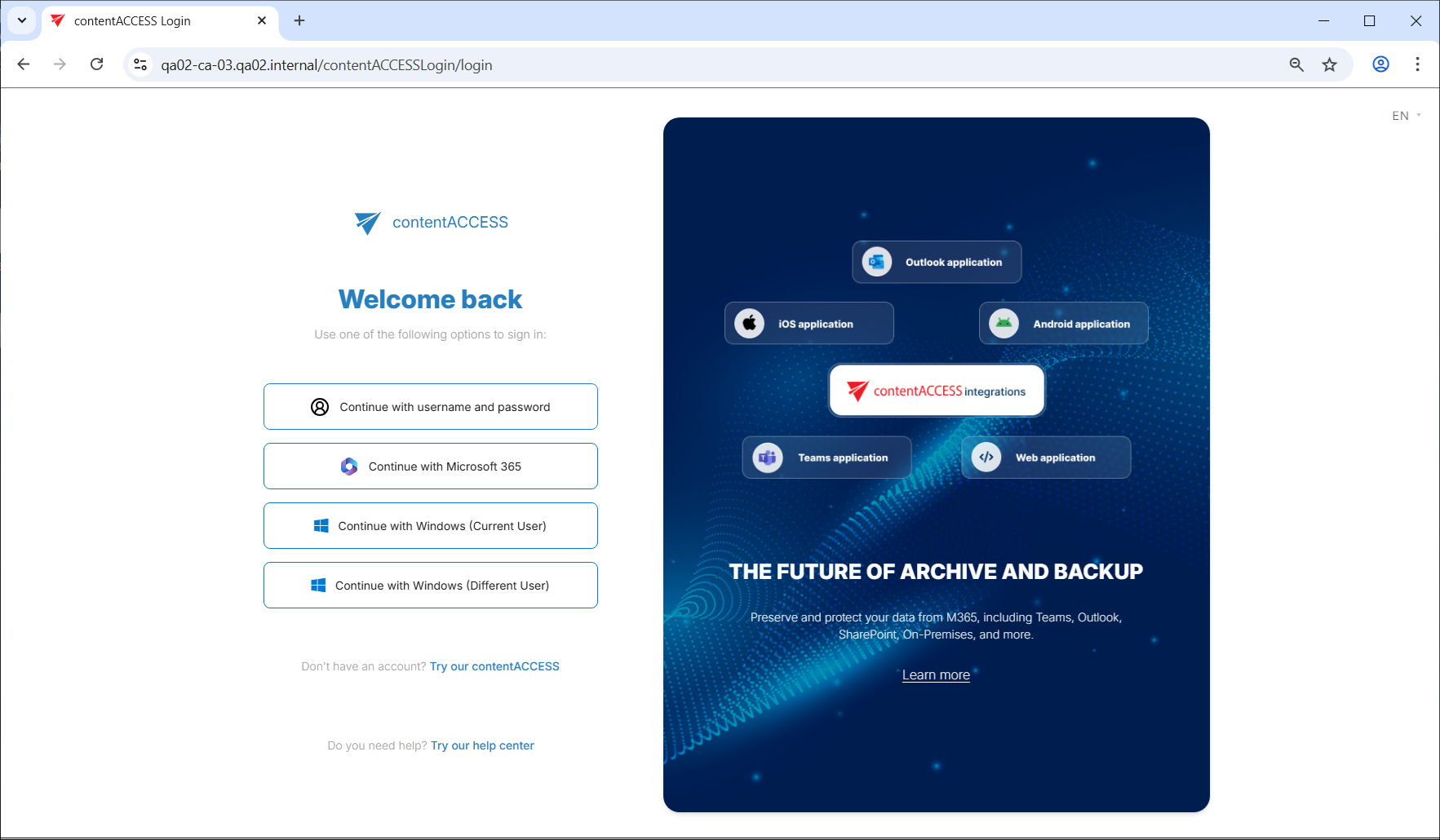
The component uses the standard OAuth protocol. Any other client application that supports OAuth-based authorization can also be authorized by contentACCESS.
Central login page features
-
Long term login: Using the Remember me option, the logged-in user is remembered for up to 3 months. This ensures that the user is not required to log in every time they access the application.
-
Disabling application(s): Login to contentACCESS can be disabled for specific applications. For example, by disabling officeGATE while leaving contentACCESS Portal enabled, the company allows end users to browse the contentACCESS archive only through contentACCESS Portal, while the connection between officeGATE and that contentACCESS installation remains disabled. For more information, see Application settings.
-
Social authentication support: Google, Facebook, and Microsoft 365 are supported.
infoNote: You still need to register with these social providers yourself. For more information, see External login provider configuration.
-
Automatic login provider (single sign-on): The Central login page first attempts to authenticate the user with the login provider set to automatic. If authentication is successful, the user is automatically redirected to the desired application. For more information, see contentACCESS Automated single sign on.
-
User invitation support.
-
Language selector: The login page includes a language selector. Currently supported languages are English, German, Hungarian, and Slovak.
-
Try our contentACCESS link: Located below the login providers. Users without an account can click this link to be redirected to the TECH-ARROW store, where they can learn more about the available products.
-
Try our help center link: Provides access to the documentation and allows users to interact with the AI assistant for additional information.
After login
After logging in, the user is either:
- Automatically redirected to Central Administration or another application (if they were previously working there and the URL still points to it), or
- Redirected to the Login Successful page, which displays the applications available to the user.
At the bottom of the Login Successful page, the logged-in user is shown along with two actions: My profile and Change user.
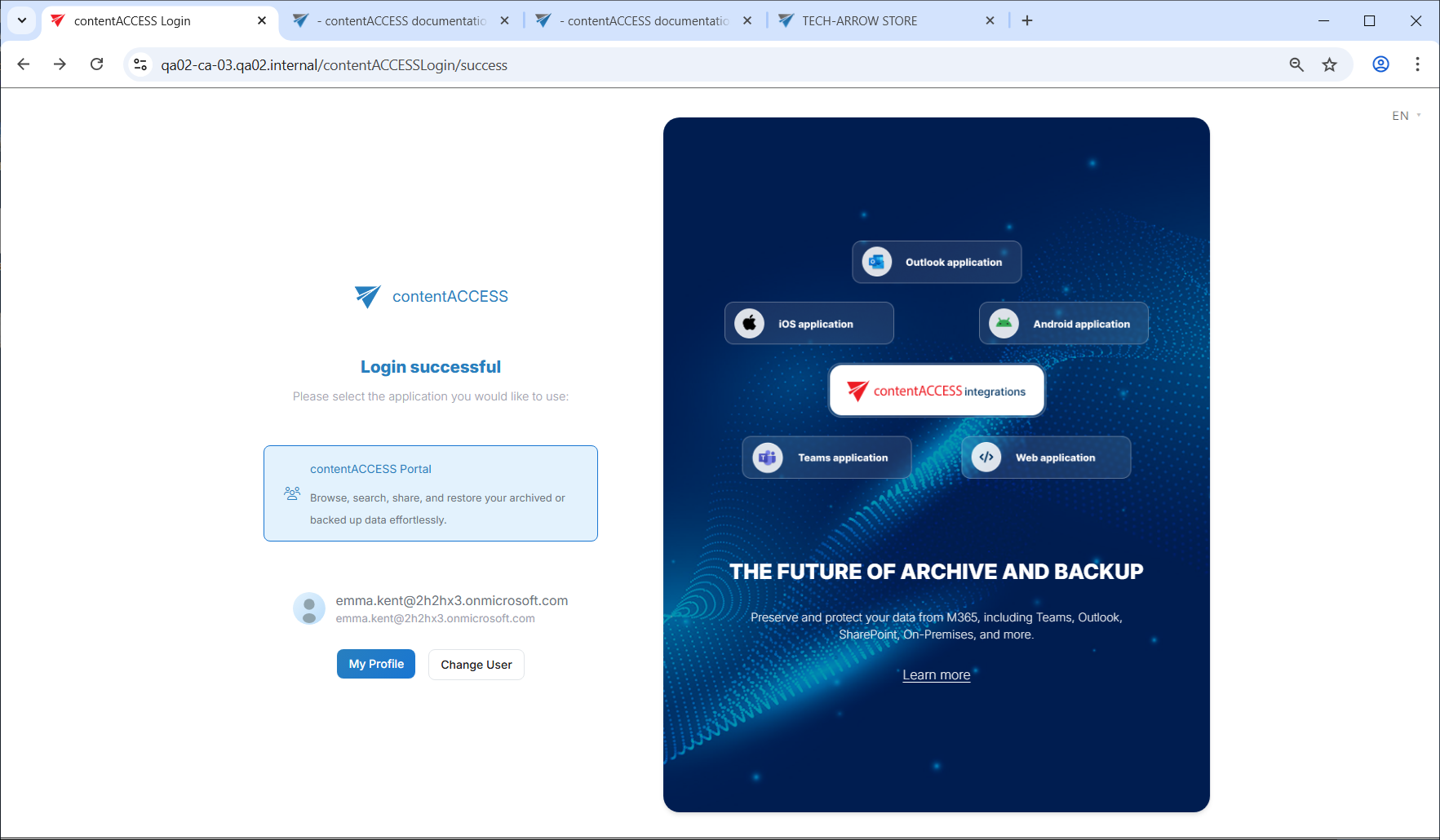
- The Change user button logs out the currently signed-in user and redirects back to the main login page.
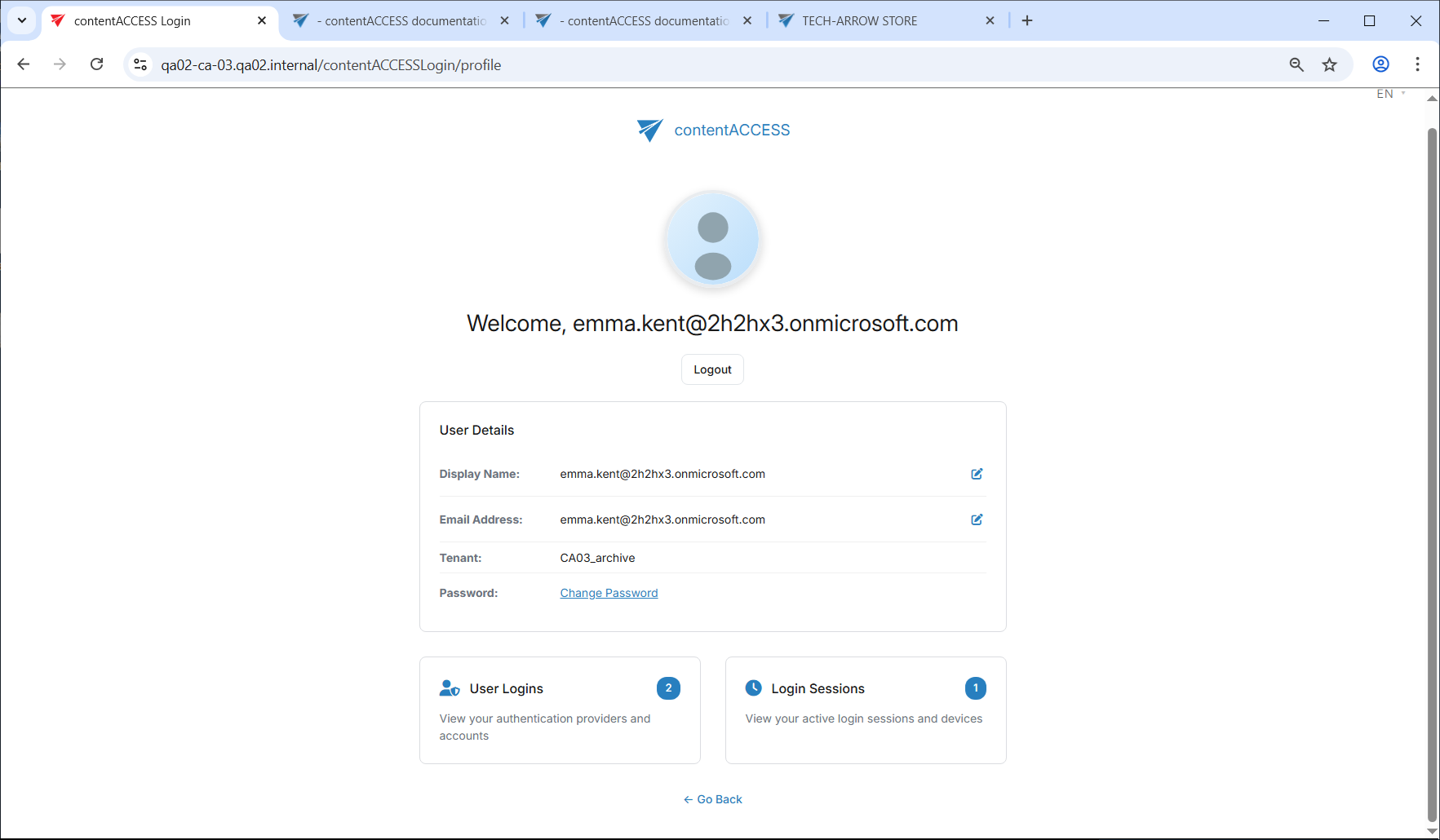
- The My profile button opens a page with three sections:
- User details – Basic information and the option to change the password.
- User logins – View associated authentication providers and accounts.
- Login sessions – View active sessions and devices.
Central login configuration
The Central login page is accessible at the following address:
http://[CentralLoginUrl]/contentACCESSLogin
The physical port of the page in IIS, the application URL settings of the Central login page, and the connection settings between the Central login page and the contentACCESS server are configured during the initial installation of the product and are written to the database by the setup package. These values can be changed:
- By updating the product:
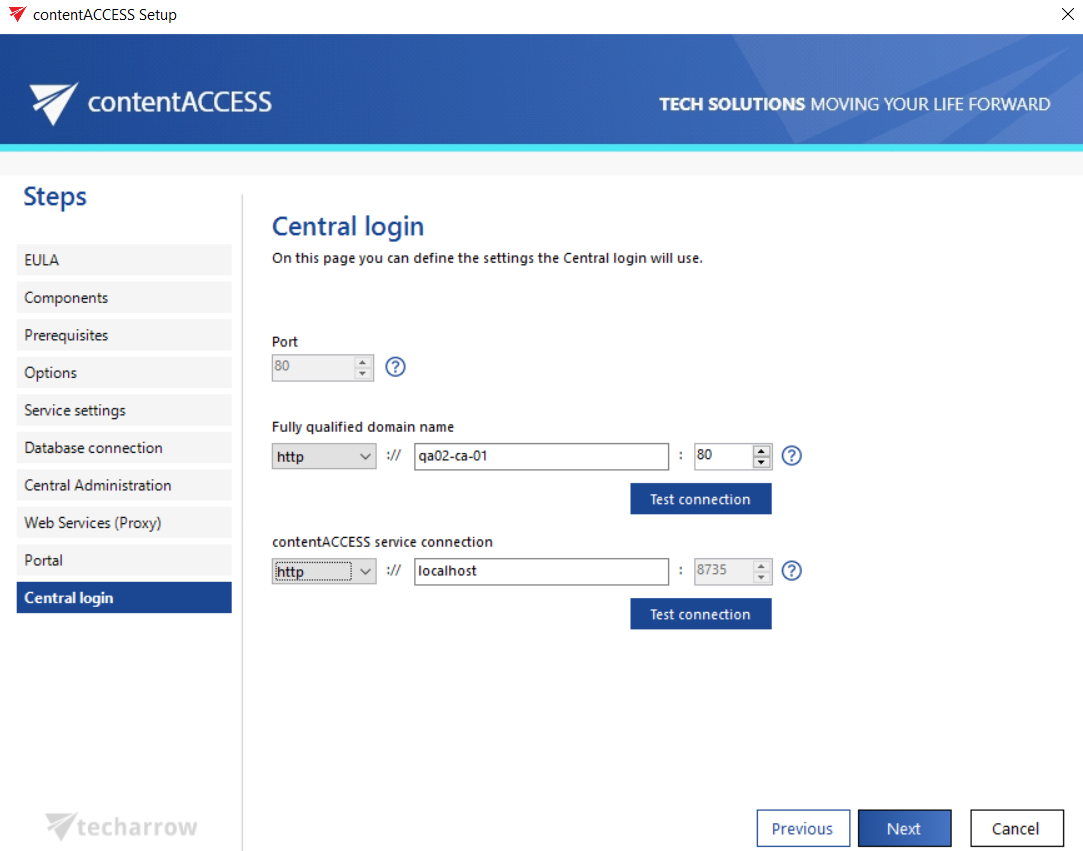
- On the System page of Central Administration:
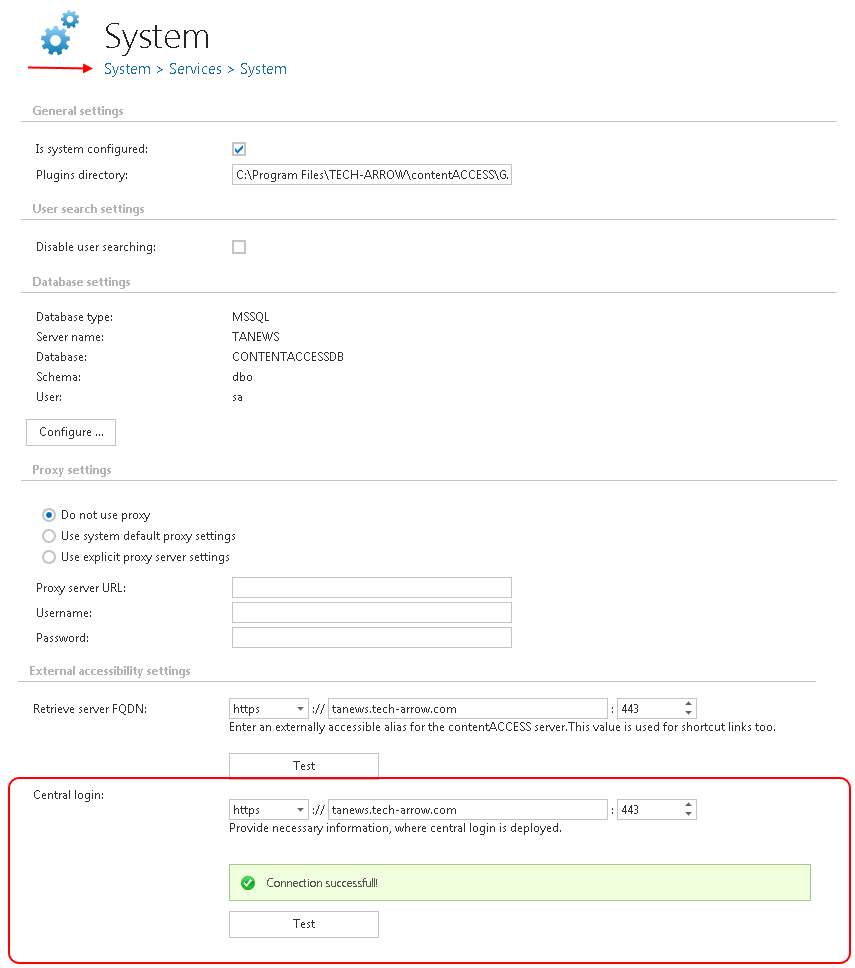
Note: When configuring the application URL for the Central login page, it is highly recommended to create an alias and specify it in FQDN form to ensure trouble-free access from anywhere.
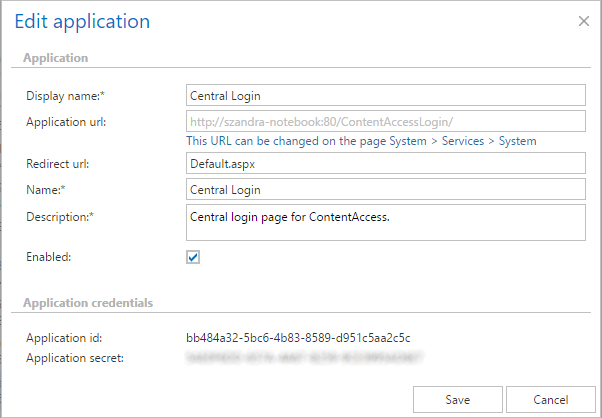
The Application settings also allow certain Central login page settings to be configured. However, the application URL cannot be changed from here. This URL is also written by the setup package, but it can only be changed on the System page (System → Services → System):