Central administration login
Introduction
The Central Administration login page allows users to sign in to contentACCESS Central Administration and access the applications available to them, such as Central Administration, the contentACCESS Portal, and Backup Administration for Microsoft 365.
This page covers:
- the permissions required to log in;
- the different ways to open the Central Administration login page;
- how to log in using a contentACCESS account or an external login provider;
- how to access the available applications after a successful login;
- important information about the initial system administrator login.
Prerequisites
A user can log in to Central Administration only if they have been granted the Manage tenant and/or Manage system permission. For more information, see the Roles page.
Ways to open Central Administration
There are three ways to open the contentACCESS Central Administration login page:
-
Standard login: Use the standard Central Administration URL, which is set and can be modified in the Application settings:
http(s)://[ServerName]:[PortNumberOfCentralAdministration]/CentralAdministration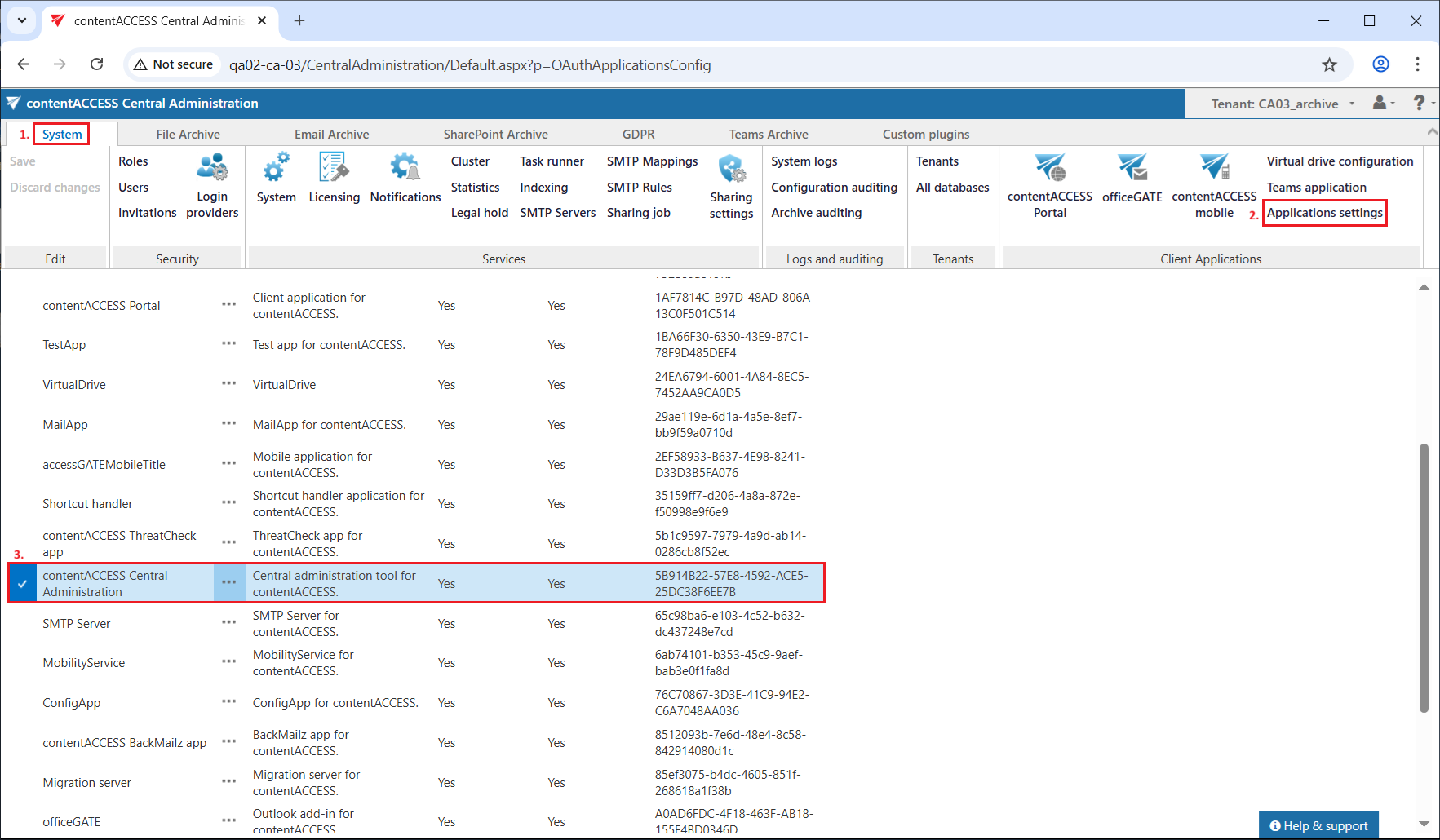
-
From the central login page:
http(s)://[CentralLoginServerName]/contentACCESSLogin— this page is installed by the contentACCESS setup (see Installation of contentACCESS). The URL is set and can be modified on the System → Services → System page of Central Administration (in the Application settings it is read-only). Opening this URL automatically redirects to the login page:http(s)://[ServerName]/contentACCESSLogin/login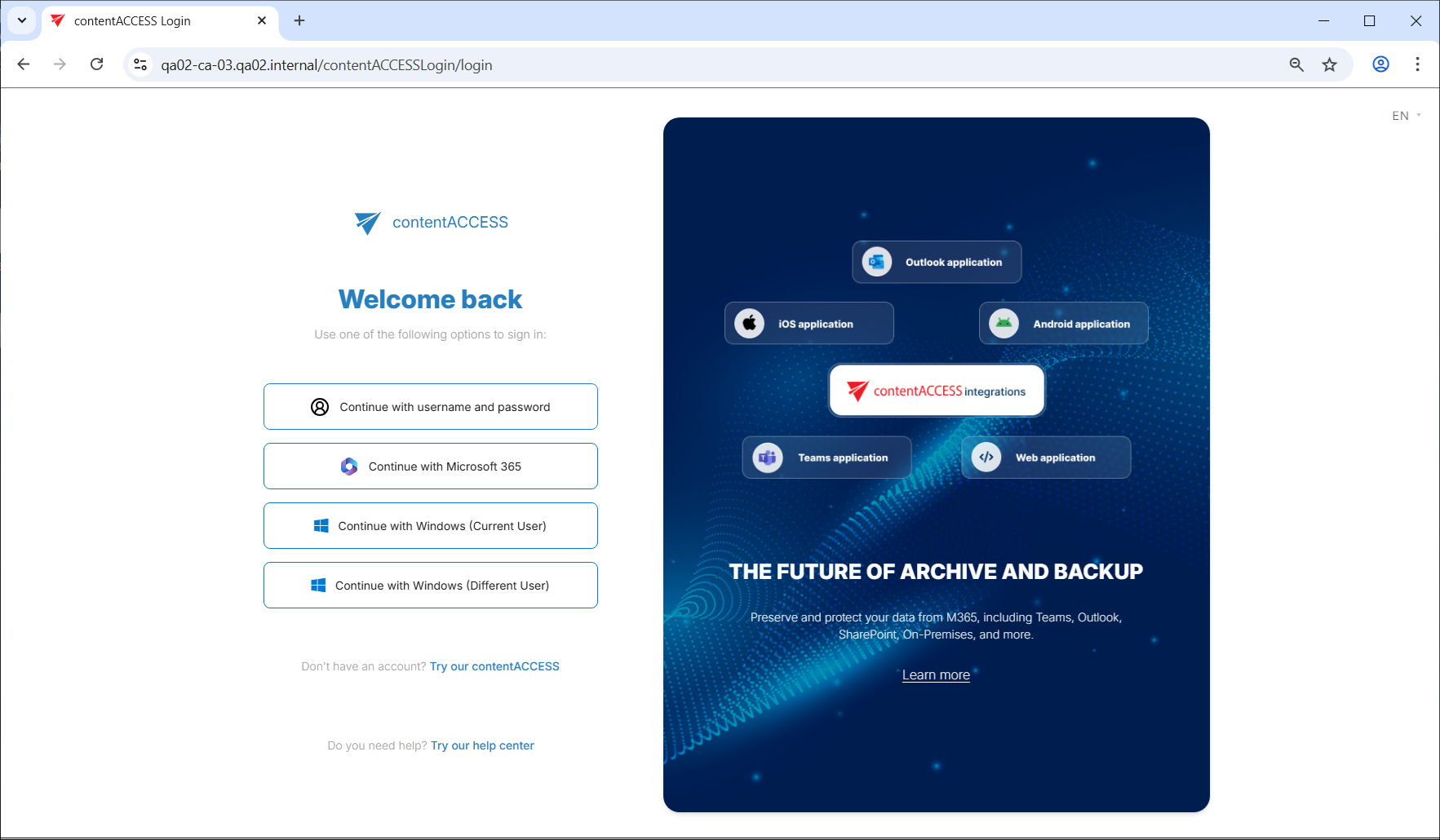
-
Windows start menu: On the server where Central Administration is installed, open it by typing Central Administration in the Windows Start menu or by clicking the corresponding icon. This option also opens the central login page and redirects to:
http(s)://[ServerName]/contentACCESSLogin/login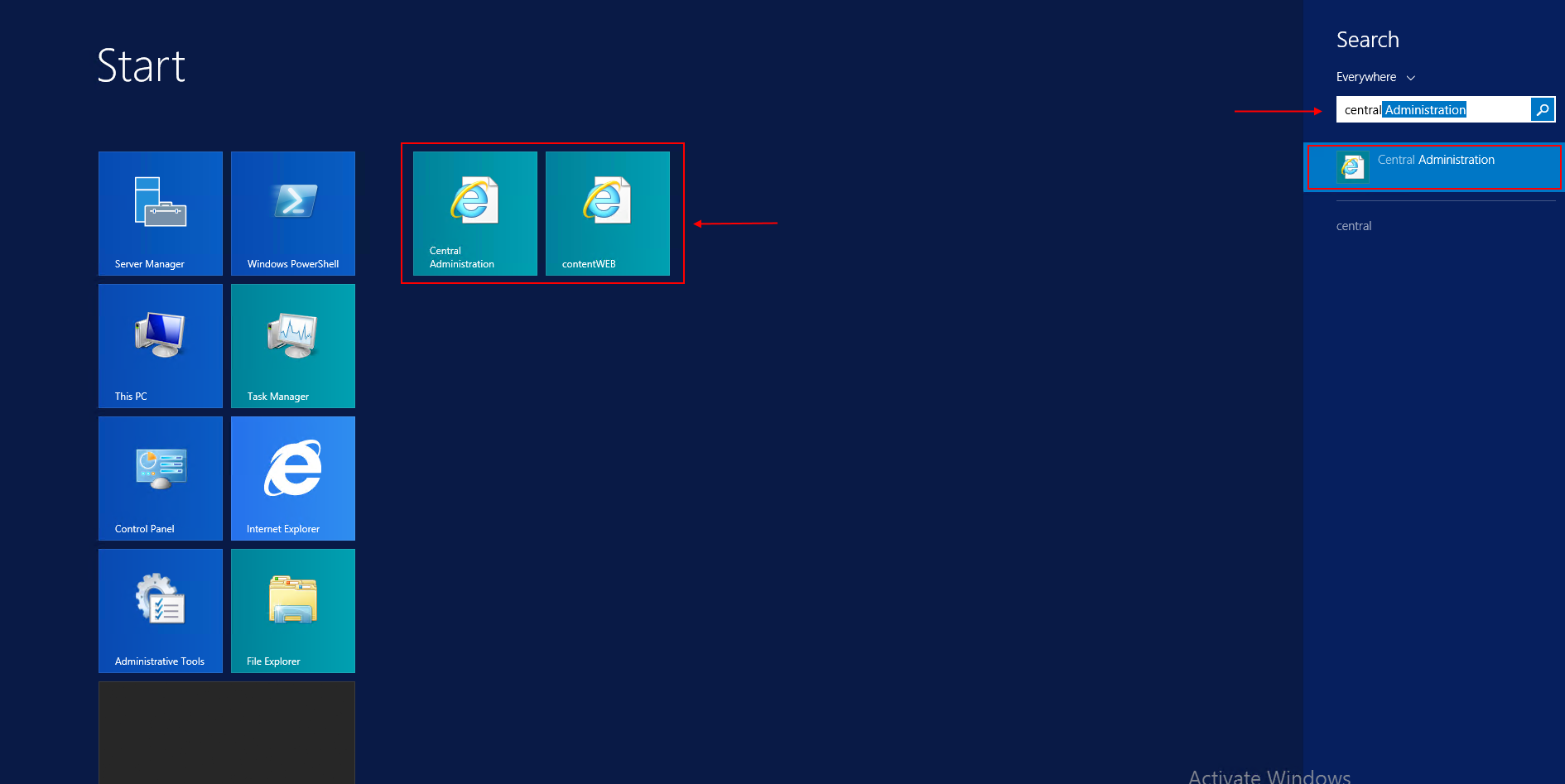
Log in to Central Administration
Log in using either:
- a contentACCESS account (Forms login provider), or
- any of your external login providers (Forms, Windows, Microsoft account, etc.), if they are configured in Central Administration. For more information, see Login providers.
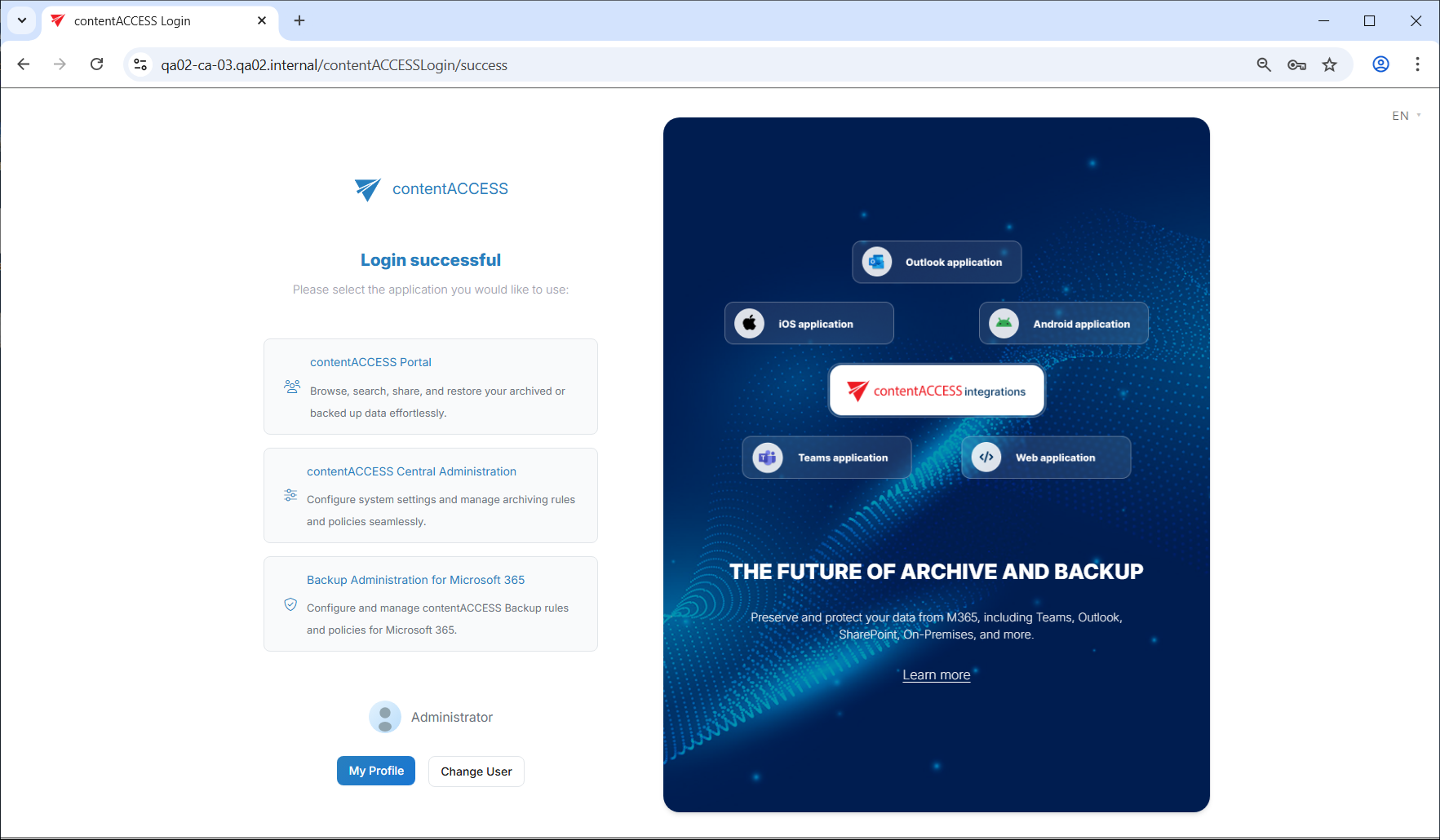
After a successful login, the logged-in user is displayed. The applications available to the user are shown on the page under the user name:
- Click contentACCESS Central Administration to access the administration interface; the central login page redirects you to the application.
- Click contentACCESS Portal to log in to the archive, provided you have the necessary permissions.
- Click Backup Administration for Microsoft 365 to access the backup administration interface, if you have the required permissions.
Note: If you use Chrome, it is recommended to turn off password saving. Learn more here about how to turn it off.
First login as system administrator
When logging in to contentACCESS Central Administration for the first time, use the system administrator password defined during installation on the Options tab.
Important: It is highly recommended to change this internal system account immediately after the first login.
For more information on how to enable further external login providers, refer to the Login providers page.
Note: Central Administration remembers the last accessed page of the user and automatically navigates back to it at the next login. The same rule applies to tenant settings — Central Administration logs in under the tenant that was last selected.