contentACCESS Portal Automated Single Sign-on
Introduction
Automated single sign-on allows the contentACCESS Portal to sign in users automatically through a selected third-party login provider, without requiring any further interaction from the user. This page describes which login providers support automated sign-on, how to configure automatic login in Central Administration, and how users can change the signed-in account or log out.
Supported login providers
Automated single sign-on can be enabled for the following login providers:
- Microsoft 365
- Windows
- Any other third-party authentication provider
Note: The Datengut and Forms providers cannot be automated.
For more information about the available login providers, see Login providers.
Configure automatic login
To automate one of the supported login providers, select it in the Auto login column on the Login providers page (System tab → Security group → Login providers button in Central Administration).
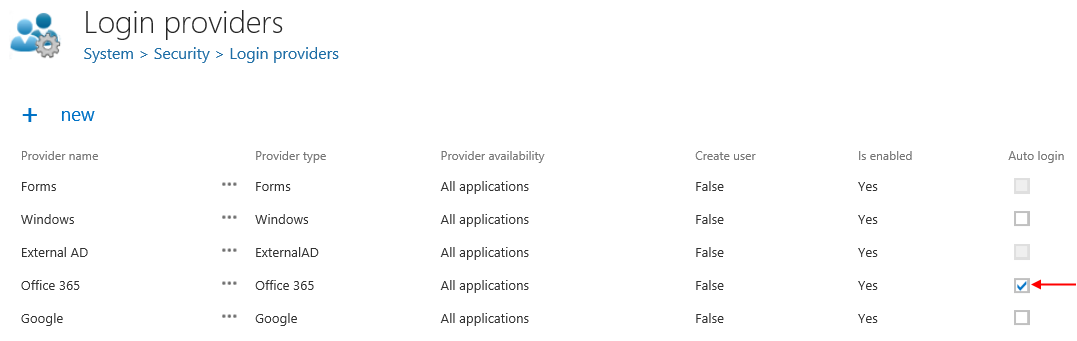
Important: Only one login provider can be selected for automatic login at a time.
Change the signed-in user
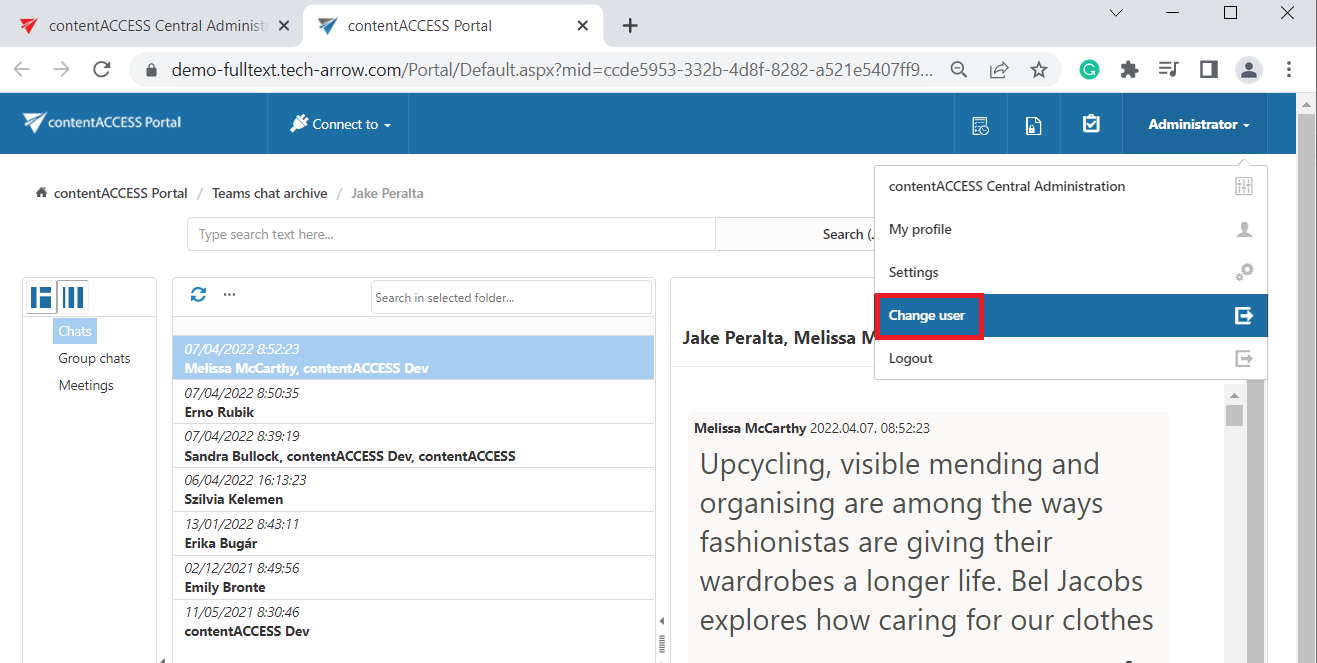
To change the user who is logged in to the contentACCESS Portal through the auto login provider (for example, Microsoft 365), open the user menu in the upper-right corner and click Change user.
Log out
Logging out of the contentACCESS Portal works the same way as logging out of the contentACCESS Central Administration.