Components
Introduction
The Components page allows you to choose which contentACCESS components you want to install on a server. This page is available only in Advanced installation mode. In Basic installation mode, the license key must be entered on the License Key page instead.
The available components are fully described in the contentACCESS components chapter. It is recommended to read that chapter before selecting the components to be installed. If you want to install all components on a single server, check all the checkboxes in this step.
If you select the contentACCESS server component, you must apply the license before the installation can proceed. License activation can be performed either online or offline.
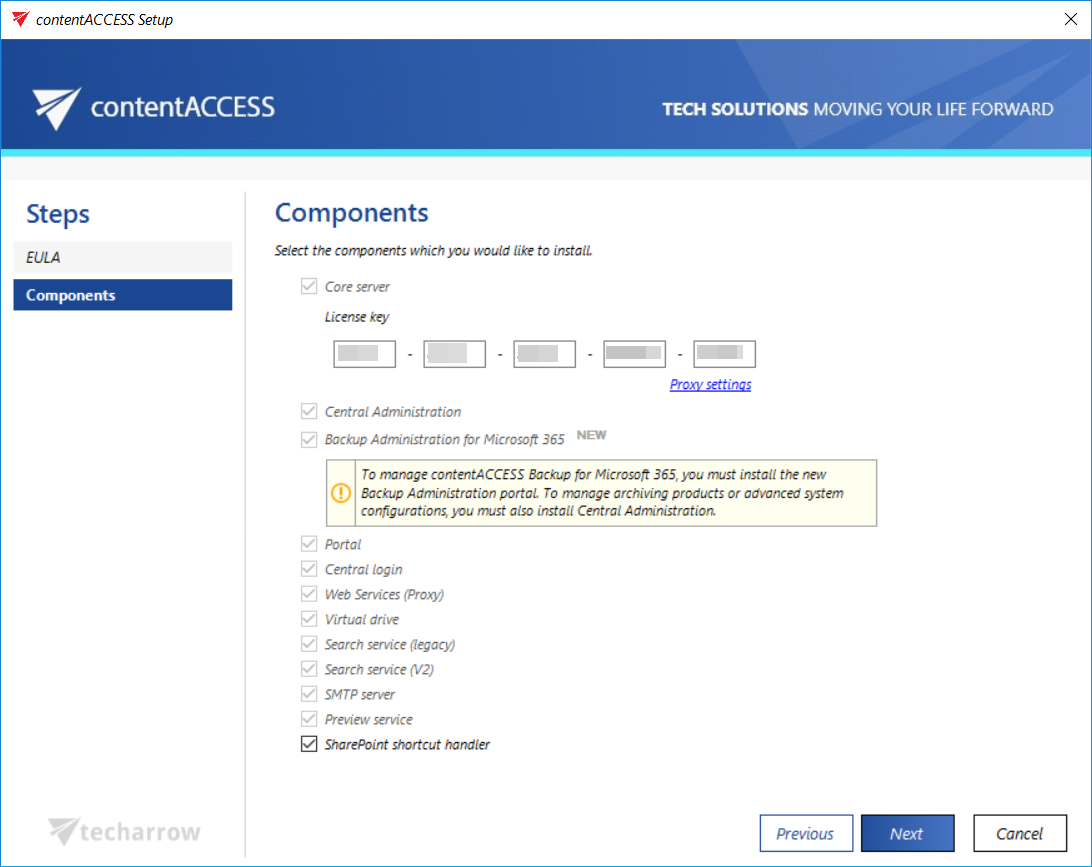
Select the components
Check the checkboxes for the components you want to install on the server. Check all the checkboxes if you want to install all components on a single server.
Activate the license
If the contentACCESS server component is selected, the license must be activated before proceeding with the installation. Two activation methods are available:
- Online activation — used when the server running the setup has an internet connection.
- Offline activation — used when the server running the setup has no internet connection.
Online activation
If the server running the setup has an internet connection, you can activate the license online:
- Choose Online activation in the wizard.
- Enter your license key.
- The license is validated automatically, and you can continue the installation.
Offline activation
If the server running the setup has no internet connection, you can either:
- use the web proxy's credentials to activate the license through a configured proxy server, or
- activate the license fully offline.
Option 1: Activate through a proxy server
Configure the proxy URL and the applicable credentials to reach the licensing server. The proxy configured here is used by the licensing component to reach the licensing server for activation. By default, the proxy server is disabled.
To configure the proxy:
- Open the Proxy settings dialog from the wizard.
- Choose one of the following options:
- Use default proxy settings — uses the proxy configured on the contentACCESS server under Control Panel → Internet options → Connections tab → LAN settings → Proxy server.
- Use explicit credentials — allows you to specify an explicit proxy server URL and user credentials.

Once the proxy is configured, you can continue with online license activation as described in Online activation.
Option 2: Activate the license offline
To activate the license offline:
-
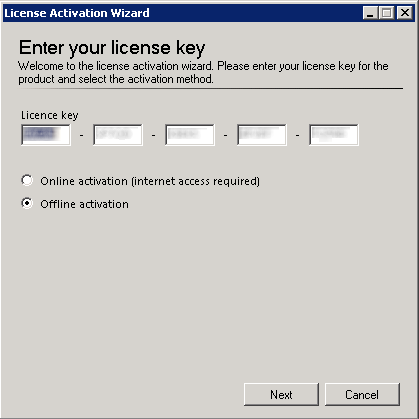
Insert your license key.
-
Select Offline activation and click Next.
-
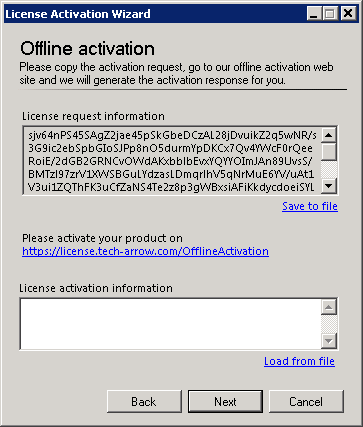
Activate your product on the offline license activation page of TECH-ARROW. The page can be accessed using the link provided in the activation dialog.
-
Copy/paste (or download/upload) the License request information from the wizard and activate it on the offline license activation page. Use the Choose option to upload the
.datfile if you have saved it, or copy the activation string into the text box and click Activate now.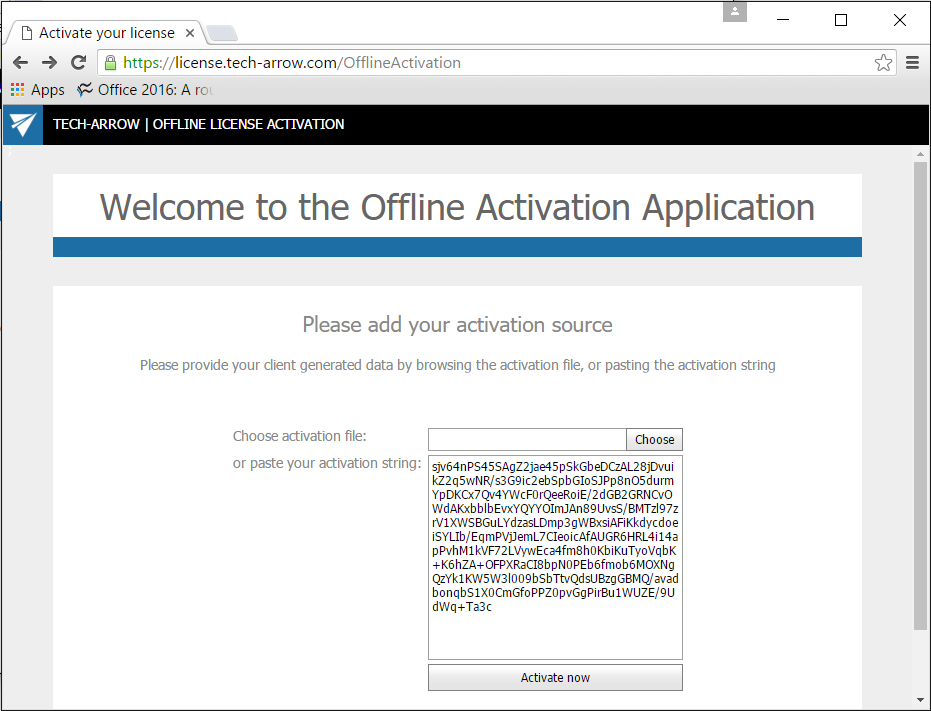
-
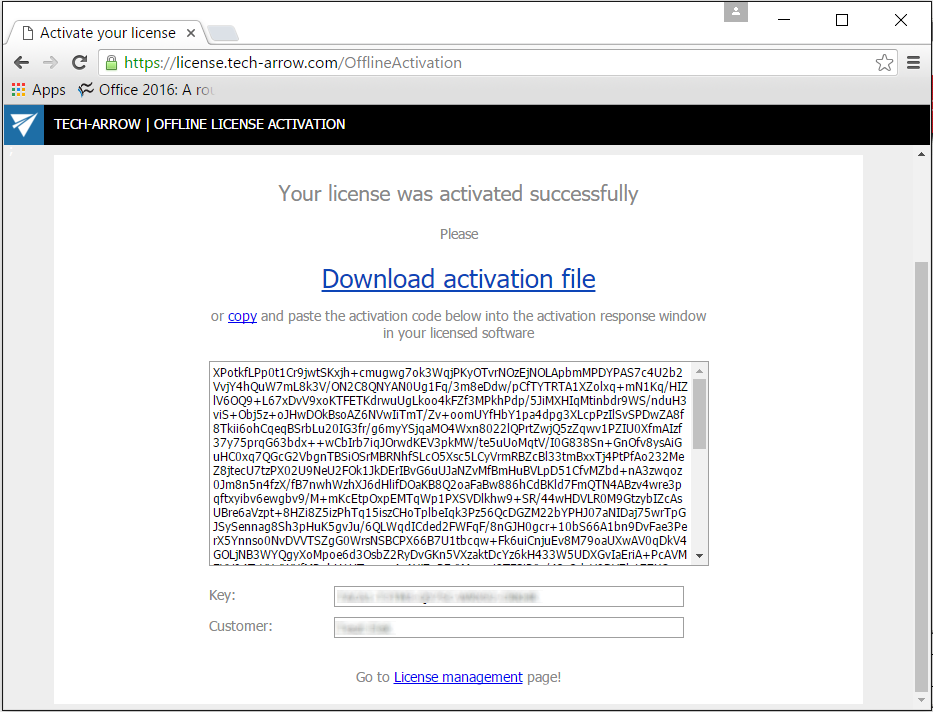
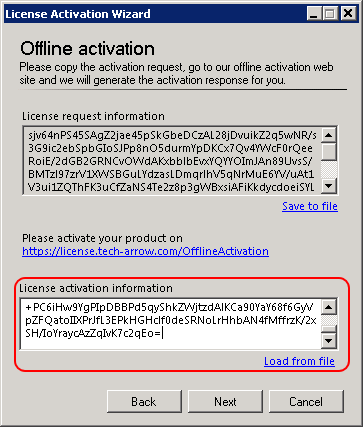
Copy/paste (or download/upload) the activation code from the web page (first screenshot below) into the License activation wizard (second screenshot below):
-
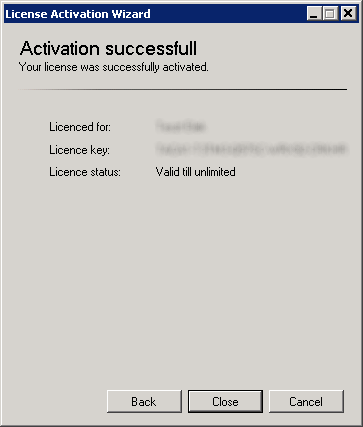
Once the license has been successfully applied, click Next in the wizard to continue the installation. In the last window, click Close to complete the activation process.
Note: After the contentACCESS setup installation is complete, you need to activate the license key in the Central Administration interface of contentACCESS. For further information, refer to How to activate your license key.