Database connection
Introduction
The Database connection page in the contentACCESS Advanced Installation mode allows you to specify the system database server that contentACCESS will use to store data. contentACCESS supports either an MS SQL Server or a PostgreSQL database. On this page, you configure the database type, connection parameters, and authentication method, and verify the connection before proceeding with the installation.
Note: Before continuing with the installation process, you must first install MS SQL Server (version 2012 or newer) or PostgreSQL, or have access to an existing SQL Server/PostgreSQL installation.
For PostgreSQL, if you use an existing database, you must provide the username and password. If you create a new database, the installation process automatically creates the database user and generates the password.
Configure the MSSQL or PostgreSQL database
Select the database type to be used by contentACCESS from the dropdown menu, and then provide the following parameters:
-
Database type: Select the database type you want to use from the dropdown menu: SQL Server or PostgreSQL.
infoNote: During an update, the database type selector is disabled and the type cannot be changed.
-
Server name: The name or IP address of the database server.
-
Server port: You can use the default port or specify a custom port number.
-
Database name: Enter a name of your choice for the system database created by the package.
-
Schema: The database schema. You can use the default port from the PostgreSQL Tools or specify a custom schema with an optional name.
-
Authentication: Choose between two authentication methods:
- Password authentication (default): Enter the credentials of an existing user (username and password), or select the Create a new user checkbox to create a new user. For an existing user, only the Show password and Copy password options are available. When creating a new user, the Generate password option is also available.
- Windows authentication: contentACCESS connects to SQL using the user account configured on the Service settings page.
-
Specify database administrator: Optionally, specify a database administrator with a separate username and password. This is required if you created a new (non-existing) user in the Authentication section, as this database administrator is used to create the new user.
After configuring the settings, use the Test connection button to verify the connection before proceeding to the next installation page.
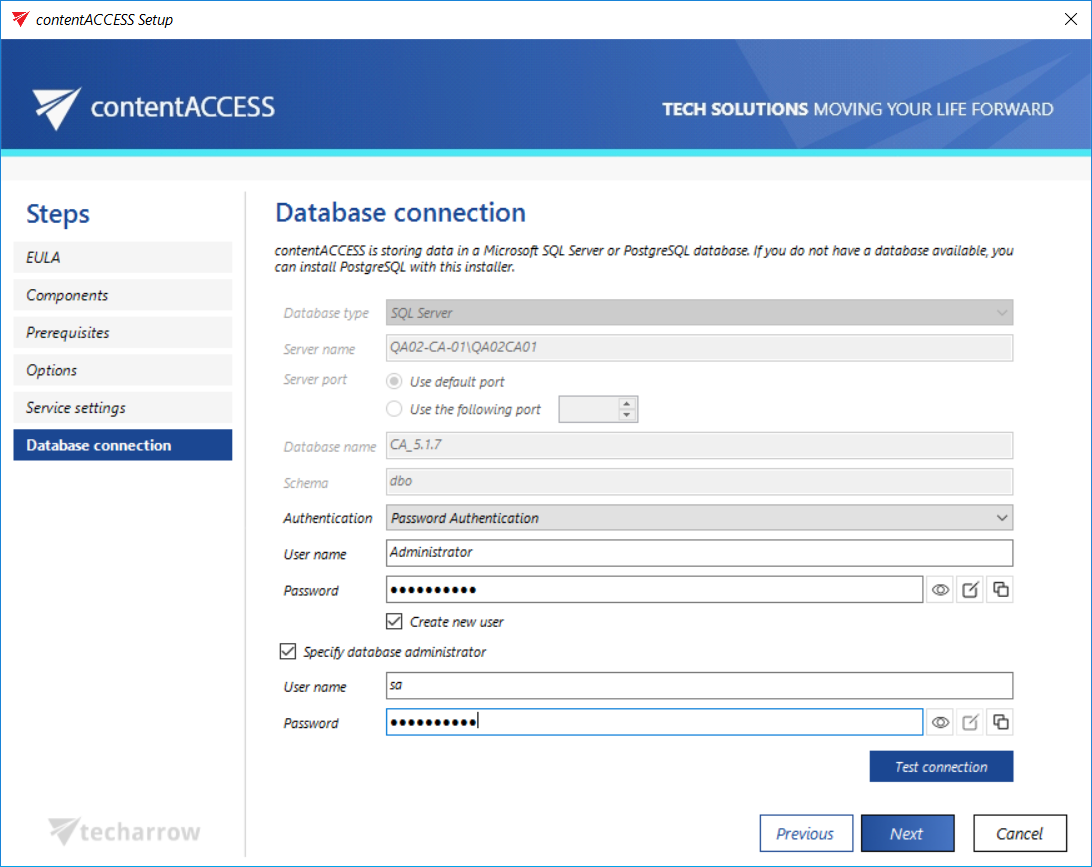 Screenshot: Database configuration with MSSQL
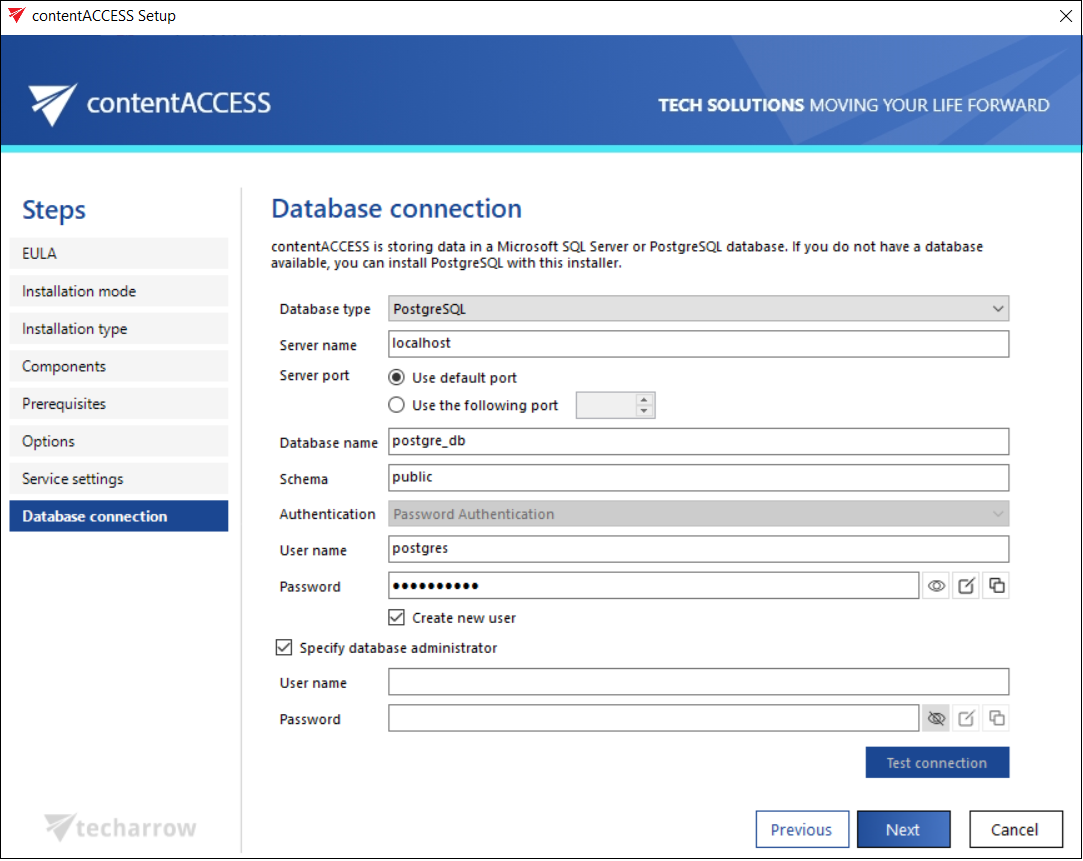 Screenshot: Database configuration with PostgreSQL
Click NEXT.
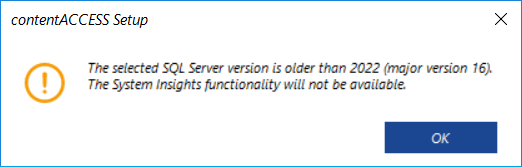
Important: If the SQL Server version is older than 2022, a notification appears when you click NEXT, and the System Insights functionality will not be available in Backup Administration. To use System Insights, upgrade to SQL Server 2022 or later, or use PostgreSQL with TimescaleDB.
In the next steps, the contentACCESS components' settings are specified.
Important: To ensure trouble-free access, it is highly recommended to create an alias for each component and to specify the connection URL to each of these components in an FQDN format.