Update of contentACCESS
Introduction
The Update of contentACCESS process allows administrators to upgrade an existing contentACCESS installation to a newer version using the contentACCESS installation wizard. The update process closely resembles the first installation process, reusing most of the previously configured settings while allowing administrators to add new components and review new features.
Before starting the update, review the following considerations:
- Check the Software requirements and contentACCESS prerequisites to confirm what needs to be installed on the server running the contentACCESS installation wizard, and what is needed for the contentACCESS archive server.
- Updating from an older version can cause a longer database update. Planning a wider update window is recommended.
- Read the release notes to learn more about the new components and features included in the target version.
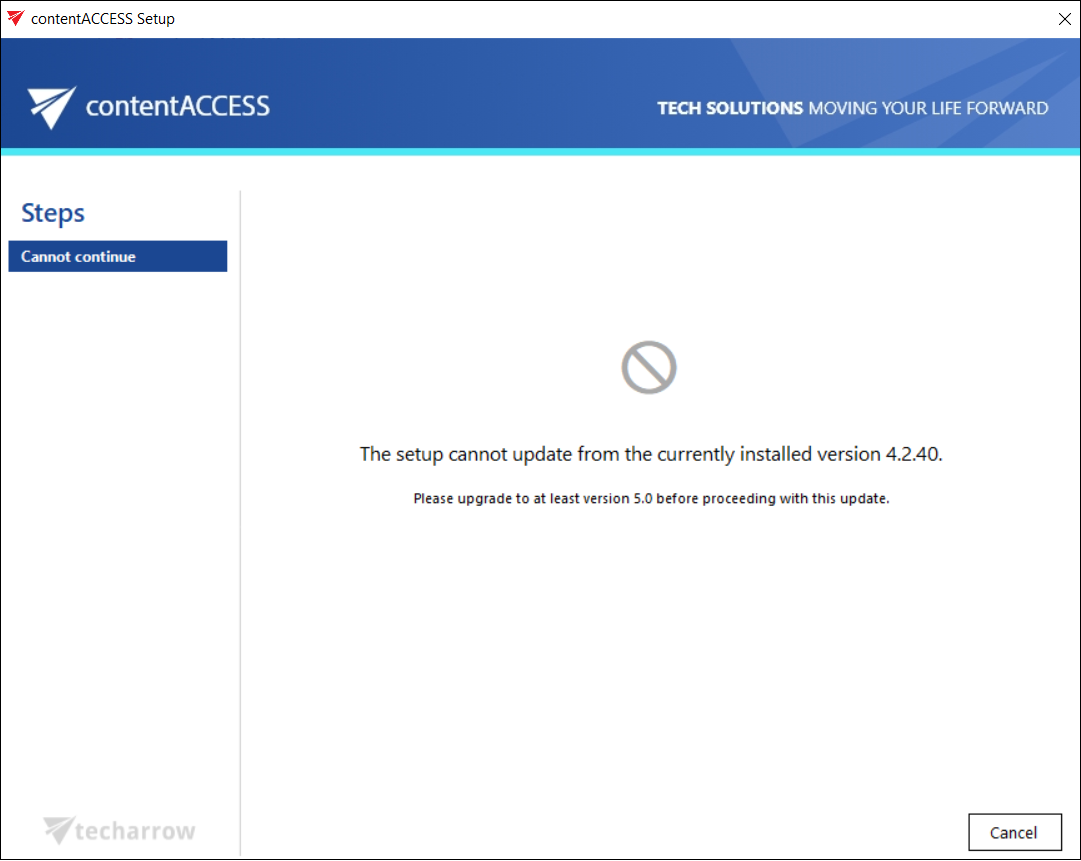
Important: Updating to the latest contentACCESS versions is not possible from versions older than 5.0. Before performing the update, you must upgrade the older version to at least version 5.0.
Run the update
-
Download and run the setup package (
contentACCESS X.X Setup.exe). By default, it unzips to theC:\TECH-ARROW\contentACCESS_Packagefolder, but you can use the Browse button to change the directory. Click Unzip. After the files have been unzipped successfully, click OK.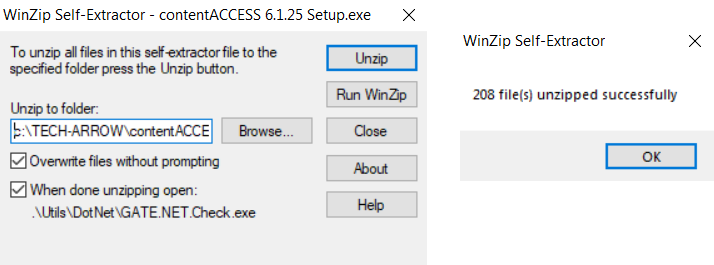
-
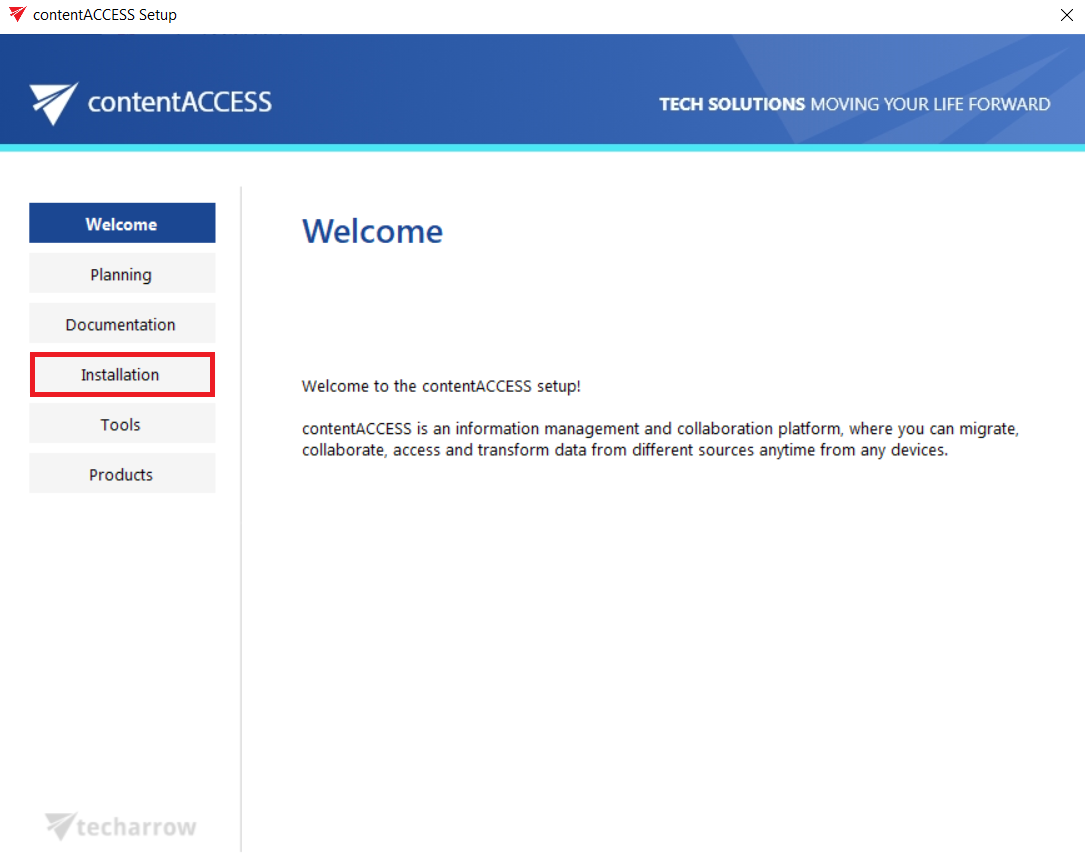
The contentACCESS installation wizard opens and guides you through all the steps of the update process. All components of contentACCESS can be updated during this process. Click Installation on the Welcome page.
-
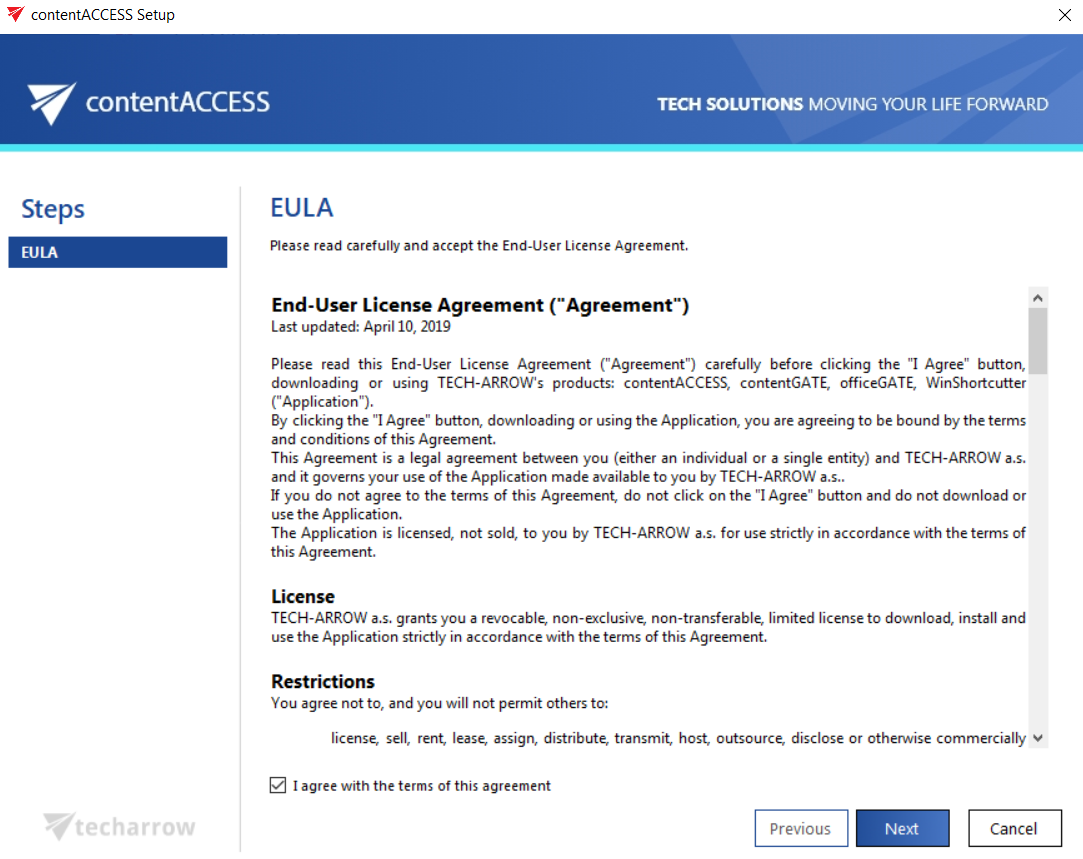
On the End User License Agreement page, check the checkbox I accept the term of agreement before you can click Next. The EULA must be accepted even when updating contentACCESS from a previous version.
-
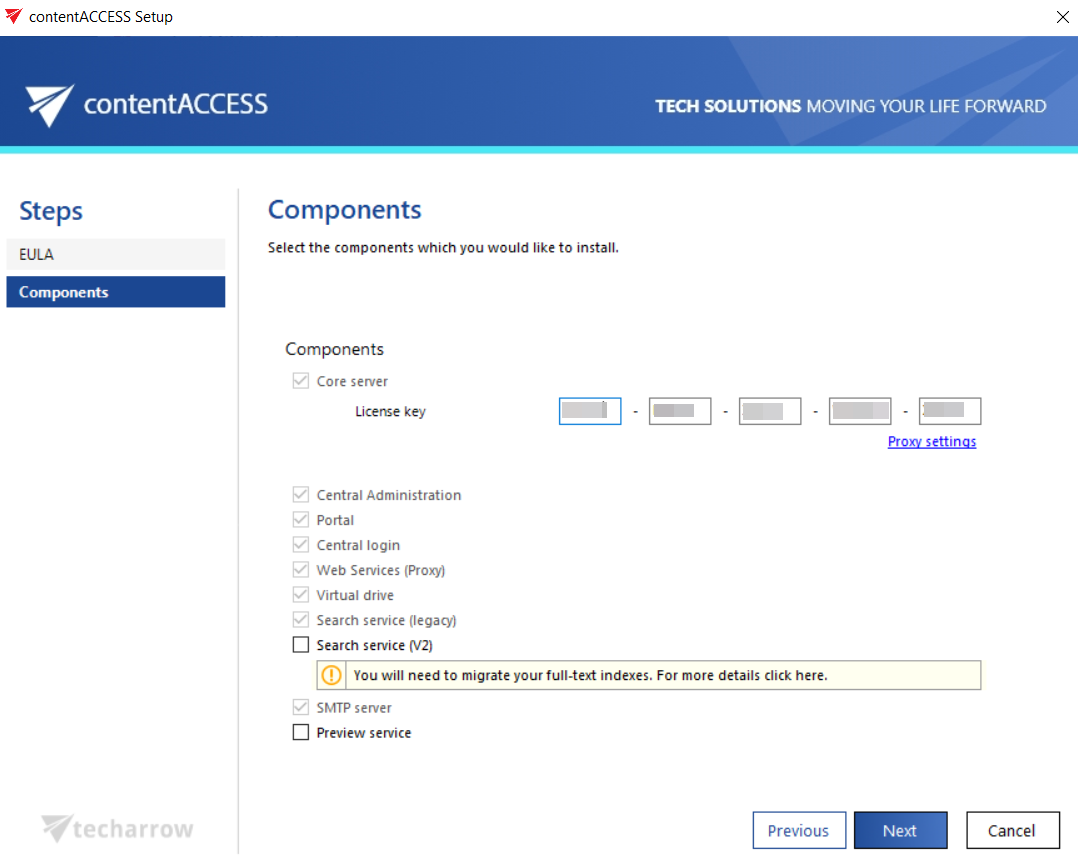
During the update, the Installation type step is skipped, and the Components page appears directly. Here, you can select the new contentACCESS components you want to install during the update. You can read more about new components and features in the release notes before the update. The components are fully described in the contentACCESS components chapter. It is recommended to read that section before selecting new components to install.
infoNote: The installation does not allow removing components. If you want to remove a component, open Add/Remove program files, search for the given component, and uninstall it from there.
When updating contentACCESS, the license key is already applied from the previous version, so you only need to select the new components and click Next.
infoNote: The license must be activated if this has not been done recently. At this point, the license maintenance is also verified to confirm that the given setup version is allowed for installation. If your maintenance has expired, you are not allowed to install newer versions. To extend your maintenance, contact sales@tech-arrow.com. Alternatively, you can activate the license key from the Central Administration interface of contentACCESS. For more information, see How to activate your license key.
-
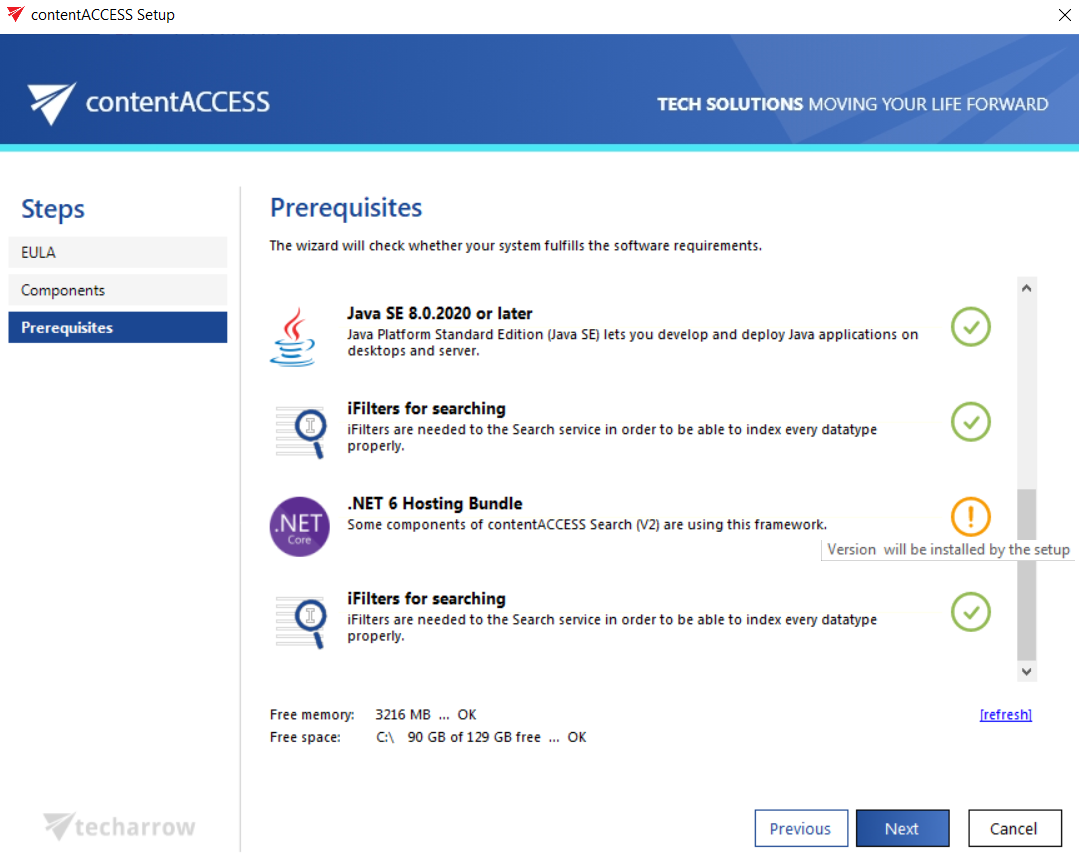
On the Prerequisites page, the wizard checks whether your system still fulfills the software requirements. Some missing prerequisites are installed directly by the wizard during the installation (marked with a yellow flag), while others must be installed manually (marked with a red cross).
Use the refresh button to update the prerequisite information after installing any missing software. If the wizard still does not recognize the installed software, restart the server and start the contentACCESS installation again. Once all prerequisites are met, click Next.
For more information about these requirements, see Software requirements.
-
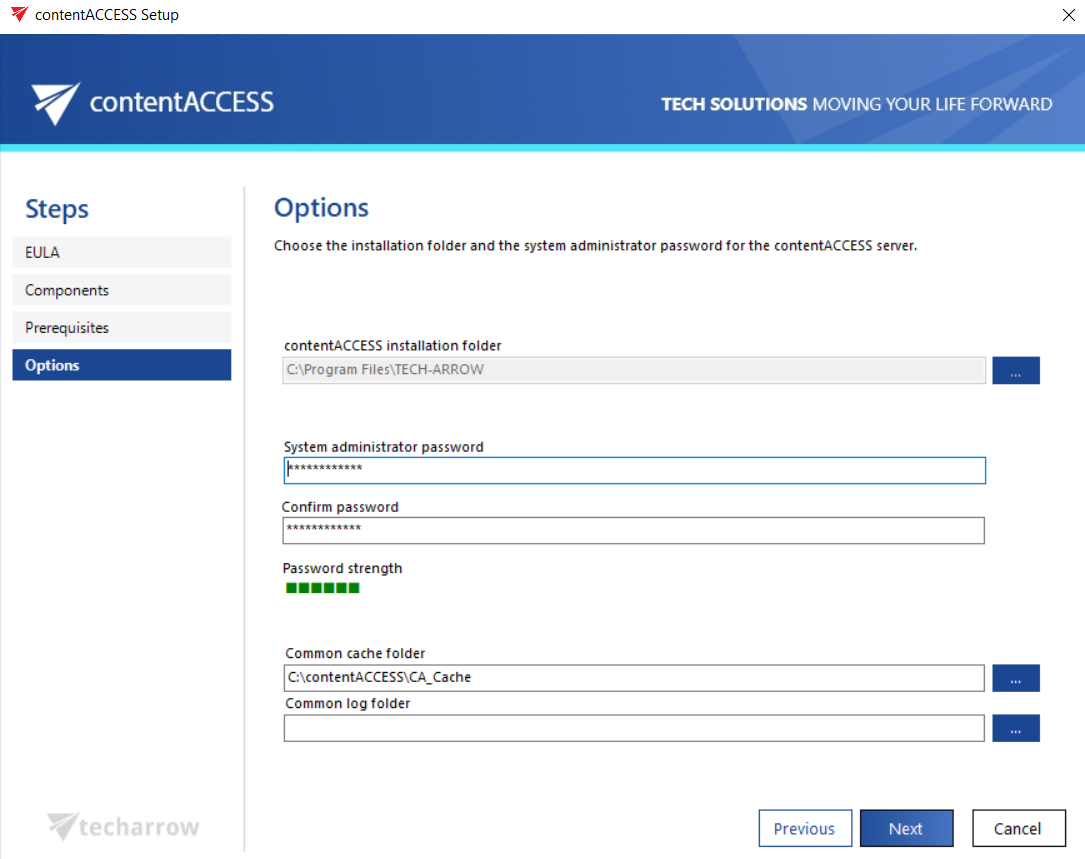
On the Options page, during a first installation you would select the installation base folder. During an update, the base folder, system administrator, and cache folder sections are already filled out, using the values saved from the previous installation. In the latest versions of contentACCESS, a new section requires you to specify a Common log folder, used for saving logs from contentACCESS. Click Next.
-
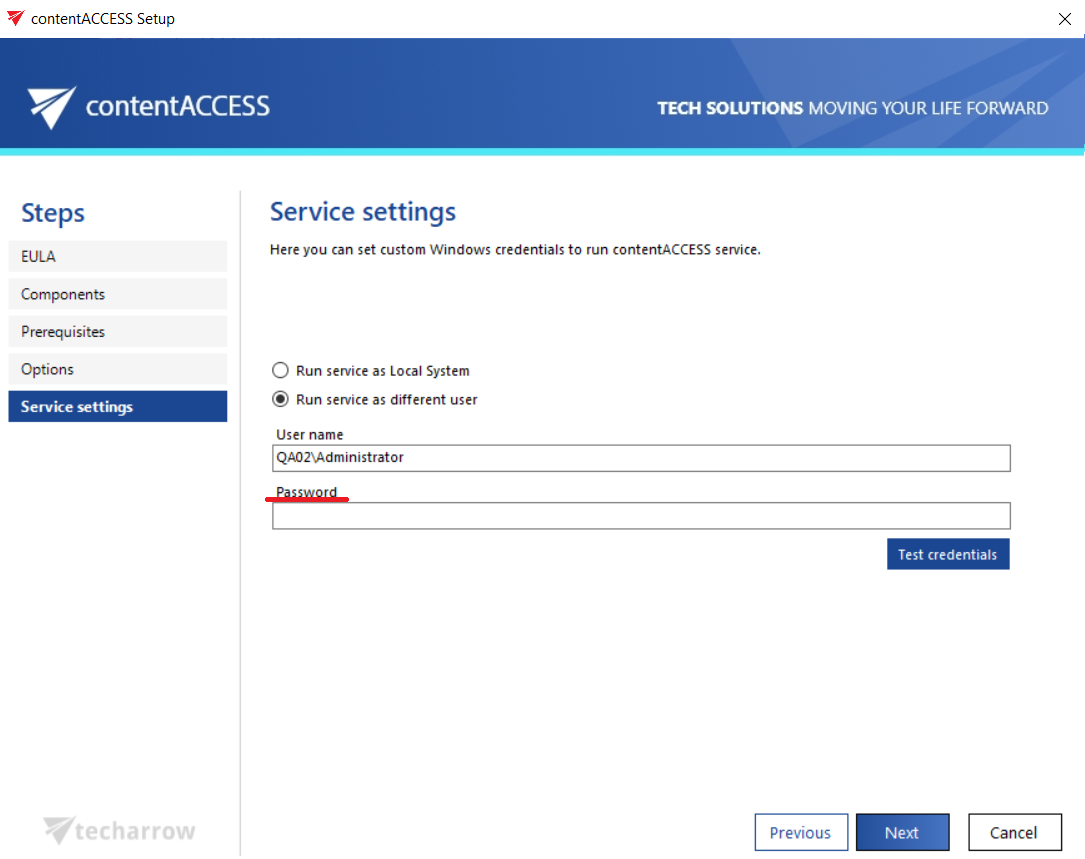
On the Service settings page, you can keep the original settings or switch to a different option. If you previously selected Run service as different user, you must re-enter the password to proceed during the update. You can also test the credentials using the Test credentials button. Click Next.
-
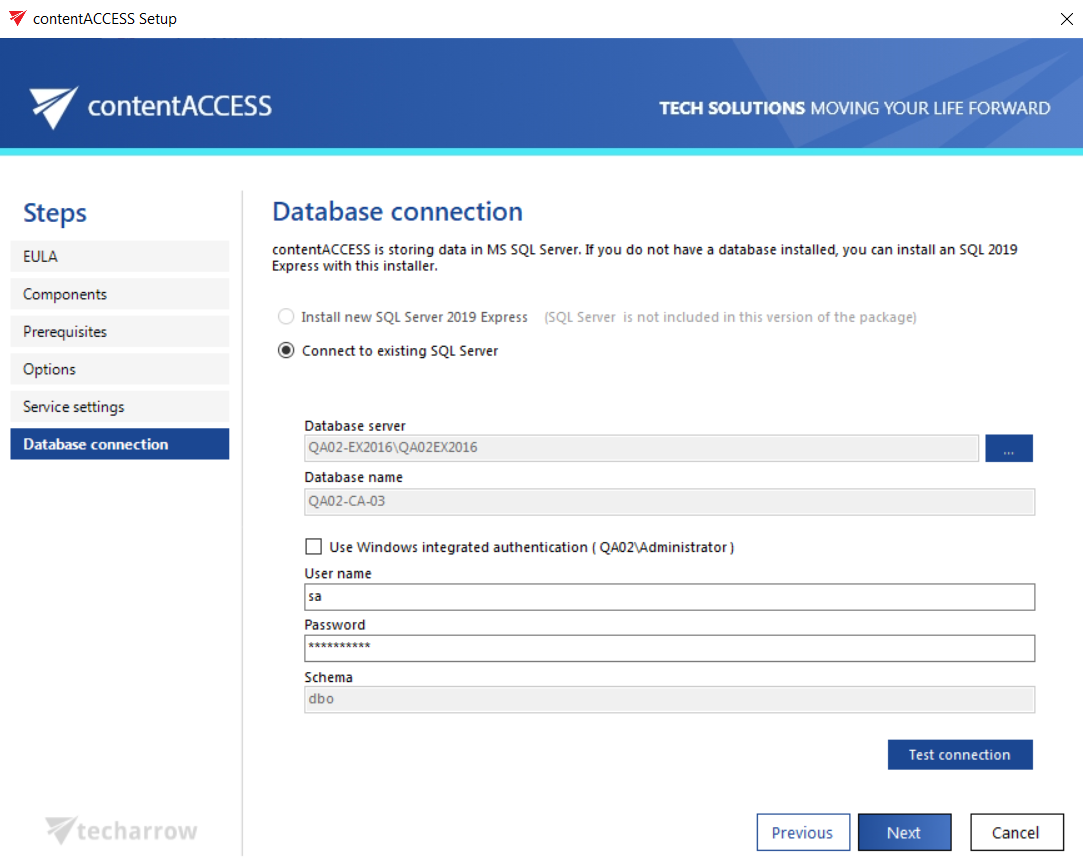
On the Database connection page, re-enter the password if required, and optionally check the Use Windows integrated authentication checkbox. The other sections are disabled for safety reasons, since changing these settings could cause issues with the database and with retrieving archived data.
-
The port number, domain name, and connection settings defined during a previous contentACCESS installation are automatically reused for the existing components. You only need to configure any newly added components.
During the update process, you can proceed through these pages without editing them. For more information about the individual components, see the contentACCESS components chapter.
-
If you are updating from a version that did not support the Search service (V2) component, you need to enable and install it during the update:
- Check the corresponding checkbox on the Components page.
- Set the Elasticsearch index data path by pasting the copied folder URL or browsing for it from the menu.
- Define how the Elasticsearch service should run (as Local System or as a different user).
Click Next when finished.
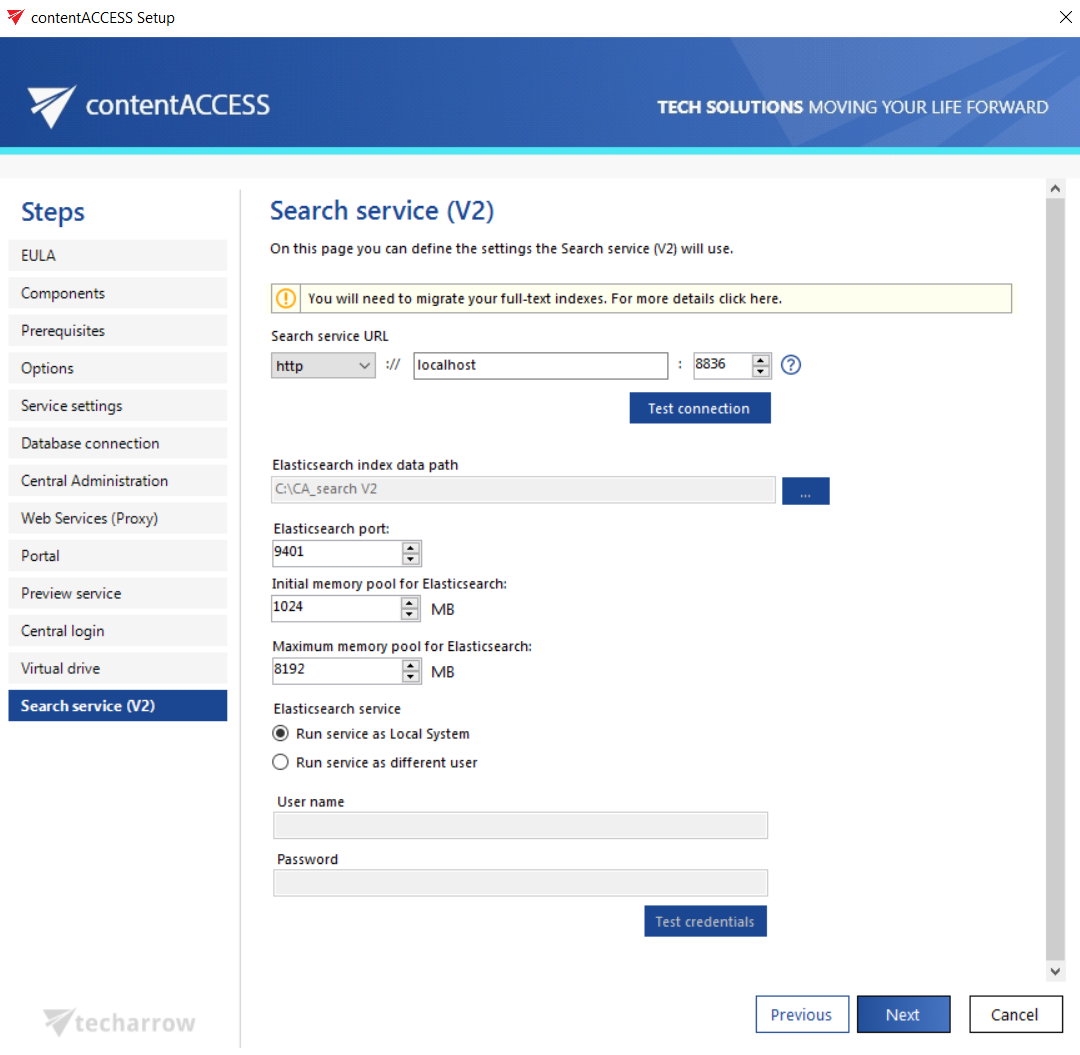
For more information about installing the Search service (V2) component, see the Search service (v2) chapter. For information about why contentACCESS offers two Search services, see the "Why there are two Search services?" section on the contentACCESS setup package page.
warningImportant: If you are updating from contentACCESS version 5.X or older, the indexes must be migrated. This migration is performed by our customer service team. Contact support@tech-arrow.com if you require this service.
-
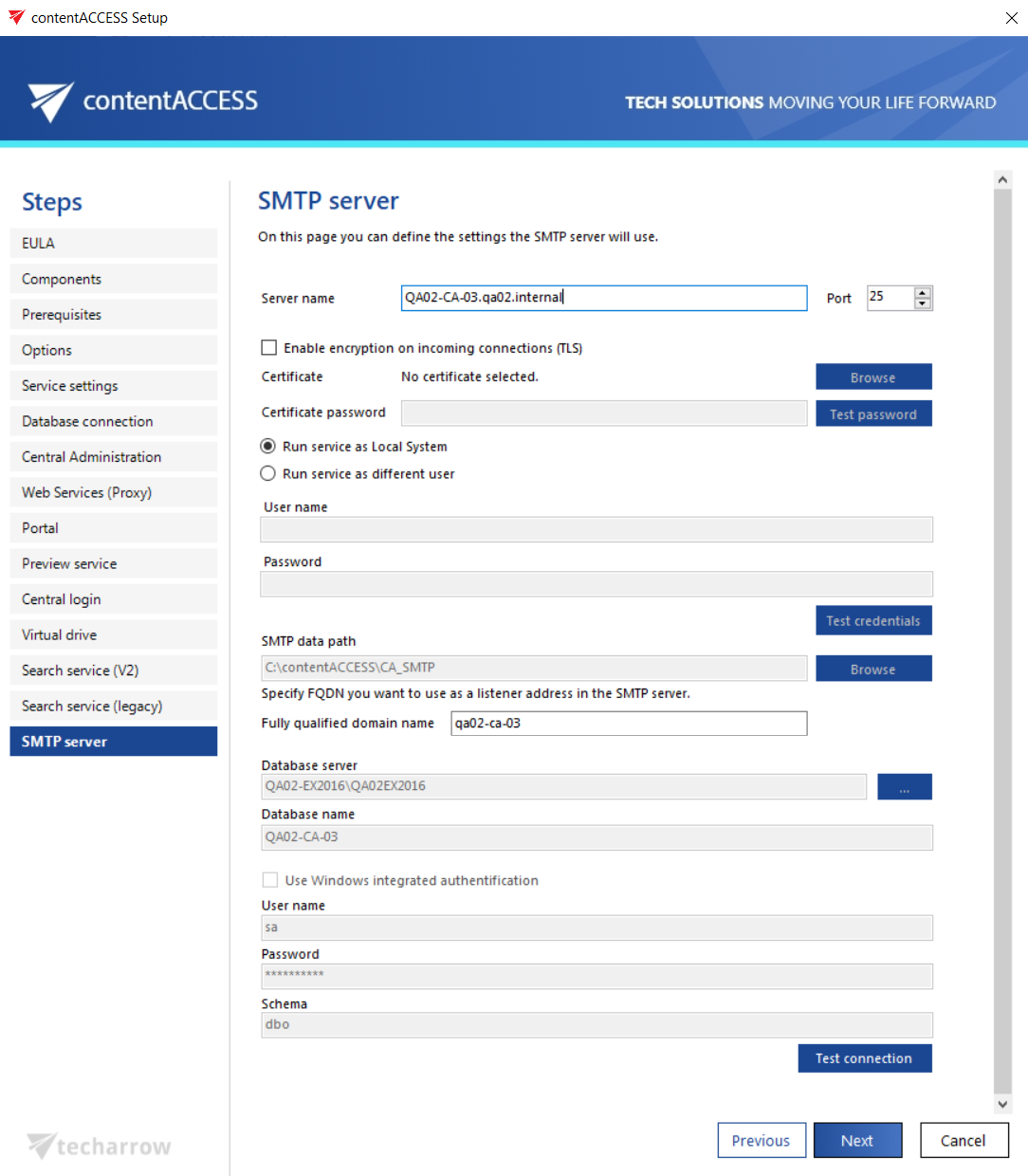
If the SMTP server was already configured in the previous version, click Next to proceed with the update. If you decide to install the SMTP server now, use the SMTP server section as a setup guide.
-
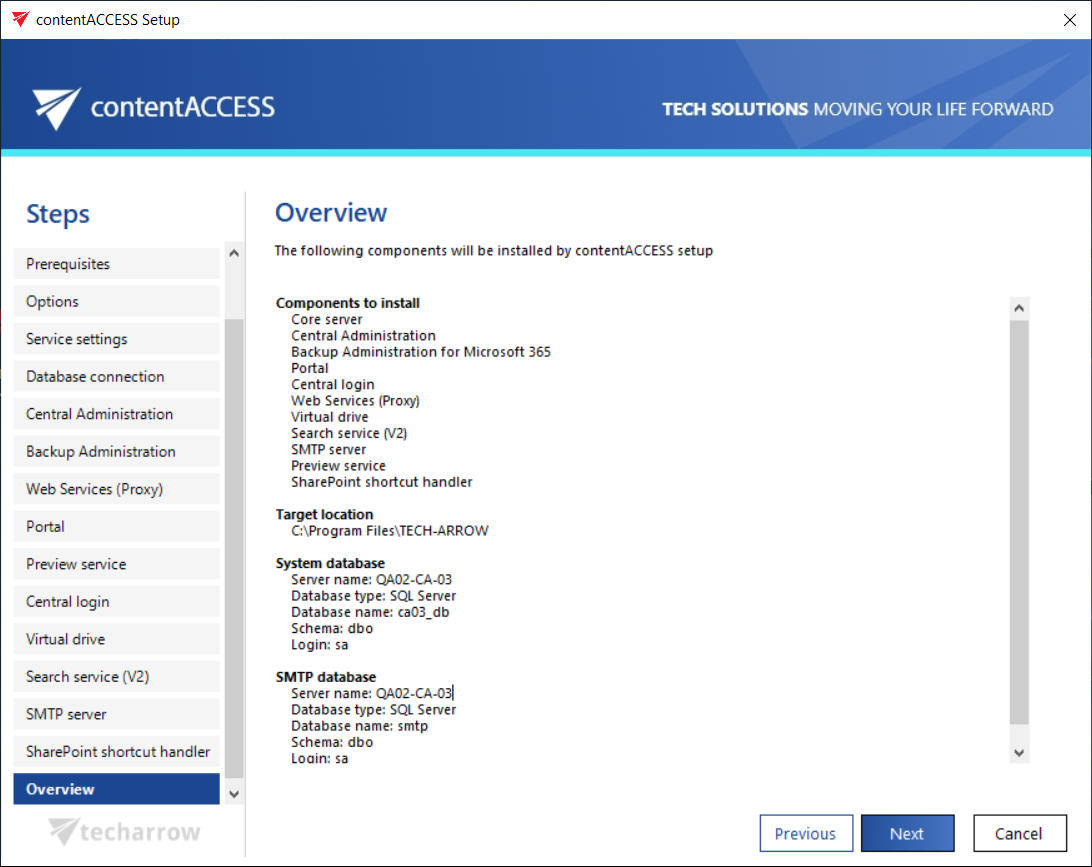
On the Overview page, the contentACCESS setup gives a general overview of the components selected for installation. This step is the same for both a first installation and an update. Click Next.
-
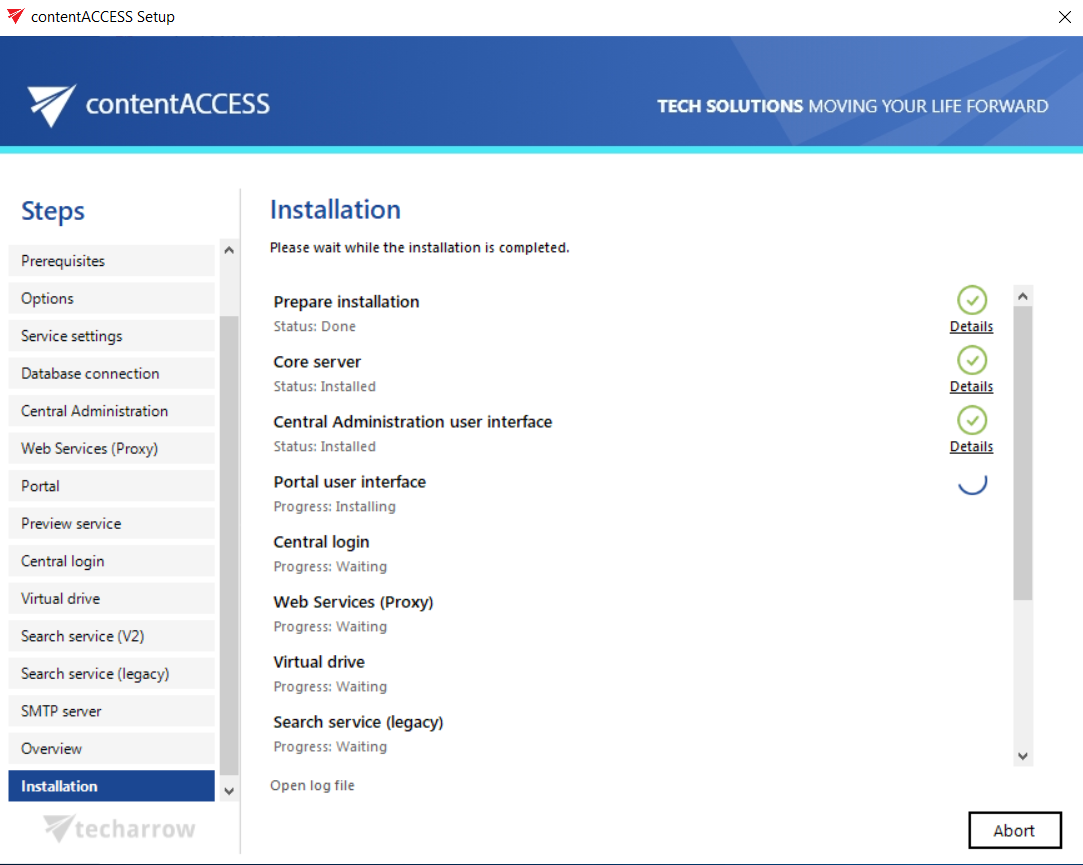
Click Install and wait until the installation process completes. In the latest version(s), the wizard displays when the package stops the contentACCESS services and restarts them after the components are installed or updated.
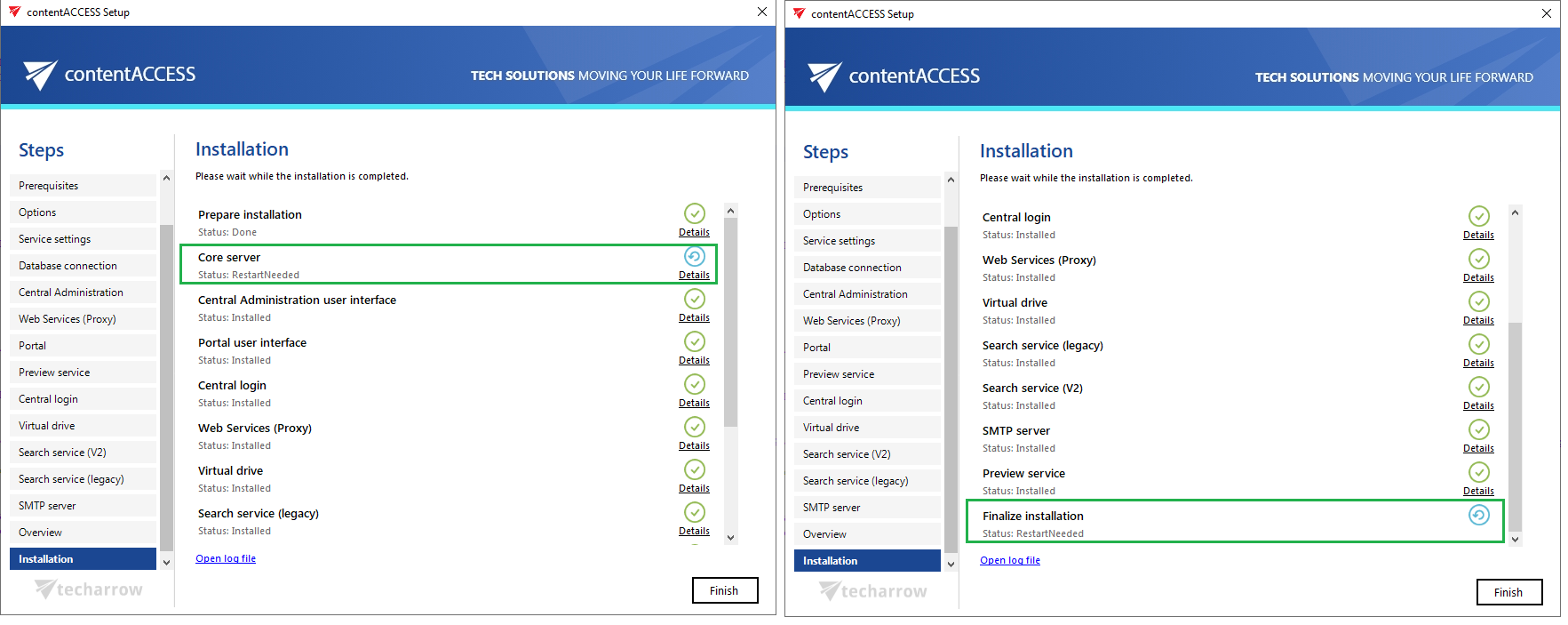
It is possible that, for some reason, the package does not restart the services automatically, in which case you must restart them manually. If this is the case, a blue restart icon is displayed in the Finalize Installation row.
-
The last step is the Summary page, which gives an overview of the installed products.
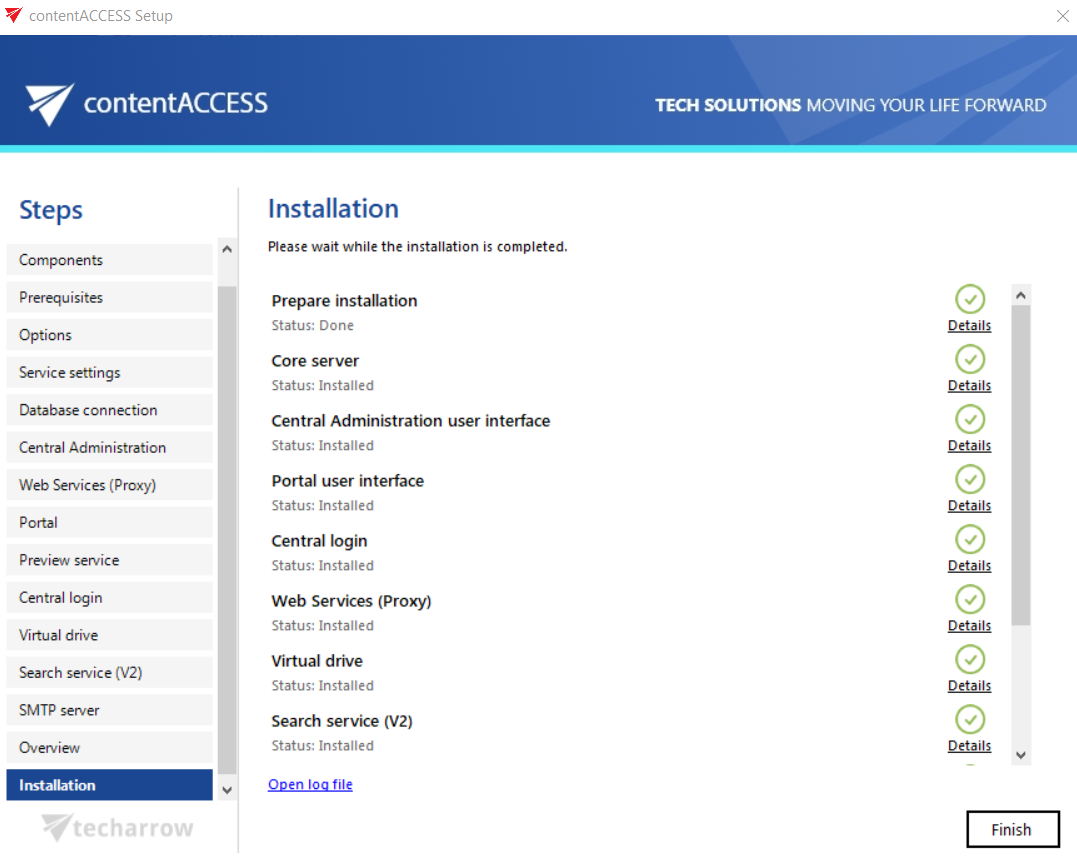
If the update fails, you can start and execute the same installation package again to repair the installation. Before performing the repair, it is highly recommended to restart the server.
infoNote: If a problem occurs during the installation process, click Open log file in the lower-left corner of the last setup window. The log file may contain the reason for the unsuccessful installation.
Click Finish to complete the installation process.
After the update
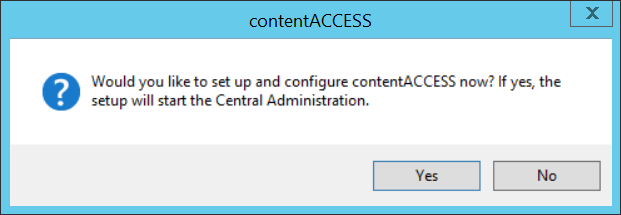
After the installation completes, a popup window asks whether you want to continue with further settings and configurations in contentACCESS Central Administration. Click Yes to proceed. This dialog appears whether you have just installed the component or already installed it on another server in a distributed environment.
Important: After the update, contentACCESS also starts an internal database update, which can take longer on larger systems. Plan a wider update window accordingly.
After the update, verify the functionality of contentACCESS and check the UI for new settings and configuration options.
If the database update does not run or does not finish correctly, a warning message appears. In that case, you can either select Deploy to perform the update automatically, or Download and deploy to perform it manually and then re-run the check.
