Installing Outlook forms
Introduction
Outlook forms are used by contentACCESS to transparently open archived email messages so that end users see no difference between an original email and its archived (shortcutted) version. This page describes the Outlook forms provided by contentACCESS and how to install and publish them using the contentACCESS installation wizard.
The page covers:
- Outlook forms concepts and the forms provided by contentACCESS.
- Installing standard Outlook forms and Outlook forms for legacy archives (MAM and ELM).
- Configuring the retrieve server connection and form version.
- Publishing forms automatically or manually.
- How message classes and icons identify archived messages in Outlook.
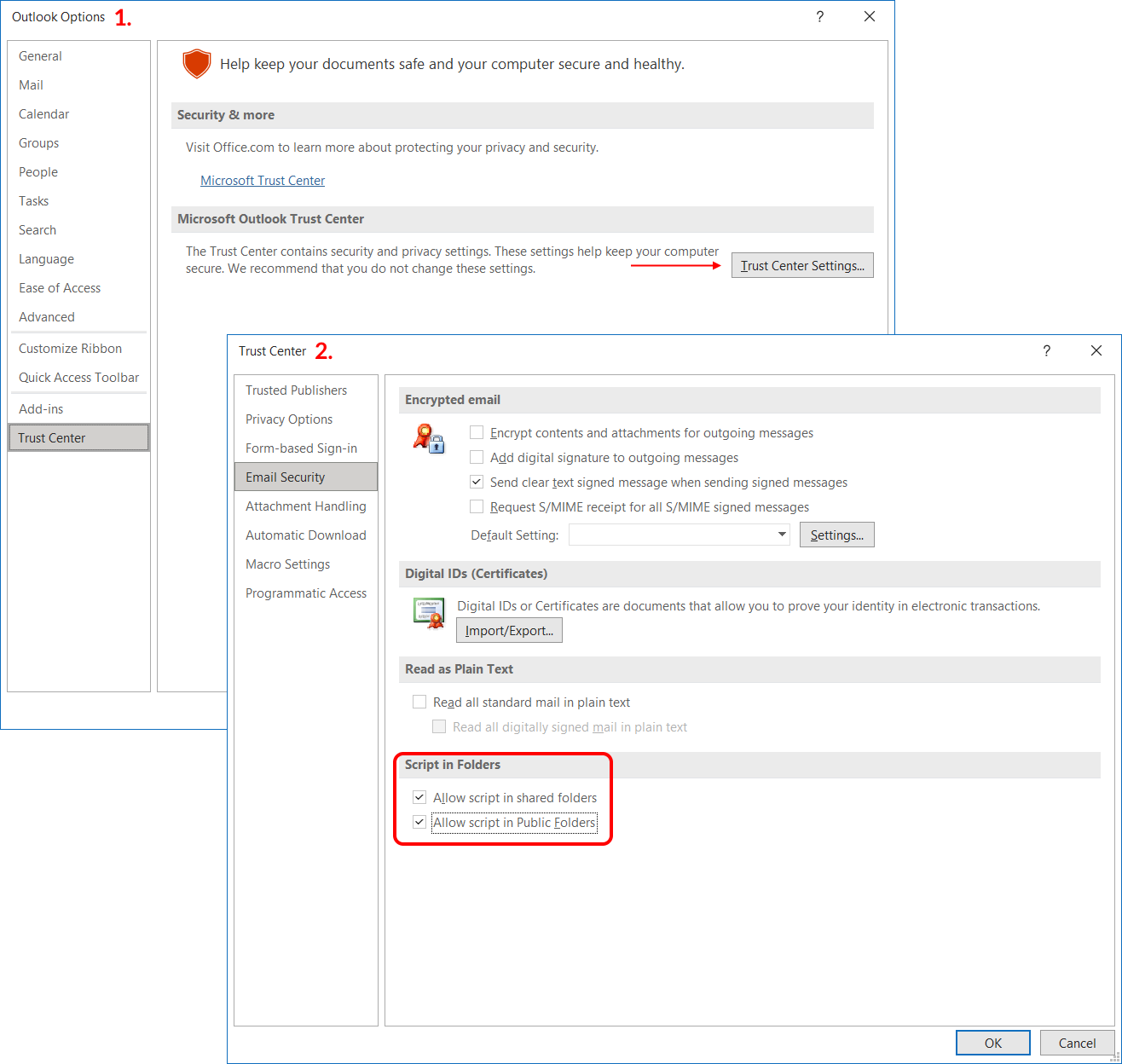
Important: For Outlook forms to work correctly for In-Place Archive mailboxes as well, the Allow script option must be enabled in the Trust Center settings in Outlook.
About Outlook forms
In Microsoft Outlook, each window used to enter content — for example, a new email message or a new calendar appointment — is called an Outlook form. Default forms are stored in the Standard Forms Library for Outlook. Additional libraries are also available, including Personal Forms and, if you have an Exchange account, Organizational Forms. Each folder in the Outlook hierarchy has a default Outlook form associated with it: for example, a mail folder such as your Inbox uses the Message form by default, while the Contacts folder opens the Contact form by default.
When archiving Microsoft Exchange content, contentACCESS Outlook forms are used to transparently open an HTML shortcut — which replaces the archived email message — with the original email message. When the forms are installed, end users will not notice any difference between the original email and the archived (shortcutted) one.
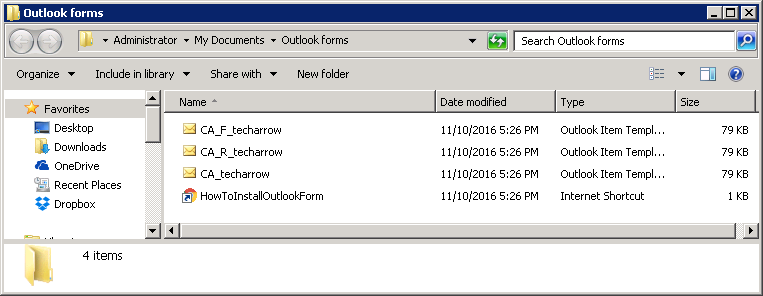
There are three contentACCESS Outlook forms available. All of them must be installed for correct functionality:
- CA_techarrow.oft – used to transparently open standard archived messages.
- CA_R_techarrow.oft – used to transparently open replied archived messages.
- CA_F_techarrow.oft – used to transparently open forwarded archived messages from the mailbox.
contentACCESS Outlook forms for legacy archives (both MAM and ELM) are also available.
Installation of Outlook forms and Outlook forms for legacy archives is very similar; the differences are described below.
Start the installation
To install standard Outlook forms:
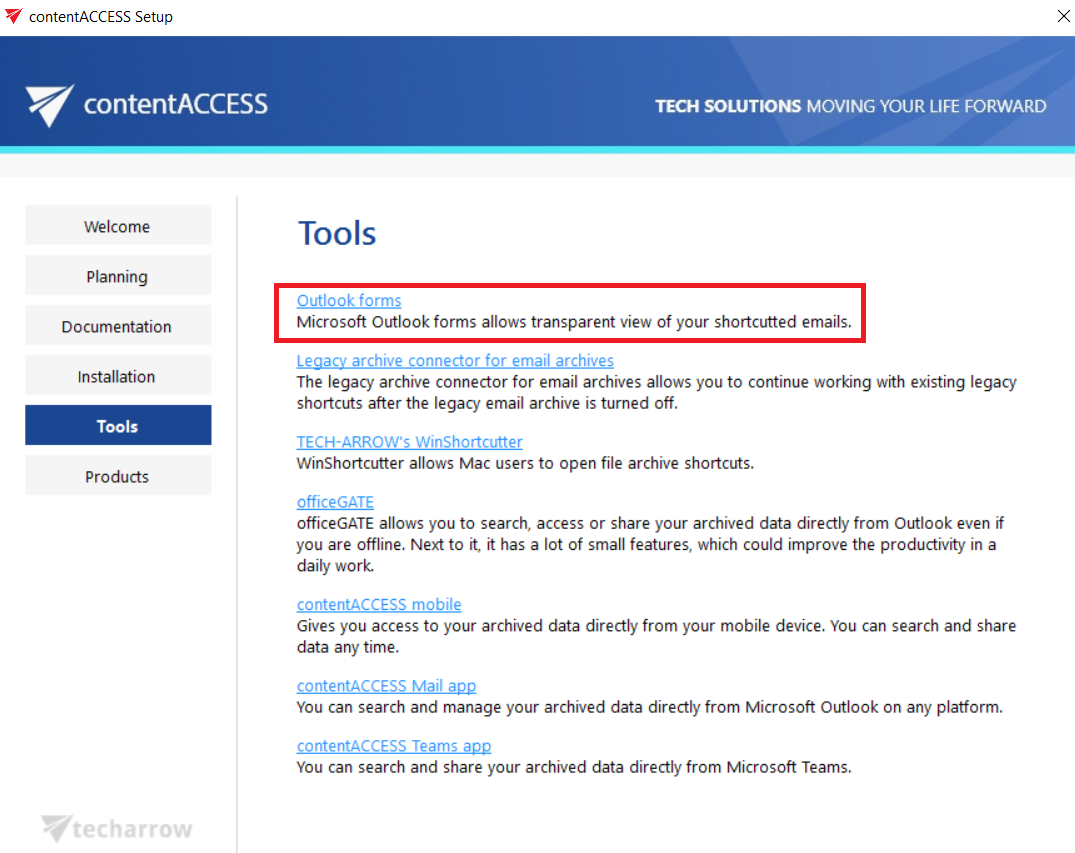
- Open the Tools section in the contentACCESS installation wizard.
- Click Outlook forms.
To install Outlook forms for legacy archives:
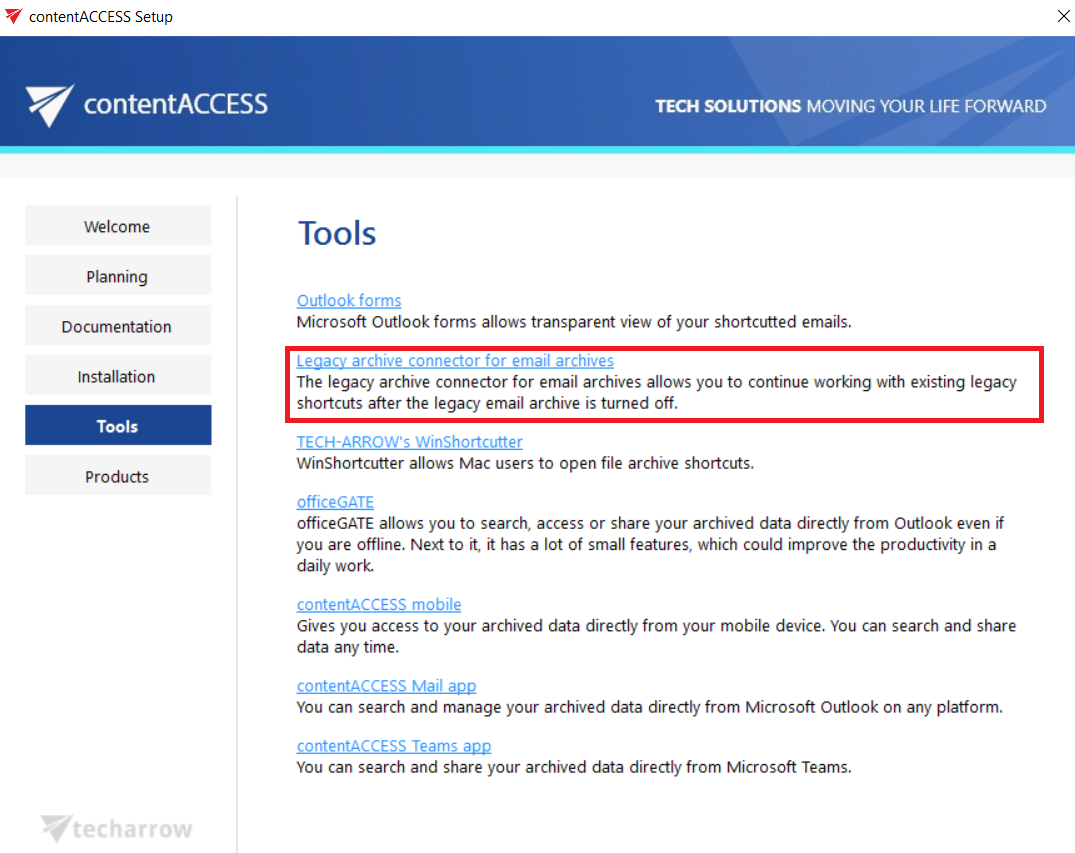
- Open the Tools section in the contentACCESS installation wizard.
- Click Legacy archive connector for email archives.
- Click Legacy forms for MAM or Legacy forms for ELM, depending on which archive you are using.
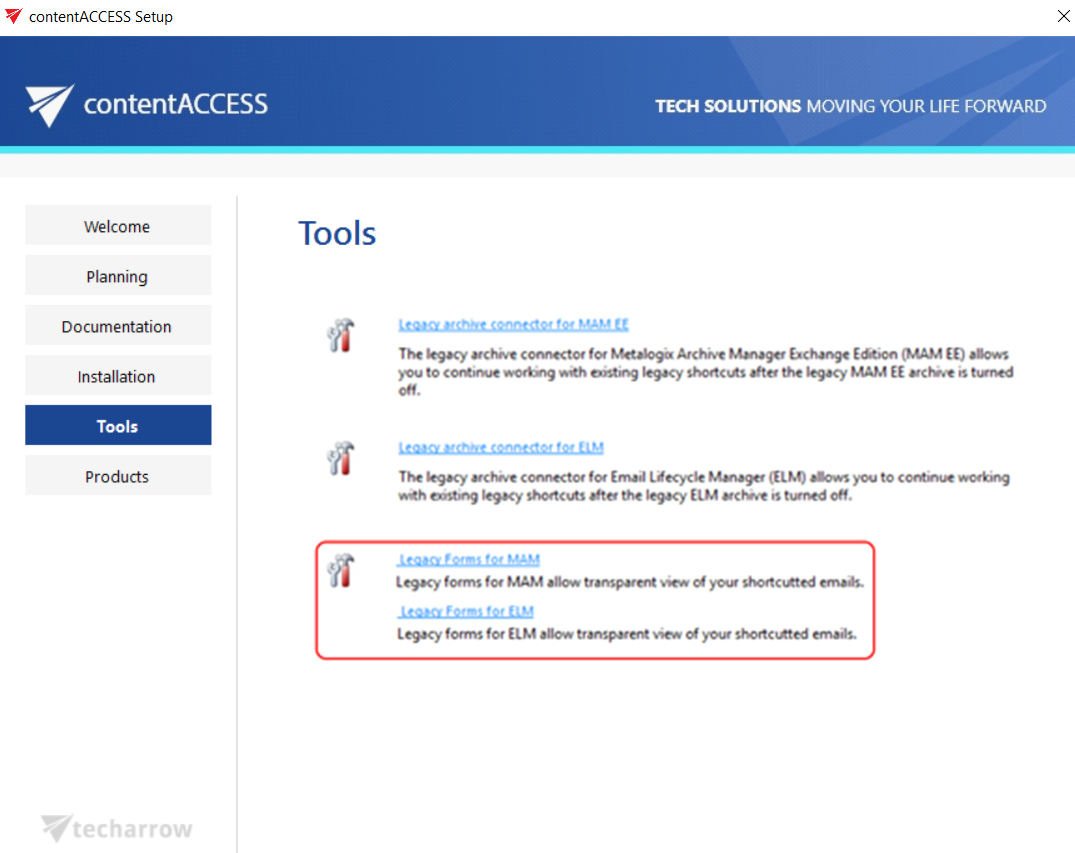
Clicking the selected option opens the Install Outlook forms, Install Outlook forms (Legacy MAM), or Install Outlook forms (Legacy ELM) window:
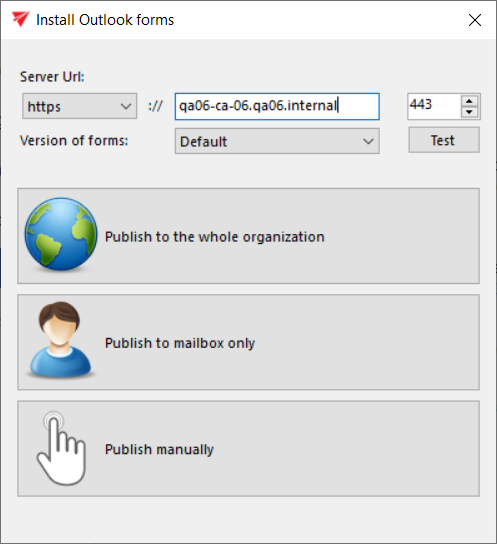
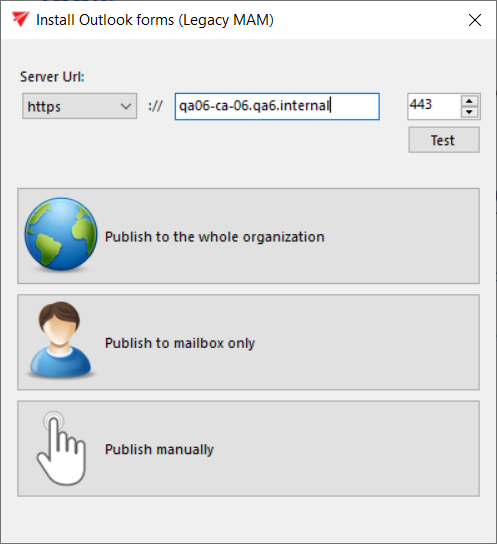
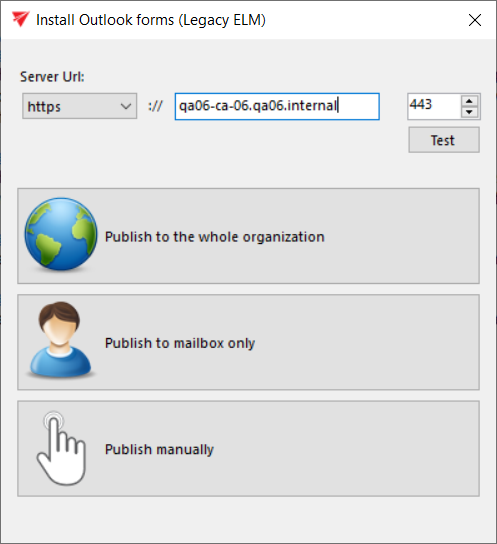
Note: Outlook forms can also be installed from the Setups folder of the contentACCESS installation package: C:\TECH-ARROW\contentACCESS_Package\Setups\Forms.
Configure the connection and form version
First, set the contentACCESS retrieve server (contentACCESS Proxy) URL. This option allows you to install the forms for either HTTP or HTTPS Proxy. It is also recommended to test the connection with the server.

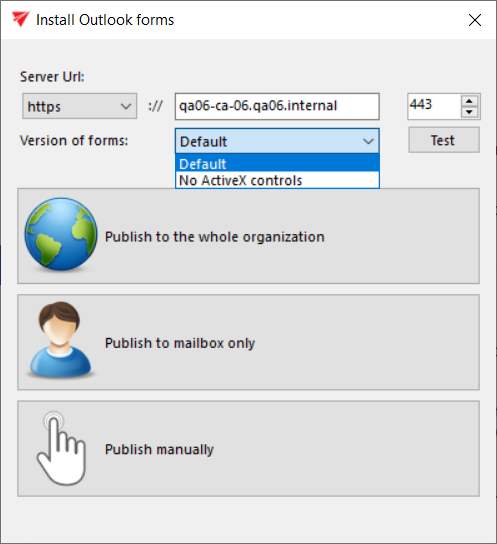
For standard Outlook forms installation (non-ELM and non-MAM), you can select the Version of forms: Default or No ActiveX controls.
The No ActiveX controls option is recommended in environments where ActiveX is disabled in Microsoft Office, in line with Microsoft's latest security recommendations. Using this version avoids warnings related to ActiveX controls, although certain rarely used visual elements may not be displayed if the required registry settings are missing. This allows users to choose how Outlook forms should be installed based on their security settings and environment.
Publish the forms
The application simplifies Outlook form publishing by providing an automated publishing method. You can publish the forms automatically to the Organization forms library, or publish them to the user's Personal forms library:
- Publish to the whole organization (Organizational forms library) – this is the recommended method, because the forms only need to be published once and will then be available to the whole organization.
- Publish to mailbox only (Personal forms library) – used when publishing to the Organizational forms library is not possible, for example, when Microsoft 365 does not have an Organizational forms library.
When forms are published to the Organizational and/or Personal forms library, Outlook starts automatically. If the forms are published successfully, the user is notified:


Requirements for automatic publishing
- Outlook x64 2013 or higher.
- The user account running the application must have the necessary permissions.
Manual publishing
If the requirements for automatic publishing are not met, manual publishing is used instead:
- Publish manually: select a folder where the forms will be exported, together with a link pointing to the Outlook forms installation manual.

Once exported, the folder opens automatically and you can deploy the forms following the steps described in the manual. See the Summary page for the link to the manual.
Message classes and icons
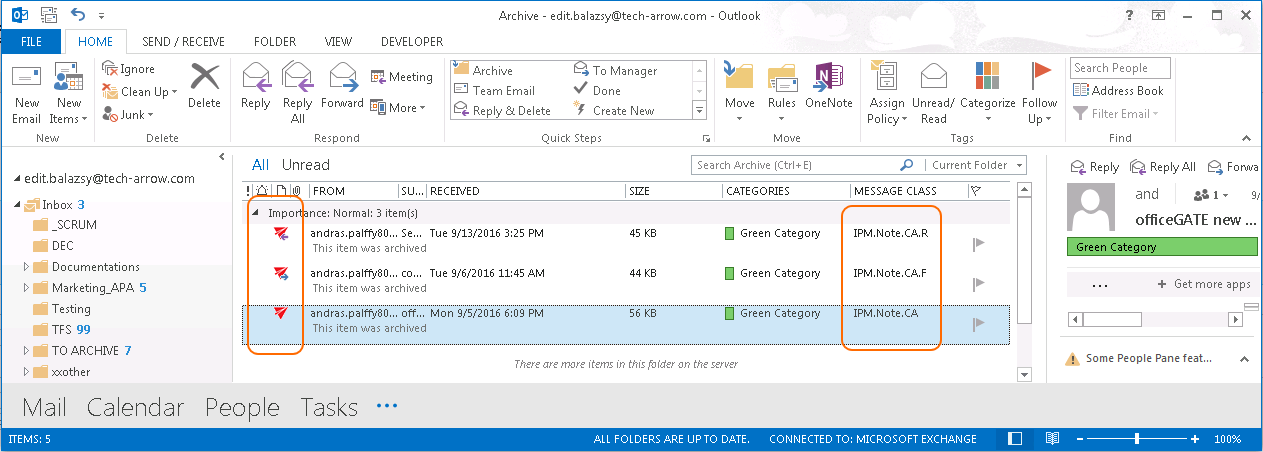
During the email archive process, the archive job changes the message class of email messages:
- Standard messages – get the
IPM.Note.CAmessage class. - Replied messages – get the
IPM.Note.CA.Rmessage class. - Forwarded messages – get the
IPM.Note.CA.Fmessage class.
Based on these message classes, the Outlook forms mark archived emails with the following icons:
- Standard messages –

- Replied messages –

- Forwarded messages –

Important: Outlook 2013 users have access to the Organizational forms library but cannot publish to it using Publish custom forms.
There are two possible ways to resolve this:
- Use an earlier version of MS Outlook to publish the Outlook forms.
- Publish the forms to your Personal Forms Library, then use Outlook Options ⇒ Advanced ⇒ Developers group ⇒ Custom Forms… ⇒ Manage Forms to copy the form from Personal Forms to Organizational Forms.