Email archive job configuration
Introduction
The Email archive job allows administrators to archive mailbox items based on age, size, and other filtering criteria, and to replace archived items with shortcuts to save mailbox space. This page describes how to configure an Email archive job using a sample use case: archiving mailbox items from edit.balazsy@tech-arrow.com that are older than 1 year but younger than 2 years, replacing them with HTML shortcuts, and running the job every working day from 5 PM CET until midnight.
To support this processing type, the following sections must be configured on the job's configuration page:
- Report mode settings
- Processing settings
- Database settings
- Scheduling settings
- Storage settings
- Shortcutting
- Retention settings
- Address book objects to process
- Include folders
- Exclude folders
- Notification settings
- Resource settings
This page also explains how to combine shortcutting methods within a single Email archive job.
Report mode settings
If the Use report mode checkbox is checked, the job runs in report mode. After the job finishes running in this mode, the user can download a .csv report file in this section. The file contains a list of emails belonging to the entities selected in the Address book objects to process section, along with information about them, including whether they will be processed or not.

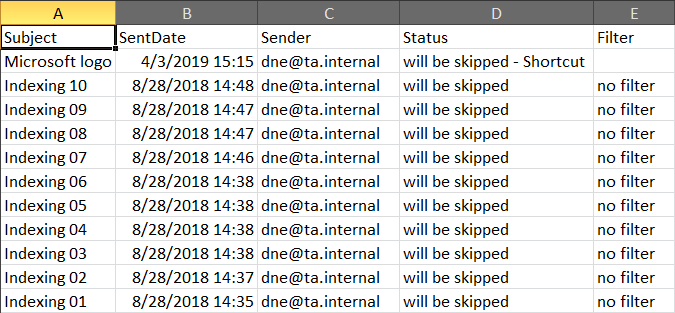 Screenshot: Report file preview
Processing settings
From the Archive dropdown list, the administrator must choose what will be archived by the archiving job. There are three options:
- Mailboxes
- In-Place Archives
- Mailboxes and In-Place Archives
The administrator may select whether to use the MAPI protocol to communicate with the Exchange server. The EWS (Exchange Web Services) connection is selected by default if MAPI is not selected. Microsoft 365 Exchange server does not support MAPI connection. Another requirement for using MAPI is having an Exchange server 2013 or earlier version.
Note: MAPI can be selected only if the Mailboxes option is selected in the Archive dropdown list, since MAPI is not supported by In-Place Archive.
The Use journal archive to build folder structures of mailboxes option allows the job to update the folder IDs and create the correct folder structure. The job goes through a mailbox, searches for the email in the archive, and updates its folder ID, creating the folder in the archive if it does not already exist. Read more about journal processing here.
If you check the Archive email if journal didn't archive it yet sub-option, the archive job also archives the email if it has not yet been archived using journal processing. Read more about journal processing here.
Note: At least one mailbox must be set as Process as journal mailbox from its context menu in the Address book, otherwise the Use journal archive to build folder structures of mailboxes and Archive email if journal didn't archive it yet options will not appear in the job's configuration.

Note: The Split attachments option is checked by default, meaning that the body of the email and the attachment are stored separately. If an email message containing attachments was archived by a job where this option was not checked, contentACCESS apps (contentACCESS MailApp, officeGATE, contentACCESS Mobile) will show 0 attachments. However, if you open the original email, the attachments are shown.

If this option was checked, but the email contained an embedded email (.msg attachment), this embedded email will not be displayed among the attachments in these apps.
Database settings
Select an already configured connection from the dropdown list. The metadata is stored here. In this use case, the database named "Email Archive DB" is configured for the archived emails. For further information on how to set database connections, refer to the Databases page.

Scheduling settings
In this step, the running time(s) of the email archive job must be selected. You can either select a scheduler from the list or create a new one via the create new… option in the dropdown list. For an email archive job, it is recommended to set a Week schedule with a repeat, which starts the job at the same time every day. In this use case, a scheduler is set to start the archive job every day after business hours, from 5 PM CET until midnight. For more information about setting schedulers, refer to the Schedules page.

Storage settings
Choose an already configured storage from the dropdown list. The processed binaries are stored here. In this use case, a configured disk-type store named "Email Archive store" is selected. For more information on how to set up storage, check the Storages page.

Shortcutting
In this section, the user configures what will be archived and how it will be archived. It is also possible to delete emails that are already archived. There are three options available in the Shortcutting section:
1. Apply to NOT ARCHIVED items — the emails in the mailbox are replaced by the shortcut set in this section. You can use any previously configured shortcut type from the Shortcut configuration section. If the mailbox items have not been archived yet (are archived for the first time), check the Apply to NOT ARCHIVED items checkbox. It is recommended to use an HTML shortcut for emails/attachments that are 1 to 2 years old. Set which emails will be archived using the filtering settings by clicking the not set or Change filter buttons.

2. Apply to ALREADY ARCHIVED items with keep original shortcutting method — if items are already archived (for example, using the "Keep original" method) but need to be replaced with shortcuts, check the second checkbox and specify a previously configured shortcut type to use. These two processes always run in two stages, even if both are configured within one job: on the first run, the items are archived; on the second run, the archived items are replaced by the selected shortcuts. If an email has been shortcutted before but was then restored or recovered, the Apply to ALREADY ARCHIVED items with keep original shortcutting method checkbox must be checked for the email to be processed by the job. Set which emails will be replaced with shortcuts using the filtering settings by clicking the not set or Change filter buttons.

3. Delete items from Exchange mailboxes which are ALREADY ARCHIVED — this option allows the user to delete already archived items from the original mailboxes. The delete function also handles orphan shortcuts (items already deleted from the archive but still existing in the mailbox). Foreign/unknown shortcuts (emails not found in the archive) are skipped and not deleted. Set which emails will be deleted from the mailbox using the filtering settings by clicking the not set or Change filter buttons.

Click the Change filter or not set buttons and set the filtering according to your needs and/or regulations. To learn more about working with filtering settings, see the filtering in jobs page.
Note: Email archive size filter is limited to 2 GB (gigabytes). The size filter uses the message size acquired from EWS (Exchange Web Services). This message size can differ from the value displayed in Outlook.
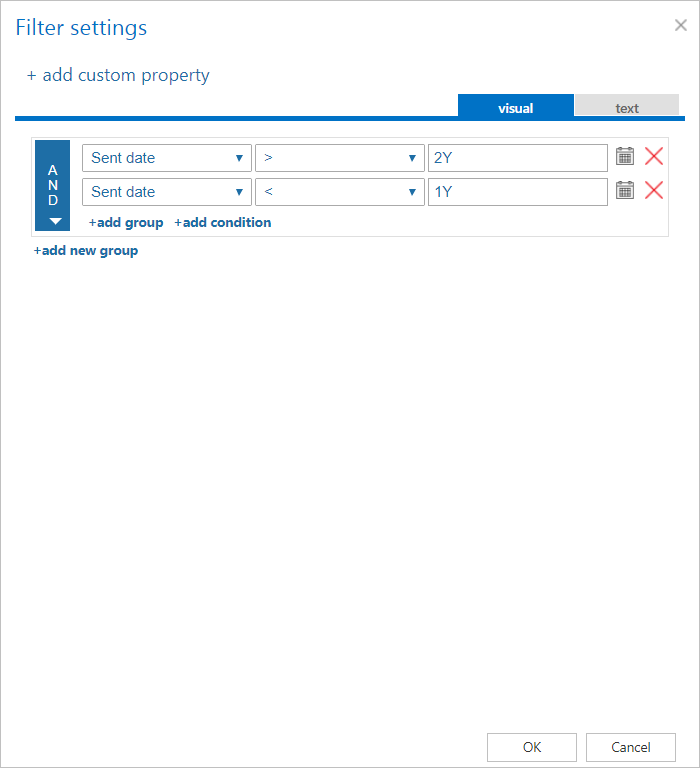
Note: Shortcutting methods can also be combined when configuring an Email archive job. For more information, refer to the Combining the shortcutting methods section below.
Note: The message classes excluded in the Email archive System settings always take priority over the filtering settings defined in the archive job.
Important: In the case of custom Exchange solution(s) used for emails, custom email properties will not be archived. The recommended solution is not to archive these emails and/or use the exclude feature (in Email archive System settings) for these custom message classes.
Use case: archive emails older than 1 year
In this use case, emails older than 1 year are archived and replaced with a shortcut. Only the Apply to NOT ARCHIVED items option is configured.

The emails are archived and immediately replaced by a shortcut.
Use case: archive immediately, create shortcut later
In this use case, the archiving job is configured to archive all emails, regardless of age, with the shortcut type Keep original. This ensures that all emails are archived while keeping the mailbox intact. Emails older than 3 months are further processed — after being archived, they are converted to HTML shortcuts.

Note: By using a "Journal shortcut" type, you can delete the shortcuts completely from the mailbox.

Retention settings
Choose an already configured retention time from the dropdown list. The archived emails are stored for this time period in the storage, and it will be impossible to delete them during this period. It is highly recommended to select a retention time required by the law of your country. For more information about setting retentions, check the Retentions page.

Address book objects to process
Here, the administrator may select the mailboxes, groups, Microsoft 365 group mailboxes, or the entire Exchange server to be processed by the archive job.
Important: If the provisioning job processed the Microsoft 365 groups, they will appear twice in the Mailbox selection window: once as a security group (processing only members), and once as a mailbox-enabled M365 group (processing both the mailbox and members).
Click the  select option and check the desired groups or servers in the Mailbox selection window, then click OK.
Note: If the In-Place Archives option is selected in the Archive dropdown list in Processing settings, a warning will pop up for the Address book objects. In this case, only servers, groups, and In-Place Archive mailboxes can be selected after clicking the Select option.

In this use case, the mailbox edit.balazsy@tech-arrow.com is archived, so it is selected from the list:
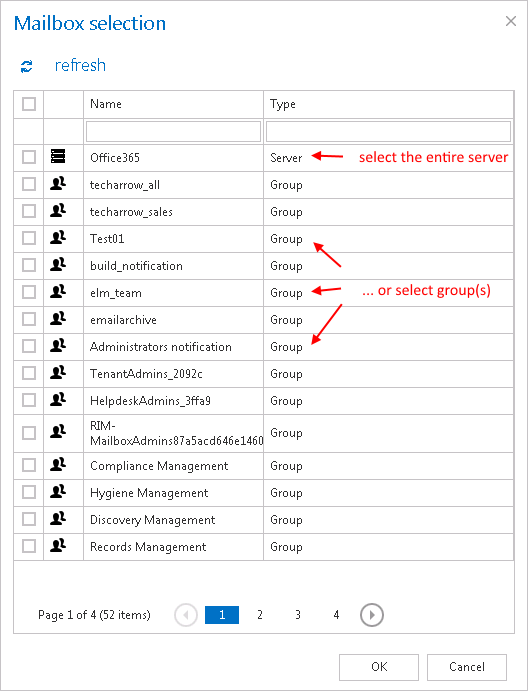
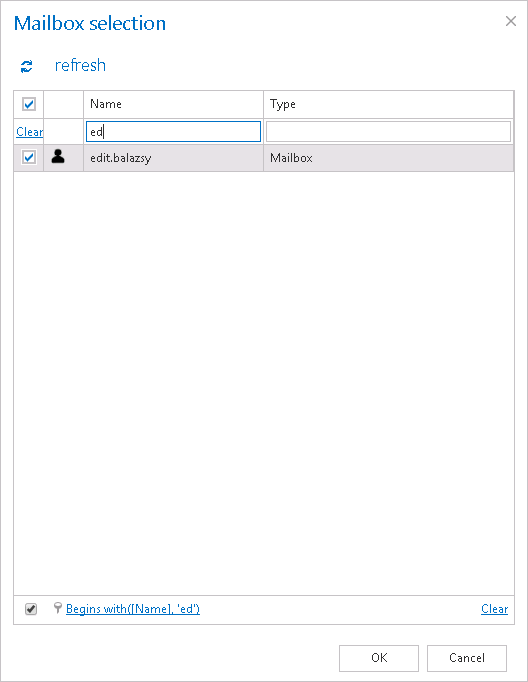
Note: It is possible to archive journal mailboxes as well. Select this option in the Mailbox selection window and, in the Include folders configuration section, set %INBOX%.
- When a journal message is retrieved in the mailbox, the inner message is retrieved.
- When a journal message is restored, the whole envelope is restored.
- When a journal message is previewed (in contentACCESS Portal archive), the inner message is displayed.
- When a journal message is exported to PST, the inner message is exported.
Important: If an on-premise Exchange group is used in a job configuration, the job configuration needs to be updated after the group is moved to the cloud, since the group identifier changes and the job would otherwise continue using the old identifier.
Steps to take:
- Open the job's configuration page.
- Remove the group from the list of Address book objects to process.
- Select the group and re-add it to the list.
- Save the job configuration.
Include folders
The email archive job crawls the entire mailbox or recursive folder structures from the mailbox for further processing. Before entering the folder name(s) to be crawled, it is necessary to select the folder filtering type.

- Entire mailbox: the whole mailbox, including all folders, is processed.
- One single folder: only one pre-selected folder is processed (for example, if you set
%INBOX%Subfolder1, only Subfolder1 is processed). - Recursive, starting from a single folder: all folders starting from the defined folder are processed (for example, if you set
%INBOX%Subfolder1, every subfolder in the structure starting from Subfolder1 is processed). - Multiple folders and Multiple recursive, starting from a single folder: the same rules apply, but multiple folders can be worked with simultaneously (for example,
%INBOX%,%OUTBOX%Folder name 5, or%TASKS%,%CALENDARS%Folder name 6).
Important: It is highly recommended to specify root mailbox folders using wildcards (%). Wildcards ensure that the given mailbox folder (for example, the "INBOX" folder) is processed regardless of the language settings of the mailbox. This is especially important for companies that archive mailboxes using different languages. Subfolders must be added to a root folder with a backslash (\).
Since the backslash \ is used as a path separator, it cannot be used in a folder name. If you want to include or exclude a folder that contains a backslash in its name, enter it as _|_ instead of \.
It is important to bear in mind that selecting Recursive, starting from a single folder filtering type under Include folders and leaving the folder path textbox empty means the whole selected mailbox will be archived.

In this use case, the whole "INBOX" is selected for archiving:

Exclude folders
With this function, you can set which folders/subfolders should not be archived. If you do not want to exclude any folder from the archive process, you can skip these settings.
Folders may be excluded using one of the following methods:
- Added manually via the + new option.
- Imported in one of the available file formats via the import option.
Important: Due to different language settings in user mailboxes, it is highly recommended to specify root folders using wildcards (%). Subfolders must be added to a root folder with a backslash (\).
Since the backslash \ is used as a path separator, it cannot be used in a folder name. If you want to include or exclude a folder that contains a backslash in its name, enter it as _|_ instead of \.

-
Add exclude folders manually: click the + new option. In the Exclude folder dialog's textbox, specify the folder(s) to be excluded, using the hints featured in the same dialog. For example, the pattern
%INBOX%TECH-ARROWmeans that the "TECH-ARROW" folder under the "INBOX" root folder will be excluded.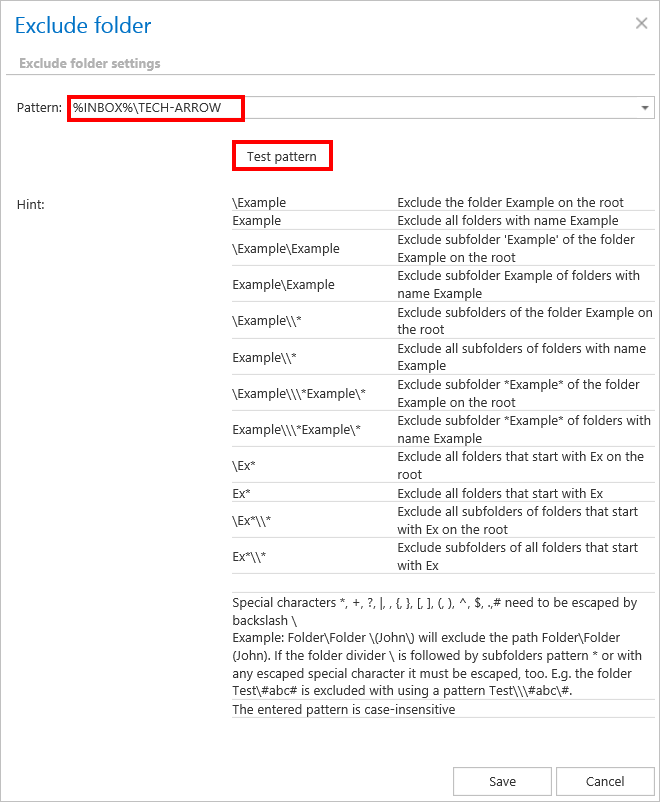
Test pattern button: this button is used to check whether the entered pattern is suitable for the path you would like to exclude from the archiving process. Open the Test pattern matching window by clicking the Test pattern button. Enter the folder path into the Folder path field (this time without the
%sign) and click Test. The test is successful if the pattern was entered correctly into the Exclude folder window.
-
Import the list of folders to be excluded: the list of folders to be excluded may be imported from files in one of the available formats: CSV, XML, tab-delimited, or space-delimited. The file to be imported must contain the list of folders.
infoImportant: Root folders must be specified using wildcards (
%) in the import files. Subfolders must be added to a root folder with a backslash (\). To import a file with a list of folders, refer to Importing contentACCESS configurations from files.
Excluding folders with special characters
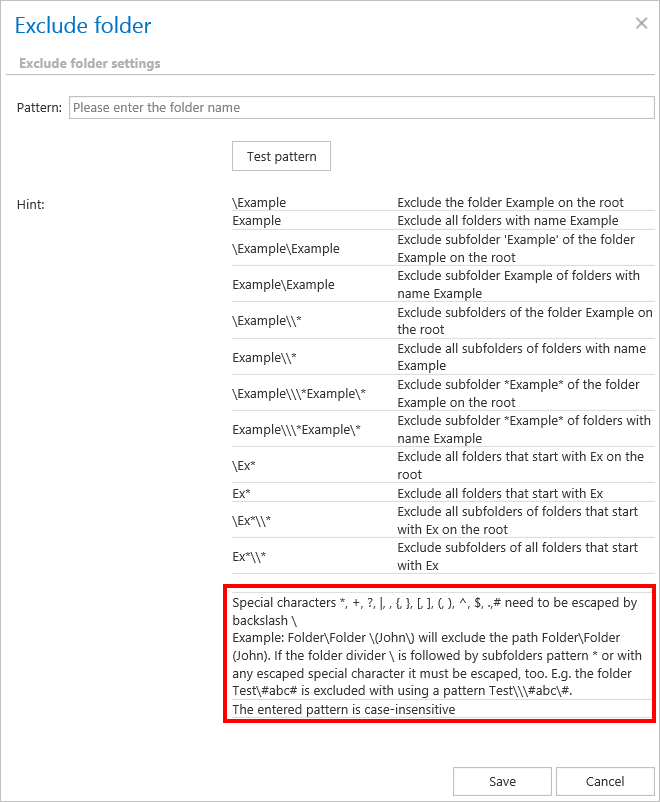
Folders containing special characters, such as brackets, hyphens, or question marks, can be excluded from the archiving process. To exclude such folders, the special characters included in the folder name(s) must be escaped using the backslash \ escape character. The escape character must be added before the special character to be excluded, in the exclude settings of the archive job's configuration page.
For example, if the mailbox has the structure INBOX\Important (folder), and "Important (folder)" must be excluded (the special characters being the brackets), specify the folder to be excluded as: INBOX\Important\(folder\).
This information is available at the bottom of the Exclude folder window:
Notification settings
Select here when you need to receive notification emails from the email archive job. You can set this to always, never, or only when an error/warning occurred during the archiving process — for example, if the archiving of one or more items failed. In the Recipient list textbox, insert the email address(es) of the person(s) who will receive these notifications. Notifications should be used if the administrator does not use the System logs feature.

Resource settings
Set the value that determines how many items will be processed simultaneously by the email archive job. The recommended value is 2.

Save your changes once all sections are configured.
Combining the shortcutting methods in an Email archive job
Companies often use the "Keep original" archiving method on a daily basis. This archiving method ensures that emails and their attachments are readily available while still in use. After a certain period (usually 6 months), it becomes pointless to keep these emails in the mailbox(es), as they take up too much space, while they must still remain easily accessible at any time. For this reason, it is recommended to replace them with shortcuts, which save space in the mailboxes and guarantee easy access to older mailbox items. Combining the shortcutting methods allows the user to achieve this result easily.
This use case demonstrates how to configure an email archive job that archives items older than 10 days while keeping them in their original location, and then replaces these items with shortcuts after 6 months. The job combines the "Keep original" archiving method with shortcutting once the item reaches a certain age (6 months in this use case). The size of the items to be archived and shortcutted can also be set.
Note: If two archive processes are combined, as in this use case, the archive process runs in two stages: on the first job run, the emails are archived while keeping the original; on the second job run, these items are replaced by shortcuts.
To set up an email archive job using this method:
-
Set up a new email archive job and open its configuration page.
-
Set all required sections on the job's configuration page.
-
On the configuration page, navigate to the Shortcutting section and check the Apply to NOT ARCHIVED items checkbox.

-
Set the "Keep original" archive method for items older than 10 days. Choose the Keep original option from the dropdown menu and set the filter so that all items older than 10 days will be archived.

-
Apply shortcutting to the items archived with the "Keep original" method that are older than 6 months and larger than 100 kB, using the HTML shortcut type. Check the Apply to ALREADY ARCHIVED items with keep original shortcutting method checkbox. Choose the already configured "HTML" shortcut from the dropdown list. Set the sent date filter to 6 months and the size filter to "larger than 100 kB".
 info
infoUse case: How to set up shortcutting if all items should be archived, items under 100 kB should be kept in their original location, and items over 100 kB should be replaced by shortcuts?
In this use case, set the size filter in the second row only (see screenshot above) to
>100 kB, and do not set a size filter in the first row.
-
Save your settings and wait until the job starts to run according to the configured scheduler.