Email archive retention changer job
Introduction
The Email archive retention changer job allows administrators to change the retention time of emails in one or more selected mailboxes, provided that the underlying storage supports changing retention at the storage level. Storages that support this change are Disk, Azure, and Amazon S3.
This page describes how to create and configure the job, including its running modes, scheduling, retention, address book, folder, filtering, notification, and resource settings.
Create the job
- Go to Jobs.
- Click + new.
- Select Email archive retention changer.

On the job's configuration page, configure the sections described below.
Running mode settings (mandatory)
The job can be run in three modes:
-
Immediate processing: Collects the emails and changes their retention directly.

-
Create report: Collects the emails and provides a CSV file with a list of emails. The administrator can review and edit the list of affected documents before applying any changes.

-
Apply report: Requires uploading a CSV file with a list of emails to be processed. The administrator can delete emails from the list before running the job — only emails that remain in the list will be processed. The job reads the list and changes the retention of the listed emails.

Scheduling settings (mandatory)
Select the running times of the retention changer job. You can either select an existing scheduler from the list or create a new one using the Create new … option.

Retention settings (mandatory)
Select the new retention to be applied to the emails.

Address book objects to process (mandatory)
Select the mailboxes, groups, or the entire Exchange server to be processed by the retention changer job. Click the  select option, check the desired groups or servers in the Mailbox selection window, and click OK.
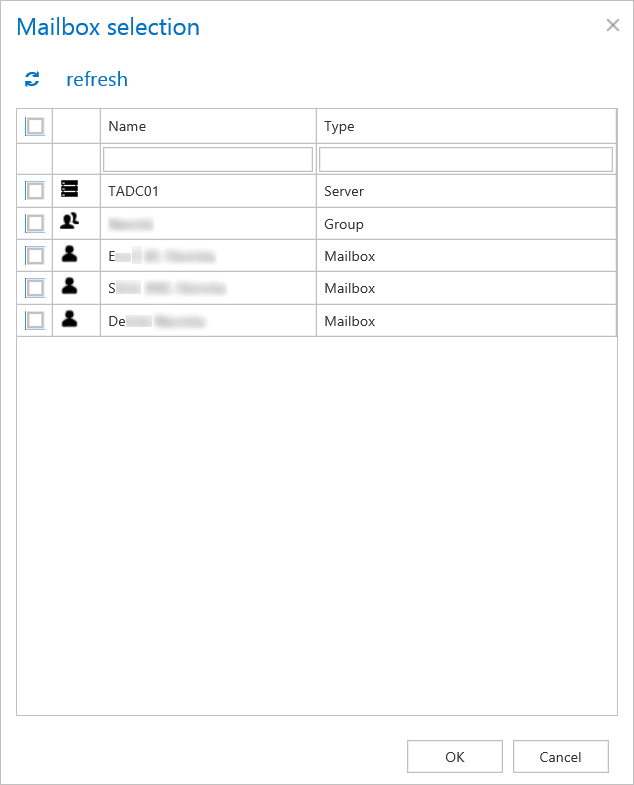
Important: If an on-premise Exchange group is used in a job configuration, the job configuration needs to be updated after the group is moved to the cloud, since the group identifier changes and the job continues to use the old identifier.
Steps to take:
- Open the job's configuration page.
- Remove the group from the list of Address book objects to process.
- Select the group again and re-add it to the list.
- Save the job configuration.
Include folders (mandatory)
The email retention changer job crawls the entire mailbox or recursive folder structures within the mailbox for further processing. Before entering the folder name(s) to be crawled, select the folder filtering type.

- Entire mailbox: The whole mailbox, including all folders, will be processed.
- One single folder: Only one pre-selected folder will be processed (for example, if you set
%INBOX%Subfolder1, then onlySubfolder1will be processed). - Recursive, starting from a single folder: All folders starting from the defined folder will be processed (for example, if you set
%INBOX%Subfolder1, then every subfolder in the structure starting fromSubfolder1will be processed). - Multiple folders and Multiple recursive, starting from a single folder: Follow the same rules as above, but allow you to work with several folders simultaneously (for example,
%INBOX%,%OUTBOX%Folder name 5… or%TASKS%,%CALENDARS%Folder name 6).
Important: It is highly recommended to specify the root mailbox folders using wildcards (%). Wildcards ensure that the given mailbox folder (for example, the INBOX folder) will be processed regardless of the language settings of the mailbox. This is especially important for companies archiving mailboxes in different languages. Subfolders must be added to a root folder using a backslash (\).
Note: If you select Recursive, starting from a single folder as the filtering type under Include folders and leave the folder path textbox empty, the entire selected mailbox will be archived:

Filtering settings (optional)
Click Change filter and configure the filtering according to your needs and/or regulations. For more information about working with filtering settings, see the Filtering in jobs section of the documentation.
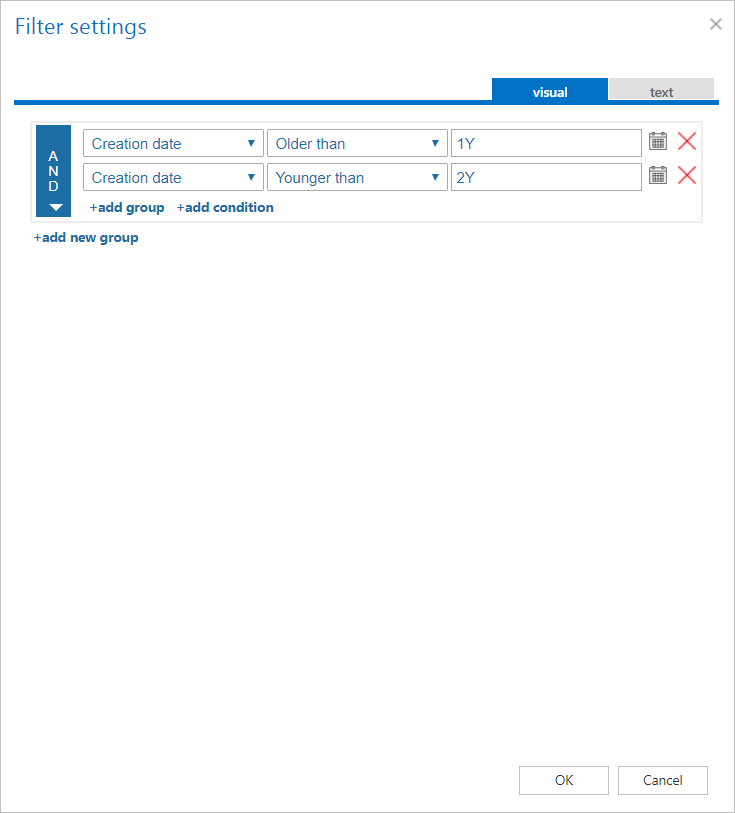
Note: In certain cases, a file's creation date is set to a more recent date than its modification date. This happens when a file is copied to another external disk (for example, from disk G to disk I) — in this case, the creation date will be set to the date of the copy action. Because of this, it is recommended to always check the Filtering settings if some items do not get processed.
Notification settings (mandatory)
Select when you want to receive notification emails from the retention changer job. You can set notifications to be sent always, never, or only when an error or warning occurs during the process — for example, if the retention change of one or more items fails, you may receive a notification email about the error.
In the Recipient list textbox, enter the email addresses of the people who should receive these emails. If there are multiple recipients, separate the addresses with , or ;.

Resource settings (mandatory)
Set the value that determines how many items will be processed simultaneously by the retention changer job. The recommended value is 2.

Once all sections are configured, click Save in the upper-left corner of the UI to save the job configuration.