How to allow EWS access in Exchange Online after October 2026
Introduction
Exchange Web Services (EWS) in Exchange Online is entering its final retirement phase. Microsoft has announced that phased EWS disablement will begin in October 2026. As part of this transition, Microsoft introduced EWSAllowedAppIDs, a tenant-level AppID allow list that allows administrators to specify which applications are permitted to access EWS.
For contentACCESS, this means that if an Exchange Online connection still uses EWS, the Azure App ID of the application used by contentACCESS must be included in the EWSAllowedAppIDs allow list.
This configuration is performed in the Exchange Online environment and is independent of the contentACCESS configuration.
Before the retirement enforcement begins, EWS access can still operate without a populated allow list. Starting with the phased enforcement in October 2026, however, setting EWSEnabled=True without an AppID allow list will result in EWS traffic being blocked. When the allow list is populated, only applications whose App IDs are included in the list are allowed to use EWS.
For this reason, administrators should identify the applications that still require EWS and prepare the corresponding allow list before the retirement enforcement begins.
This page provides an overview of the EWSAllowedAppIDs configuration, explains what needs to be considered when preparing for the EWS retirement, and includes a sample PowerShell script that can be used to add the application used by contentACCESS to the allow list.
Configuration
The EWSAllowedAppIDs setting is relevant for contentACCESS connections that use Exchange Online (Microsoft 365) as the Exchange server type. The configuration is based on the following Exchange Online settings:
- EWSAllowedAppIDs � contains the App IDs of the applications that are allowed to access EWS.
- EWSEnabled � controls whether EWS is enabled at the organization level.
For contentACCESS to continue using EWS with an Exchange Online (Microsoft 365) connection, the following configuration should be considered in Microsoft 365:
- The Azure App ID of the application used by contentACCESS must be included in the EWSAllowedAppIDs allow list.
- EWS must remain enabled for the organization while the contentACCESS connection still requires EWS.
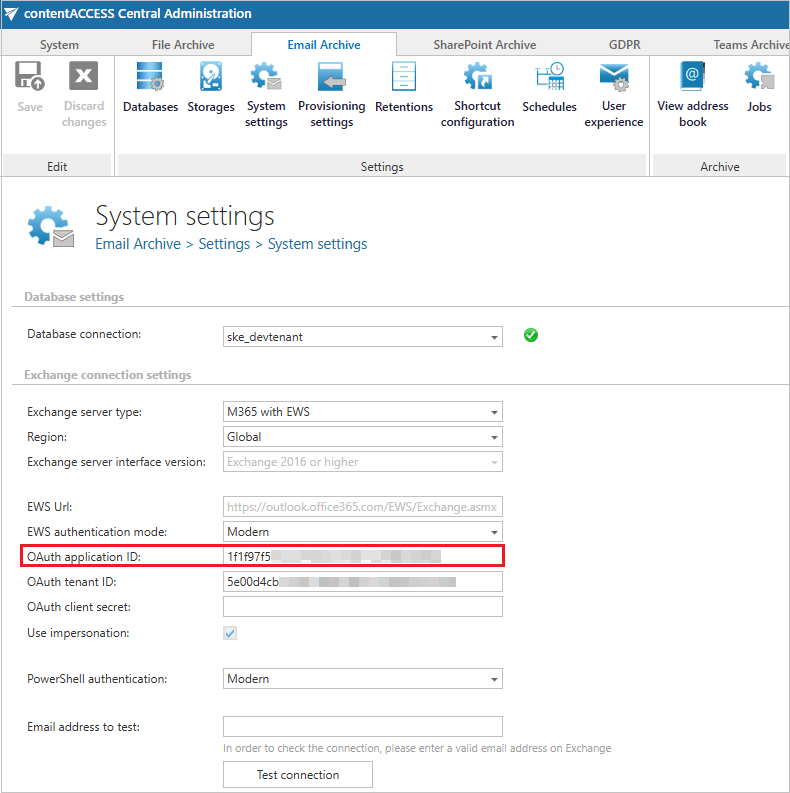
When configuring or updating EWSAllowedAppIDs, keep in mind that the setting represents the complete allow list. Adding or removing an App ID therefore requires reading the current list, updating it, and writing the complete value back. Changes to the allow list can take up to 24 hours to take effect.
Configure the EWSAllowedAppIDs allow list using a PowerShell script
Before you start, make sure that you have:
- an Exchange Administrator or Global Administrator role in Microsoft 365,
- the Exchange Online PowerShell module (
ExchangeOnlineManagement) installed, - administrator access to Microsoft Entra for your tenant.
To add the application to the EWSAllowedAppIDs allow list, you can also use the following PowerShell script:
Import-Module ExchangeOnlineManagement

Write-Host "Starting the process to add contentACCESS to the EWS allow list..." -ForegroundColor Cyan
Write-Host "Connecting to Exchange Online..." -ForegroundColor Cyan
Write-Host "M365 login screen will pop up shortly where you need to sign in with your admin credentials." -ForegroundColor Cyan

# Connect to Exchange Online
Connect-ExchangeOnline -ShowBanner:$false
Write-Host "Connected to Exchange Online." -ForegroundColor Cyan

# Read the actual allow list
$currentEwsSettings = Get-OrganizationConfig -RetrieveEwsOperationAccessPolicy
Write-Host "Current EWS settings:"
$currentEwsSettings | Format-List EwsEnabled, EwsAllowedAppIDs
Write-Host ""

# Application ID which is used by contentACCESS Email Archive
$contentACCESSEWSAppId = Read-Host "Enter your contentACCESS EWS Application ID"

Write-Host "ContentACCESS EWS Application ID entered: $contentACCESSEWSAppId" -ForegroundColor Cyan
$key = Read-Host "Press Enter to continue or any other key to abort..."
if ($key -ne "") {
	Write-Host "Process aborted by the user." -ForegroundColor Red
	exit
}

# Check if contentACCESS EWS Application ID is already in the allow list and exit if it is
if (($currentEwsSettings.EwsEnabled -eq $True) -and
	($currentEwsSettings.EwsAllowedAppIDs -split "," | ForEach-Object { $_.Trim() } | Where-Object { $_ } | Select-Object -Unique | Where-Object { $_ -eq $contentACCESSEWSAppId })) {
	Write-Host "contentACCESS EWS Application ID is already in the allow list and EWS is enabled. No action is required." -ForegroundColor Green
	exit
}

# Include the contentACCESS EWS Application ID in the allow list
$updated = @(
	$currentEwsSettings.EwsAllowedAppIDs -split "," |
		ForEach-Object { $_.Trim() } |
		Where-Object { $_ }
	$contentACCESSEWSAppId
) | Select-Object -Unique

# Save the combined list
Set-OrganizationConfig -EwsAllowedAppIDs ($updated -join ",")

# Enable EWS for the tenant
Set-OrganizationConfig -EwsEnabled $true

# Read the EWS allow list to verify if contentACCESS has been added
$newEWSSettings = Get-OrganizationConfig -RetrieveEwsOperationAccessPolicy

$newEWSSettings | Format-List EwsEnabled, EwsAllowedAppIDs

# Verify if contentACCESS EWS Application ID is present in the allow list
if ($newEWSSettings.EwsAllowedAppIDs -split "," | ForEach-Object { $_.Trim() } | Where-Object { $_ } | Select-Object -Unique | Where-Object { $_ -eq $contentACCESSEWSAppId }) {
	Write-Host "contentACCESS EWS Application ID is successfully added to the allow list." -ForegroundColor Green
} else {
	Write-Host "contentACCESS EWS Application ID is NOT present in the allow list." -ForegroundColor Red
}
For the more detailed (step-by-step) instructions, see Introducing EWSAllowedAppIDs: Preparing for the Final Phase of EWS Retirement.
After the EWS shutdown
contentACCESS already supports Graph-based archiving (in beta), which will be the only way to archive emails after EWS is fully blocked. However, Microsoft is still actively working on moving all EWS features to Microsoft Graph, so Graph support is not yet complete.
For now, Graph is not generally recommended for production use, but it is already available for customers who want to try it. For more information, see Switching Microsoft 365 from EWS to Microsoft Graph.