Journal post processing job configuration
Introduction
The Journal post processing job processes journal messages captured in journal mailboxes and reassigns them to the appropriate archive mailboxes based on the address book configuration. This page describes how to create and configure a Journal post processing job, including its scheduling, address book object selection, notification, and resource settings.
Create a Journal post processing job
Go to Jobs -> Add new -> Journal post processing.

On the job's configuration page, go through the following sections.
Scheduling settings
Select the running time(s) of the job. You can either select an existing scheduler from the list or create a new one using the create new … option from the dropdown list.

Address book objects to process
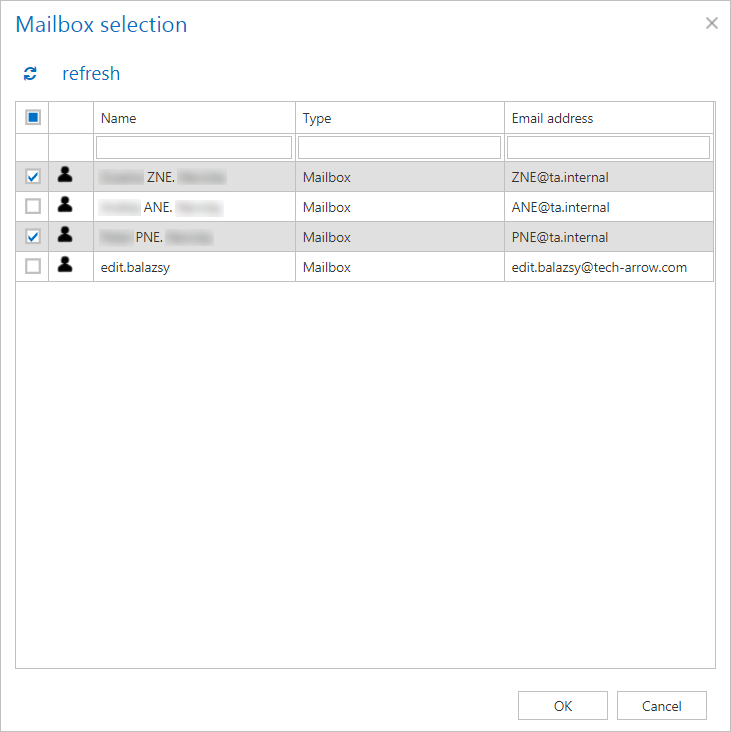
Select the mailboxes that will be processed by the job. Only mailboxes marked as Process as journal are listed in the selection dialog.
- Click the
 select option.
 - Check the desired mailboxes in the Mailbox selection window.
- Click OK.
Notification settings
Specify when notification emails should be sent from the job. You can choose to always receive notifications, never receive them, or receive them only if an error or warning occurred during the process. In the Recipient list textbox, enter the email addresses of the recipients. If there are multiple recipients, separate the addresses with "," or ";".

Resource settings
Set the value that determines how many items will be processed simultaneously by the job. The recommended value is 2.

Note: Always save your job configuration by clicking Save in the upper-left corner of the UI.