PST import
Introduction
The PST import page allows administrators to manage PST files uploaded by the Remote File Archiving agent (RFA). For more information about RFA, see How to use the Remote File Archiver.
PST files are stored in the resource storage. From this page, administrators can scan for PST files, match them with target mailboxes, upload them to contentACCESS, and configure and run the PST import job that processes them into the appropriate mailbox archives.
To access this page, go to Email archive -> Remote agents -> PST import.
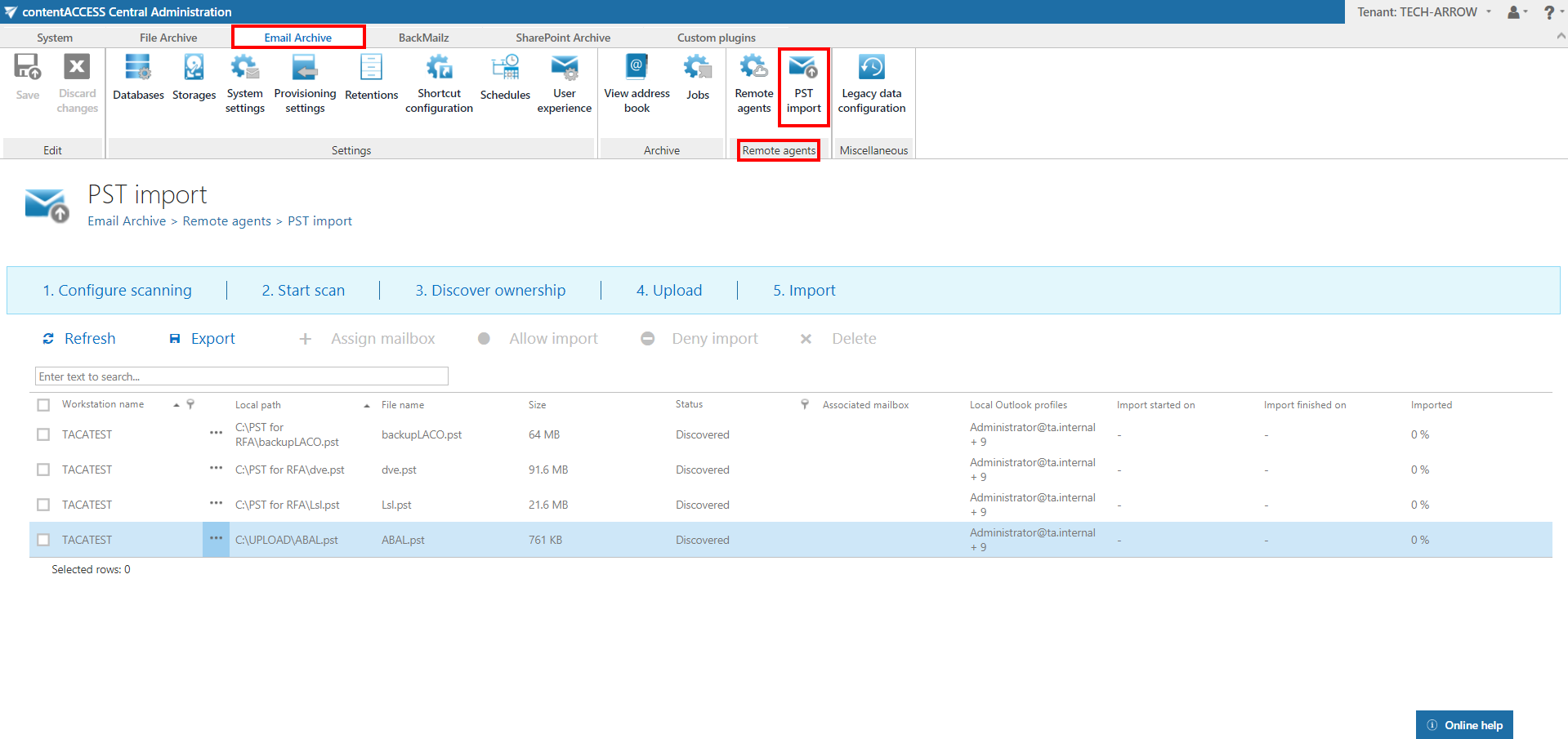
Managing PST files is a multi-step process:
- Make the PST files appear on the list.
- Match the PST files with target mailboxes.
- Upload the files to contentACCESS.
- Allow the import (if not already allowed).
- Configure and run the PST import job.
Step 1: Make PST files appear on the list
Before PST files can be managed, they must first appear on the PST import list. This can be done in one of the following ways.
Upload PST files via RFA
If the PST files are uploaded through the Remote File Archiving agent, they can be managed right away without any further action on this page.
Use the Configure scanning and Start scan options
Click 1. Configure scanning. The configuration page of the global PST import rule opens. On this page, you can add new folders to the global rule, assign it to remote agents, disable it, or view its statistics.
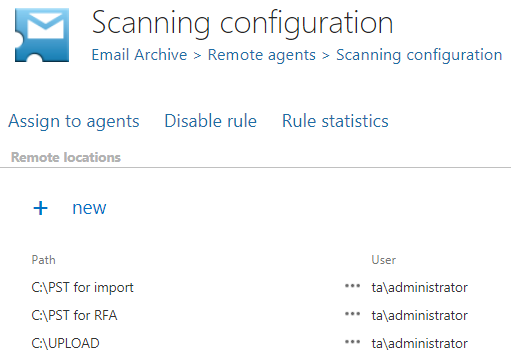
To add a new folder to be scanned:
- Click + new.
- Enter the path of the folder where the remote agents have their PST files to be imported located.
- Specify explicit user credentials if necessary.
- Click OK.

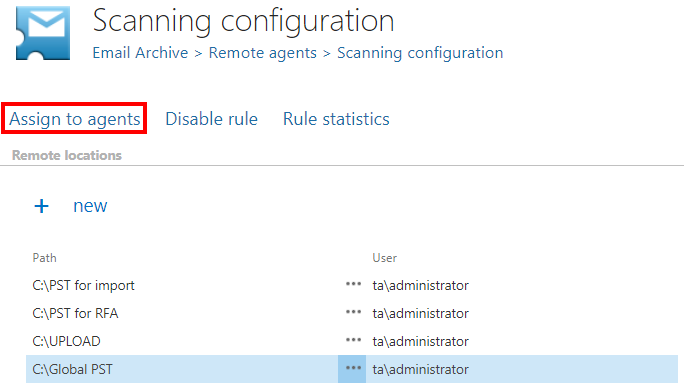
To assign the rule to remote agents:
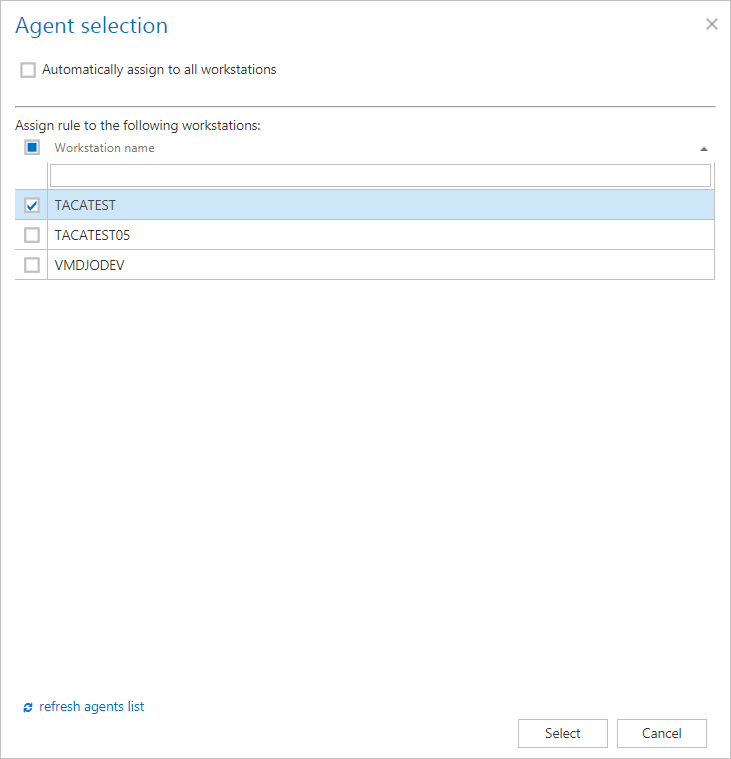
- Click on the rule, then click Assign to agents. The agent selection window opens.
- Pick the agent(s) to assign the rule to, or check Automatically assign to all workstations.
- Click Select.
Save your changes using the Save button in the upper left corner.
Go back to the PST import page and click 2. Start scan. This makes the global rule appear in the list of PST import jobs for the selected remote agents.
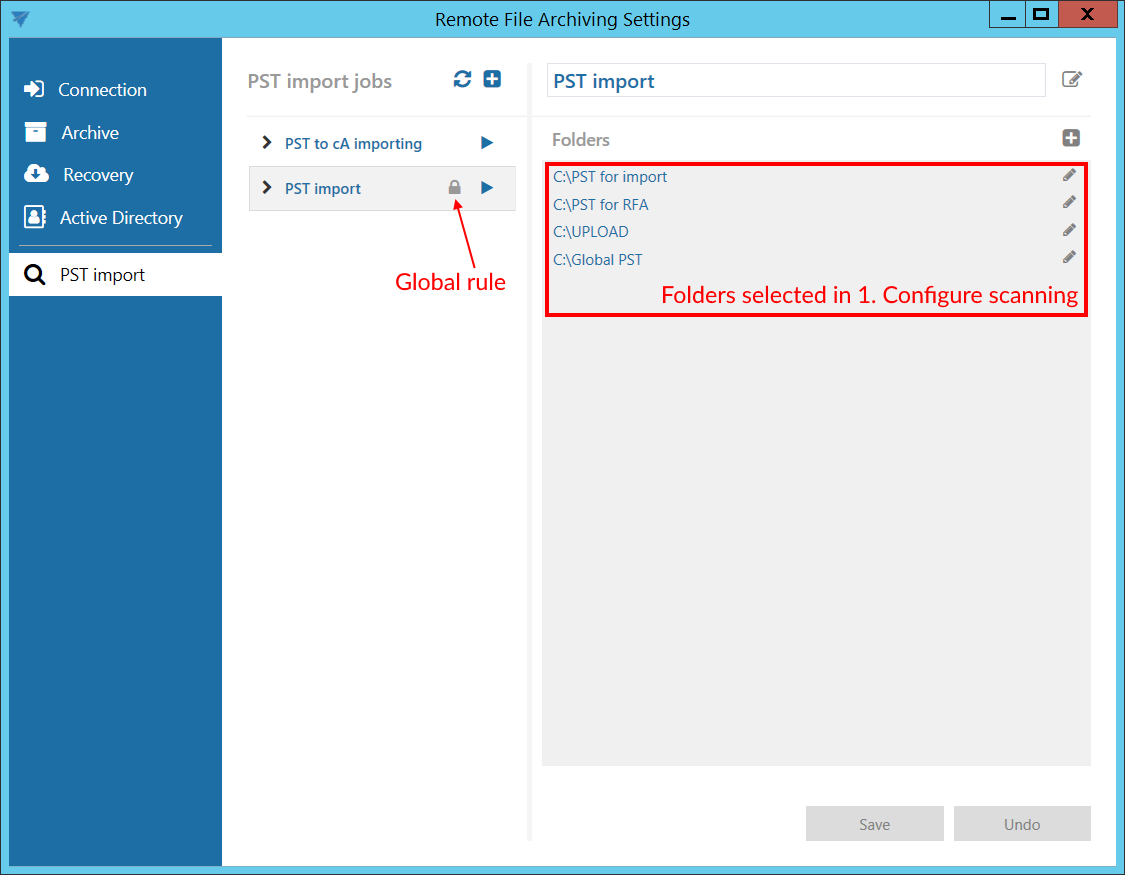
The remote agents now have to start the job (rule). After the rule finishes, the PST files from the global rule folders appear in the list of PST files on the PST import tab, where the administrator can manage them.
Note: The PST files will NOT be uploaded to contentACCESS yet — they are only loaded to the list. The upload happens in a later step.
Step 2: Match PST files with target mailboxes
PST files can be matched with target mailboxes either manually or automatically.
Manually assign the mailboxes
- Select the desired PST files by checking their checkbox on the left.
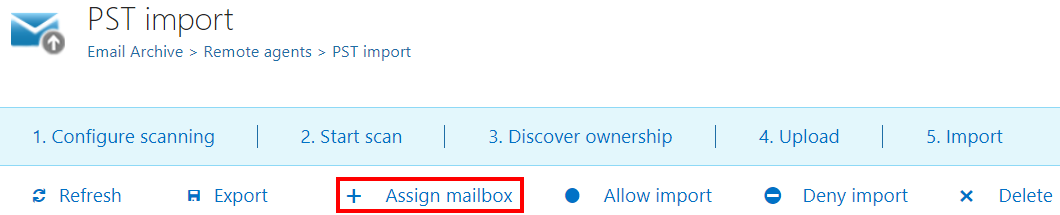
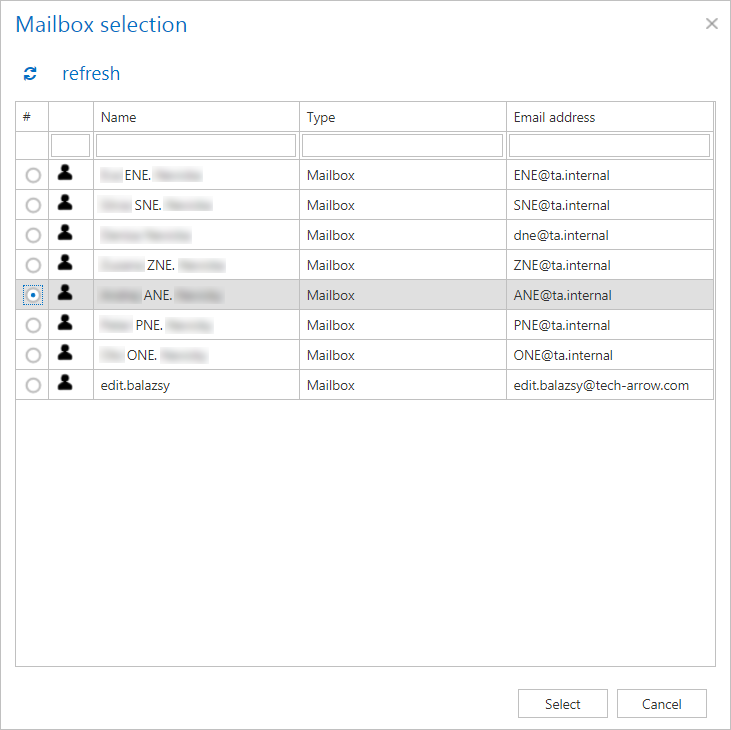
- Click + Assign mailbox (or select the option from the context menu of a file). The mailbox selection window opens.
- Pick one of the available mailboxes.
- Click Select.
Automatically assign the target mailbox
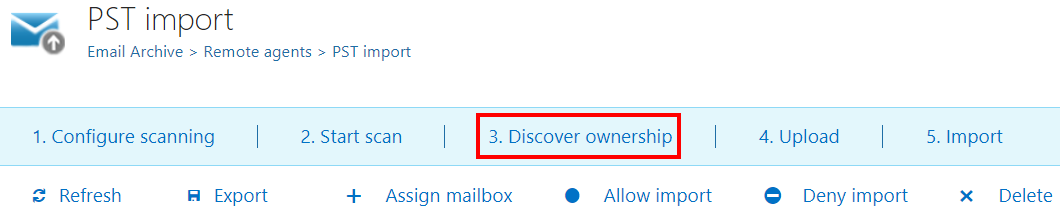
Select a PST file and click 3. Discover ownership. The system tries to match the selected PST file with one of the available mailboxes based on its name.
Step 3: Upload the files to contentACCESS
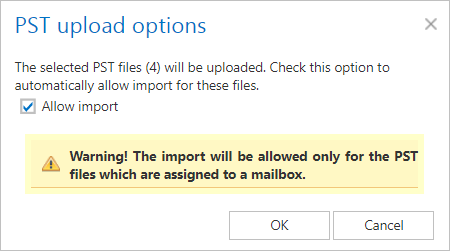
Click 4. Upload to upload the files to contentACCESS. In this step, it is also possible to check Allow import to allow the import at the same time. Click OK.

Step 4: Allow the import
If the import was not allowed in step 3, it must be allowed here: select the desired PST file(s) and click Allow import.

Step 5: Configure and run the PST import job
Click 5. Import to configure the PST import job. The job assigns a Database and Storage to those mailboxes that are associated with at least one PST file and don't have a database and/or storage assigned yet. Database, storage, and index zone can also be assigned from the context menu of the mailbox in the Address book.
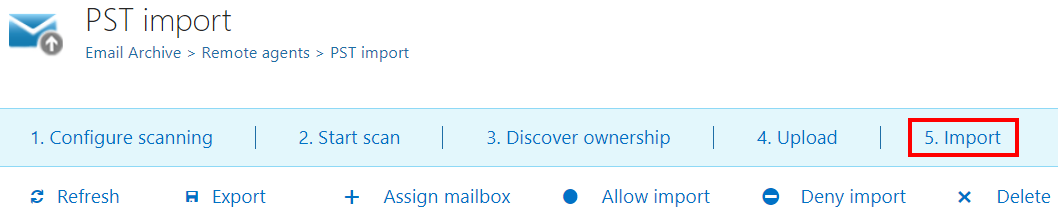
The job configuration page opens. The following settings must be configured.
Database settings
Select an already configured connection from the dropdown list. Metadata is stored here. For more information on how to set database connections, see Databases.

Scheduling settings
Select the running time(s) of the PST import job. You can either select a scheduler from the list or create a new one via the create new … option in the dropdown list. For more information about setting schedulers, see Schedules.

Storage settings
Choose an already configured storage from the dropdown list. The processed binaries are stored here. For more information on how to set storages, see Storages.

Retention settings
Choose an already configured retention time from the dropdown list. The processed PST files are stored for this length of time in the storage, and cannot be deleted from there during that period. It is highly recommended to select a retention time that is required by the law of your country. For more information about setting retentions, see Retentions.

Include folders
The PST import job crawls the entire mailbox or recursive folder structures from the PST files for further processing. Before entering the folder name(s) to be crawled, select the folder filtering type. Folder filtering type is described in more detail in the Email archive job configuration section.

PST processing settings
- Root folder: If you specify a folder here, emails from the root folders are imported into the folder defined here.
- Prefix: All of the PST files are imported into a folder defined here.

Exclude folders
Use this function to set which folders/subfolders should not be imported. If you do not want to exclude any folder from the process, you can skip these settings.
Folders may be excluded using one of the available methods:
- Added manually via the + new option.
- Imported in one of the available file formats via the import option.
Folder excluding is described in more detail in the Email archive job configuration section.

Filtering settings
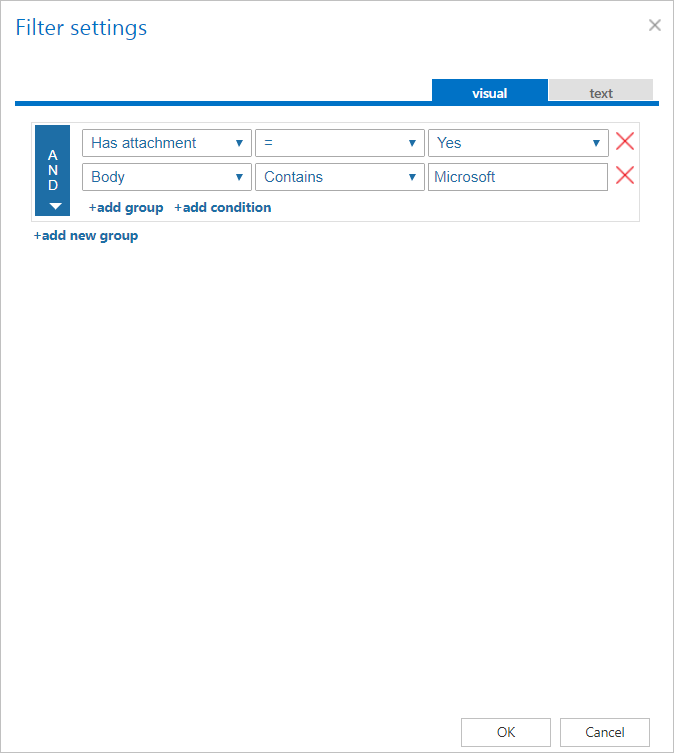
Click Change filter and set the filtering according to your needs and/or regulations. To learn more about working with filtering settings, see Filtering in jobs.
Notification settings
Select when you need to get notification emails from the PST import job. You can set the notification to always/never be sent, or only when an error/warning occurs during the import process — for example, if the import of one or more items fails. Enter the email address(es) of the recipient(s) into the Recipient list textbox. Notifications should be used if the administrator does not use the System logs feature.

Resource settings
Set the value that determines how many items are processed simultaneously by the PST import job. The recommended value is 2.

Save your changes and start the job. The PST files are now imported to the associated mailboxes.
Managing PST files after import
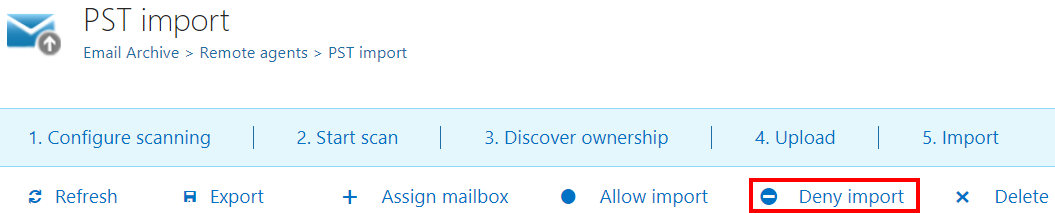
If the import was allowed for a PST file, but the administrator then decides not to import that file, the import can be denied by clicking Deny import (or selecting the option from the context menu of a file).
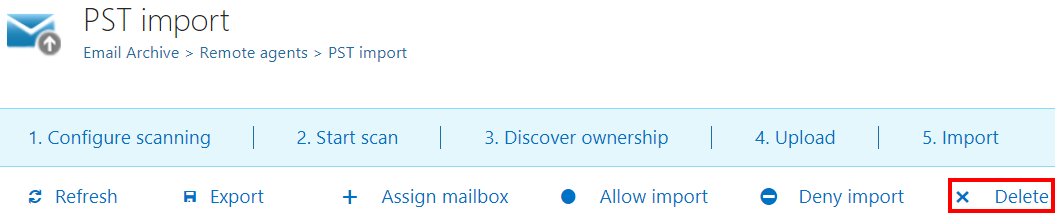
If a PST file is no longer needed, it can be deleted from the list by clicking Delete (or selecting the option from the context menu of a file).
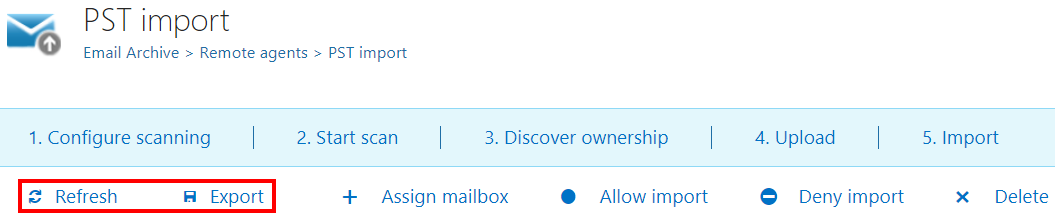
It is possible to export the list of available (or just selected) PST files to an XLS or CSV file.