User permissions to public folders
Introduction
User permissions to public folders determine which public folders a user can see and access in the contentACCESS Portal, based on synchronized Exchange permissions or explicitly assigned roles. This page explains how public folder access is granted automatically during provisioning, how folder visibility relates to underlying folder permissions, and how to grant an administrator access to all public folders regardless of their Exchange permissions.
Automatic permission assignment during provisioning
During the run of the provisioning job, users automatically receive permission to access public folders:
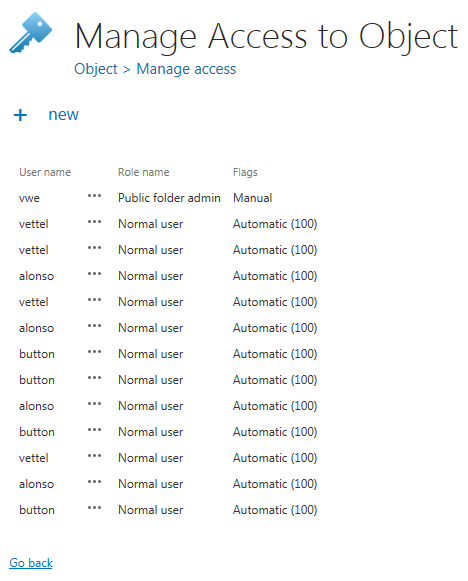
The assigned role is Normal user, which allows the user to see public folders as a separate entity in the contentACCESS Portal:
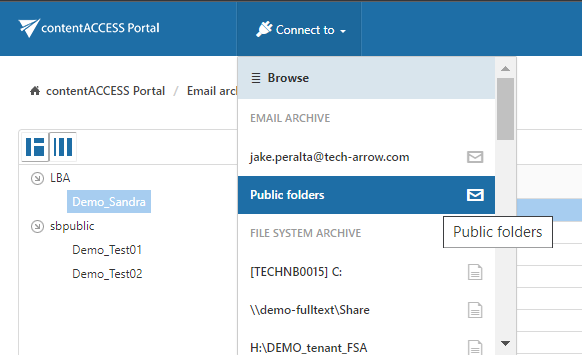
The Public Folders entity is visible to the user, but this does not mean that all data within it will be displayed. Visibility of individual folders depends entirely on the folder permissions the given user has:
- If the user can read the folder, the folder will be visible.
- Otherwise, the folder will not be displayed at all.
Note: Public folder security trimming is applied based on the synchronized public folder permissions. If you need a user who can access all public folders regardless of their individual Exchange permissions, you must create a role that includes the View all public folders permission and grant it to the user.
Granting administrator access to all public folders
There are situations when you want to grant an administrator access to all public folders in the contentACCESS Portal archive. In this case, you need to create a new role, add the View all public folders permission to this role, and then assign the role, on the public folder mailbox, to the future public folder administrator.
To create such a user, follow these steps:
-
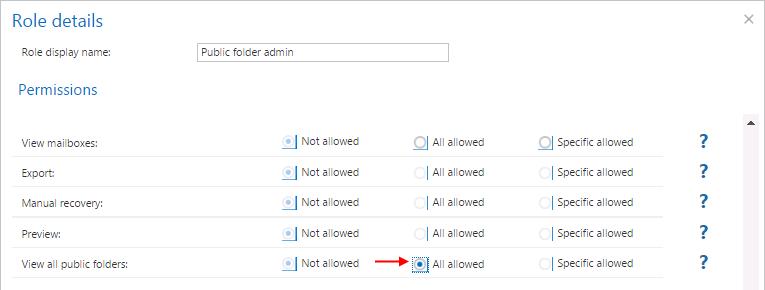
Create the role on the Roles page and add the View all public folders permission to the role (option Specific allowed).
-
Go to the contentACCESS address book (Email Archive => Archive => View address book), and choose Manage access from the public folder's context menu:

-
Grant the role to the user or administrator:
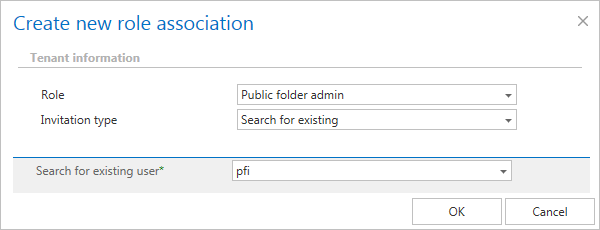
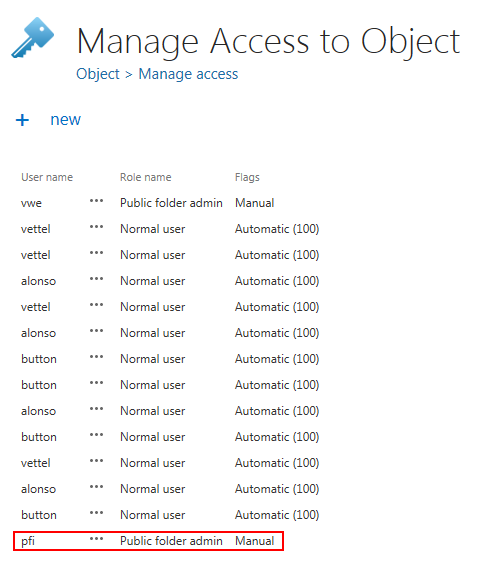
In this example, the user "PFI" was granted "Public folder admin" permissions on the "Public Folders" mailbox. This allows the "pfi" user to see all public folders, regardless of Exchange permissions:
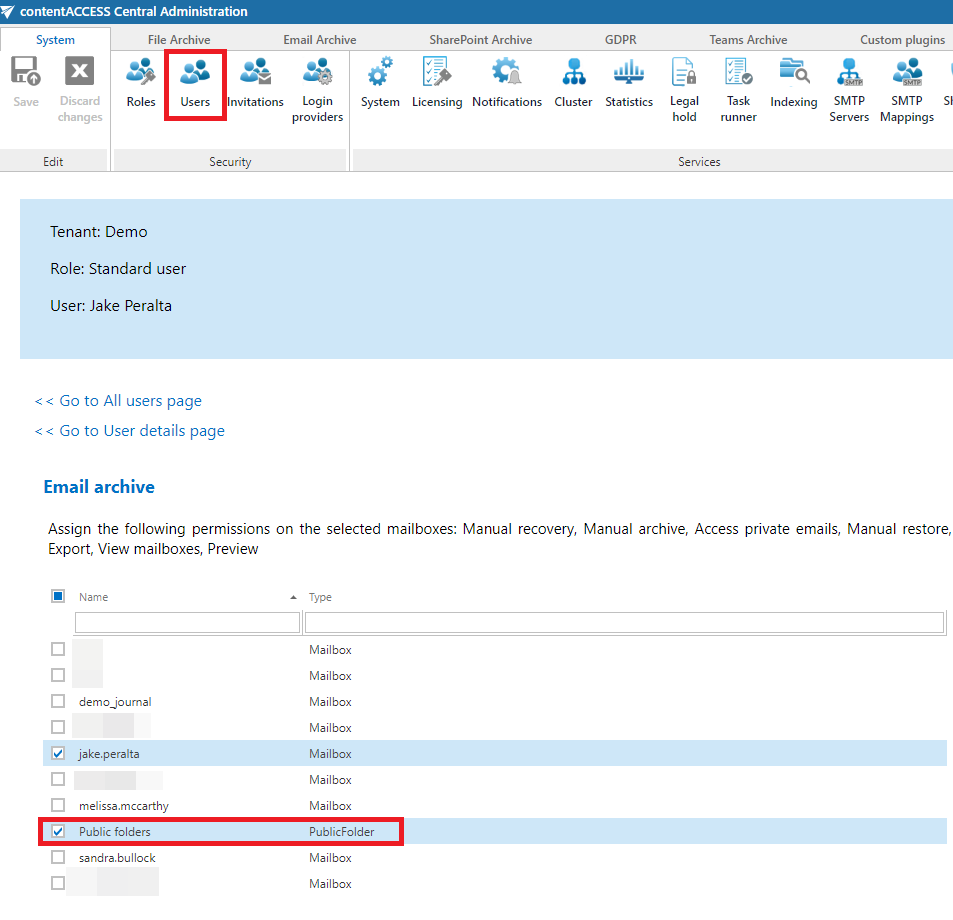
Alternatively, the permission can be granted to the user on the Users page:
- Select the user.
- From the context menu, open Assign role and select Role assignment.
- Check the Public folder(s) checkbox in the Email archive section.