Azure app registration for Microsoft 365 archiving
Introduction
Azure app registration enables contentACCESS to authenticate and connect to Microsoft 365 resources using a modern and more secure authentication method. This page explains why modern authentication is required, how to register an application on the Azure portal, and where to find the permission requirements for each archive type.
Modern authentication is a category of several different protocols — rather than a single authentication method such as username and password — that aim to enhance the security posture of cloud-based resources. Modern authentication relies on token-based claims, which are used to authenticate with an identity provider to generate a token for access. OAuth is an open standard used by many applications and websites to grant access to other systems' information without sharing the password itself.
Why contentACCESS needs modern authentication
For years, Microsoft allowed basic authentication to Exchange Online, SharePoint, and other resources, meaning that only a username and password were required. However, for security reasons, Microsoft is progressively deprecating legacy authentication, which will eventually be permanently blocked. (Read more in this article.) After that date, OAuth 2.0 (also known as modern authentication) will be required instead. These changes require vendors of third-party apps that integrate with Exchange Online and other resources such as Teams and SharePoint to support modern authentication.
contentACCESS is also affected by these changes, since it must use modern authentication to connect to Exchange Online, SharePoint, OneDrive, and Teams. This requires an Azure app registration to be configured on the Microsoft 365 tenant.
App registration
Navigate to portal.azure.com.
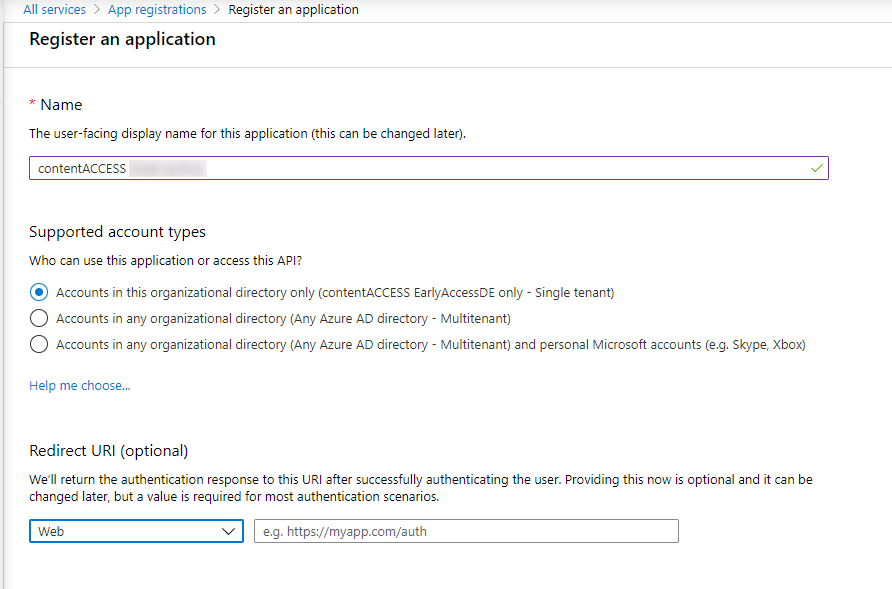
- Go to All services -> App registrations -> + New registration.
- Fill in the details of the new application. The only mandatory field that needs to be changed is the name of the application; the other options can be left as-is.
- Click Register.
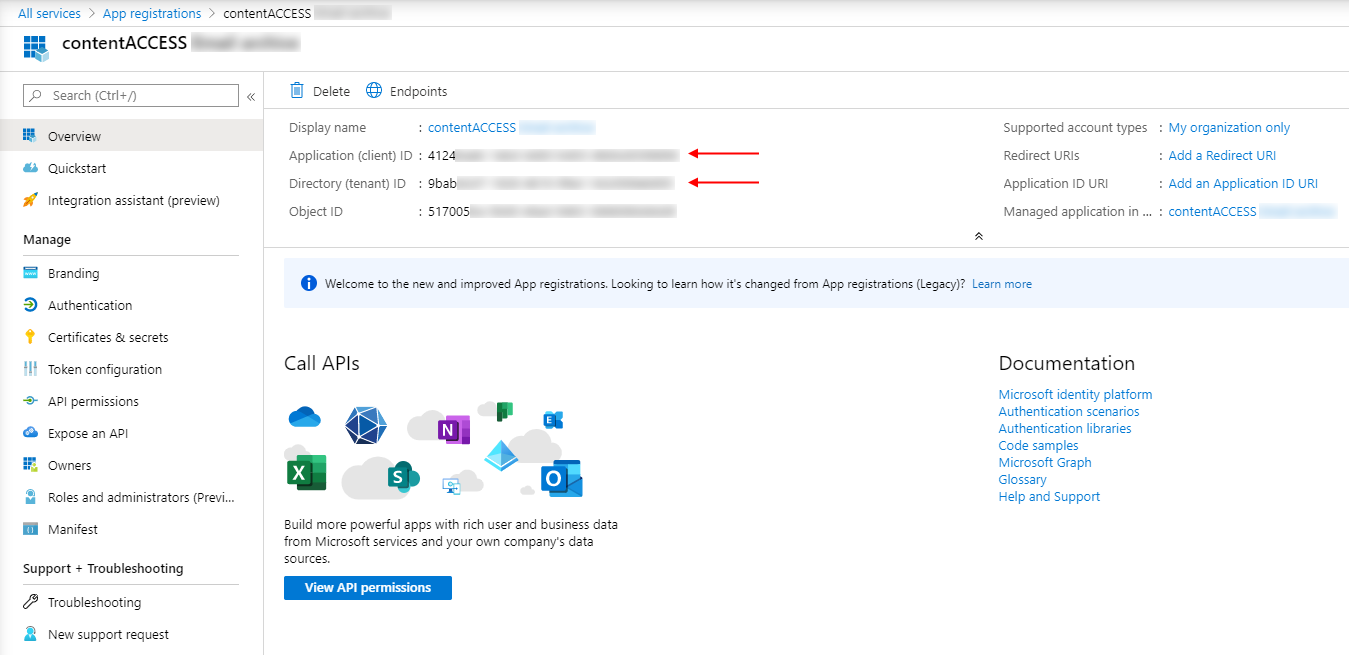
After the app is successfully registered, the Application ID and Directory ID are shown in the app's Overview. These are used in the archive settings to connect contentACCESS with the Teams application.
Important: The registration of the Azure AD application can be executed easily using the following script:
Set-ExecutionPolicy -ExecutionPolicy Unrestricted -Scope CurrentUser
cd ([Environment]::GetFolderPath("MyDocuments"))
Invoke-WebRequest -Uri "https://static.contentaccess.cloud/appregistration/Register-contentACCESSAADapp-v3.ps1" -OutFile "Register-contentACCESSAADapp.ps1"
.\Register-contentACCESSAADapp.ps1
Windows PowerShell must be run as Administrator for the process.
Grant permissions
The next step is to grant the necessary permissions for the application. These permissions vary depending on the archive type. For a detailed description, refer to the corresponding subsection:
- For the Email archive, see Grant permissions for Email archive.
- For the OneDrive archive, see Grant permissions for the OneDrive archive.
- For the SharePoint archive, see Grant permissions for the SharePoint archive.
- For the Teams archive, see Grant permissions for Teams archive.