Multifactor authentication
Introduction
Multifactor authentication (MFA) adds an extra layer of security to Microsoft 365 user accounts by requiring an additional verification step beyond the regular password. This page describes how to enable MFA for users in the Microsoft 365 admin portal, how to allow the use of app passwords for non-browser applications, and the steps a user must take to complete MFA setup.
Enable multifactor authentication
To configure MFA, go to the Microsoft 365 admin portal and open the Active users page.
- Click More.
- Select Multifactor Authentication (MFA) setup from the menu.
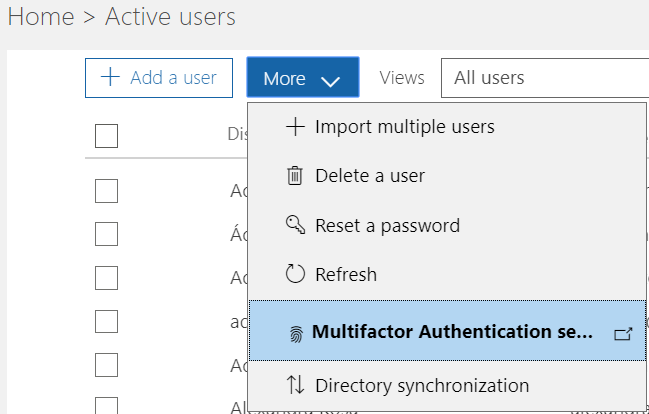
The MFA page lists all users together with their current MFA configuration, showing whether MFA is enabled or disabled for each user.
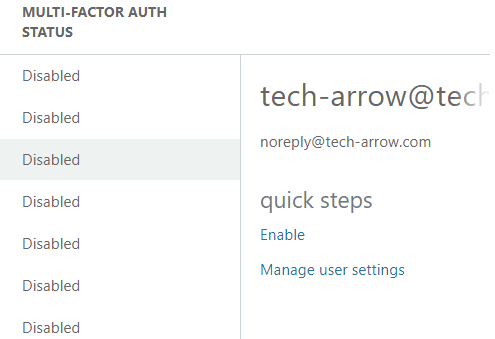
To enable MFA for a user:
- In the quick steps panel on the right side, click Enable.
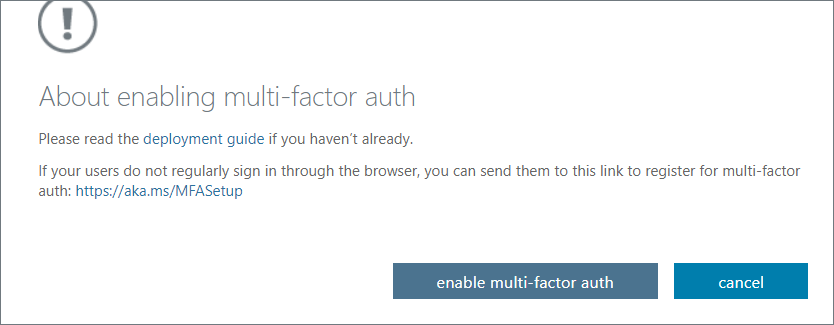
- Confirm your choice by clicking enable multi-factor auth.
Allow app passwords
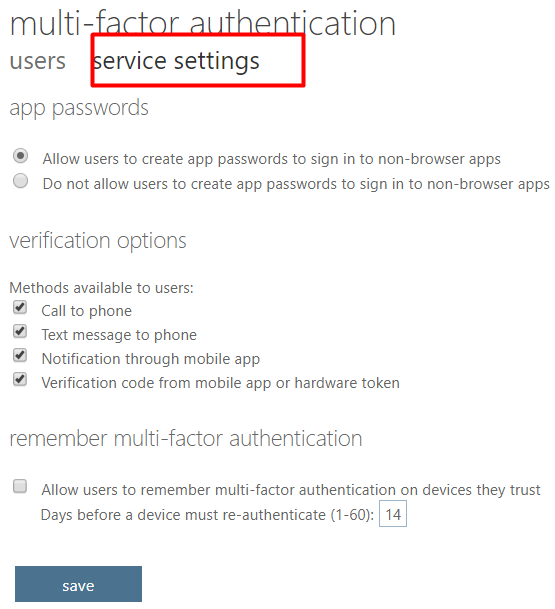
For MFA to work with non-browser applications, users must be allowed to create app passwords.
- On the MFA page, switch from users to service settings.
- Under app passwords, select Allow the users to create app passwords to sign in to non-browser apps.
- Click save.
Complete user setup
Once these steps are completed, MFA will be enabled for the user. However, for MFA to work properly, the user must log in and create an app password.
Note: If the user is also an Admin for email archiving, the app password must be used instead of the regular password in Email archive -> System settings -> Exchange configuration.