Outlook forms problems
Introduction
The Outlook forms used by contentACCESS to display archived email messages and shortcuts in Microsoft Outlook can occasionally cause display or functional issues. This page addresses common problems related to these forms, including incorrect message icons, forms not working with shared or public folders, outdated forms interfering with newer versions, missing VBScript support on terminal servers, unwanted behavior after Outlook security updates, and Reply/Reply All/Forward actions not working on shortcuts. For each problem, a corresponding solution or workaround is provided.
Incorrect icons on archived messages
Problem: Incorrect icons appear on archived email messages in Outlook. For example, if a message has been replied to, the standard icon ( ) is displayed instead of the correct replied icon (
 ).
).
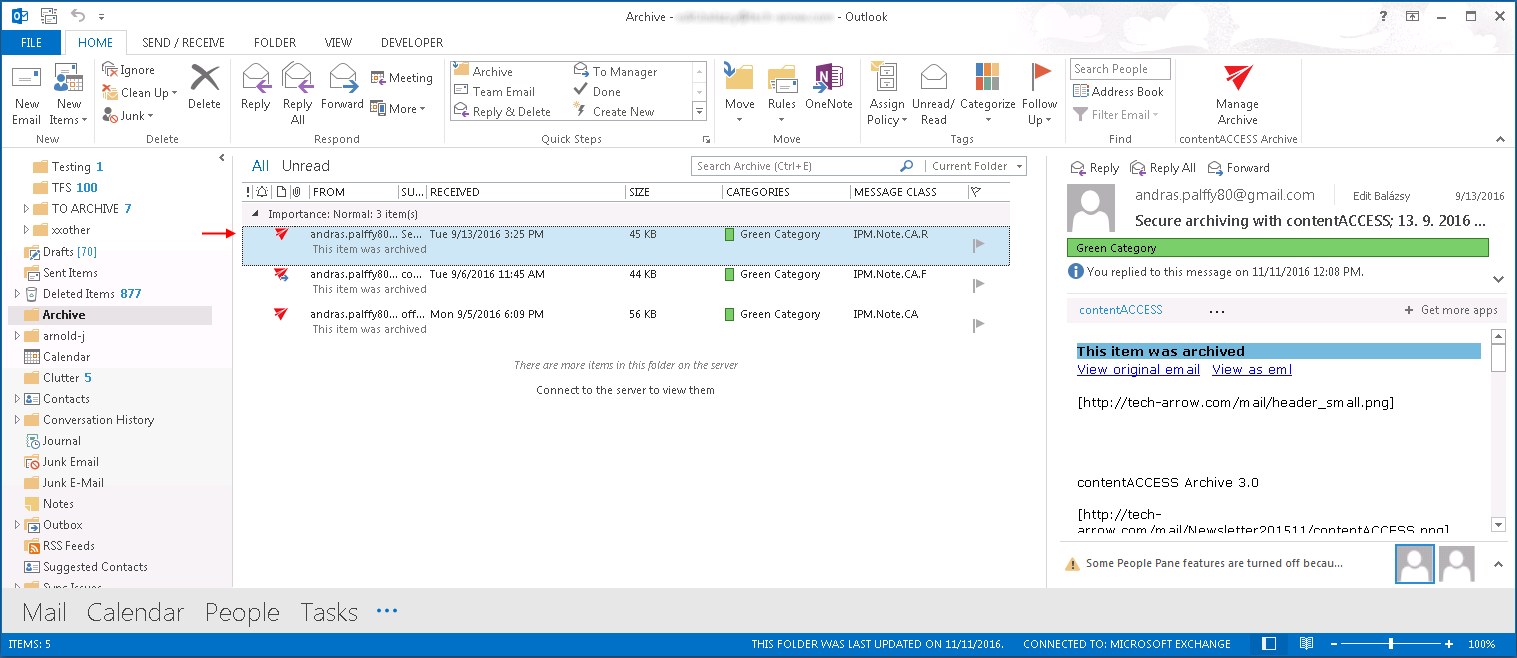
Solution: Clean up the Outlook forms cache. For more information about how to clean the cache, refer to this article.
Forms not working with shared or public folders
Problem: Outlook forms are not working with shared folders and/or public folders.
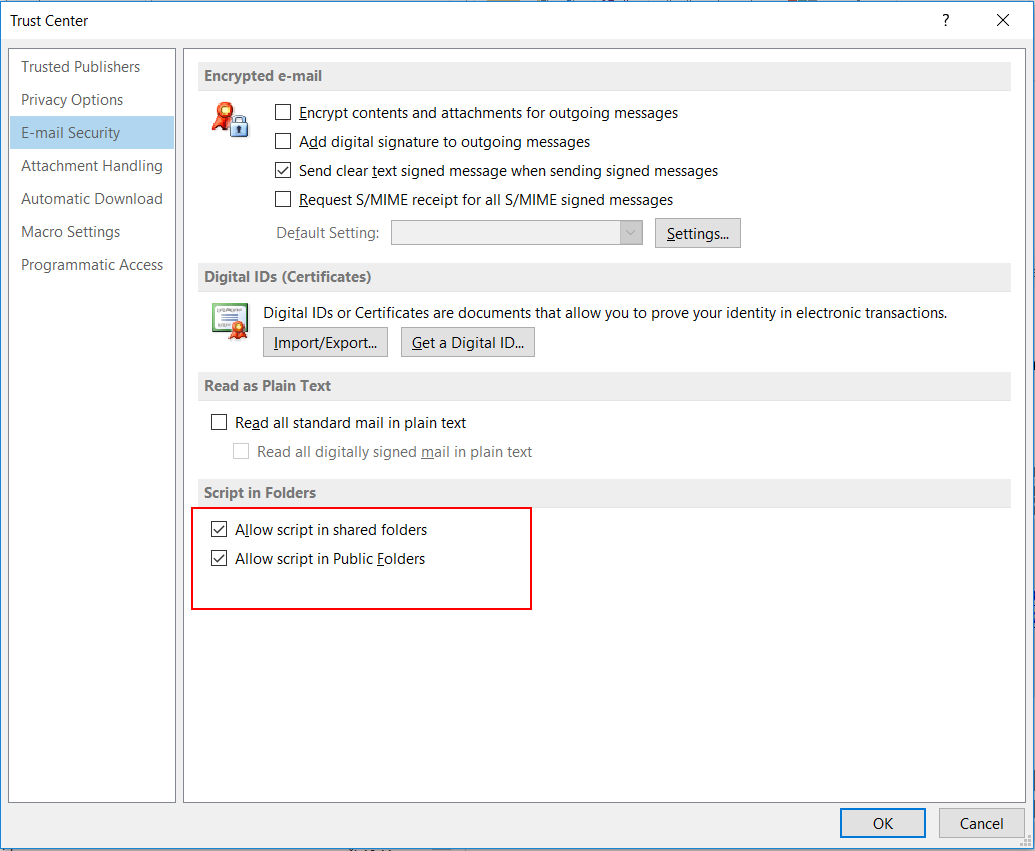
Solution: Allow the required scripts in the Trust Center of Outlook. These settings are available under File > Options > Trust Center > Trust Center Settings > Email Security, under the options Allow script in shared folders and Allow script in Public Folders.
Outdated forms under Personal Forms
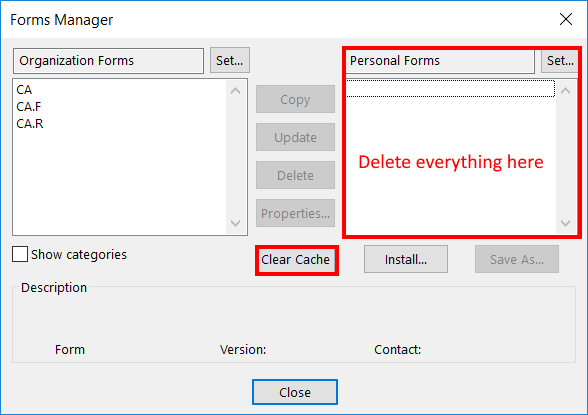
Problem: Outlook forms exist under both Personal Forms and Organization Forms. The forms under Personal Forms could contain an older version of the Outlook forms, which may interfere with the newer forms under Organization Forms.
Solution: Delete the forms located under Personal Forms and clear the Outlook forms cache.
Missing VBScript support on terminal servers
Problem: If Microsoft Outlook was installed on a Windows terminal server, VBScript support is not installed by default.
Solution: Follow the steps described in the Microsoft Knowledge Base article to resolve the problem.
Unwanted behavior after Outlook security updates
Problem: After installing security updates for Outlook, emails archived by the third-party application show unwanted behavior. All programs and applications using custom Outlook forms are affected.
Solution: Refer to the following FAQ pages for two possible solutions:
Reply/Reply All/Forward not working on shortcuts
Problem: The Reply, Reply All, or Forward windows do not open when a user clicks on a shortcut in the mailbox. In this scenario, the Outlook forms communicate with the server, and some antivirus programs may flag this activity as suspicious, preventing the Reply/Reply All/Forward options from working on the shortcuts.
Solution: Remove the antivirus program (or switch to another one), or install officeGATE. The forms can collaborate with officeGATE: shortcuts are opened via officeGATE, and the application retrieves the original emails from the archive. This prevents the problem, allowing the Reply/Reply All/Forward options to work correctly.