Shortcut Handler Azure App registration
Introduction
.alink files are contentACCESS shortcuts used in Microsoft 365 SharePoint, OneDrive, and Teams when rarely used documents are offloaded from Microsoft 365 to the contentACCESS Archive. The original document is replaced by a small shortcut file (the .alink). In Microsoft 365, your organization registers a contentACCESS file handler in the tenant so that opening an .alink file directly in SharePoint, Teams, or OneDrive correctly redirects the user to the contentACCESS Shortcut Handler web service.
The Shortcut Handler Azure App registration is required to enable users to open modern shortcuts (.alink files) from SharePoint, Teams, and Teams-related SharePoint sites through contentACCESS. Without this configuration, modern shortcuts cannot be properly handled, previewed, or restored within the Microsoft 365 environment.
This page explains how to register the Shortcut Handler Azure application for a single-tenant application (on-premises installation), including:
- creating the app registration and configuring redirect URIs;
- generating a client secret;
- adding the required API permissions;
- updating the application manifest;
- enabling application visibility for users;
- forcing SharePoint to reload add-ins.
For more information about the Azure application registration for Microsoft 365 archiving, refer to the Azure App registration for Microsoft 365 archiving chapter.
Note: To register the Shortcut Handler Azure App for the contentACCESS Cloud (SaaS) environment, contact our Professional Services team at support@tech-arrow.com. The registration process described below applies to contentACCESS on-premises installations only.
Step 1 – Create a new app registration in Azure Portal
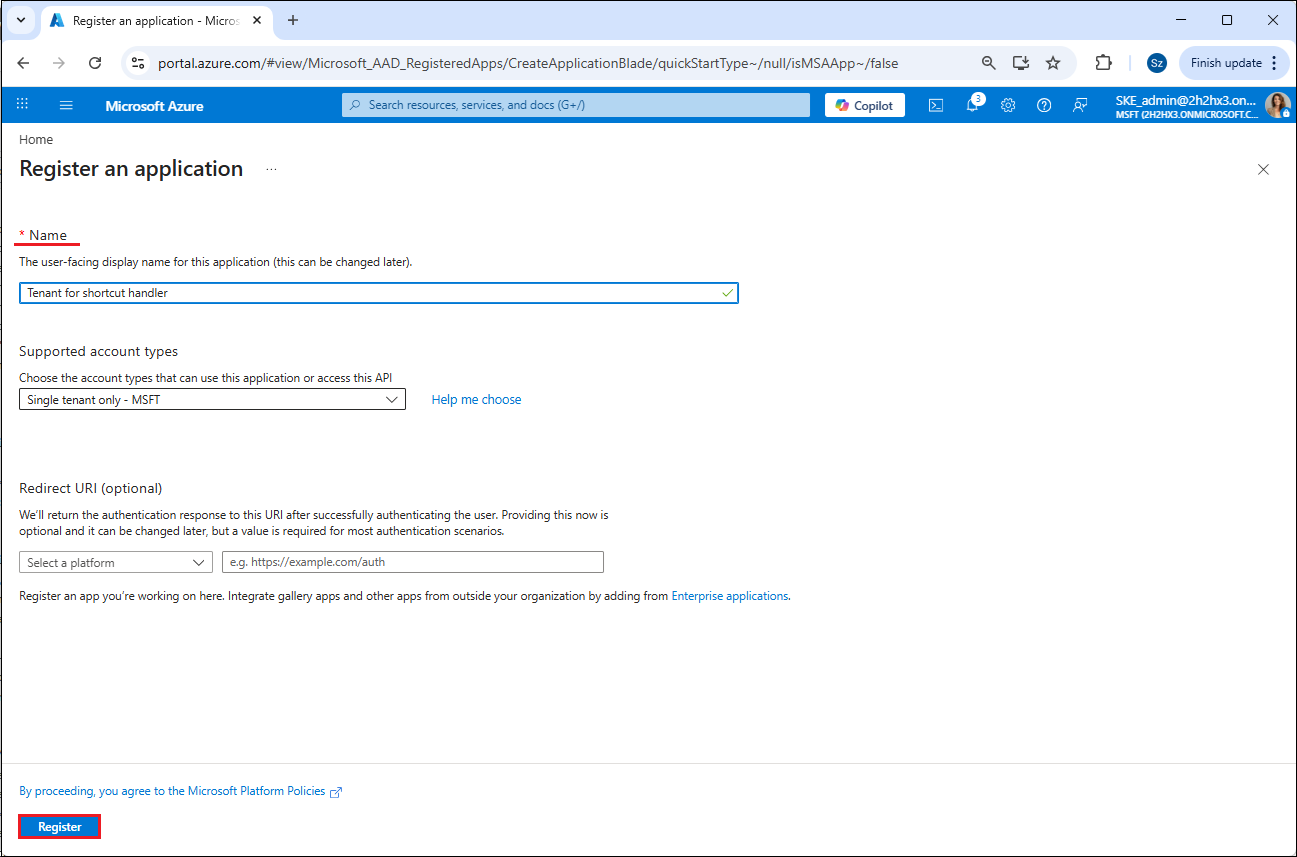
Navigate to the Azure Portal. Go to All services -> App registrations -> + New registration. Fill in the details of the new application and leave the Supported account types setting as Single tenant only. The only mandatory field that needs to be changed is the name of the application; the other options can be left as-is. Click Register.
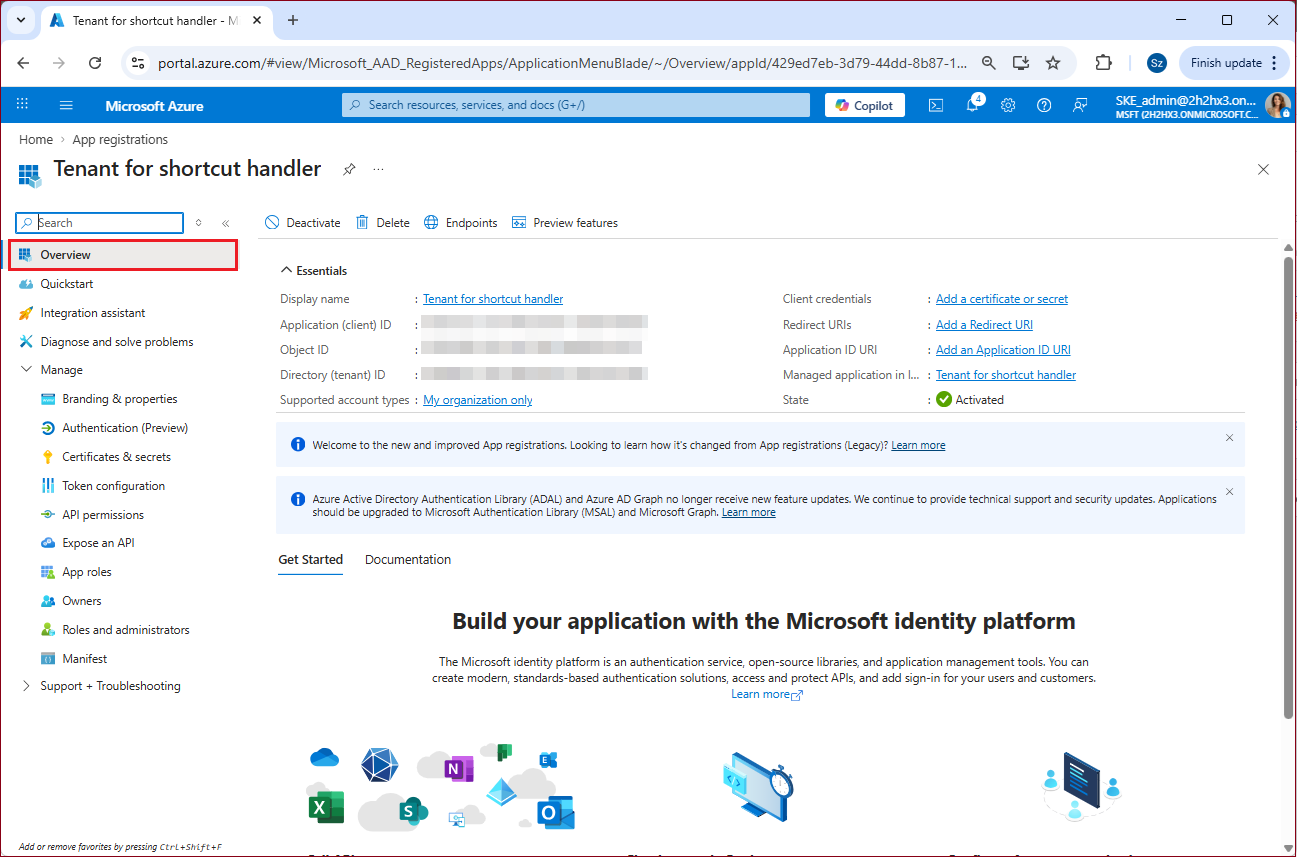
After the app is successfully registered, you will be able to see the Application (client) ID and Directory (tenant) ID in the app's Overview. These are used in archive settings to connect contentACCESS with Microsoft 365 SharePoint, OneDrive, and Teams.
Step 2 – Configure the Redirect URIs
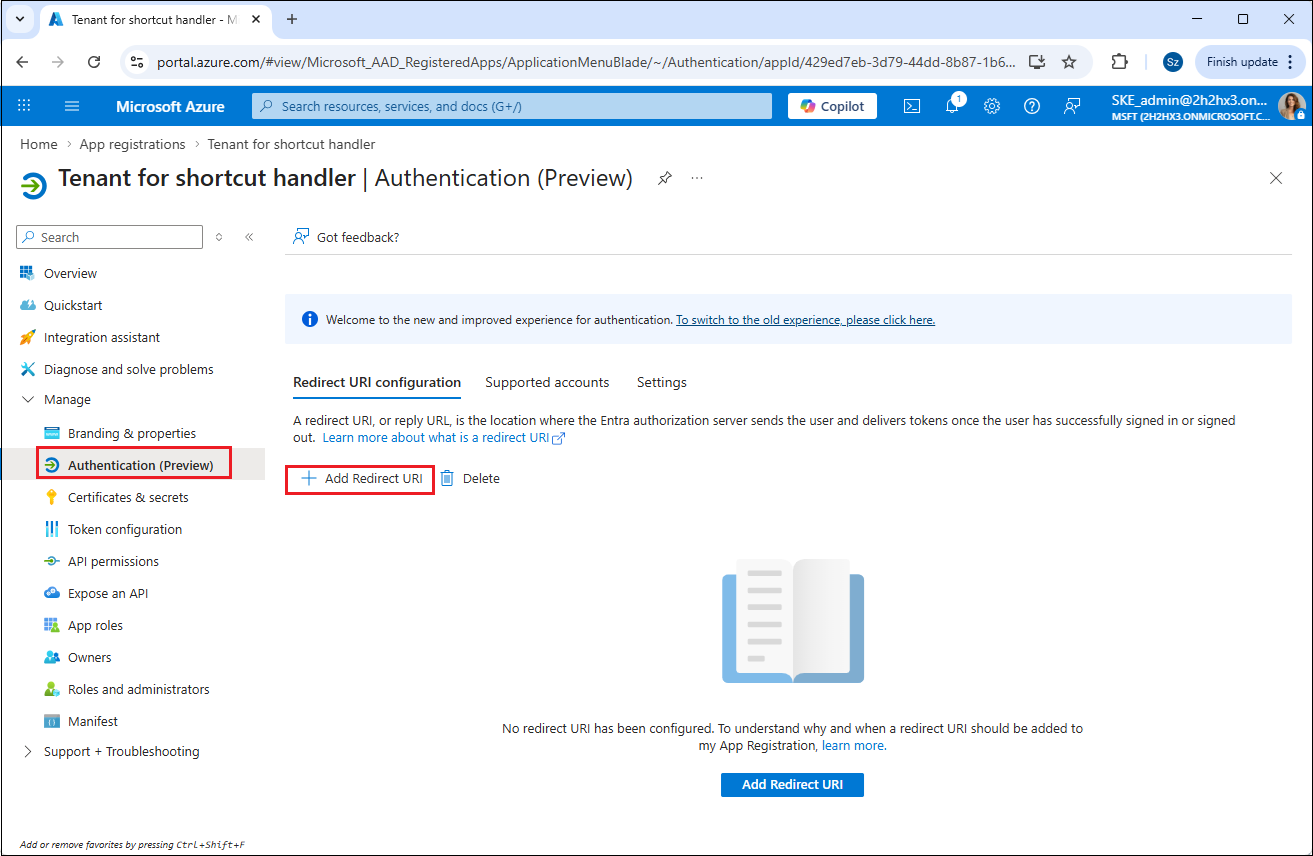
Go to Manage -> Authentication (Preview), and click Add Redirect URI.
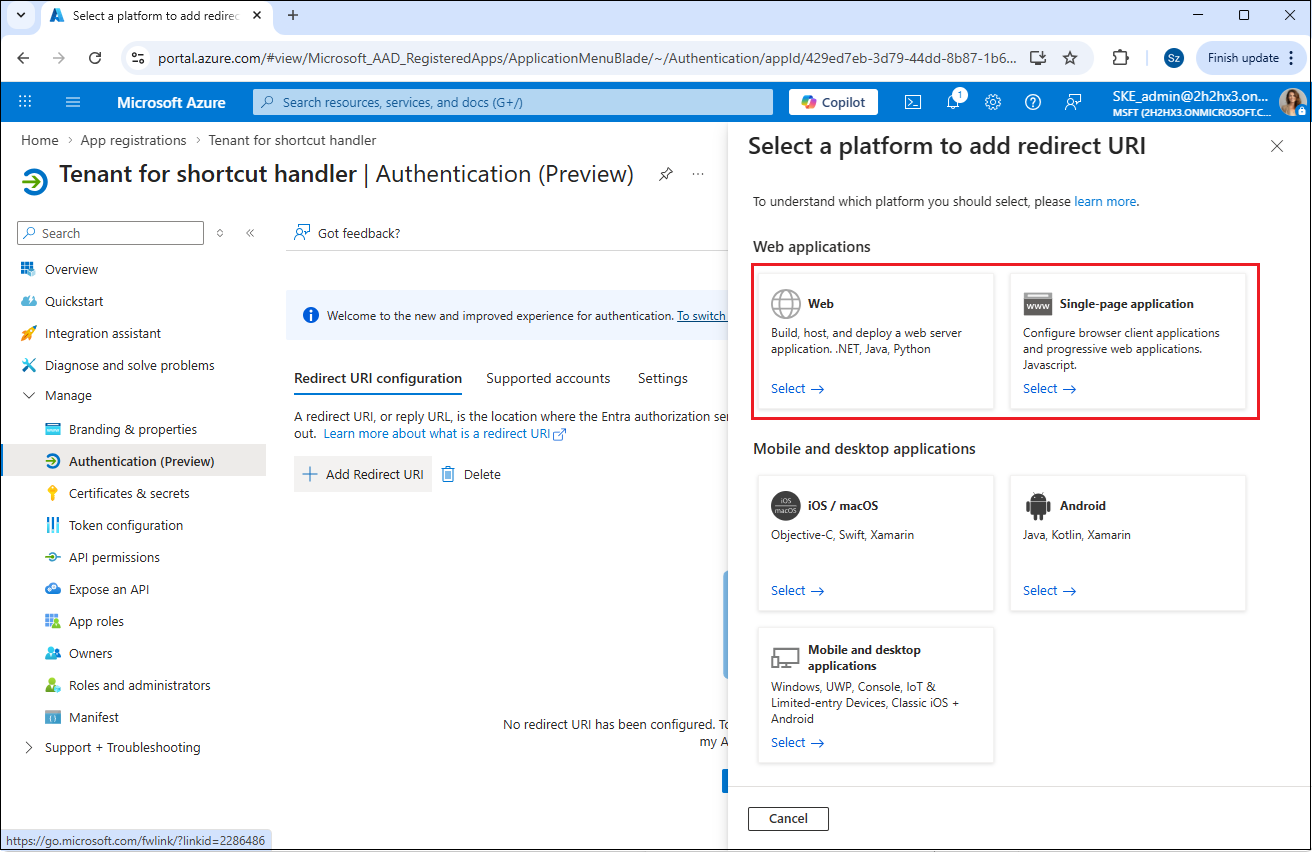
From the menu that appears, you will need the Web and Single-page application platforms.
First, configure the Web application by providing the following Redirect URI:
https://[your-archive-server-url]/ShortcutHandler/signin-oidc
For example:
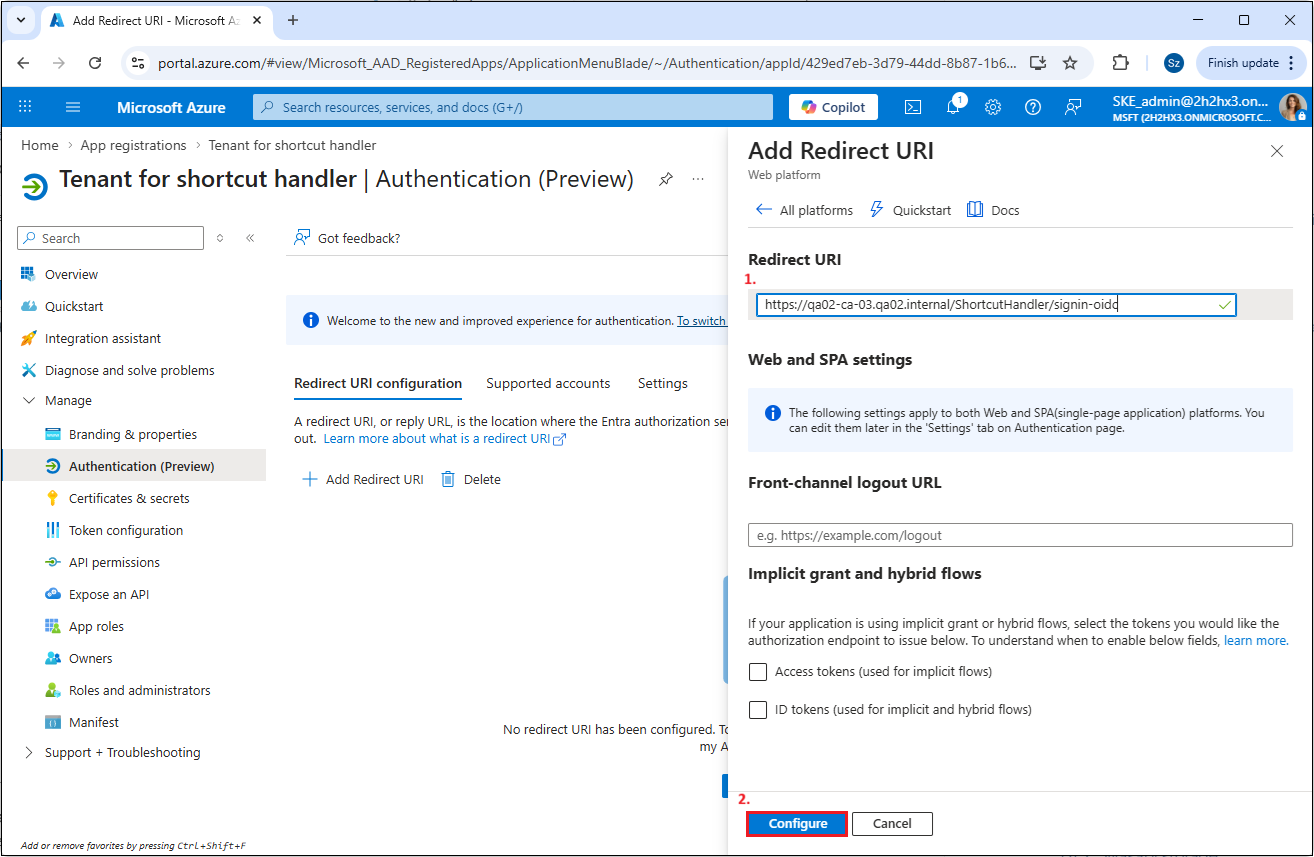
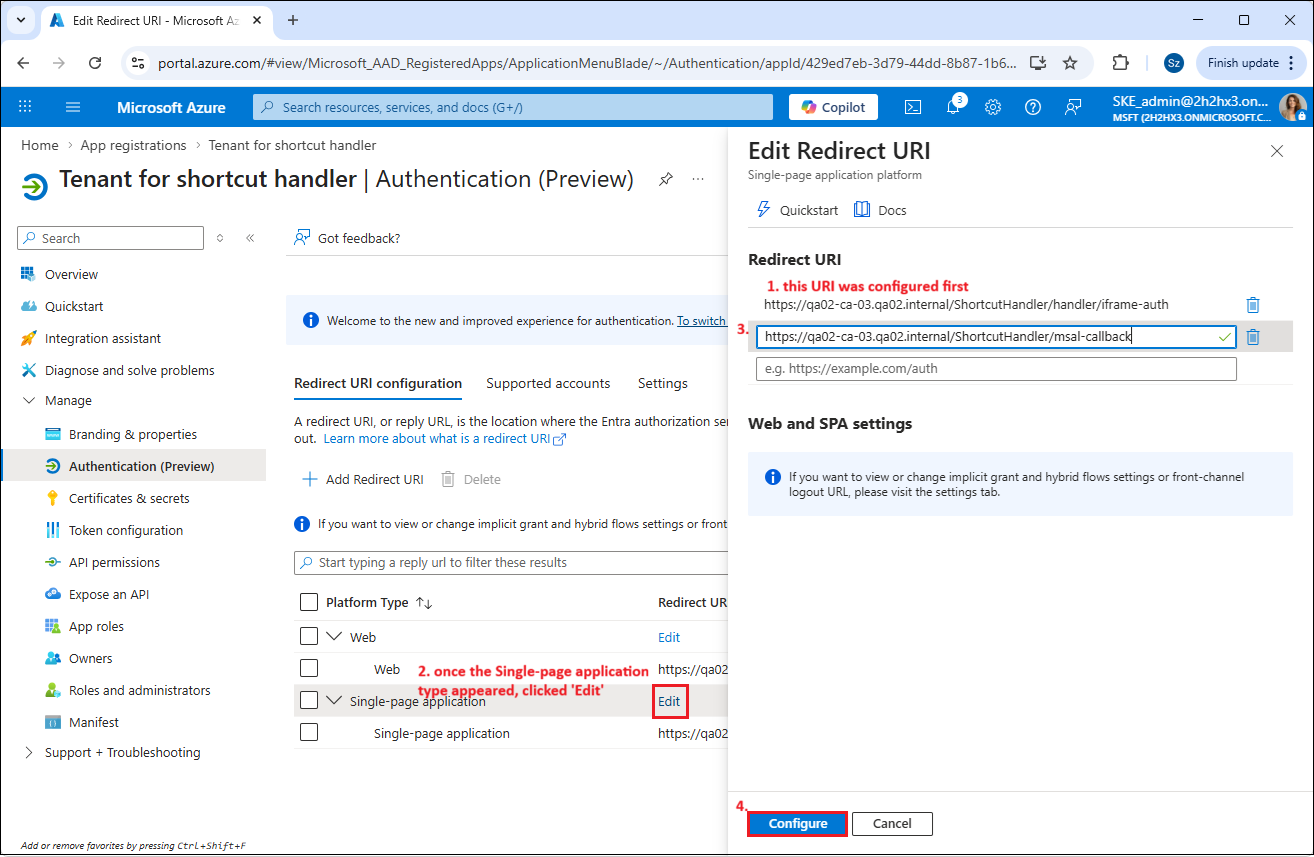
Next, configure the Single-page application. Note that for the Single-page application option, you cannot configure both Redirect URIs at the same time during the first setup. You need to enter one URI first and save it by clicking Configure. Once the URI appears in the Redirect URI list under the Single-page application type, click Edit to add the second required URI.
https://[your-archive-server-url]/ShortcutHandler/handler/iframe-auth
https://[your-archive-server-url]/ShortcutHandler/handler/msal-callback
For example:
Step 3 – Create a new client secret
Note: This step is only required when creating a new application registration. If you are extending an existing application to support the Shortcut Handler, you can use an already existing client secret — there is no need to create a new one.
If you created a new single-tenant application, you need to generate a new client secret. Go to the Certificates & secrets tab and click + New client secret. After creating it, copy the client secret value shown in the Value dialog and store it in a secure location, since it can only be viewed immediately after creation. Once you leave the page, you will not be able to see it again.
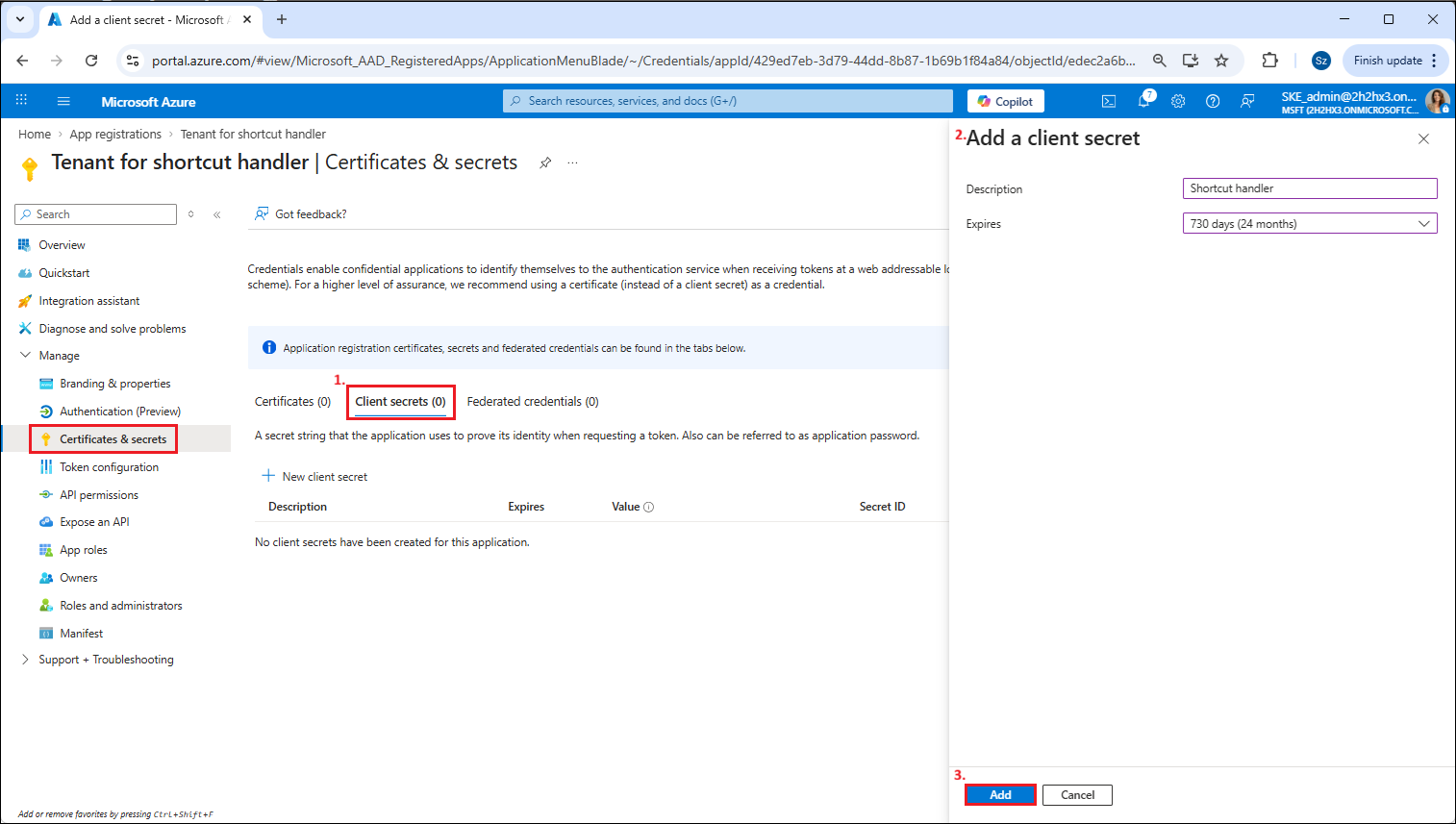
Important: Creating a client secret is particularly important for on-premises (single-tenant) installations. The contentACCESS setup requires a client secret, as well as the application and tenant IDs, to properly configure the SharePoint shortcut handler.
Step 4 – Add API permissions
Once both applications are set and a client secret has been created (if necessary), go to the API permissions tab. Click + Add a permission and select Microsoft Graph from the Microsoft APIs tab.
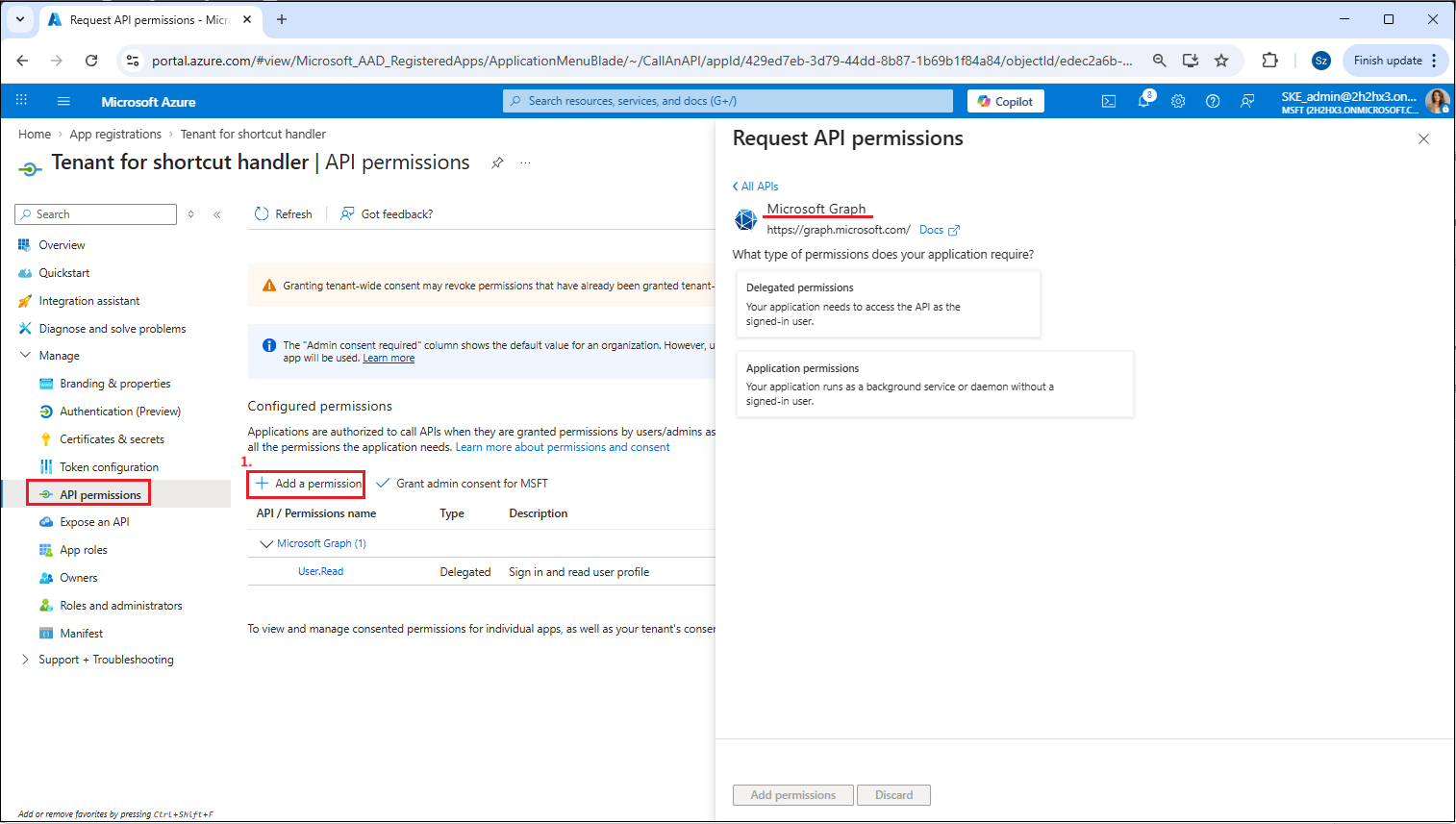
The following permissions need to be added to the application:
- Microsoft Graph -> Delegated permissions -> Files.ReadWrite.All
- Microsoft Graph -> Application permissions -> Files.ReadWrite.All
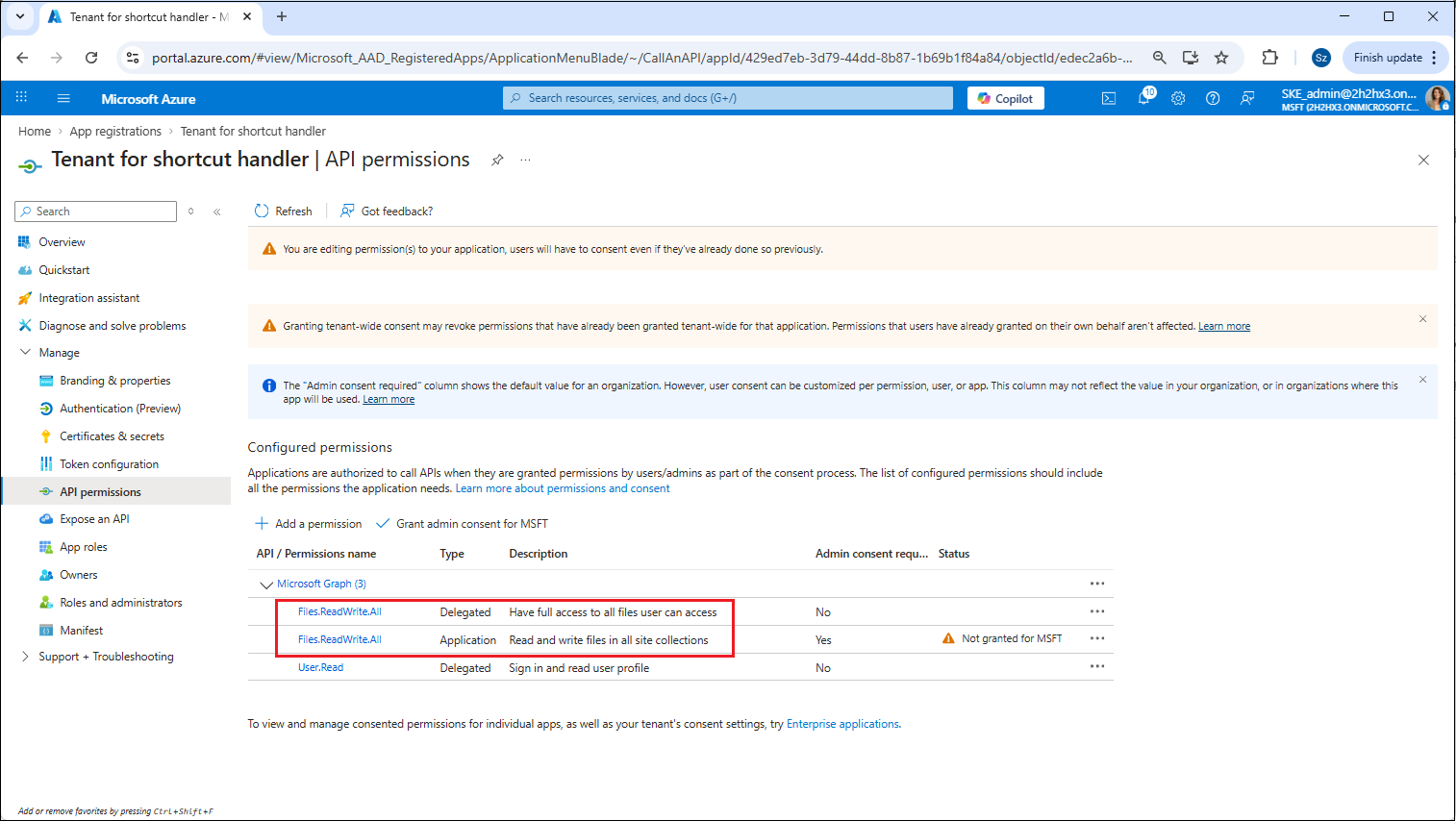
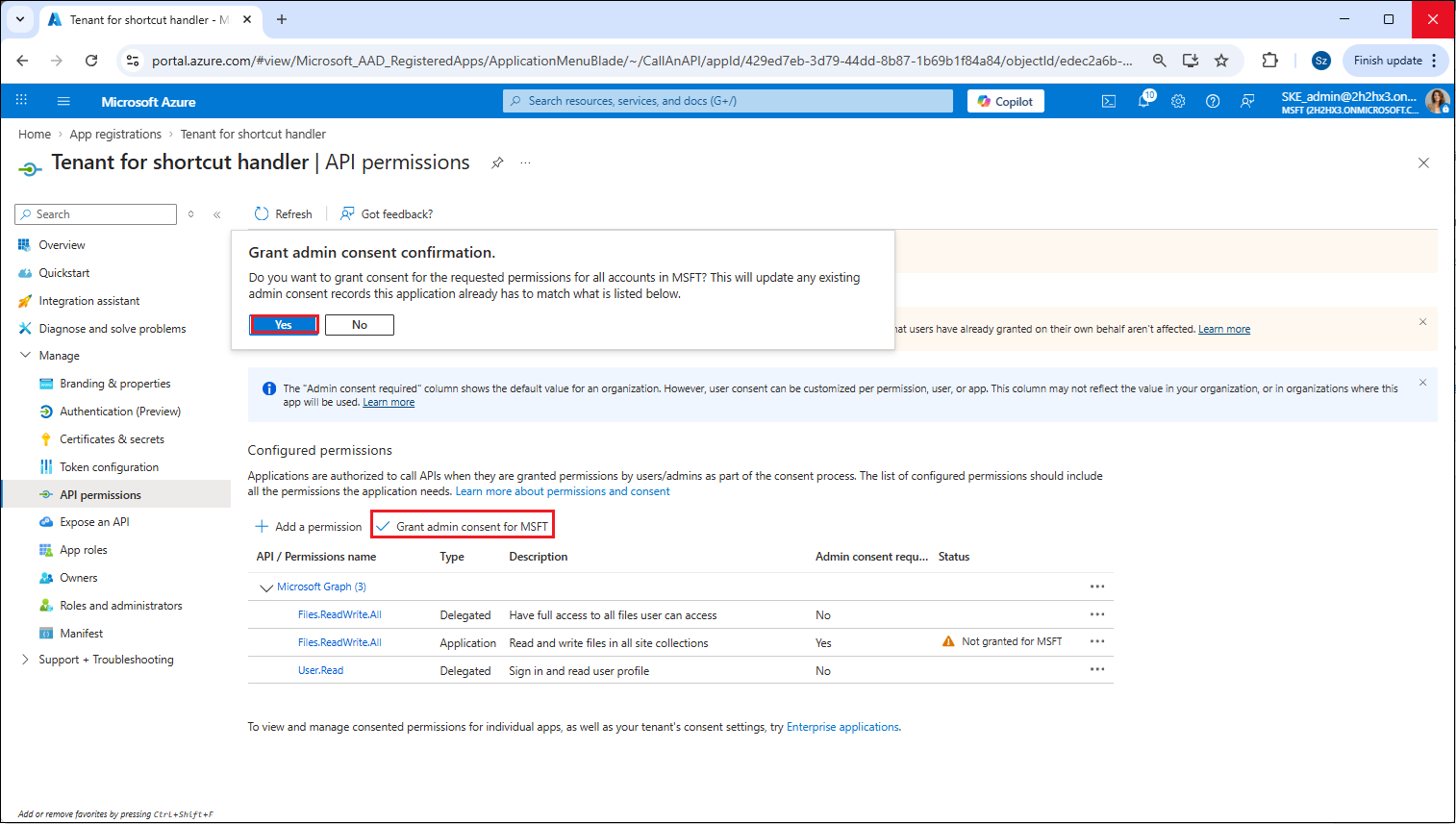
When finished, grant consent for these permissions by clicking Grant admin consent for "TENANTNAME".
Step 5 – Update the manifest
You also need to update the manifest with the following addIn through the editor on the Manifest tab.
{
	"id": "b27ac275-4893-461a-9751-c39173b2233f",
	"type": "FileHandler",
	"properties": [
		{
			"key": "version",
			"value": "2"
		},
		{
			"key": "fileTypeDisplayName",
			"value": "contentACCESS Archive Shortcut"
		},
		{
			"key": "fileTypeIcon",
			"value": "{\"svg\":\"https://static.contentaccess.cloud/spsh/2_0/cac-logo.svg\",\"png1x\":\"https://static.contentaccess.cloud/spsh/2_0/cac-logo.png\",\"png1.5x\":\"https://static.contentaccess.cloud/spsh/2_0/cac-logo.png\",\"png2x\":\"https://static.contentaccess.cloud/spsh/2_0/cac-logo.png\"}"
		},
		{
			"key": "appIcon",
			"value": "{\"svg\":\"https://static.contentaccess.cloud/spsh/2_0/cac-logo.svg\",\"png1x\":\"https://static.contentaccess.cloud/spsh/2_0/cac-logo.png\",\"png1.5x\":\"https://static.contentaccess.cloud/spsh/2_0/cac-logo.png\",\"png2x\":\"https://static.contentaccess.cloud/spsh/2_0/cac-logo.png\"}"
		},
		{
			"key": "actions",
			"value": "[{\"type\":\"open\",\"url\":\"https://[your-archive-server-url]/ShortcutHandler/handler/open\",\"availableOn\":{\"file\":{\"extensions\":[\".alink\"]},\"web\":{}}},{\"type\":\"preview\",\"url\":\"https://[your-archive-server-url]/ShortcutHandler/handler/preview\",\"availableOn\":{\"file\":{\"extensions\":[\".alink\"]},\"web\":{}}},{\"type\":\"custom\",\"url\":\"https://[your-archive-server-url]/ShortcutHandler/handler/restore\",\"displayName\":\"Restore archived file\",\"shortDisplayName\":\"Restore\",\"icon\":{\"png1x\":\"https://[your-archive-server-url]/spsh/2_0/cac-logo.png\"},\"availableOn\":{\"file\":{\"extensions\":[\".alink\"]},\"allowMultiSelect\":true,\"web\":{}}}]"
		}
	]
}
Important: In the provided JSON, the URLs are incorrect (for example, https://[your-archive-server-url]/ShortcutHandler/handler/preview) and must be replaced with your fully qualified domain name.
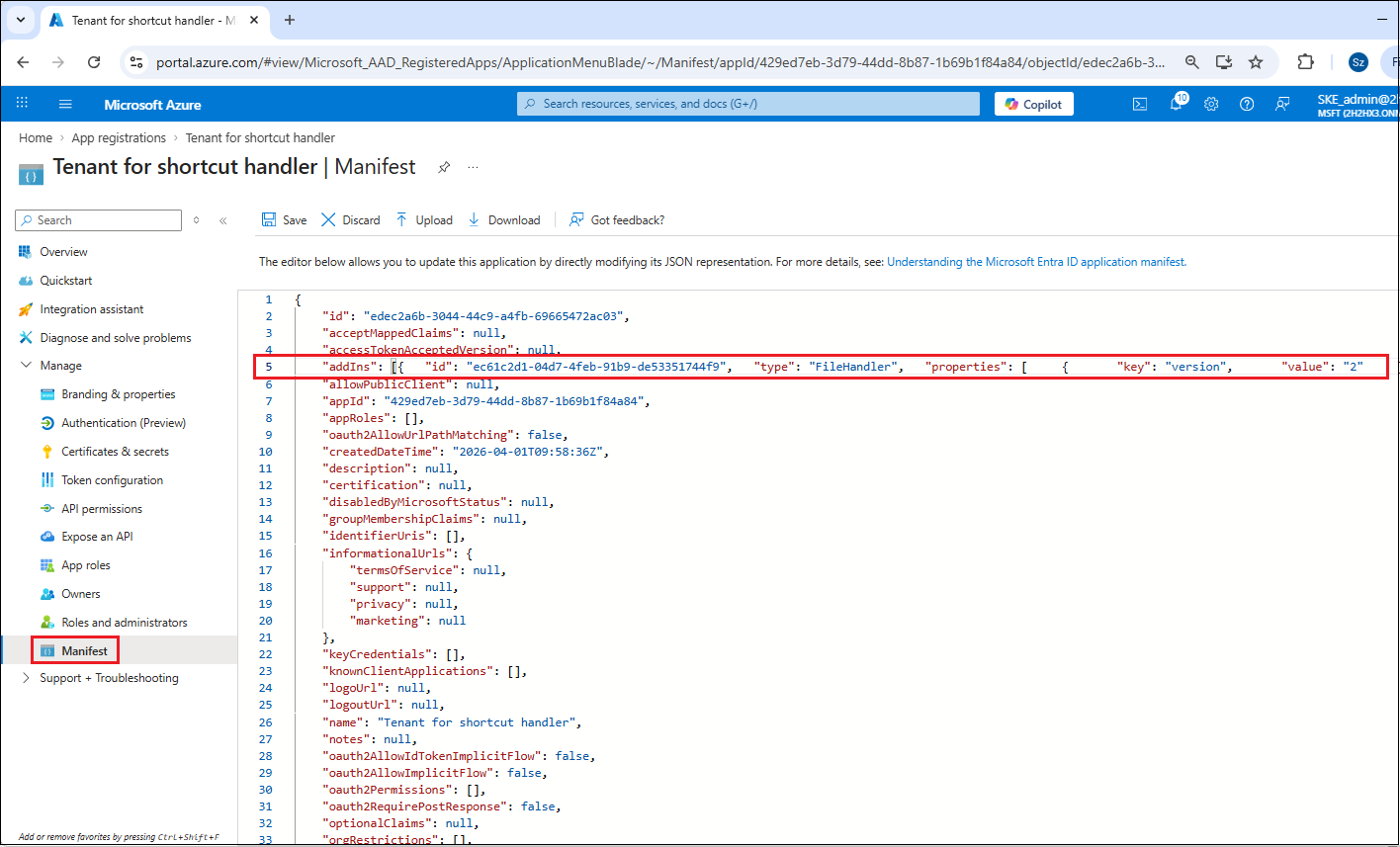 Screenshot: Update the manifest in the requested section.
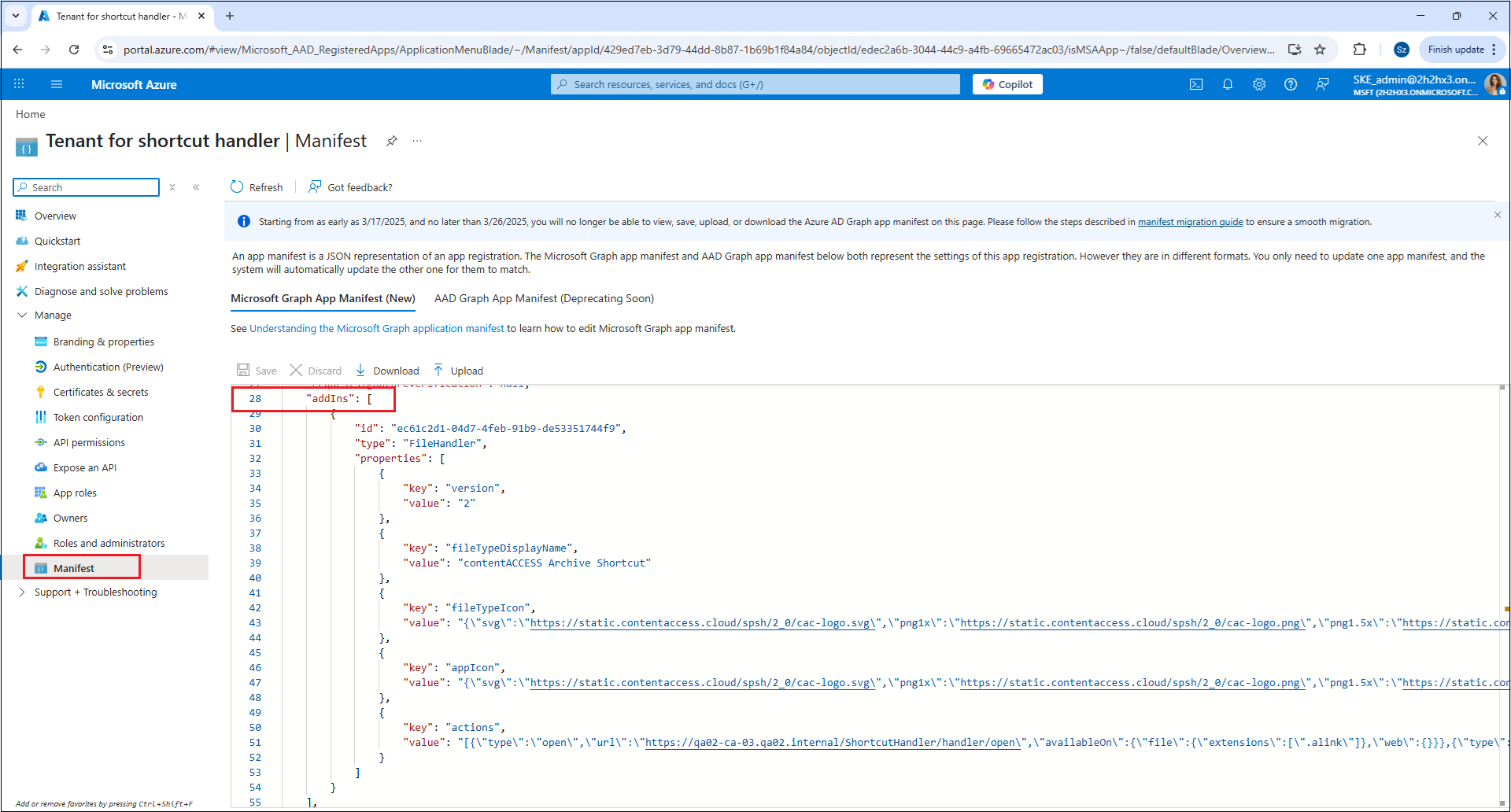 Screenshot: Saved manifest file.
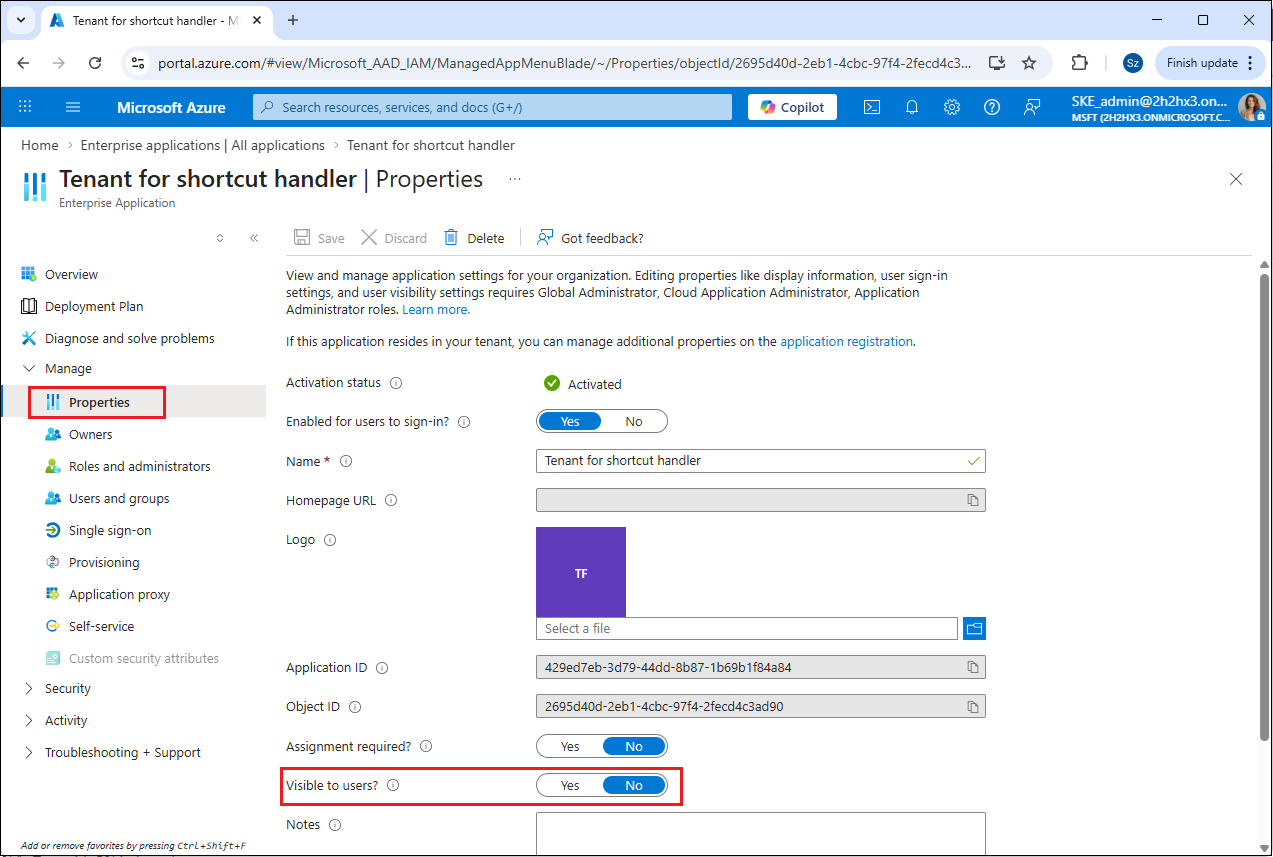
Step 6 – Enable application visibility for users
This step is required to ensure that users who belong to the registered tenant can access the Shortcut Handler in SharePoint, OneDrive, and Teams. Go to Enterprise Applications (Home -> Azure services -> Enterprise applications) and select your application. Under Manage -> Properties, set Visible to users? to Yes.
Step 7 – Force SharePoint to reload add-ins
This step must be performed by an administrator to ensure access to the necessary endpoints. By completing this step, you can force SharePoint to reload, which may help the platform register the changes made in the application more quickly.
From a browser where the administrator is logged into SharePoint, call the following URLs:
https://[SHAREPOINT_SITE_URL]/_api/v2.0/drive/apps?$adminForceRefresh=1
https://[SHAREPOINT_SITE_URL]/_api/v2.0/drive/apps?forceRefresh=1&select=*,promoted&expand=actions
Note: Replace [SHAREPOINT_SITE_URL] with the URL of the SharePoint site where your modern shortcuts are located.
Important: Without this step, it may take 24–48 hours for SharePoint to register the changes in its cache. However, even with this step, it is possible that SharePoint may require more time to fully reflect the updates.