Configuration of a File system restore job
Introduction
The File system restore job allows administrators to restore already archived items from shortcuts back to their original file location. This page describes how to create and configure a File system restore job, including scheduling, folder selection, exclusions, filtering, modification date handling, notifications, and resource settings.
Create a new File system restore job
- Navigate to File Archive ⇒ Archive ⇒ Jobs (File archive jobs page).
- Click + new.
- In the Add new job instance dialog, select File system restore from the job type dropdown list.
- Select a node from the Run on node dropdown list, or select Any available if the job does not need to run on a specific node.
- Enter a Display name.
- Click Add.

On the File system restore job's configuration page, the administrator is required to configure the following sections.
Scheduling settings
Select the running times of the restore job. You can either select an existing scheduler from the list or create a new one using the create new option.
Restore jobs are run only in specific cases. In most cases, a One time scheduler is used for the restore job (for example, with a start date of September 7th, as in the example below).
For more information about how to set schedulers, refer to the Schedules section.

Folder to process
In this section, select the local folder(s) or remote share(s) where the shortcuts — which replaced the original files — are located. The job restores the original files from these shortcuts.
There are two methods for specifying these folders:
-
Via the "new" button: Click + new and fill in the path to restore into the Folder to process dialog.


-
Via the "import" button:

Import the folder path(s) to be restored from a file. Click import, browse for the import file, select the import method and specify the required settings, then upload the file with the desired file path(s). Learn more about importing files in the Importing contentACCESS configurations from files chapter of this guide.
Important: It is highly recommended to specify file path(s) that can be accessed from anywhere. This is especially important if the user has contentACCESS installed in a distributed environment using multiple cluster nodes.
Exclude folders
This function allows you to set which folders/subfolders should not be restored. The same rules as in the file archive job apply to these settings. If you do not want to exclude any folder from the restore process, you can skip these settings.
Folders may be excluded using one of the available methods:

-
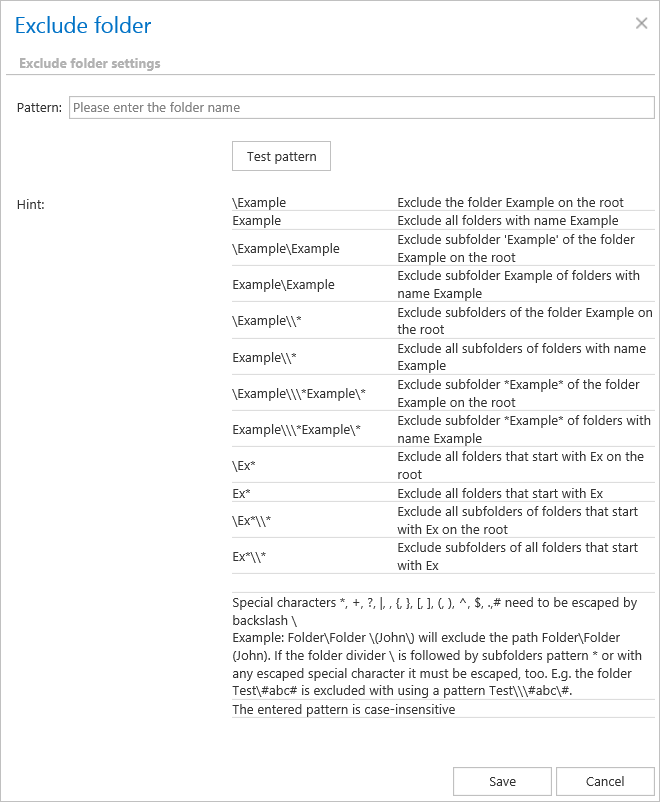
Add exclude folders manually: Click + new. In the Exclude folder dialog's textbox, specify the folder(s) to be excluded. Use the hints listed in the same dialog.
-
Import the list of folders: Folders to be excluded may be imported as files in one of the available formats: CSV, XML, tab-delimited, or space-delimited. The file to be imported must contain the list of folders to be excluded. To import such a file, refer to the Importing contentACCESS configurations from files chapter of this guide.
Filtering settings
Click Change filter and set the filtering according to your needs and/or regulations. To learn more about how to work with filtering settings, see the Filtering in jobs section of the documentation.
Note: Using All text can cause a performance deficit, as it requires searching through large amounts of text data instead of a more focused subset.
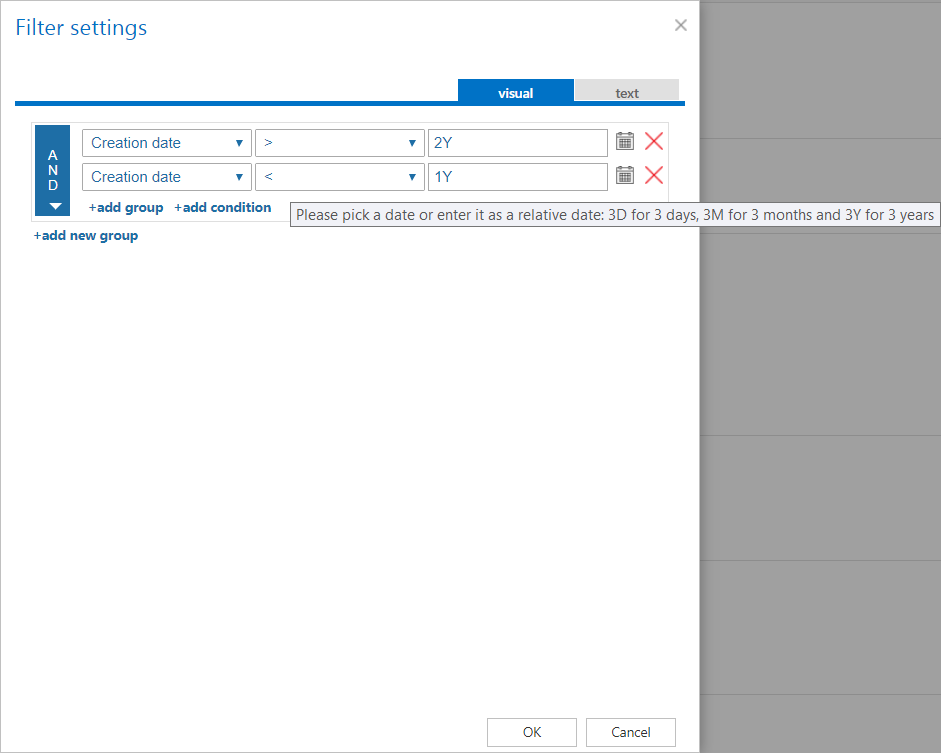
Note: In certain cases, the creation date of a file is set to a younger date than the modification date of the file. This happens when a file is copied to another external disk (for example, from disk G to disk I) — in this case, the creation date is set to the date of the copy action. Because of this, it is recommended to always check the Filtering settings if something does not get processed.
Important: When the content of an already archived item is changed — for example, a picture is deleted from the file and the file is saved to its original location, reducing the file size from 110 kB to 85 kB — and the file size filter is set to greater than 100 kB, the File system restore job will not restore the item on the next processing run. For this reason, it is recommended to always check the size filter settings if a file has not been restored by the next restoring process.
Modification date
This section allows you to command the restore job to restore the archived item either:
- with the original modification date (default), or
- with the restore date.

It is generally recommended to restore the item with the original modification date, which is also set as the default. However, the restore date option may be useful when an archive job on the selected folder path is already running and the age filter is set to younger than the restore date. This setting prevents the restored document from being re-archived. For this reason, the restore date option is used in this example use case.
Notification settings
Select the cases in which you need to receive notifications from the File system restore job. You can set notifications to be sent always, never, or only if an error/warning occurred during the restoring process — for example, if the restore of one or more documents failed.
In the Recipient list textbox, insert the email addresses of the people who should receive these emails. Notification emails may be used as a means of troubleshooting possible failures or errors.
In this example use case, notifications are not required, so the setting is set to Never.

Resource settings
Set the value that determines how many items will be processed simultaneously by the File system restore job. The recommended value is 2.

Always save your job configuration when finished: click Save in the upper-left corner of the UI.
Once the restore job has completed its task, the restored items can be viewed with their restore dates in the original file location.