File archive settings
Introduction
The File Archive settings area in Central Administration allows administrators to configure the components required for the contentACCESS File Archive to operate correctly. Configuration is performed in a left-to-right sequence across several related settings pages, ensuring that each step builds on the configuration completed in the previous one.
This page describes the mandatory prerequisites for using the File Archive, how to activate the File Archive provisioning job, and provides an overview of the configuration options available under File Archive ⇒ Settings.
Prerequisites
Before configuring the File Archive settings, the following must be in place:
- Virtual drive installed and configured — configurable under System ⇒ Client applications ⇒ Virtual drive configurations. For more information, refer to Virtual drive.
- LDAP settings configured — configurable under System ⇒ Services ⇒ System, in the Active directory integration settings section. These settings are used by contentACCESS Portal to evaluate user access permissions to folders and files. For more information, refer to System.
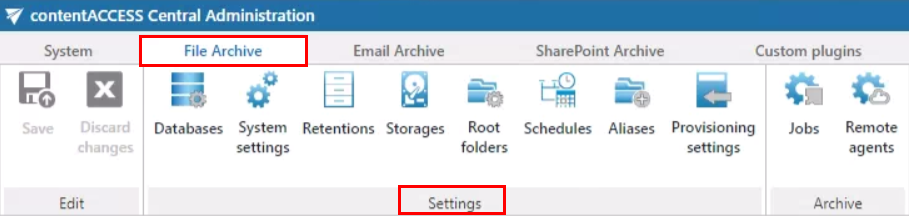
- File Archive settings configured — available under File Archive ⇒ Settings. The configuration logic follows a left-to-right order, so that completing each setting prepares the environment for the next step. These settings are described in detail later in this chapter.
Note: Aliases are used by the Remote shortcutting job only. If you do not use a Remote shortcutting job, you can skip Configuring aliases.
Activate the File Archive provisioning job
When configuring the File Archive for the first time, you must activate the File Archive provisioning job.
- Open the File Archive tab on the ribbon.
- Click Activate.

After successful activation, the Settings of the File Archive are displayed. This tab, referenced in the prerequisites above, provides access to the available configuration options, described in the following sections of this chapter.