Root folders
Introduction
The Root folders section allows administrators to define and manage the root folder paths used in file archive jobs. A root folder defines the start point (for example, C:) of the archive process. Once defined here, a root folder can be selected on the configuration page of a file archive job, where the relative path to be archived (for example, a subfolder such as "Test files") is specified.
This page explains how root folders are stored, how database and storage assignments work, and how to add, view details of, and delete root folders.
How root folders are stored
The root folders and their settings are written to the file system database defined in File archive System settings (File Archive ⇒ Settings ⇒ System settings).
A connection that already exists in the system database cannot be specified twice. For example, if \\tanews\TECH-ARROW\files to archive is already set as a root folder, then \\tanews\TECH-ARROW\files to archive\contracts cannot be added to the root folders list. This prevents users from archiving the same folder into two different databases or storages. If a user attempts to add a root folder that already exists in the system database, they will be prompted about this.
Hint: When defining root folders, be careful not to add the same physical path twice.
Example: D:\Share, which is shared as \\server\Share, could mistakenly be added to the root folders list twice — once as the local path and once as the shared path:
D:\Share\\server\Share
Both paths point to the same physical directory. contentACCESS cannot detect this type of collision. If the two root folders are assigned to different databases or processed by different jobs, it is not possible to predict in which archive the files will be stored, which may result in unpredictable behavior.
Database and storage assignment
A root folder must always have a database and a storage assigned. The job that archives, restores, or recovers this root folder will use this database and storage.
Hint: It is not recommended to change the database and storage connections already associated with a root folder. Changing the database will lead to problems when retrieving already archived items, because part of the data will be saved in the originally set database and another part in the newly set database. The same retrieval problem may occur when changing the storage.
The application warns the user about this:

The database and storage assigned to a root folder can be changed using the Edit menu item in the root folder's context menu. Do not use this option unless it is really necessary.
Add a root folder
Root folders may be either:
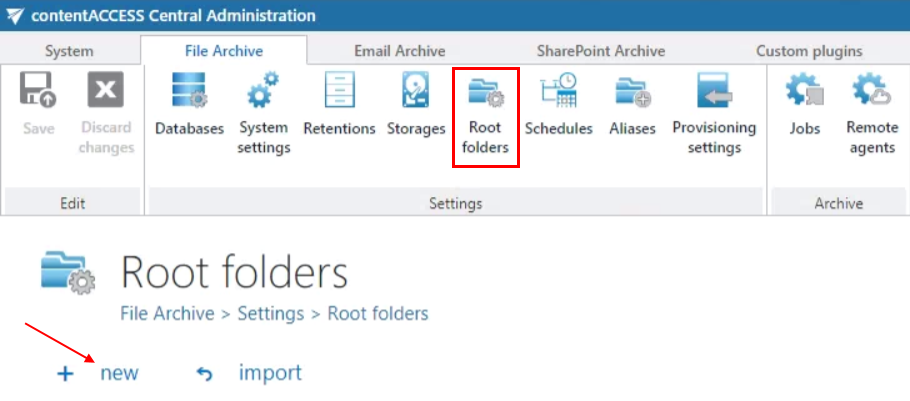
- Imported using the Import button (see Importing File Archive root folders to be archived).
- Added manually to the list using the New button.
To manually add a root folder to be processed by a job:
- Click + new.
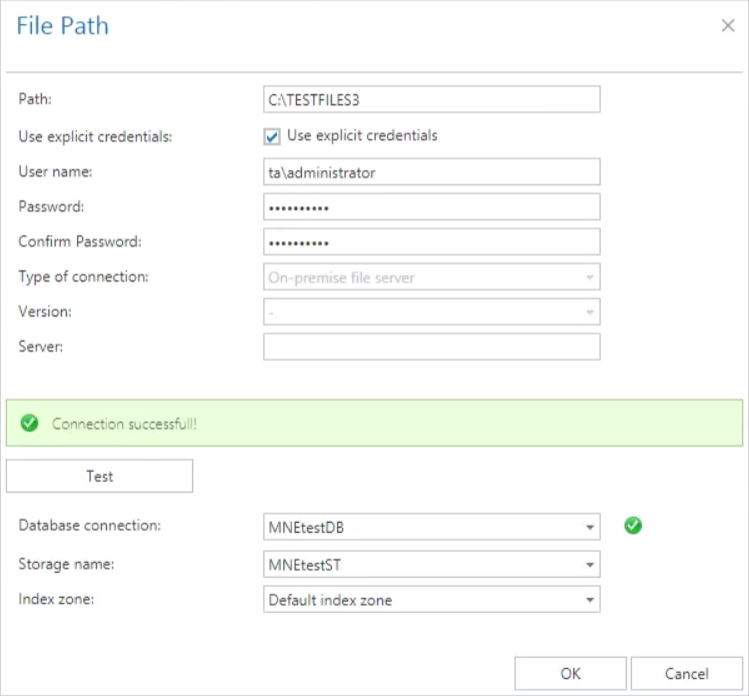
- In the File Path dialog, enter the file path to be applied and the applicable user credentials.
- Select the Type of connection, which indicates whether the files to be archived are located on the server (on-premise) or on network shares (remote).
- Select the Version, either Business or Private.
- Associate the File Archive database, storage, and index zone directly with this root folder.
It is not recommended to change the database and storage already used for a root folder, as this will lead to file retrieval problems, as described above. Use the Change option only if such a change is really necessary, for example, if the root folder has not yet been archived.
Important: To avoid connection issues when archiving Azure File Shares, the core service of contentACCESS (GATE.contentACCESS.Service) must run under an account other than Local System (for example, domainname\username).
Note: We recommend specifying the parent folder (the start point of the archive process) in the File Path dialog. The relative folder path can be specified later, when configuring the respective job.
Root folder details
Details and archive statistics of already configured root folders can be viewed by clicking Details in the root folder's context menu.
Details:
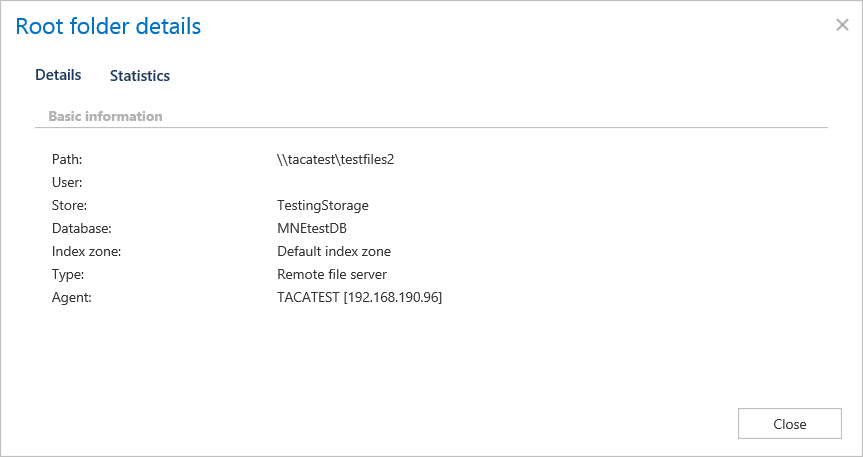
- Path — where the folder is located.
- User — if a username was specified, it appears here.
- Store — storage assigned to the folder.
- Database — database assigned to the folder.
- Index zone — index zone assigned to the folder.
- Type — type of the server the folder was archived by:
- on-premise
- remote (as shown in the screenshot above)
- Agent — if the folder was remotely archived, displays the agent that archived it.
Statistics:
Statistics show the archived folder count, document count, and total size of the files that were archived.

Delete a root folder
Already configured root folders can be deleted from the list using the root folder's context menu. A deleted root folder is only hidden but still exists in the database.
If a user wants to add an already deleted root folder again, they will be prompted that it already exists in the database, and will be able to restore it, but only with its original settings, that is, with the originally assigned database and storage.