Filtering in jobs
Introduction
The filtering configuration in job settings allows you to filter items by several conditions, depending on the type of job being configured. Available filter conditions vary by job type, and this page lists the conditions available for each supported job, together with the procedure for specifying a filter in the Filter settings window.
Important: Some filters only appear for particular jobs. For example, Is active, Retention category, and Storage are displayed only for jobs operating on already archived data, such as the Retention changer, Recovery, and Delete jobs.
File archive job conditions
- All text – file name and content of the file.
- Archivation date – the archivation date of the file.
- Creation date – the creation date of the file.
- Extension – must be specified with a dot, for example:
.jpg,.png,.pdf. - File name
- Is active (Yes/No) – the status of the item in the Portal.
- Modification date – the modification date of the file.
- Path – folder path of the parent folder where the item is located.
- Retention category – retention of the archived items.
- Size – the size of the item.
Email archive job conditions
These conditions also apply to the Shortcut repair and PST import jobs.
- All text – Body, Recipients, Sender, Subject, Attachment filenames, and Attachment content.
- Bcc
- Body
- Category
- Cc
- End date – the end date of the calendar items or tasks.
- Folder path – folder path of the parent folder where the item is located.
- Has attachment
- Importance
- Is active (Yes/No) – the status of the item in the Portal.
- Is from In-Place Archive – displayed only if there is at least one In-Place Archive in the Address book.
- Is recurring
- Message class
- Modification date
- Received date
- Recipients
- Sender
- Sensitivity
- Sent date
- Size – the size of the item.
- Start date – the start date of the meetings, tasks, and other calendar items.
- Subject
- Task completed – whether the task is completed or not (Yes/No).
- Task completed date
- Task due date
- To
- Transport headers – filters technical details of an email, such as sender and recipient details, the path of the email, the return address, authentication status, and more. For more information about email headers, see this article.
Note: Transport headers are a list of strings, each combining a header name and a header value. For example:
From: "noreply@tech-arrow.com"
To: Cloud Notifications
Subject: There are hanging jobs on edgewavearchive.com
Thread-Topic: There are hanging jobs on edgewavearchive.com
Thread-Index: AQHYdyQw9lGzL0Gry0KmJoBrOMQTOA==
Date: Fri, 3 Jun 2022 08:30:32 +0000
Message-ID:

Accept-Language: en-US
Content-Language: en-US
X-MS-Has-Attach:
MIME-Version: 1.0
The filter returns each header as one entry. For example, for Thread-Topic: There are hanging jobs on edgewavearchive.com, you can filter where the header starts with Thread-Topic: AND contains hanging. You need to use the Any operator for this type of filtering.
Important: If the Is from In-Place Archive filter is not displayed in the list, a service restart is required (Services → GATE.contentAccess.Service).
OneDrive archive job conditions
- All text – file content and metadata.
- Creation date – the creation date of the file.
- Extension – must be specified with a dot, for example:
.jpg,.png,.pdf. - File name
- Is active (Yes/No) – the status of the item in the Portal.
- Modification date – the modification date of the file.
- Path – folder/list path where the item is located.
- Size – the size of the item.
- Url
SharePoint archive job conditions
- All text – file content and metadata.
- Creation date – the creation date of the file.
- Extension – must be specified with a dot, for example:
.jpg,.png,.pdf. - File name
- Is active (Yes/No) – the status of the item in the Portal.
- Modification date – the modification date of the file.
- Path – folder/list path where the item is located.
- Size – the size of the item.
- Url
Note: When using the Delete files (or shortcuts) matching filter option, the All text filter cannot process shortcuts. If shortcuts are targeted, the job will not find any matching content, and no files will be reported or deleted.
GDPR File system job conditions
- All text
- Creation date – the creation date of the file.
- Extension – must be specified with a dot, for example:
.jpg,.png,.pdf. - File name
- Modification date – the modification date of the file.
- Path – folder path of the parent folder where the item is located.
- Size – the size of the item.
GDPR Exchange job conditions
- All text – Body, Recipients, Sender, Subject, Attachment filenames, and Attachment content.
- Bcc
- Body
- Category
- Cc
- Folder path – folder path of the parent folder where the item is located.
- Has attachment
- Importance
- Message class
- Received date
- Recipients
- Sender
- Sensitivity
- Sent date
- Size – the size of the item.
- Subject
- To
Teams archive job conditions
- All text – file name, content of the file, subject of the post, and content of the post.
- Archive date – the archivation date of the files and posts (used in the Recovery, Retention changer, and Delete jobs for Teams archive).
- Author
- Channel name – filters Teams channels by title.
- Creation date – the creation date of the files and posts.
- Extension – must be specified with a dot, for example:
.jpg,.png,.pdf. - File name
- Has attachment (Yes/No)
- Importance (Standard/Important/Urgent)
- Is active (Yes/No) – the status of the item in the Portal.
- Is message (Yes/No)
- Is private (Yes/No) – filters out private channels.
- Is replied (Yes/No) – used in the Recovery, Retention changer, and Delete jobs for Teams archive.
- Modification date – the modification date of the files and posts.
- Retention category – used in the Recovery, Retention changer, and Delete jobs for Teams archive.
- Sender
- Size – the size of the item.
- Storage – used in the Recovery, Retention changer, and Delete jobs for Teams archive.
- URL
Teams chat archive job conditions
- All text – file name, content of the file, content of the message.
- Creation date – the creation date of the messages, chats, and files.
- Has attachment (Yes/No)
- Importance (Standard/Important/Urgent)
- Is active (Yes/No) – the status of the item in the Portal.
- Members – the name of the members or chat partners.
- Modification date – the modification date of the messages, chats, and files.
- Sender
- Topic – name (title) of the group chats (for example: HR team).
- Type (Private/Group/Meeting)
Note: If Equals is selected as the operator for the File name filtering condition, the whole name, including the extension, must be specified.
Specify a filter
To specify a filter:
-
Click the Change filter button, or the Change button, depending on the job configuration screen.


-
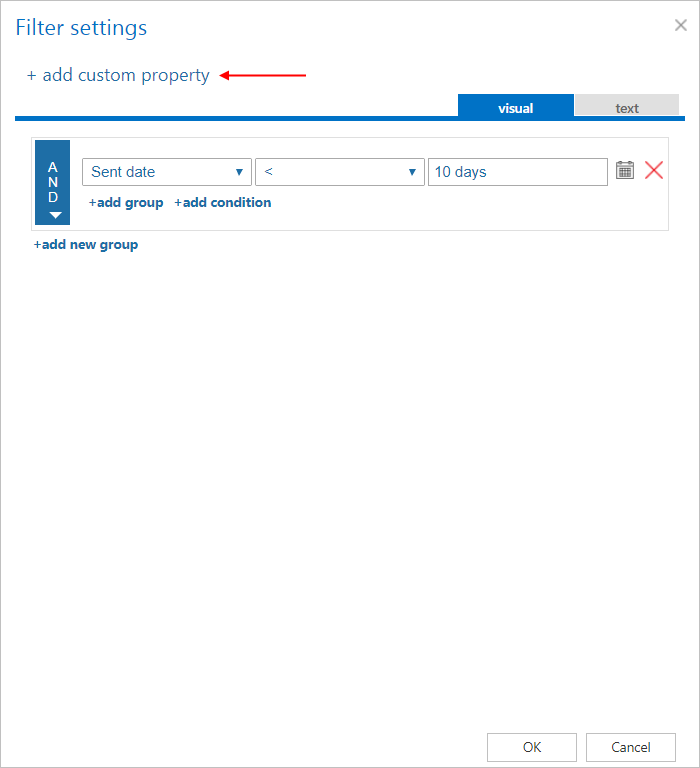
In the Filter settings window that opens, set the filtering options either in a user-friendly way (visual tab) or in a more technical way (text tab). Changes made in one tab are automatically reflected in the other.
The following instructions describe how to set filtering using the visual tab.
Add a filtering condition
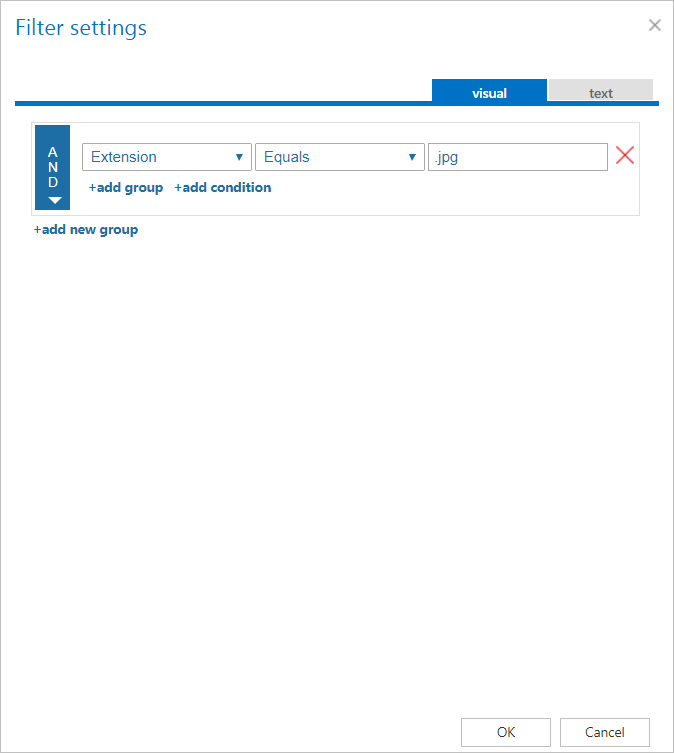
- Click +add condition.
- Select a type from the first dropdown list (one of the conditions listed above for the relevant job type).
- Select an operator from the second dropdown list.
- Specify the value in the third box.
Group filtering conditions
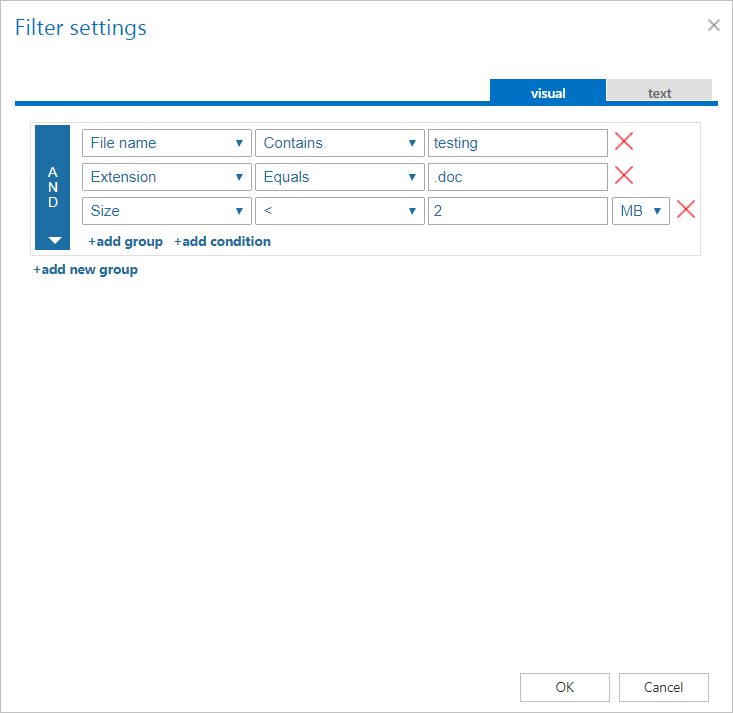
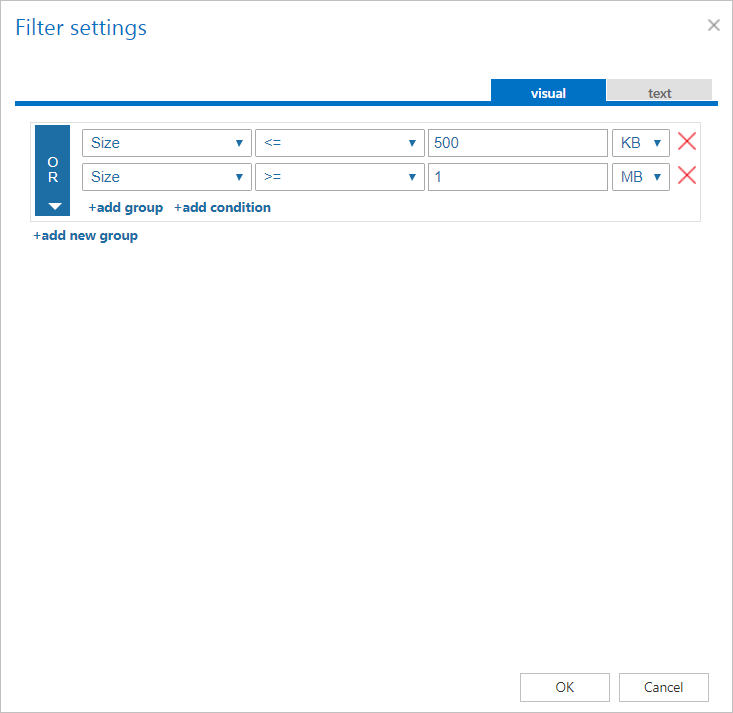
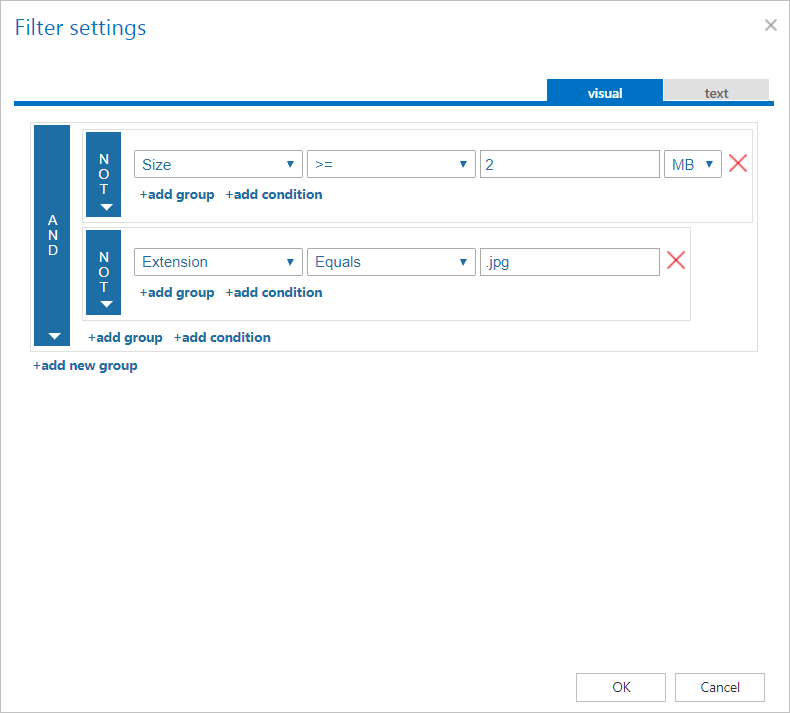
Filtering conditions can be merged into groups. To add a new group, click +add group. Three different operators can be set for a group by clicking the arrow in the blue part of the window:
-
AND – items meeting all the conditions in the group will be processed.
-
OR – items meeting one condition OR another condition (or one group of conditions OR another) will be processed.
-
NOT – items meeting the conditions will be excluded from processing. If you want to add more than one NOT condition, they must be added as shown below.
Filtering conditions and groups can be removed by clicking the X.
Add a custom property
It is also possible to add a filtering condition that isn't preconfigured for some job types.
-
Click +add custom property in the upper left corner of the Filter settings window.
-
In the Add custom property window that opens, specify the Display name, Name, and Type (String, Numeric, Date, Boolean, Lookup, or Customizable lookup) for the new criteria.
-
Click OK.

When you are finished, click OK. The filter(s) will be added to the Filtering settings or Shortcutting settings section of the job configuration.