Archive auditing
Introduction
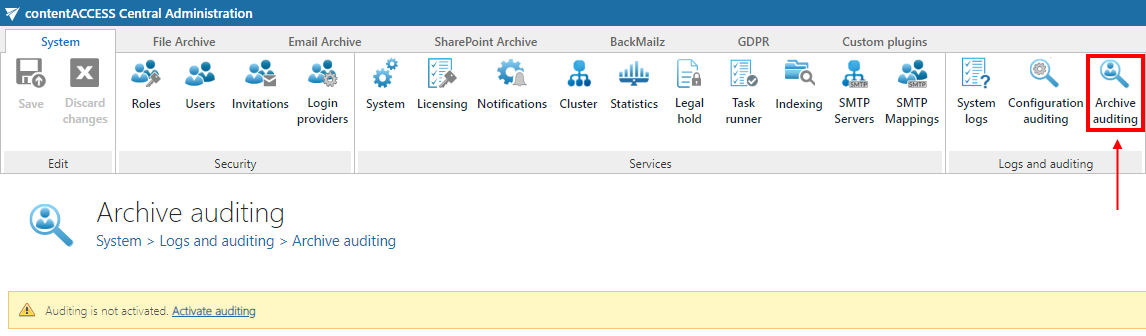
Archive auditing allows administrators to log every file access, executed search query, user log in/log out action, and legal hold creation or deletion action. This page describes how to configure and enable Archive auditing, and how to browse and interpret the resulting audit logs.
Configuration
The Archive auditing feature must be configured and enabled in order to function properly (System -> Logs and auditing -> Archive auditing).
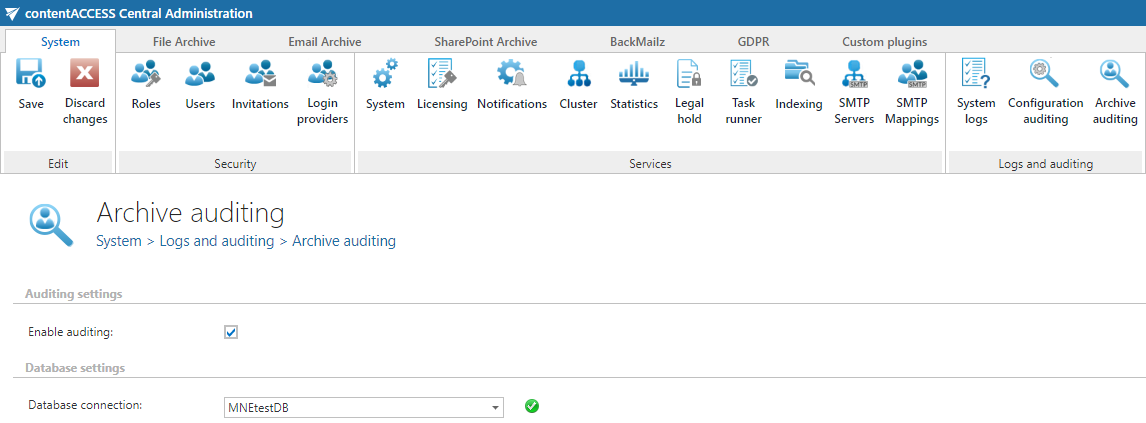
Options
- Enable auditing: The Archive auditing functionality can be enabled or disabled at any time. If Archive auditing is disabled, no new entries will be added to the Archive auditing log.
- Database connection: The database where the log entries will be saved. The database should not be changed.
Important: Changing the database connection will make previously created Archive auditing logs inaccessible.
After the page is saved, the user is automatically redirected to the Archive auditing logs browse mode.
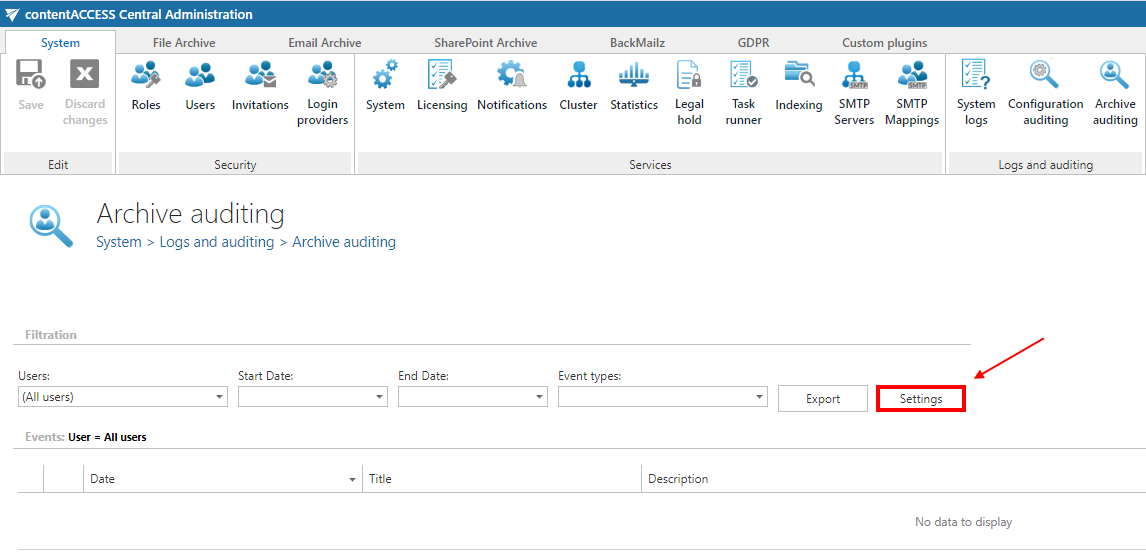
To modify the settings, click the Settings button on the Archive auditing logs browse view.
Archive auditing log browsing
The Archive auditing log browse view is similar to the System logs view. Users can filter the Archive auditing logs by:
- User (search for users or filter them out using the checkbox).
- Date range.
- Event type.
The grid containing the Archive auditing logs can also be sorted by clicking the column headers.
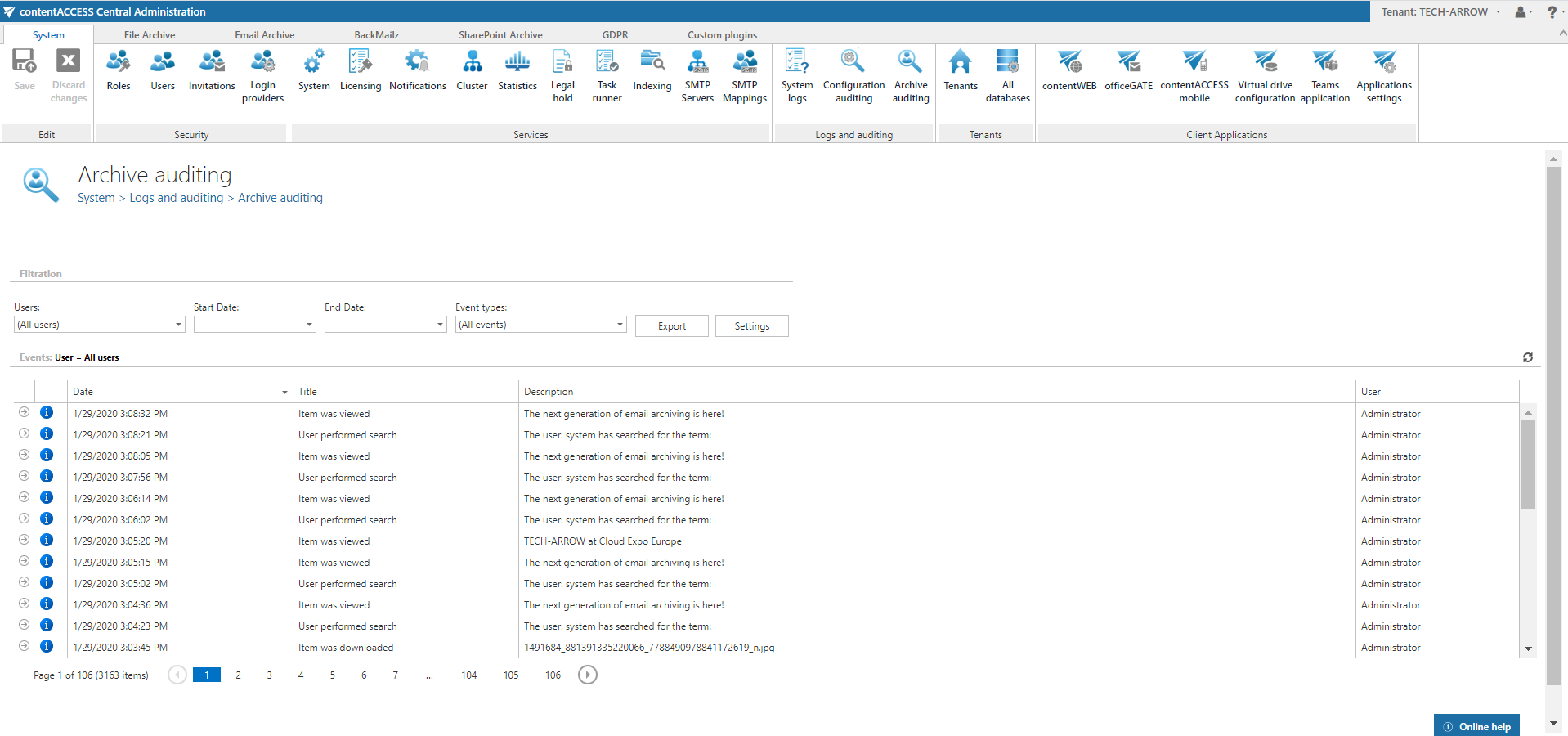
Column description
The columns contain the following information:
- Date: The exact date when the logged event happened.
- Title: The title of the event.
- Description: A short description of the event.
- User: The user who performed the action that was logged into the Archive auditing. There are two special users — System and Anonymous:
- System is used when a document is accessed by a job.
- Anonymous is used when the Link security option is disabled in the System settings and a document is downloaded from an external source (for example, via a URL).
Auditing log details
Clicking the arrow icon to the left of an auditing entry opens a detailed view showing more data about the action that caused the event.
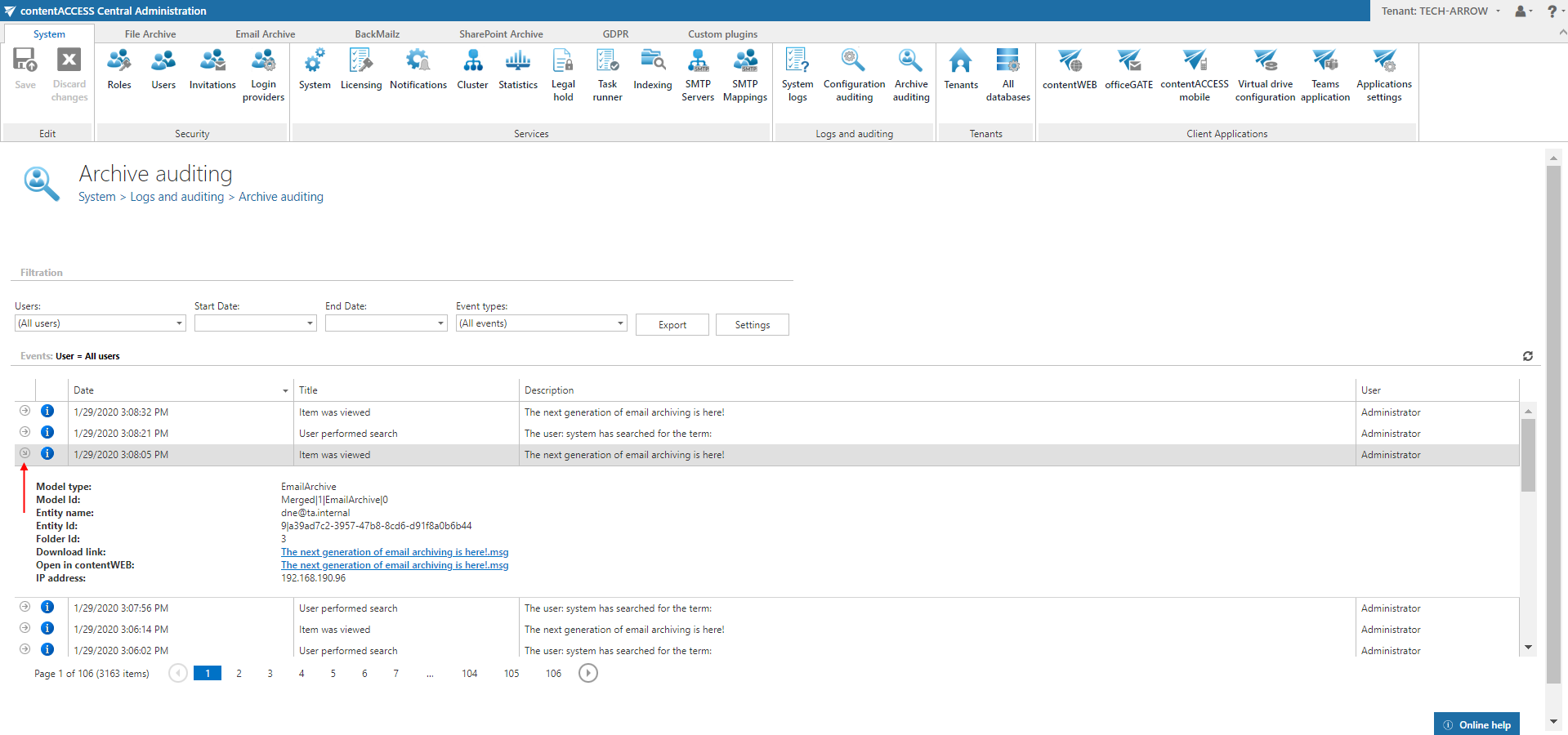
- If the item was viewed, the detailed view includes a Download link and an Open in contentACCESS Portal option.
- If the item was downloaded, the detailed view includes only the Download link.
