How to create/configure databases — All databases
Introduction
The All databases page in contentACCESS Central Administration allows administrators to create, configure, and manage the databases used by tenants for storing archived metadata. From this page, you can create new databases, connect existing databases to contentACCESS, and update the structure of all configured databases.
contentACCESS supports two database systems:
- MSSQL: A relational database management system developed by Microsoft, known for its strong integration with Windows-based environments, comprehensive security features, and advanced analytics capabilities. MSSQL supports complex transactions, high availability, and in-depth reporting tools.
- PostgreSQL: An open-source, object-relational database management system known for its flexibility, extensibility, and strong standards compliance. It supports a wide range of data types, including JSON and XML, and is highly adaptable to various development environments. PostgreSQL is favored for applications requiring custom functions, strong data integrity, and cross-platform compatibility.
Both database systems are reliable and offer advanced data management capabilities, but they differ in terms of features, performance optimizations, and deployment options.
Creating databases
Jobs of a tenant write metadata into the selected SQL database, which must be created beforehand by the administrator. The system database is always created during the installation process of contentACCESS, but it is not associated with any tenant. Databases associated with specific tenants are set up by the system administrator on the All databases page.
Important: In case of an MSSQL database, it is required to set the SQL Server as "Collation – Insensitive" (the used collation must be CASE-INSENSITIVE (CI)) for contentACCESS. The recommended collation is SQL_Latin1_General_CP1_CI_AS.
Important: If you already have a PostgreSQL server and want to create a database manually for configuration in contentACCESS, the timezone must be set to UTC on the database.
Consider the following factors before creating databases:
- Number of users expected for the database: If the company (tenant) has more than 2,000 mailboxes, it is recommended to create multiple archive databases (for example, for storage, email archive, provisioning, or separate databases for Exchange groups) to ensure better transparency of data.
- Amount of expected data in the database: Always estimate how much space your data will require.
- Retrieval capacity of the database: Consider the expected retrieval load when planning your database setup.
Open the All databases page
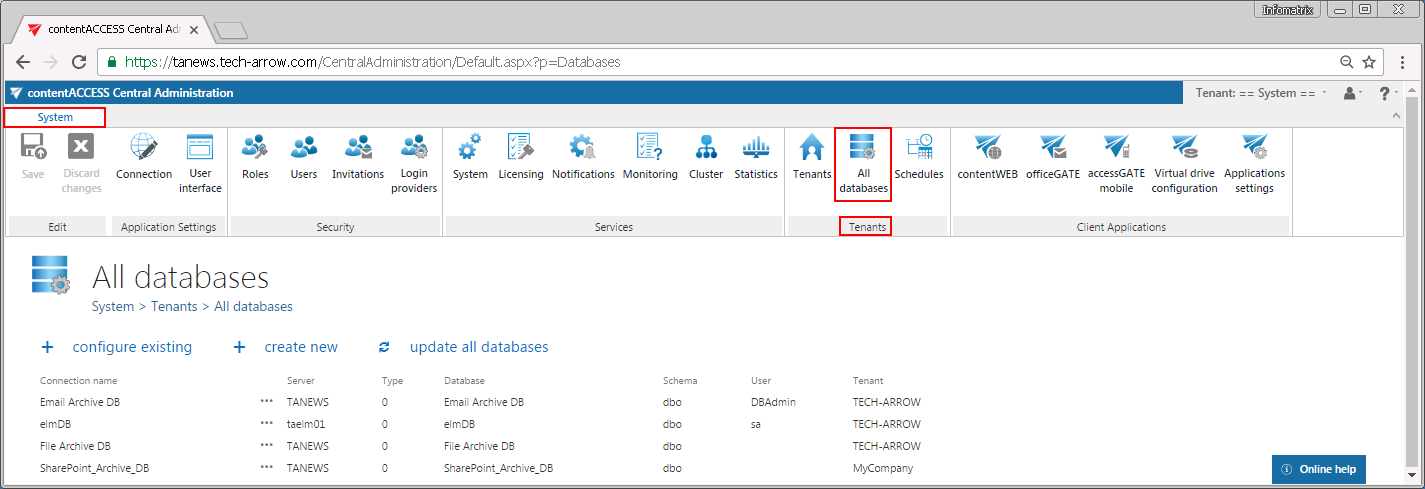
To open the All databases page in contentACCESS, navigate to the System tab ⇒ Tenants ⇒ All databases control on the Central Administration ribbon.
This page lists all databases created for all tenants. The grid displays the server where the tenant databases are installed, the database name, schema, user details, and the associated tenants.
Create a new database
To run jobs in contentACCESS, a new database must be created. This database must then be selected on the job's configuration page, or, in the case of Exchange archiving, it can also be associated with a mailbox from the address book.
Click + create new and fill in the required data in the Database repository window.
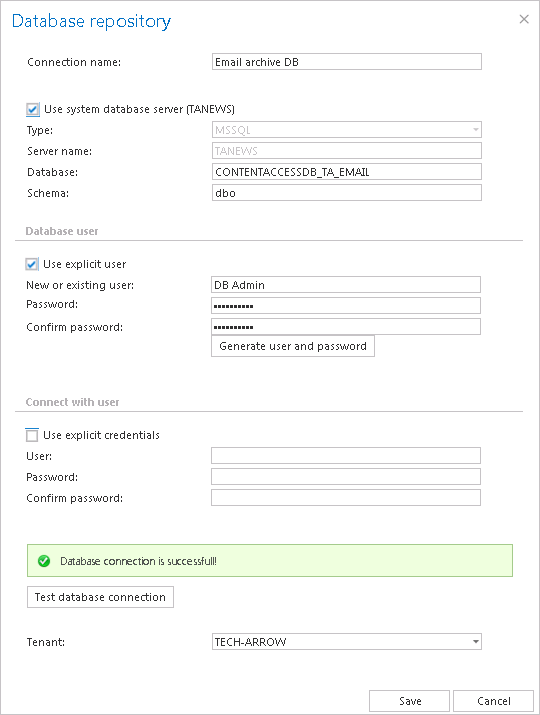
- Connection name: Enter a display name for the newly created database. This will be the name of the database in contentACCESS Central Administration.
If you want to use the system database server, check the Use system database server checkbox, as shown in the screenshot above. This populates the server settings automatically. Type the database name into the Database field — this will be the name of the database on the SQL server.
If you want to use a database server that differs from the system database server, configure the following instead:
- Type: Choose the type of database from the dropdown list (MSSQL or PostgreSQL).
- Server name: Enter the name of the database server (where MSSQL or PostgreSQL is installed).
- Database: The database will be created on the SQL server under this name.
- Schema: Type in the database schema (optional).
Configure the database user
Under Database user, you can configure how the database user is created. There are multiple options:
-
Use an existing user: Check the Use explicit user checkbox and enter the user credentials into the New or existing user / Password / Confirm password text boxes.

-
Create a new user with custom credentials: Type the desired credentials into the New or existing user / Password / Confirm password text boxes. Do not click Generate user and password.

-
Use the service account: Leave the Use explicit user checkbox unchecked and leave all the fields empty. contentACCESS will connect using the service account.

-
Create a new user with a random password: Check the Use explicit user checkbox and click Generate user and password. The generated user name can be edited directly.

A newly created database user will have access permissions only to the currently created database.
Configure the connecting user and finalize
Under Connect with user, enter the credentials of the database user who has the rights to create a new database on the SQL server:
- If the Use explicit credentials checkbox is not checked, contentACCESS automatically connects to the database (MSSQL or PostgreSQL) using the contentACCESS service account.
- If you want to connect with an explicit user, check this checkbox and enter the login data.
Other available options:
- Test database connection: Runs a test connection to verify that contentACCESS can connect to the selected database server (MSSQL or PostgreSQL).
- Tenants: Select the tenant from the dropdown list with which the database will be associated.
Click Save, and the new database will appear in the list of databases.
Note: When archiving from the Exchange server, the database must be associated with the mailbox from the address book, or the first running email archive job will associate the configured database with the archived mailbox(es). In the case of file system archiving, a database must be selected during the configuration process of the job.
Configure an existing database
If you need to establish a connection between an already existing SQL database and contentACCESS, click + configure existing and configure the required data in the Database repository window. In this case, you do not create a new database — an already existing database on the SQL server is used instead.
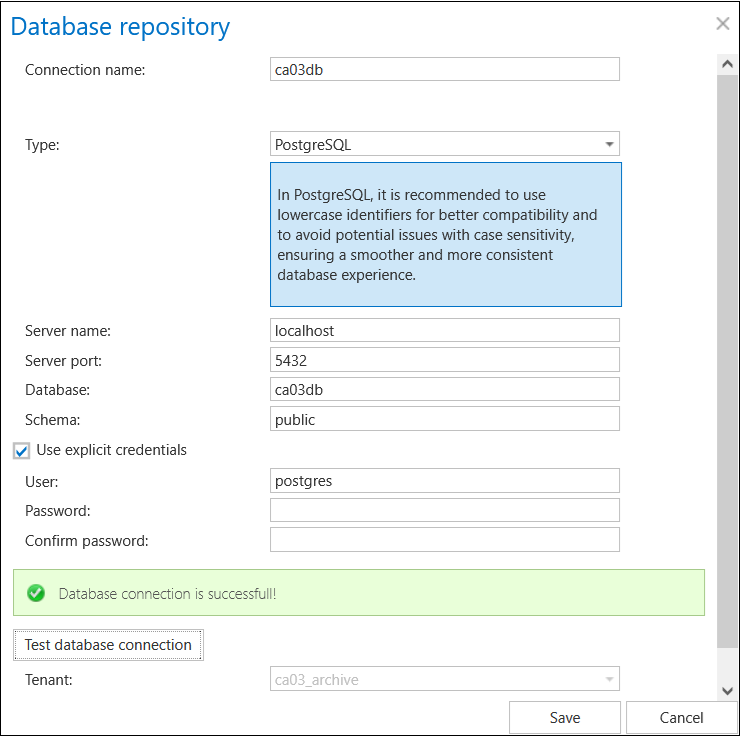
- Connection name: Enter a display name for the database. This will be the name of the database in contentACCESS.
If you want to use the system database server, check the Use system database server checkbox, as shown in the screenshot above. This populates the server settings automatically. Type the database name into the Database field — this will be the name of the database on the SQL server.
If you want to use a database server that differs from the system database server, configure the following instead:
- Type: Choose the type of database from the dropdown list (MSSQL or PostgreSQL).
- Server name: Enter the name of the database server (where MSSQL or PostgreSQL is installed).
- Database: Type the name of an already existing database on the SQL server.
- Schema: Type in the database schema (optional).
Additional settings:
- Use explicit credentials: If this checkbox is not checked, contentACCESS automatically connects to the database (MSSQL or PostgreSQL) using the contentACCESS service account. If you want to use an explicit database user, check the checkbox and enter the user credentials.
- Test database connection: Runs a test connection to verify that contentACCESS can connect to the selected database server (MSSQL or PostgreSQL).
- Tenants: Select the tenant from the dropdown list to which the database will belong.
Click Save, and the new database will appear in the list of databases.
Note: The create new and configure existing options are unavailable to the logged-on user if the Add repository item permission on the tenant is not allowed in their role assignment. For more information, see Role details.
Update all databases

Clicking this option allows you to update the structure of all databases. Click the button, and the status bar of the updating job will appear. From this status bar, the following operations are accessible:
- Start/stop running
- Manual refresh
- Enable/disable auto refresh
- Logs (redirects to the last run session of the database updating job)
