Licensing
Introduction
The Licensing page allows administrators to activate a new license, review the details and restrictions of the currently used license, and monitor current system usage against the license limitations. Administrators can also update the telemetry job from this page, as further described in the Statistics chapter.
The Licensing page is reachable by navigating to System ⇒ Services ⇒  Licensing on the ribbon.
Licensing page sections
The page is divided into the following sections:
- General information: Shows the details of the currently used license, including the license activation date and expiration date.
- Customer information: Displays information about the owner of the license.
- Contact information: Displays the contact person responsible for software-related issues, usually the contact person between TECH-ARROW and the customer.
- System limitations: Shows the jobs and storages available in the activated license, the maximum allowed node and tenant count (the currently used count is shown in brackets), and the OEM version.
The contentACCESS license system allows limits to be set for the available jobs. Users are allowed to archive items only within the range defined in the respective license. The currently archived item count and size are displayed in brackets.
- Email archive limitations: The maximum allowed and currently archived mailbox count (both active and deactivated mailboxes — read more here), email count and size, whether public folder archiving is allowed, and whether deactivated mailboxes should be hidden.
- PST import limitations: Whether PST import is allowed, the number of mailboxes with imported PSTs, and the size of emails imported from PSTs.
- File archive limitations: The maximum allowed and currently archived root folder count, file count, and file size.
- GDPR for File system limitations: Number of file system roots and number of file system items.
- GDPR for Exchange limitations: Mailbox count and email count.
- GDPR for applications limitations: Application count and number of application records.
- SharePoint archive limitations: Connection count, file count, and file size.
- Teams archive limitations: User count, team count, size of archived items, deactivated user count, deactivated team count, and item count.
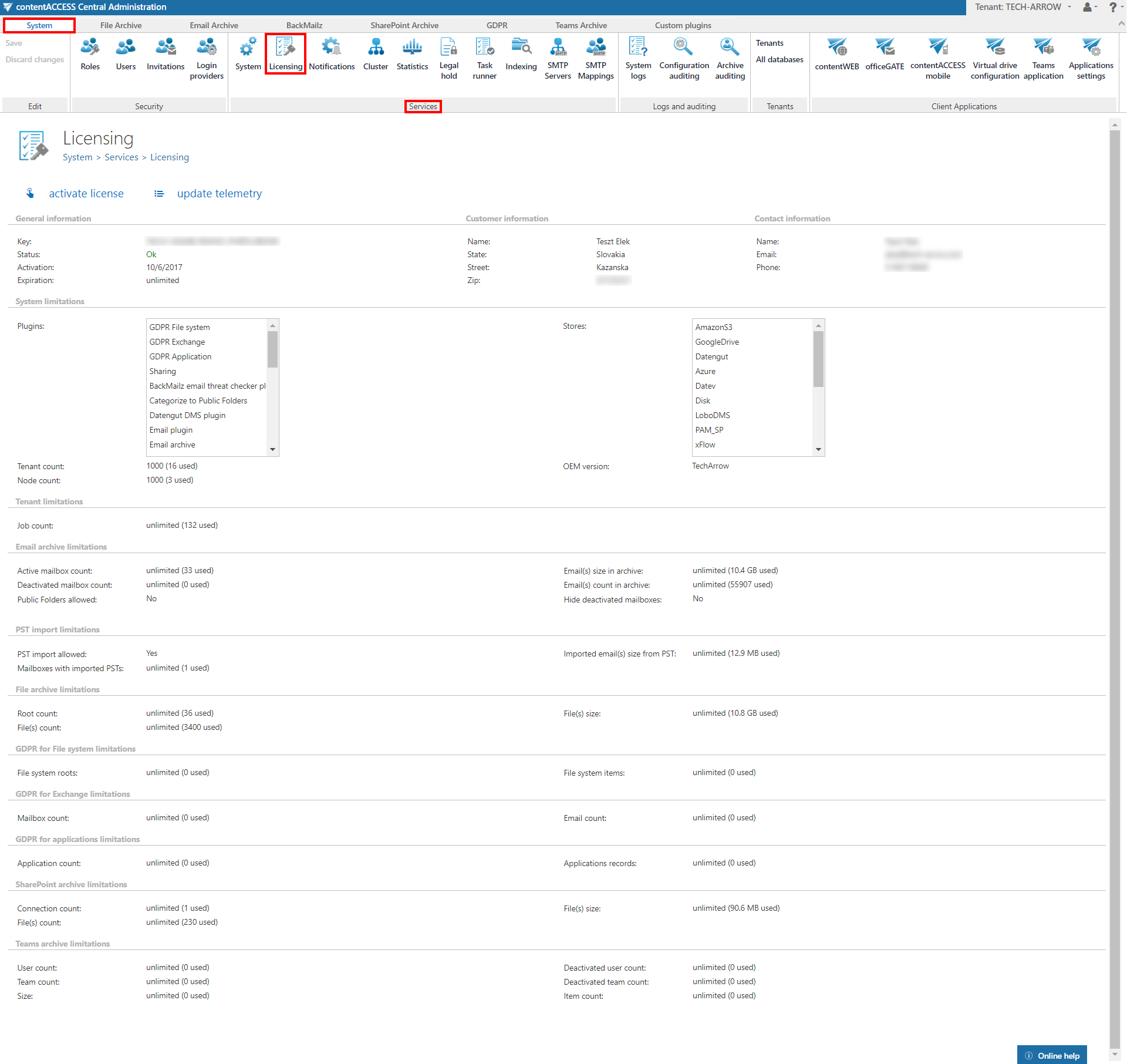
Activate your license key
To activate a new license, click Activate license below the breadcrumbs.

In the License activation wizard dialog, insert your license key into the License key text box, then choose one of the two available activation methods and follow the corresponding steps.

Online activation
Online activation requires internet access on the contentACCESS server.
- Click Next.
- Click Finish.
The license is activated automatically.

Offline activation
Offline activation does not require internet access on the contentACCESS server.
-
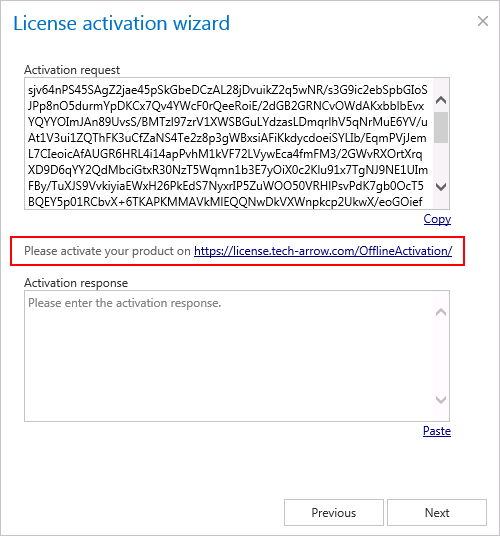
Open the offline license activation page of contentACCESS using the link provided in the dialog.
-
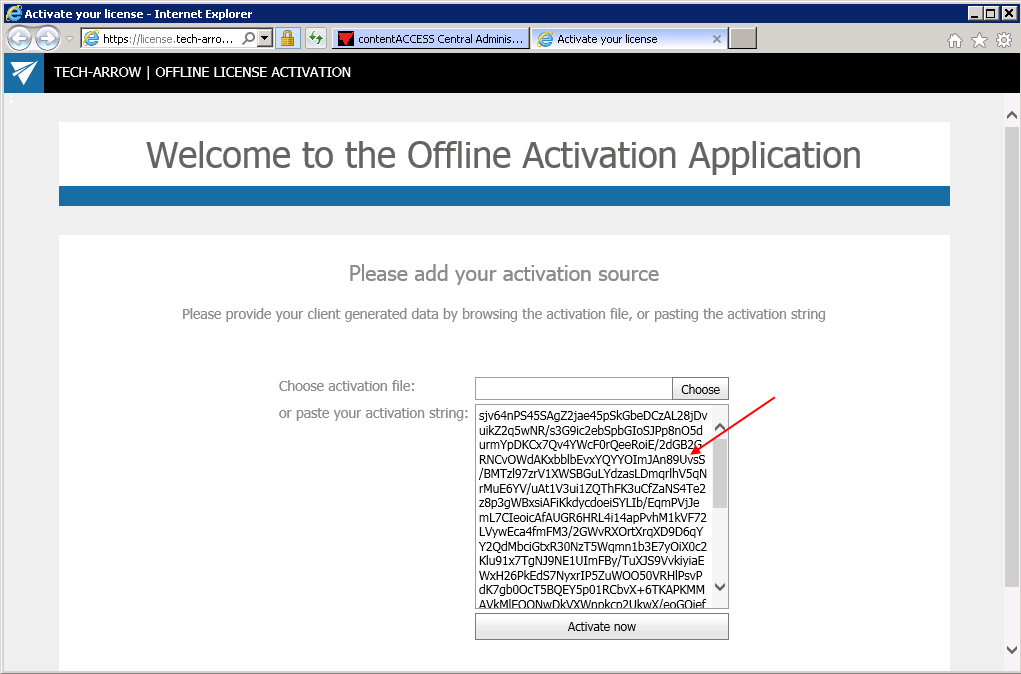
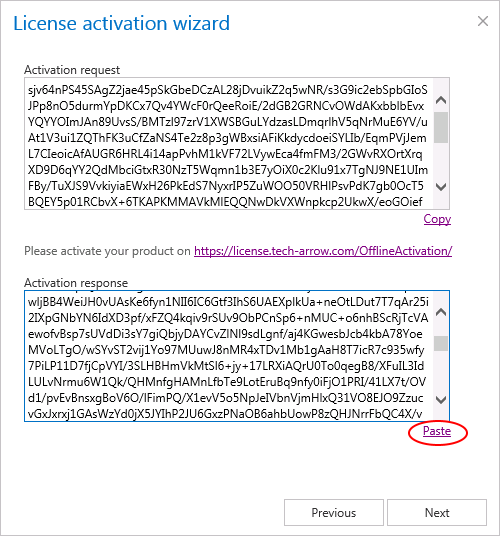
Copy and paste the Activation request from the dialog into the appropriate field on the web page, then click Activate now to generate an activation response.
-
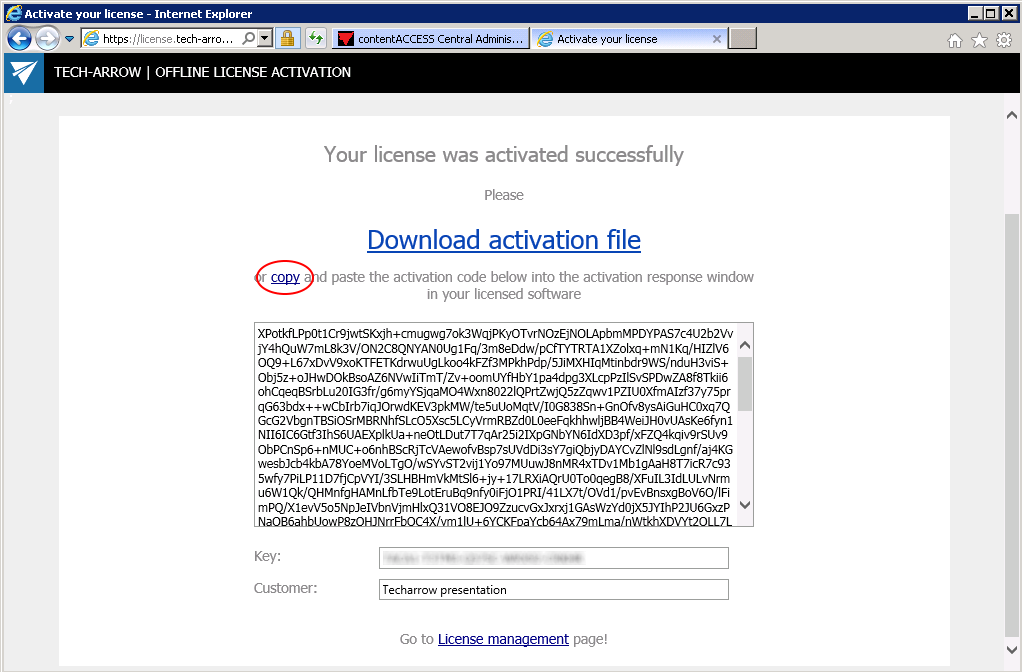
Copy and paste the activation response from the web page into the license activation dialog.
-
Click Next to complete the license key activation.
-
After the license is successfully activated, the Allowed jobs, stores and limitations section of the page is updated to reflect the new license.