Login providers' context menu options
Introduction
The context menu on the Login providers page allows administrators to edit, enable, disable, delete, and reorder the login providers configured in contentACCESS. This page describes the available context menu options and explains how login provider availability and display order can be configured.
Open the Login providers page
The list of enabled providers can be found on the Login providers page. To open it, navigate to the System tab, select the Security group on the ribbon, and click Login providers.
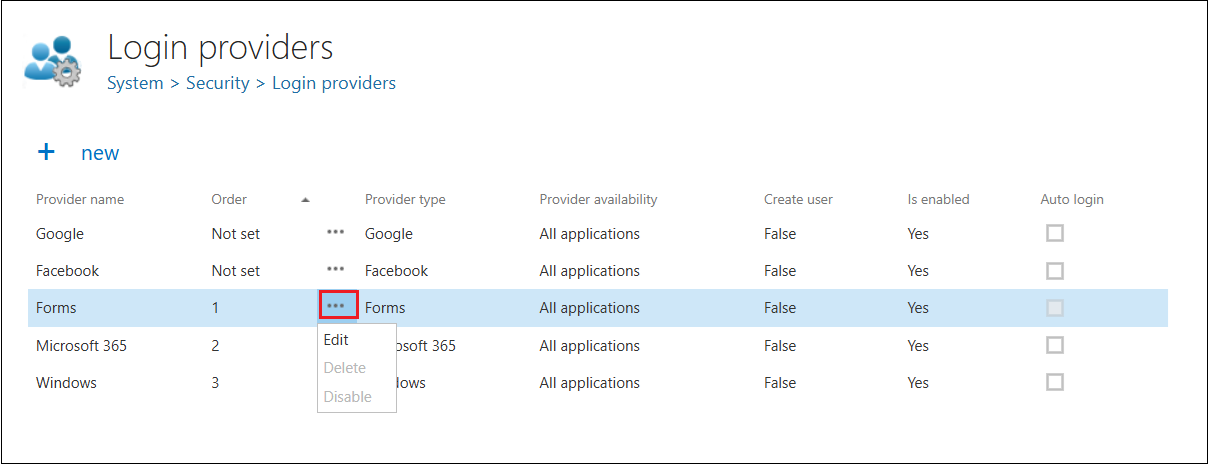
To edit, enable, disable, or delete a provider, open its context menu on the Login providers page and click the desired item in the dropdown list.
Context menu options
-
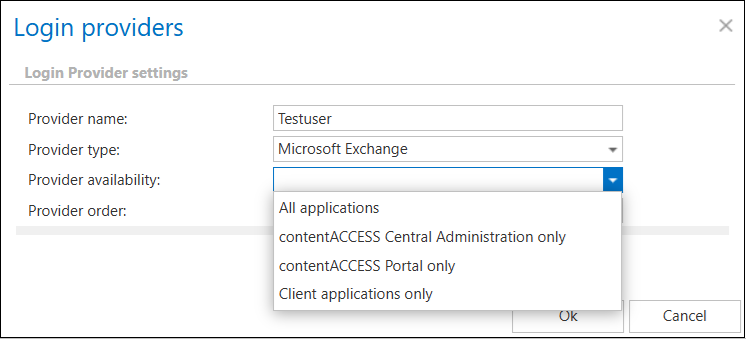
Edit: Edit or modify the current login provider configuration. Here you can set the provider availability, i.e. define whether the login provider can be used to log in to:
- contentACCESS only – contentACCESS Central Administration only.
- contentACCESS Portal only – contentACCESS Portal only.
- All applications – both contentACCESS and contentACCESS Portal.
-
Disable: If a provider is disabled, it will not be possible to log in to contentACCESS with it.
infoNote: For security reasons, the Forms authentication provider cannot be disabled.
-
Delete: Removes the login provider from the list.
infoNote: For security reasons, the Windows and Forms login providers cannot be deleted. Login providers that are already associated with a user login also cannot be deleted — they can only be disabled.
Configure the provider order
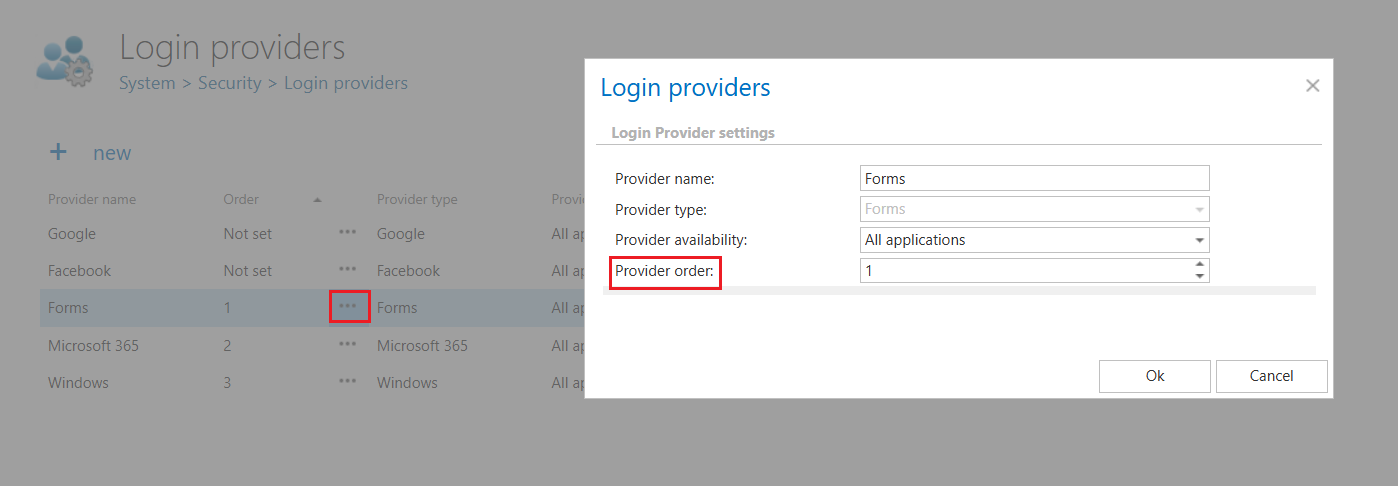
The order of login providers can also be configured in the list. This order determines how the configured login providers are displayed on the login page. Providers left as Not set automatically appear at the bottom of the list.
The order can be adjusted at any time by selecting Edit from the context menu (…) of a login provider and setting the desired value in the Provider order field. The Not set value corresponds to 0. This column is also sortable.