Notifications
Introduction
The Notifications page in Central Administration allows administrators to configure how contentACCESS sends notification emails to users. contentACCESS uses a notification job to send emails about errors, warnings, misconfigurations, or possible system or job failures, increasing the efficiency of the troubleshooting process.
Depending on the settings configured in Central Administration, notification emails can be transported either through an Exchange server or an SMTP server. If the organization does not have an Exchange Server, an SMTP server can be used instead.
This page describes the control buttons available for the notification job, as well as the scheduling, transport, and resource settings that determine how and when notification emails are sent.
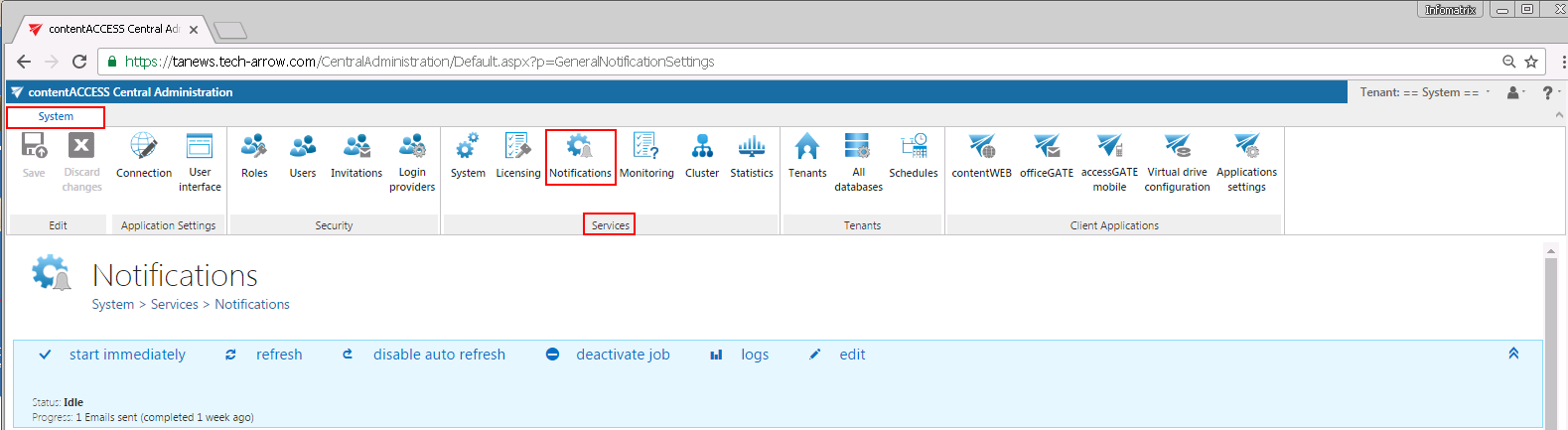
To open the notification settings, go to the System tab, Services group, and click the Notifications button on the Central Administration ribbon.
Control buttons
The status bar of the Notifications page contains the following control buttons:
- Start immediately / Stop: Manually starts or stops the sending of notification emails.
- Refresh: Manually reloads the current state of the notification job.
- Enable auto refresh / Disable auto refresh: Activates or deactivates the automatic refresh of the notification job status. When enabled, the current state is refreshed every 5 seconds.
- Deactivate job / Activate job: Deactivates or activates the job if it should not run. A deactivated job will not start automatically, nor can it be started manually.
- Logs: Opens the corresponding monitoring page to review notification job events or investigate problems that occurred while sending notification emails. The last run of the job is pre-selected, and the corresponding run events are displayed.
- Edit: Changes the name of the notification job and specifies the node on which the job should run.
- Collapse/expand arrows (
 ): Located on the right side of the status bar, these arrows collapse or expand the progress information about the job's running. The status bar's last state is always stored and reopened when navigating back to the page.
Scheduling settings
The Scheduling settings section is common to both the SMTP and Exchange server transport types. The administrator can select an already existing notification scheduler from the list or create a new one. Notification emails are sent at the time configured in the selected scheduler.
New notification schedulers can also be created or edited by selecting the system tenant from the upper-right menu of the Central Administration user interface and configuring schedulers on the Schedules page (System tab => Tenants group => Schedules).

Notification settings
The Notification settings section allows the administrator to choose whether the SMTP server or the Exchange provider is used to transfer notification emails.
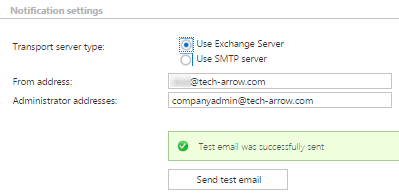
In both cases, the following fields must be filled in:
- From address: The email address of the actual sender.
- Administrator addresses: The recipient addresses.
It is also possible to send notification emails on behalf of somebody else. To do so, the sending account must have on behalf permissions on the mailbox of the other user.
It is recommended to send a test email using the Send test email button to verify that everything works correctly.
The page displays different configuration sections depending on the transport type selected in Notification settings:
- If Use Exchange Server is selected, the EWS settings section must be configured.
- If Use SMTP server is selected, the SMTP server settings section must be configured. The SMTP server option is used when the organization does not have an Exchange Server.
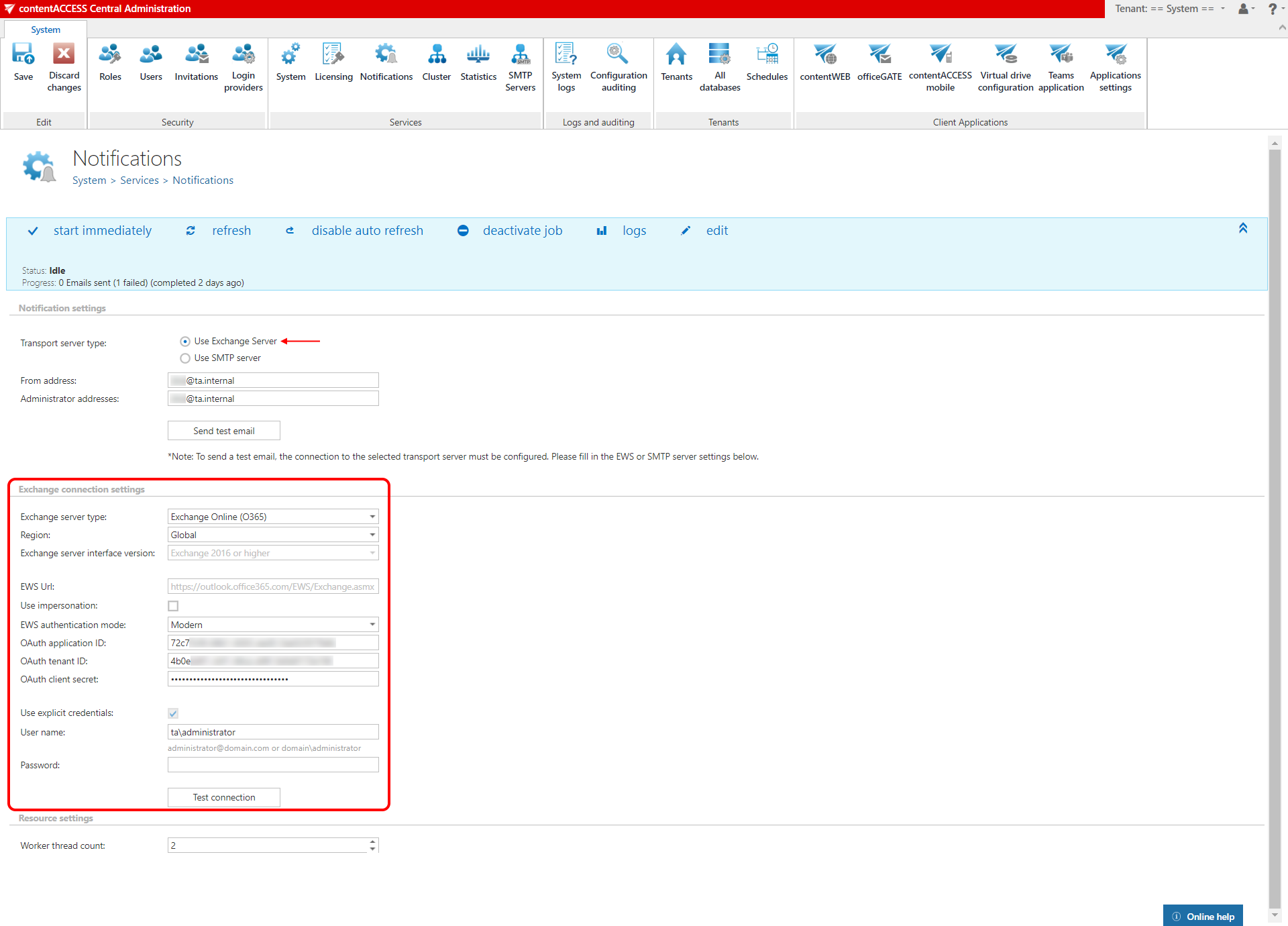 Screenshot A: Exchange Server used
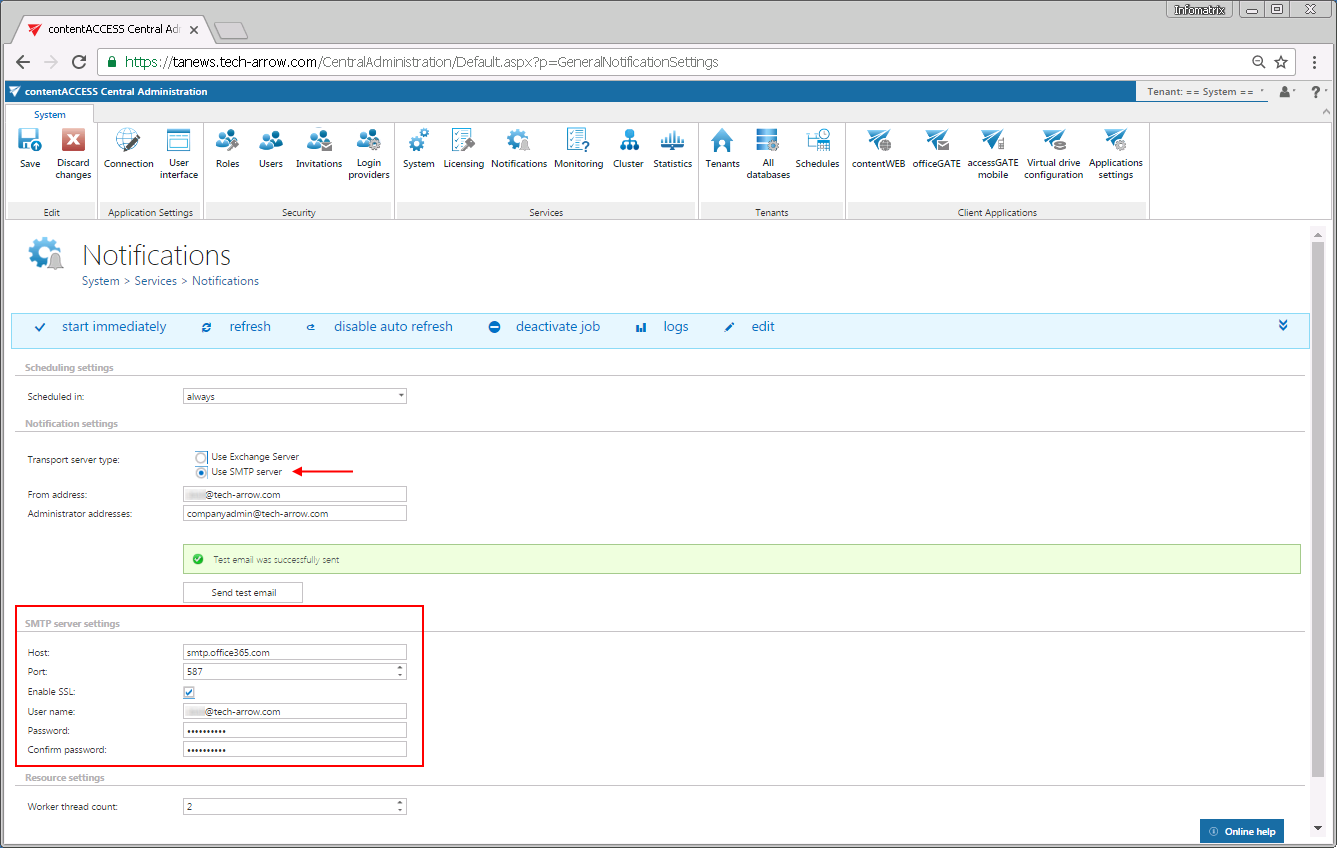 Screenshot B: SMTP server used
EWS settings
The following parameters are needed for the EWS connection:
-
Exchange server type: The type of Exchange provider that will send the notification emails.
-
Region: If the user has or uses a German cloud (a dedicated and isolated Microsoft Azure version for Germany), select Germany from the Region dropdown list. If the predefined settings for Microsoft 365 do not match your expectations or needs, select the Custom option from the Region dropdown list and specify your own values.

-
Exchange server interface version: The version of the Exchange provider that will send the notification emails.
-
EWS URL: Received from the Exchange provider.
-
Use impersonation: This checkbox is turned off by default. When turned on, Impersonation is used instead of delegation (for more information, see this section). Impersonation allows the superuser account to impersonate any other user's account and access their mailboxes.
infoNote: Only accounts with the ApplicationImpersonation role can use impersonation. For more information about configuring impersonation for your account, see this page.
If the Microsoft 365 user has a "desktopless" license, their account cannot be used for impersonation, because EWS access is disabled for such users (they are unable to connect to EWS).
-
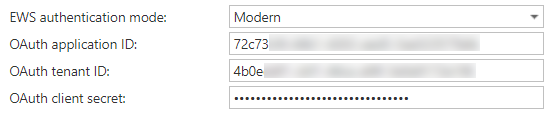
EWS authentication mode: Select one EWS authentication mode from the dropdown list. There are two options: Basic and Modern. Basic authentication was used by default in previous versions, and no other authentication type could be selected. Modern authentication is more secure and complex, and requires the app to be registered on the Azure portal. For information about how to register the app and obtain the necessary IDs and client secret, see this section.
-
Keep connection alive: When turned on, the connection between contentACCESS and the Exchange server is cached, which increases performance. If the Exchange environment is load balanced, some requests may land on a different Exchange server, which can cause errors in contentACCESS. In these cases, turning off the Keep connection alive option destroys the connection after each request and rebuilds it on the next request.
- If you are communicating with one Exchange server, turn this option on to increase performance.
- If you have a load balanced Exchange environment and experience communication problems with the Exchange server, it is recommended to turn this option off.
-
User name, Password: Enter the User name (email address) and password of the EWS user used to connect to the Exchange server.
SMTP server settings
The following parameters are needed for the SMTP connection:
- Host: The name of the SMTP server (for example:
smtp.gmail.com,smtp.office365.com). - Port: The SMTP port of the SMTP server. Port
25(or2525) is usually used for SMTP, but because this protocol is vulnerable, this port is often blocked by firewalls. The secure SMTP ports are465and587; port587usually uses TLS (Transport Layer Security). - Enable SSL: Depending on the SMTP server, SSL can be enabled (recommended).
- User name, Password: The authenticated user on the SMTP server (required).
Use the Send test email button to verify that the notification emails are working properly.
Resource settings
The Resource settings section, located at the bottom of the page, allows the administrator to set the worker thread count, which determines how many notifications are sent simultaneously.