Role assignment
Introduction
Role assignment in Central Administration allows administrators to assign roles to users, edit existing role assignments, and manage access to specific contentACCESS objects for other users on their own tenant. This page explains who can assign roles, how the logged-on user's own permissions limit which roles they can assign or edit, and how roles can be assigned to new or existing users.
Prerequisites
Only a user with Manage users and roles permissions can assign roles to users, edit role assignments, and manage access to specific contentACCESS objects for other users on their own tenant.
If the logged-on user does not have this permission, the related pages and options are not available to them in Central Administration, including:
- The Roles page.
- The Users page.
- The manage access to option on the respective pages.
Permission rules for role assignment
The logged-on user's own permissions define which roles that user is able to assign, and which role assignments they are able to edit.
Note: If the logged-on administrator has specific permissions on schedulers, repository items, jobs, and/or to view the archive, they cannot assign roles containing these permissions to other users. For example, if the logged-on user has a specific permission to Edit job, they cannot assign a role that contains the Edit job permission.
The logged-on user must have equivalent or greater permissions on the tenant than those included in the role being assigned to the other user.
- For example, if the logged-on user has only the Edit all repository items permission assigned on tenant "X", but is not allowed to delete these repository items, they are not allowed to assign a role with Delete all repository items permissions on tenant "X".
- Similarly, if the logged-on user is a tenant administrator on tenant "Y" but cannot view the archive mailboxes on that tenant (View mailboxes not allowed), they cannot assign a role — or edit a role assignment — that contains permissions to view the archive mailboxes of that tenant.
Assign a role
The administrator can assign a role in one of the following ways:
- For a newly created or invited user, directly in the Create/Invite user dialog.

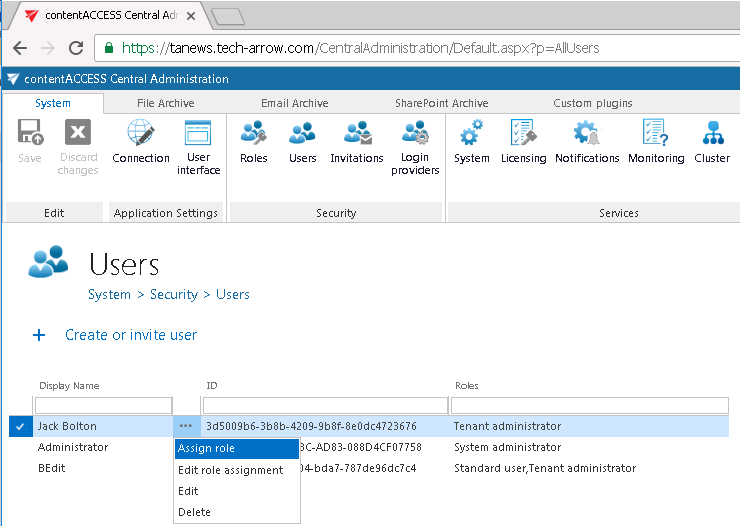
- For an already existing contentACCESS user, using the user's Assign role context menu option.

Important: If you are assigning a role that contains both specific permissions and a Manage tenant "All allowed" permission, and you have selected one specific tenant in the Role assignment/Create/Invite user dialog, then every tenant automatically receives the Manage all tenants permission, as defined in the role itself, and you will be redirected to the Assign specific permissions page.
If All tenants is selected instead in one of the above dialogs, then the Manage all tenants permission is assigned, but the user is not redirected to the Assign specific permissions page. These specific permissions can be assigned later using the user's Edit role assignment context menu option.