Statistics
Introduction
The Statistics page in contentACCESS Administration displays telemetry graphs generated from data collected by the contentACCESS telemetry service. The telemetry service permanently collects data from:
- The contentACCESS system as a whole
- Email archive jobs
- File archive jobs
- GDPR for Applications job
- GDPR for Exchange job
- GDPR for File system job
- SharePoint archive jobs
- Teams archive jobs
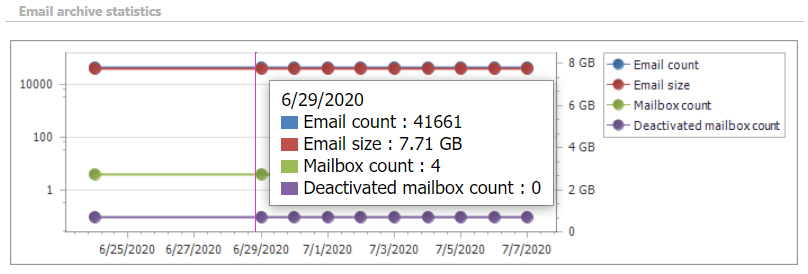
The collected data changes are summarized into graphs that give a simple and quick overview of actual data usage over the last 10 days. This page describes how to access the Statistics page, how the underlying telemetry job is configured and triggered, and how to read the system statistics graphs.
Accessing the Statistics page
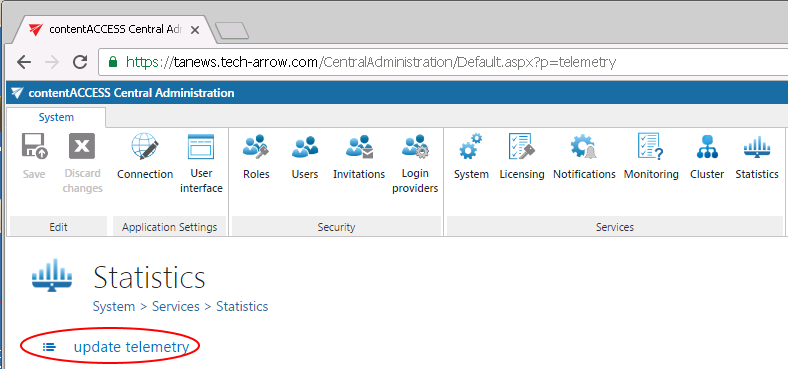
The Statistics page is reachable by navigating to System ⇒ Services ⇒ Statistics on the ribbon.
The values displayed on this page are permanently updated by the telemetry job, which runs and collects the necessary data every night between 1 AM and 2 AM. If you want to see the actual data usage immediately, you can run the telemetry updater to actualize the data right away.
Configure and trigger the telemetry job
The telemetry job's configuration page can be opened by clicking the update telemetry option. Clicking this option also automatically triggers the telemetry job.
Note: Only a user with manage tenant rights has access to the telemetry job.
On the telemetry job's configuration page, you can:
- Create a new scheduler for the telemetry job.
- Change the job's resource settings.
- Start or stop the job, and activate or deactivate it, from the status bar.

Selecting the telemetry scope
Telemetry information can be checked for:
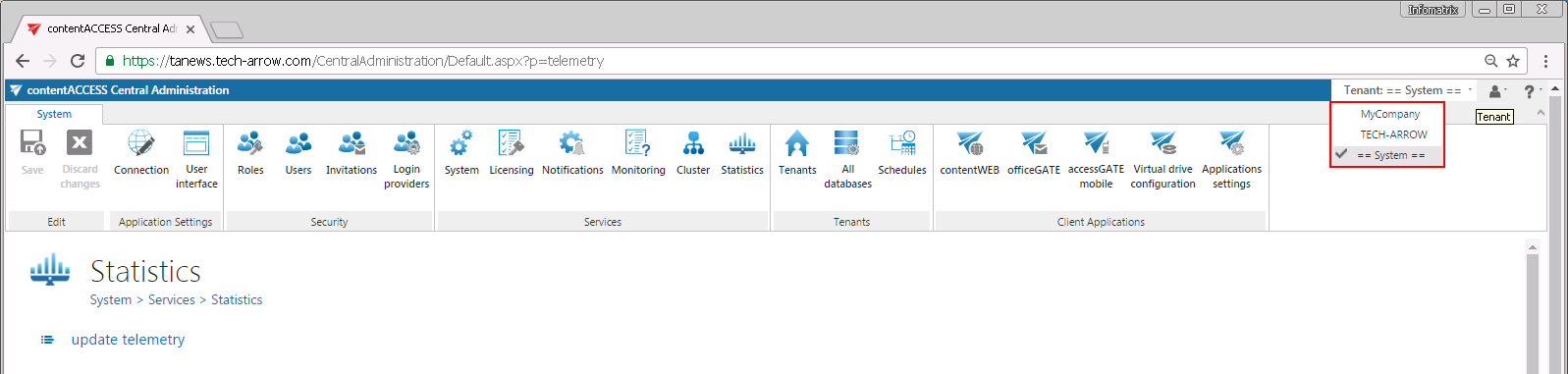
- The system as a whole – if the system tenant is selected.
- A given tenant – if the given tenant is selected in the upper right menu.
Reading the statistics graphs
The Statistics page is divided into 8 sections and contains 9 graphs. Any growth or reduction in the count of tenants, archived items, databases, root folders, mailboxes, and similar metrics can be checked using the respective graphs.
System statistics
The 1st chart displays the actual count of tenants (blue line), jobs (red line), stores (green line), databases (purple line), and users (light blue line) depending on the selected day. Move your cursor over the grid to view the exact values for the given time period.
The 2nd chart displays the size of the configured databases. Each database is marked with a different color.

The actual information is displayed when you move the cursor over a given date in the chart.