Users in contentACCESS
Introduction
The Users page in Central Administration lists all users of the current tenant. It is accessed by navigating to System => Security => Users.
From this page, administrators can view user details, assign and edit roles, manage user logins and passwords, monitor login sessions, and create or invite new users. The page also supports tenant-based filtering, so that administrators only see the users relevant to their scope of responsibility.
Visibility and permissions
The Users list is visible to users who have the manage users and roles permission on the selected tenant.
- A tenant administrator can see all current tenant users (users whose default tenant is the current tenant) and linked users — users who have roles associated with the current tenant.
- A system administrator can additionally see the list of global administrators — administrators who have roles associated with all tenants — and the list of users without a default tenant.
For more information about user filtering on the Users page, see Tenant user association.
Note: If you remove a tenant, the users with roles only on this tenant will also be removed.
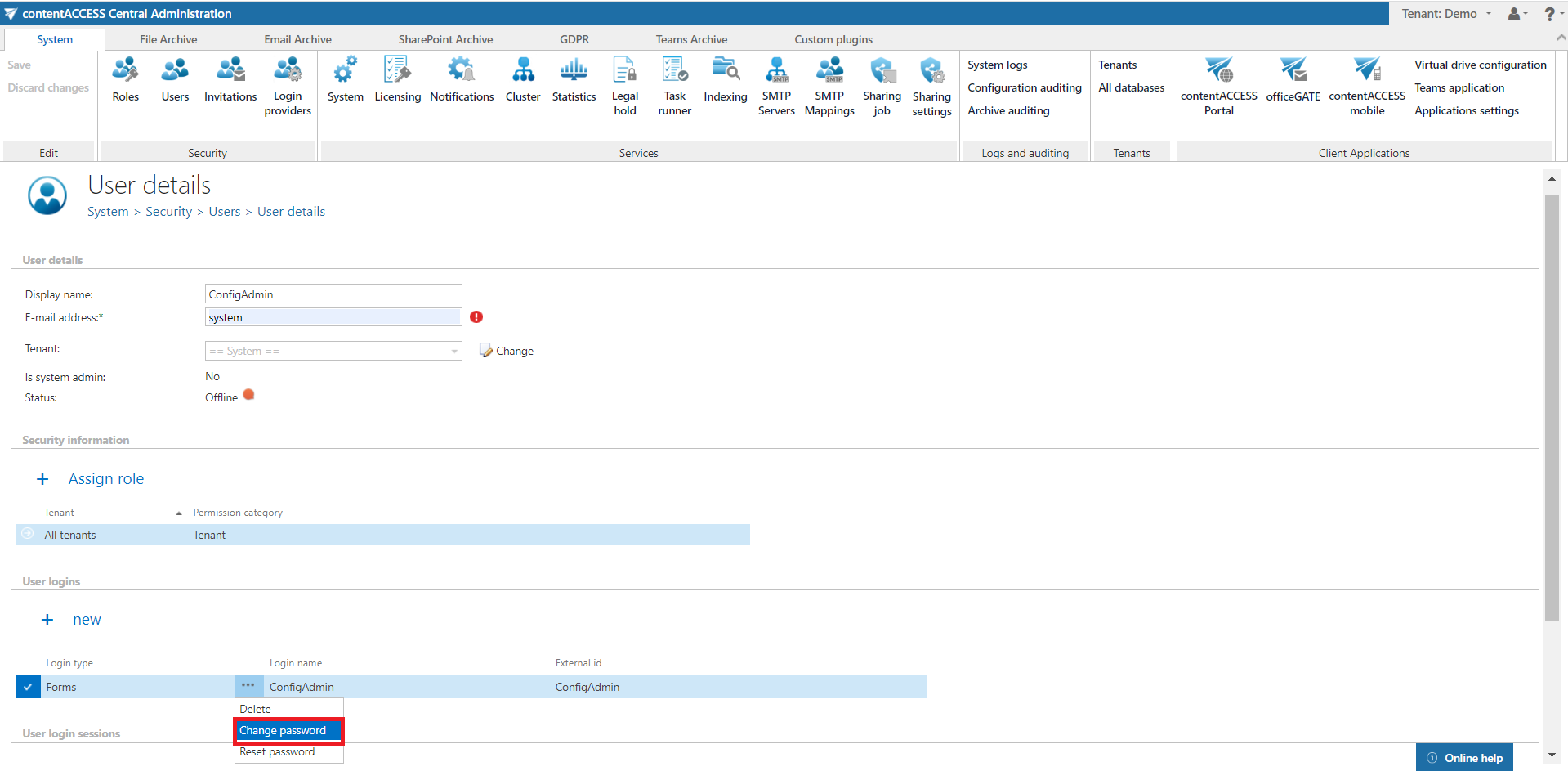
Note: For security reasons, it is highly recommended to change the default system administrator's login password after the very first login to Central Administration. This can be done on the User details page of the Administrator user, in the User logins section, from the Forms login provider's context menu:
Users' context menu
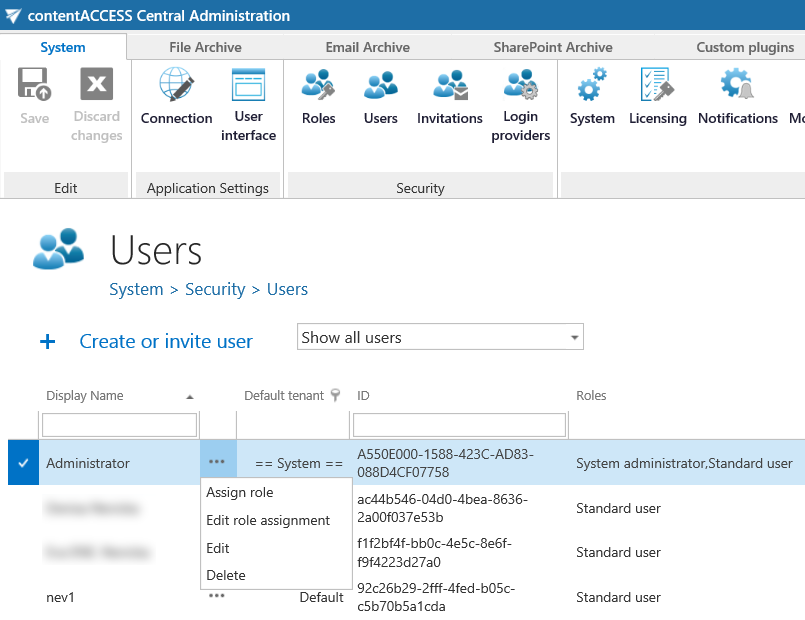
The users' context menu allows the following operations:
- Assign role – assign a role to an already existing user. Read more in the "Roles" section.
Note: If the logged-on administrator has specific permissions on schedulers, repository items, jobs, and/or to view the archive, they cannot assign roles containing these permissions to other users. For example, if the logged-in user has specific permission to edit a job, they cannot assign a role that contains the edit job permission. Read more about roles and permissions in the "Roles" chapter.
- Edit role assignment – edit permissions of the user's assigned role.
- Edit – view the user details, add user logins, view the user's login session(s), and log off the user.
- Delete – delete the user from the system.
Note: For security reasons, it is impossible to delete all system administrators from the list of users. It is possible to delete users with system admin permissions, except for the default system administrator.
User details
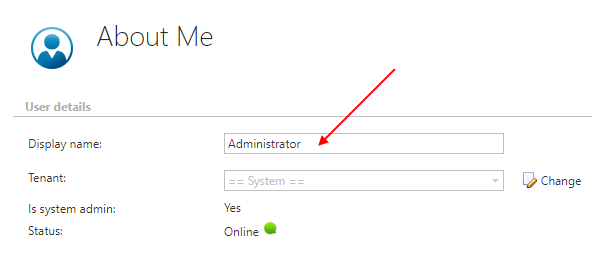
Detailed user information can be accessed by selecting Edit in the user's context menu. The logged-on user can access their own user details by clicking About me in the upper right user menu. Either option opens the User details (or About me) page.
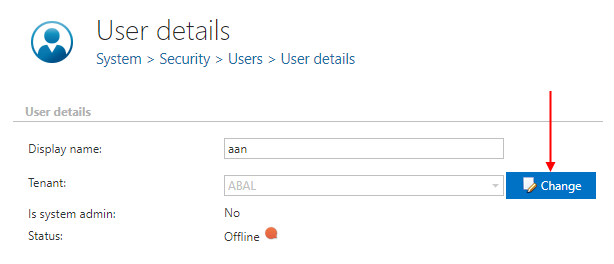
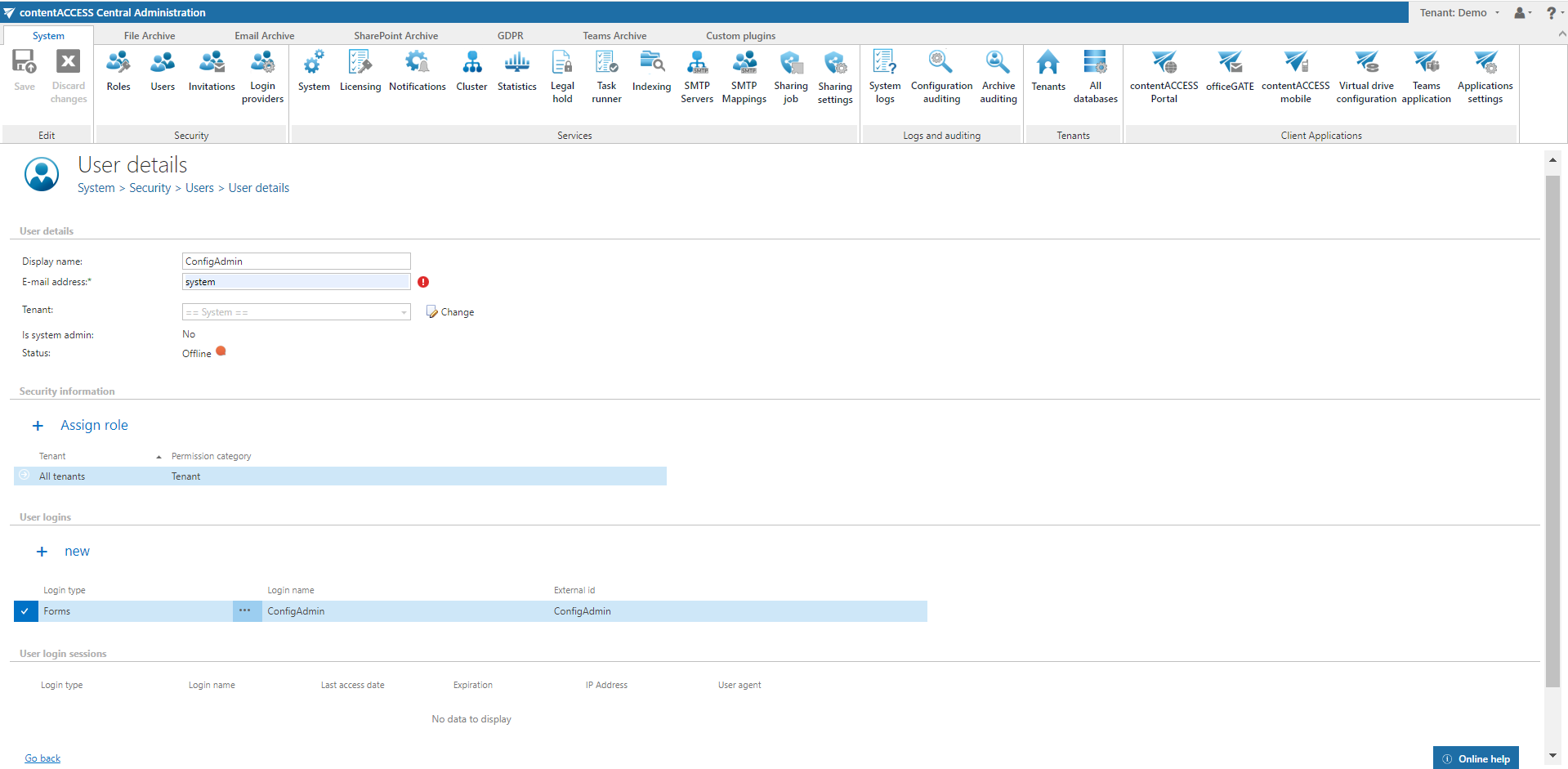 Screenshot A: Details of the selected contentACCESS user
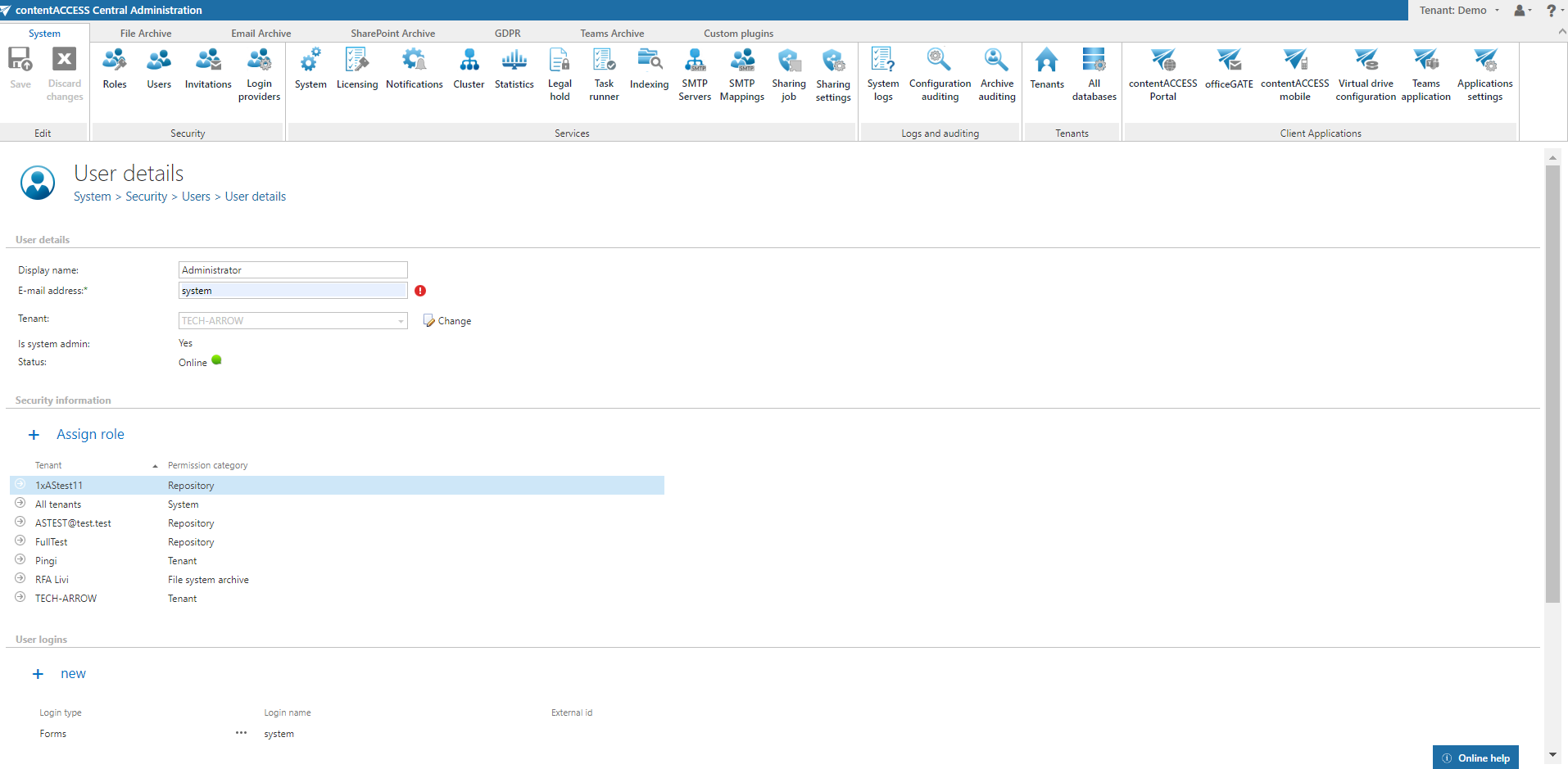 Screenshot B: Details of the logged-in user
User details section
This section shows the given user's display name (their name in contentACCESS) and information about the user's status. To change the display name, edit the current display name field and save your settings.
It is also possible to change the tenant of the selected user. To do so, click the Change button.
A warning window will pop up. After confirming the warning by clicking OK, you will be able to change the tenant.
Important: Changing a user's tenant may cause retrieve problems, meaning the user will no longer see previously shared items in contentACCESS Portal.

The user's status indicates whether the user is:
- Online (green): There was an interaction in the last 5 minutes.
- Away (yellow): The user is logged in but has been inactive in the last 5 minutes. If the user selected Remember me when logging in, they will be displayed as Away until their token expires.
- Offline (red): The user does not have any active login session.
Security information section
This section shows the user's display name, the role(s) assigned to the user, and a description of the user's rights. You can assign a previously configured role to the user from here. After clicking + Assign role, a pop-up window appears where the role can be specified.
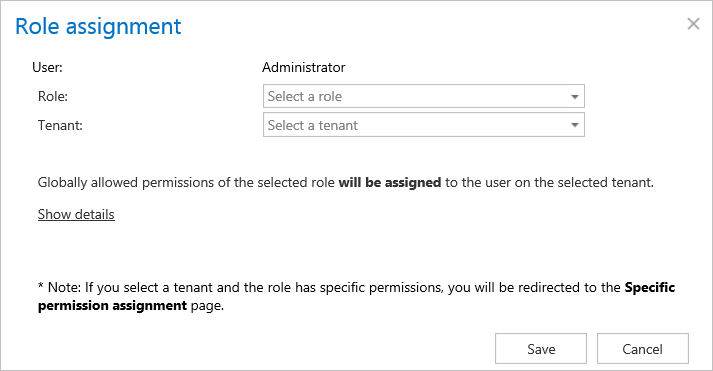
Each role assignment has a flag:
- Manual flag – the role was assigned manually. Manual permissions are not changed or removed by the automatism.
- Automatic flag – the role was assigned by the provisioning job. This flag is marked with "(100)".
User logins section
New user logins can be assigned to a user in the User logins section. Clicking + new in this section opens the Add new login window.

In the Add new login window, select a provider configuration that the user will use when logging into the given application. The providers configured on the Login providers page (see Login providers) can be selected here. Windows and Forms authentication are enabled by default. Multiple user logins are not enabled for the Forms and Windows login providers.
Change password / Reset password context menu options:
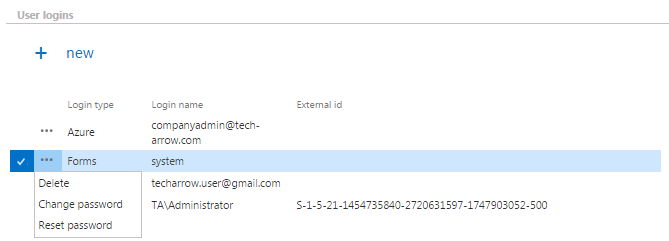
The administrator can change the user's password for the Forms type login. The administrator must have Manage tenant permissions to change and/or reset a user's password.
To change the password, select this option and enter the old password, the new password, and confirm the new password in the pop-up window:

If the password has been lost or forgotten, use the Reset password option to create a new one. Enter the email address where the password should be sent.
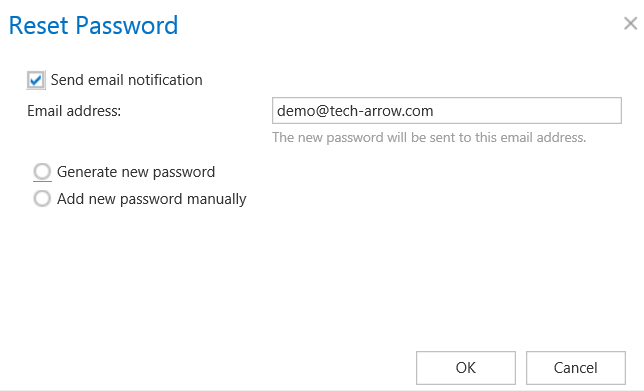
The user then has two options: generate the password or add it manually.
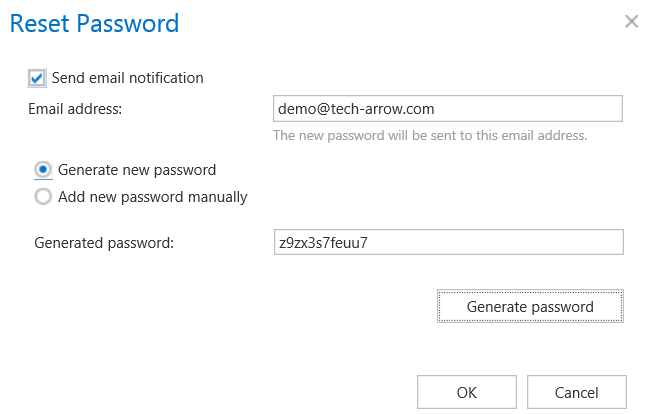
- If Generate new password is selected, the user clicks Generate password, and the generated password appears in the textbox.
- If Add new password manually is selected, the user types the new password twice.
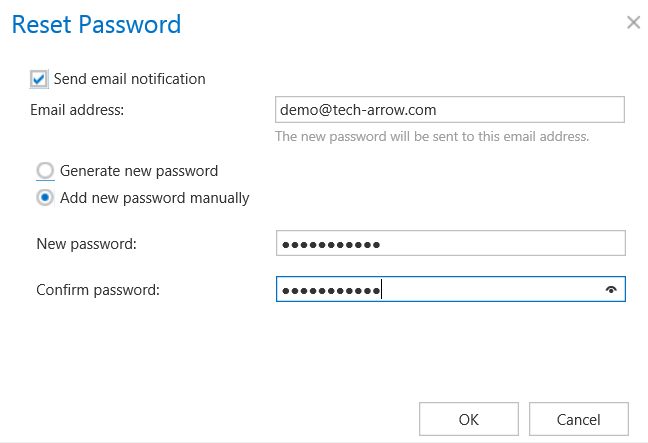
At the next notification job run, the new password will be sent to the email address specified in the dialog.
User login sessions section
At the bottom of the User details page is a list of active login sessions. If the user is logged in to officeGATE, contentACCESS Portal, etc., each application will have a separate login session; if the user is logged in from different browsers, there will also be a separate login session for each browser. From this section, the administrator can log off an existing user. Once the logoff is complete, the user will be redirected to the login page on their next click in the given application.
Creating and inviting contentACCESS users
When creating or inviting user(s) in contentACCESS, always follow these steps:
- Prepare a role with the permissions that will be assigned to the user(s). This step can be skipped if you want to assign an already existing, default global role to the user(s); see the "Roles" section for more information.
- Create or invite the user(s) and assign the role in the Create/Invite a user dialog.
- Edit the specific permissions of the assignment, only if specific permissions were defined in the assigned role (see the "Roles" section).
New users, or existing users with new roles or permissions, can be added to contentACCESS on the Users page. To create or invite a user, click Create or invite user on the Users page (System tab => Security group => Users page).
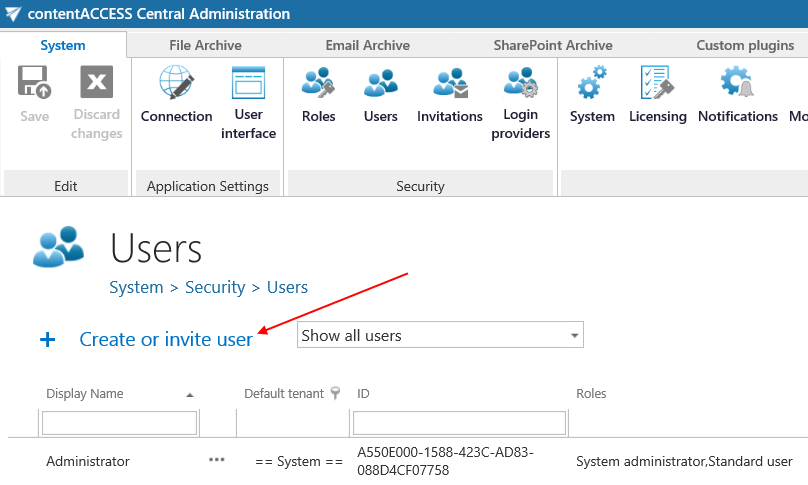
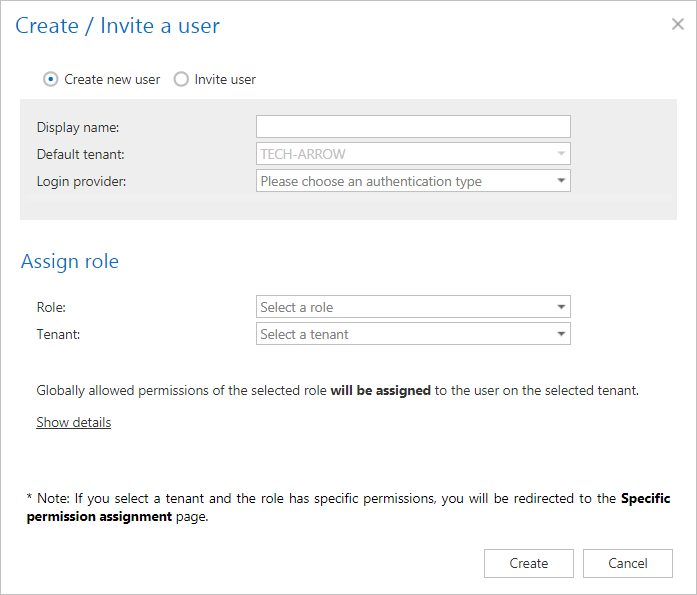
The Create/Invite user dialog opens, where you choose one of the user adding methods (Create new user / Invite user) and fill in the necessary parameters.
- Create new user – use this option to add a new user (with the necessary roles) to contentACCESS without invitation. "Without invitation" means the newly added user will not receive a notification email stating that they were invited to contentACCESS.
- Invite user – use this option to invite a new user and/or an already existing contentACCESS user with the necessary role(s). "Will be invited" means the new/existing user will receive a notification email stating that they were invited to contentACCESS. Notification messages are sent by the notification job in specific time slots defined in the Notification settings. Read more about invitations in Invitations.
Note: contentACCESS Email Archive/File Archive standard users (and user permissions) can be automatically added to contentACCESS by the File system archive provisioning job and/or the Email archive provisioning job. On the provisioning settings pages of Central Administration, the administrator defines the role that the provisioning job will assign to the given Exchange user/group or to the users of the entire Exchange server. The provisioning job evaluates the user rights on Exchange, creates the contentACCESS user(s), and assigns the permissions for these newly added contentACCESS user(s). Read more in Provisioning settings and managing access to contentACCESS Portal (File Archive) and Email archive Provisioning settings (Email Archive).
Option: Create new user
Choose the Create user option in the Create/Invite user dialog and continue with the following settings:
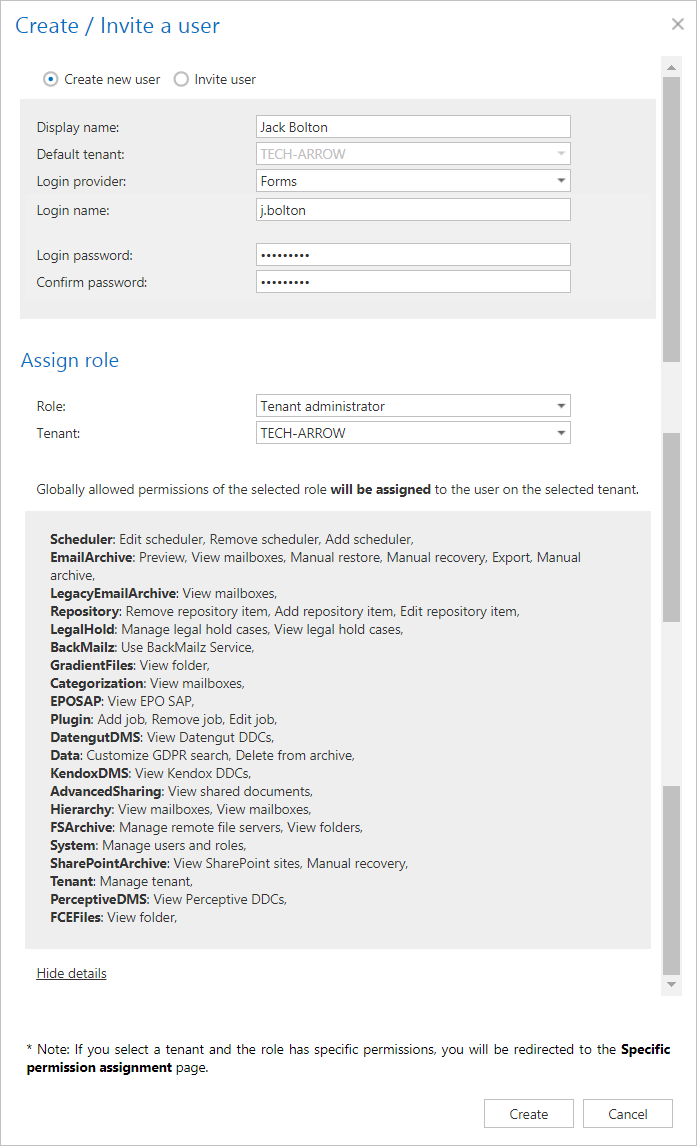
Type the user's name into the dialog box, and choose an authentication provider configuration from the Login provider dropdown list. Forms and Windows providers can be selected by default. (Other provider configurations must first be set on the Login providers page.) If you select the Forms provider (as in this use case), the login credentials must also be entered into the dialog. The current tenant will be selected as the default tenant for the user.
Next, select a (default or predefined) role to assign to the user — in this use case, we are creating a tenant administrator, so we select this role from the list. The globally allowed permissions of the selected role are displayed in the window and can be shown or hidden.
Save your settings. If you have assigned a role containing at least one "Specific" permission, you will be automatically redirected to the Assign specific permissions page, where you can further specify these specific permissions of the role assignment. This is described later in the "Roles" section.
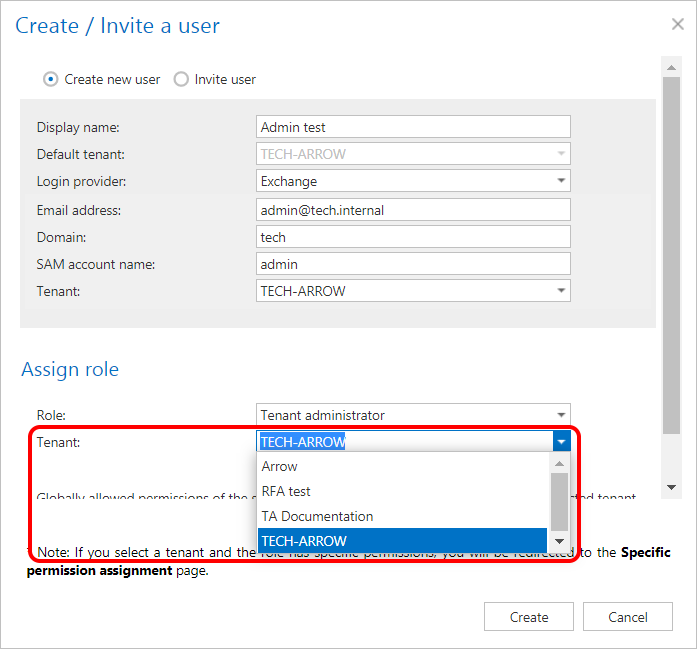
Note: If you Create new user with the Microsoft Exchange login provider, only tenants with a licensed Email Archive are listed.
Option: Invite user
Invitation is another way to:
- create new users with a given role, or
- assign a role to an existing user.
To send an invitation to an already existing or potential contentACCESS user, click Invite user.
The pop-up dialog requires the email address where the invitation will be sent, and the role that should be assigned to this user. The tenant of the user is automatically filled in with the current tenant. Once the necessary configurations are complete, click Save. If you have assigned a role containing at least one "Specific" permission, you will be automatically redirected to the Assign specific permissions page, where you can further specify these specific permissions of the role assignment. This is described later in the "Roles" section.
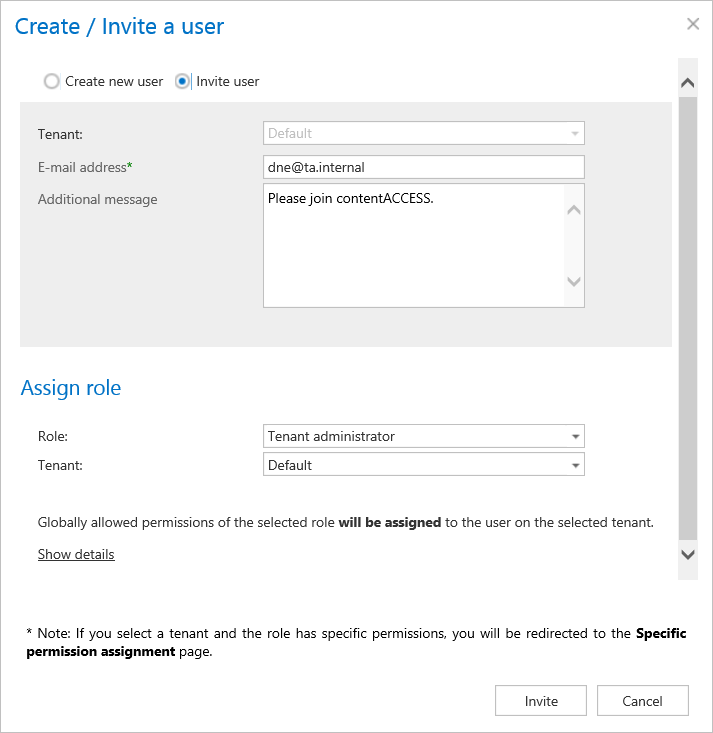
The next running notification job (must be configured in System => Services => Notifications) will send the invitation to the respective user. You can also start this job manually.