Jobs page: viewing and managing jobs
Introduction
The Jobs page in contentACCESS Central Administration allows administrators to view and manage all jobs created from a particular job type. The page is accessible by clicking the Jobs button in the respective tab of the Central Administration ribbon:
- Email Archive ⇒ Archive ⇒ Jobs
- File Archive ⇒ Archive ⇒ Jobs
- Custom jobs ⇒ General ⇒ Jobs
From this page, administrators can review job status and progress, filter and search jobs, and perform management actions such as starting, stopping, configuring, editing, deactivating, and deleting jobs.
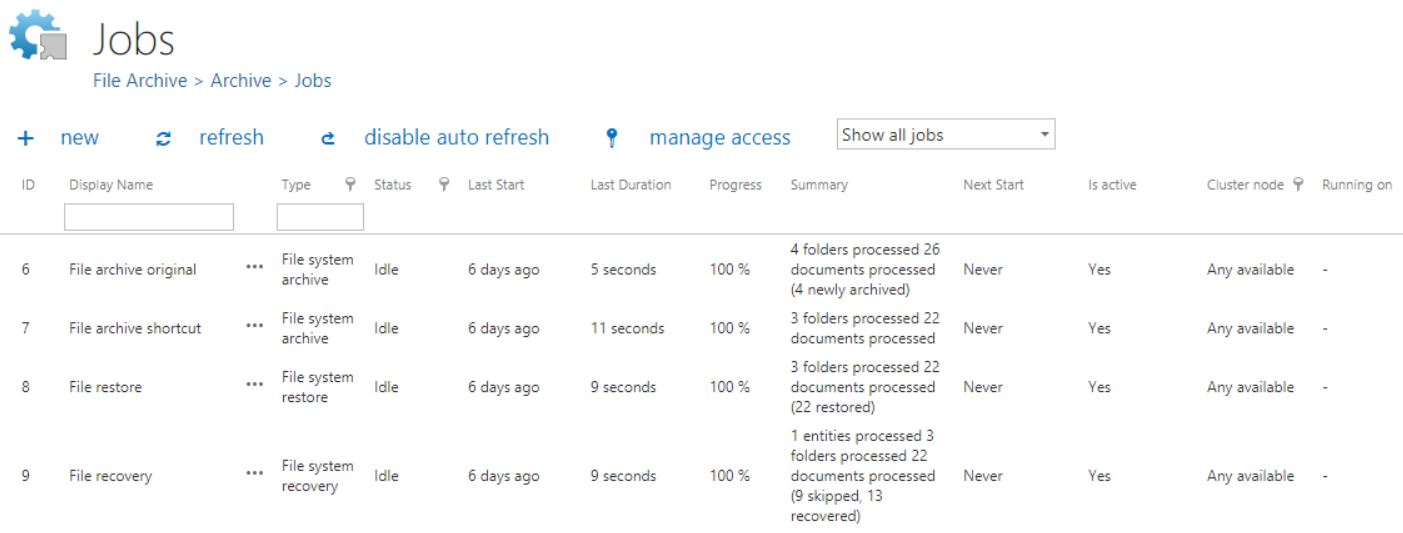
Jobs grid overview
The grid contains the following columns:
- ID: The unique identification number of the job.
- Display name: The name of the job.
- Type: The job type.
- Status: The current status of the job. If a job is in Idle status, it has completed its task and is not currently running.
- Last start: The date and time the job was last started.
- Last duration: The duration of the last run.
- Next start: The date and time of the next scheduled run.
- Progress: The volume of items already processed.
- Summary: A general overview of processed, skipped, and failed items.
- Is active: Indicates whether a job is active or deactivated.
- Active jobs run based on the configured schedule, and the data they process is accessible.
- Inactive (deactivated) jobs do not run and cannot be started manually, but the data they have already processed remains accessible.
- Cluster node: The node(s) on which the selected job can run.
- Running on: The node on which the job is currently running.
For example, in the screenshot above, the EBA's mailbox archive_shortcutting job can run on any available node and is currently running on TANEWS.

Job context menu
Any changes to a job can be made from its context menu. Select the corresponding job from the list and click the ellipsis (…) icon. The following example uses the EBA's mailbox archive_shortcutting job to demonstrate the available context menu options.

The context menu of a job contains the following options:
-
Clone: Creates a clone of an already configured job. A cloned job has the same configuration as the original job it was created from. Clicking Clone opens the Clone job instance window, which requires a name for the new job.

If a job with the same name already exists, an error message warns the user.
-
Start: Starts the job run manually.
-
Stop: Stops the run of the selected job.
-
Configure: Opens the job's configuration page, where the required values can be configured.
-
Show last logs: Redirects the user to the System logs page, where the last run of the selected job is preselected and the corresponding events are displayed in the events table.

-
Edit: Opens the Edit job dialog, where the user can:
- Rename the job.
- Change the node on which the job can run.

-
Deactivate: Deactivates the job. It is recommended to deactivate jobs that are not in use for a longer period but will likely be used again in the future (for example, restore or recovery jobs). Deactivating a job does not permanently delete it from the list — the job is only hidden and will not run according to the schedule, nor can it be started manually.
infoNote: Running and waiting jobs cannot be deactivated.
-
Delete: Permanently deletes the selected job from the list.
warningImportant: Data processed by some job types may no longer be accessible through the standard interfaces after deletion. For File Archive jobs, processed data becomes inaccessible only if all File Archive jobs that wrote data into the same database have been deleted. If at least one job that wrote data into that database remains, all data processed by all related jobs remains accessible. For Email Archive jobs, the data remains accessible even after the job has been deleted. Running and waiting jobs cannot be deleted.
Filter between active and deactivated jobs
A job can be either active or deactivated:
- Active jobs run according to the configured schedule and can also be started manually.
- Deactivated jobs cannot be started by the scheduler or manually.
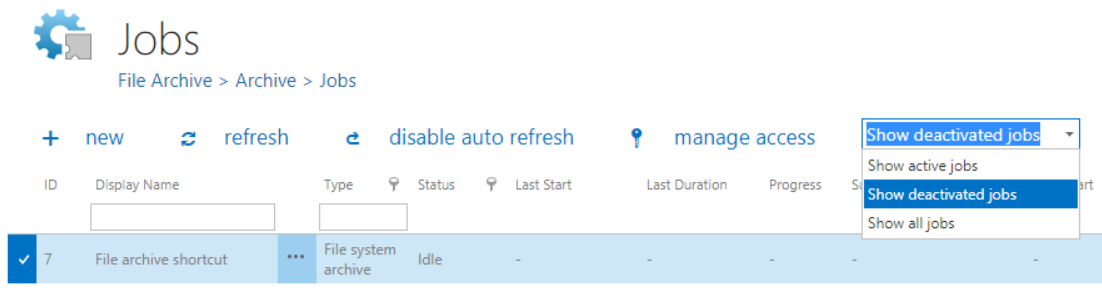
On the Jobs page, you can filter jobs by Active, Deactivated, or choose Show all jobs to display the full list.
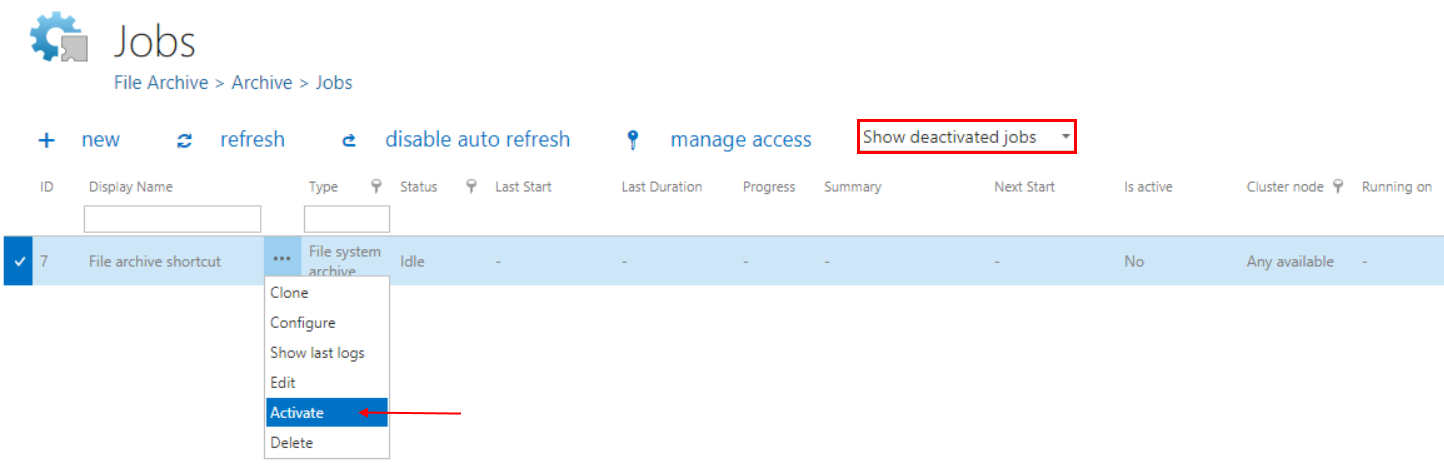
If a job has been deactivated, it can be restored to the list of active jobs. Select the job, open its context menu, and choose Activate:
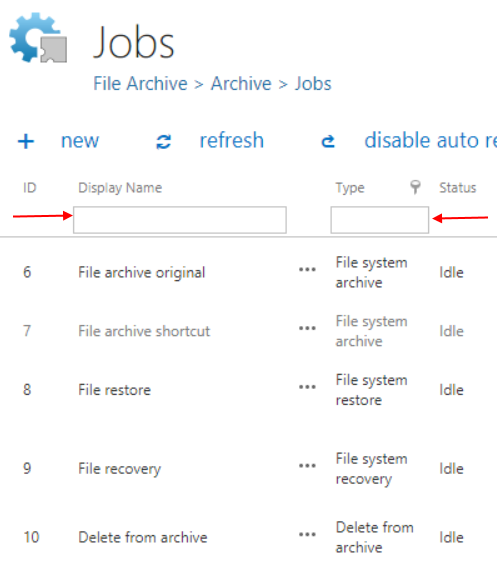
Search by name and type
You can search jobs by name and type. Type the phrase you are looking for in the corresponding field.
Sort jobs
Jobs can be sorted by type, status, or cluster node. Click the funnel icon ( ) next to the corresponding column in the grid:
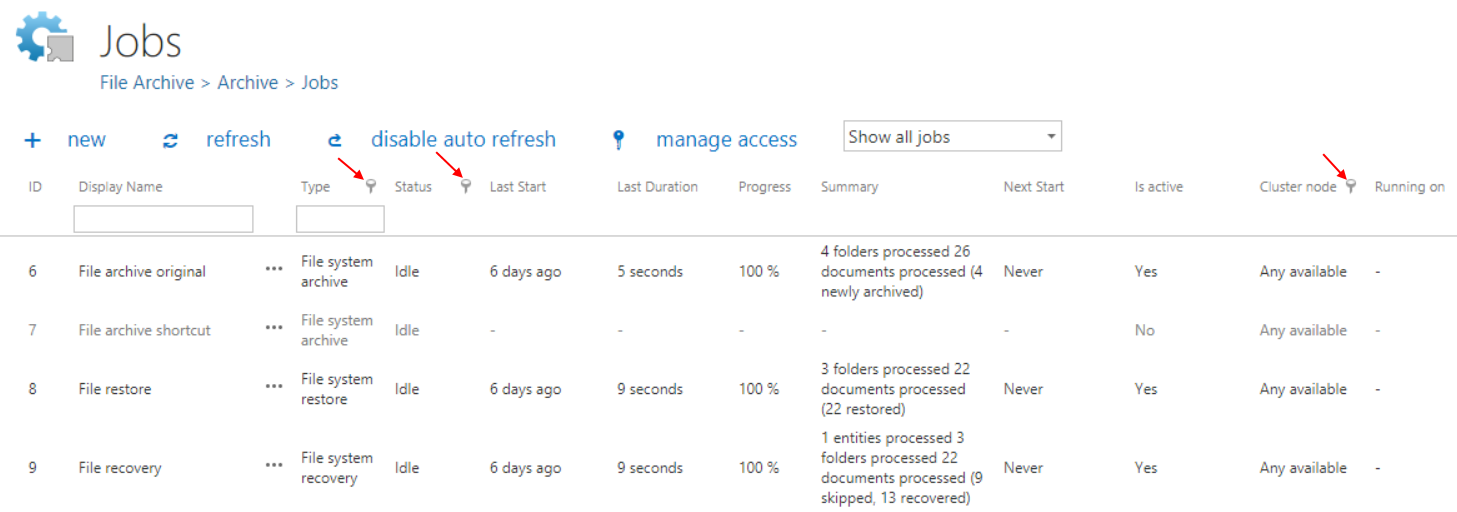
Operations from the job status bar
Double-clicking a job in the list opens its configuration page, displaying the job's status bar on a blue background.

Clicking the arrows icon ( ) on the right side of the status bar collapses or expands the progress information about the job's run. The status bar's last state is always stored and will be shown again when navigating back to the page.
The status bar contains the following buttons:
- Start immediately / Stop: Starts or stops the job run manually.
- Refresh: Refreshes the status bar information about the job's progress.
- Disable / Enable auto refresh: Turns automatic refresh of the progress bar information on or off. When enabled, the information is refreshed every 5 seconds.
- Deactivate / Activate job: Use Deactivate to temporarily cancel the job, or Activate to restore the job among the active jobs.
- Logs: Redirects the user to the System logs page, where the last run of the selected job is preselected and the corresponding events are displayed in the events table. Use this option for troubleshooting if a failure occurred during the job's run.
- Edit: Changes the name of the job and specifies the node on which the job should run.
Progress bar summary format
The progress bar shows the current state of the job (running or done). The Email Archive job reports its summary in the following format:
{0} mailboxes processed ({1} failed)
{0}= the number of mailboxes that were started and finished processing.{1}= the number of failed mailboxes. Only displayed if at least one mailbox failed.
A mailbox is considered failed when:
- The mailbox cannot be opened.
- The email address is invalid.
- Permissions are missing.
- Some folders cannot be opened.
{2} emails processed or {2} ({3}) emails processed
{2}= the number of archived emails. This is the sum of items archived using shortcutting, keep original, or journal shortcut methods.{3}= the number of archived, blacklisted emails. If a mail should be shortcutted but its message class does not allow it, the mail is blacklisted. Only displayed if at least one blacklisted message was processed.
Note: If a job uses the keep original method, but the message is blacklisted, it will still be counted in {3}.
The following chapters describe how to configure and use the contentACCESS File Archive, Email Archive, SharePoint archive, Email management, Store replication, Sharing, and Email synchronization jobs.