officeGATE
Introduction
officeGATE is a Microsoft Outlook add-in that connects the email client with the local file system and with cloud storage providers such as SharePoint Online, contentACCESS, OneDrive, Dropbox, fileNshare, and many others. With officeGATE, users do not need to switch to other applications to access their files — this can be done directly from Outlook. Users can also easily access documents archived in contentACCESS directly from Outlook.
This page describes how to download officeGATE from contentACCESS Central Administration and how to install it globally in a distributed company environment using Group Policy (GPO).
Download officeGATE
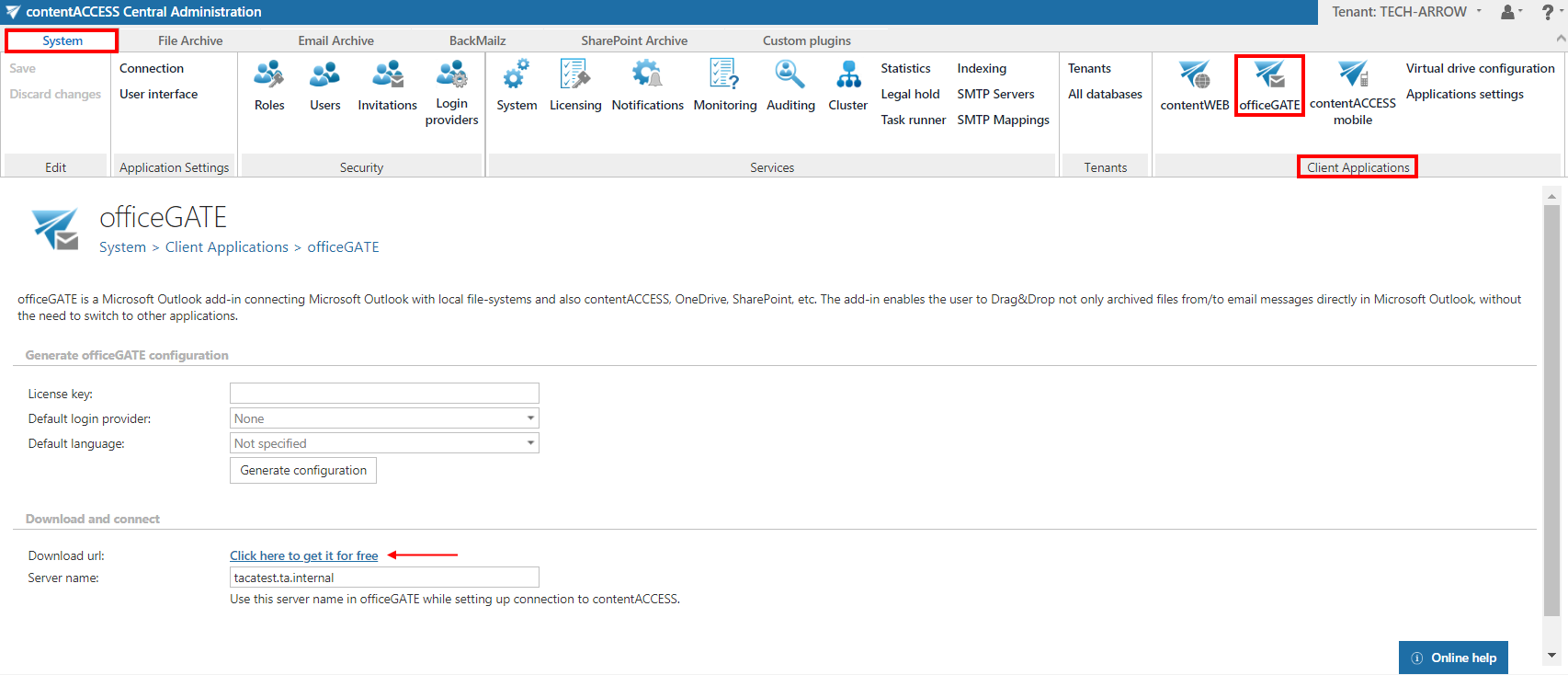
officeGATE can be downloaded for free from contentACCESS Central Administration.
- Navigate to System ⇒ Client applications.
- Click the officeGATE button on the ribbon.
- Download the free version of officeGATE from the provided link.
Install officeGATE with Group Policy (GPO)
officeGATE can be installed globally using Group Policy. This simplifies the installation process in a distributed company environment.
Group Policy installation of officeGATE is applied on two levels:
- The officeGATE XML configuration file is distributed to each user in the domain. This file contains the global configuration settings for officeGATE.
- The officeGATE setup files are distributed to each domain user, and the product is automatically installed.
Generate the configuration file
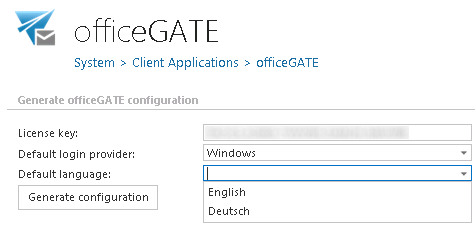
The XML file containing the global officeGATE settings is generated on the officeGATE page of Central Administration. The following global settings are specified:
- License key: The officeGATE license key.
- Default login provider: The login method to be used when establishing the connection between officeGATE and contentACCESS.
- Default language: The default language of the application. If no language is specified, the language of Microsoft Outlook is used automatically.
Click Generate configuration and save the distributable XML file.
Note: For more information about XML distribution and installation using Group Policy, see this guide.