SharePoint archive Address book
Introduction
The Address book page in SharePoint archive provides a read-only list of objects that are provisioned for archiving, including SharePoint sites, site groups, OneDrive connections, and OneDrive groups. It allows administrators to review provisioning details, manage group membership, assign databases, storages, and index zones, activate or deactivate objects, and create contentACCESS Portal users.
To simplify management, contentACCESS provides the option to group sites into Site groups. This is especially useful and recommended when the same archiving policies need to be applied to multiple sites (same database, store, index zone, contentACCESS user creation policy, etc.).
Important: The View address book tab is only visible if Microsoft 365 SharePoint is selected on the System settings page.
Navigate to SharePoint archive => View Address Book to open the View address book page:
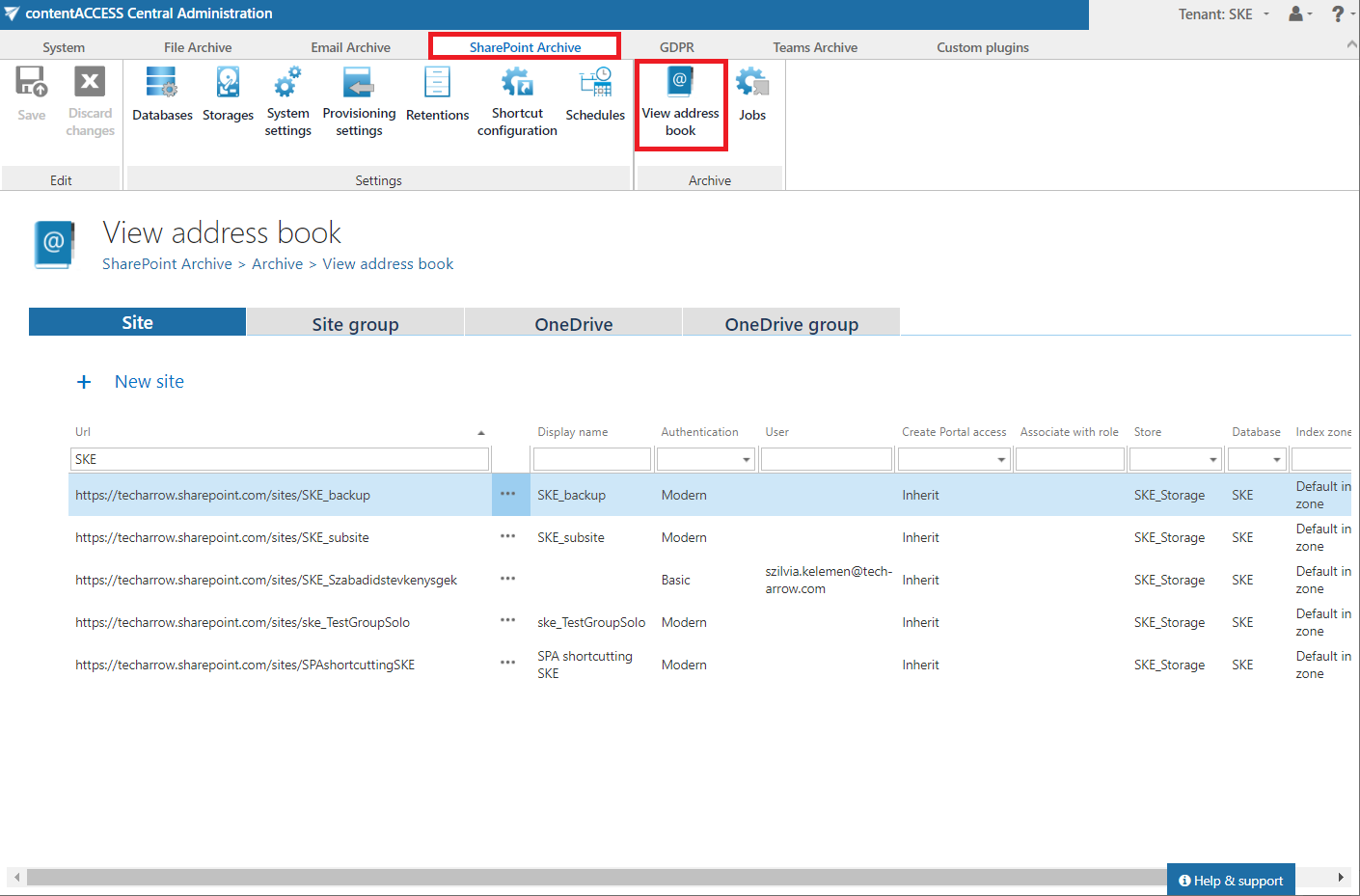
The address book objects are organized into four tabs:
- Site – shows all provisioned SharePoint sites.
- Site group – lists the provisioned or created groups.
- OneDrive – lists the provisioned OneDrive connections.
- OneDrive group – shows the AAD (OneDrive groups to provision) groups which are provisioned if OneDrive archiving is enabled on the System settings page.
Adding objects to the address book
Objects can be added to the address book in the following ways:
- by the provisioning job (sites, users, AAD groups);
- created manually from the address book (site groups).
A site group can be created in two ways: from the Site group tab or from the Site tab.
From the Site group tab
-
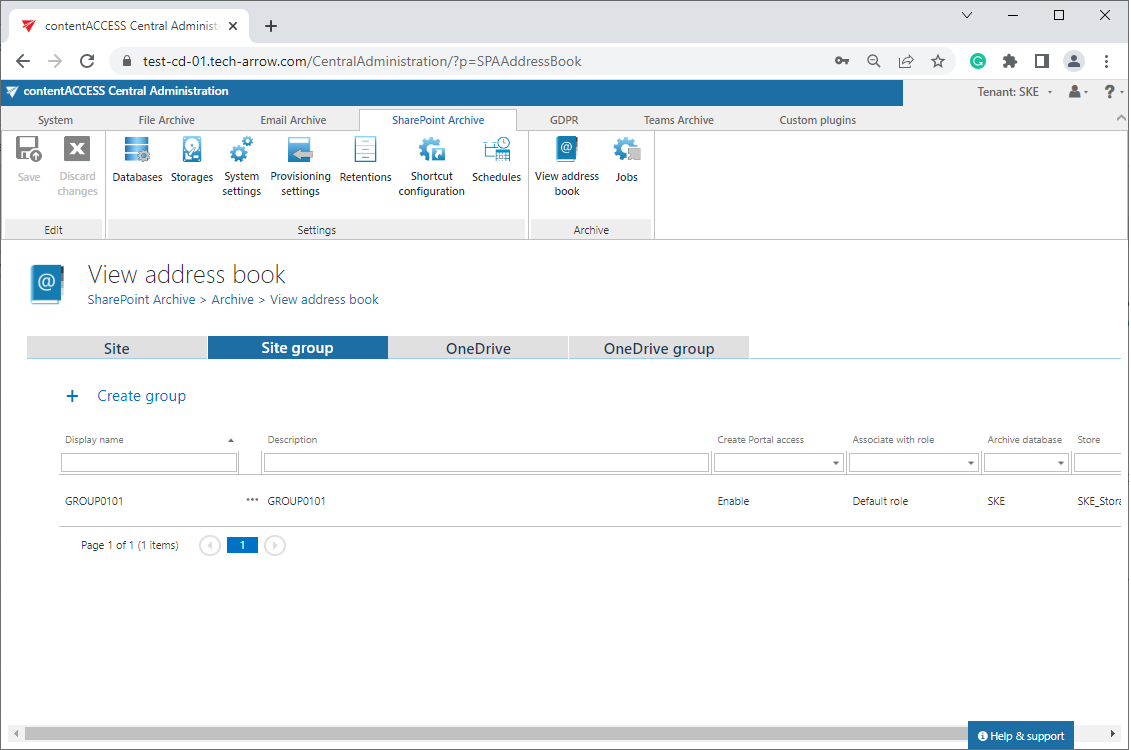
Click + Create group.
-
In the pop-up window, enter a name for the group and, optionally, a description.

-
Click Create. The group is added to the list of groups in the Site group tab.
From the Site tab
-
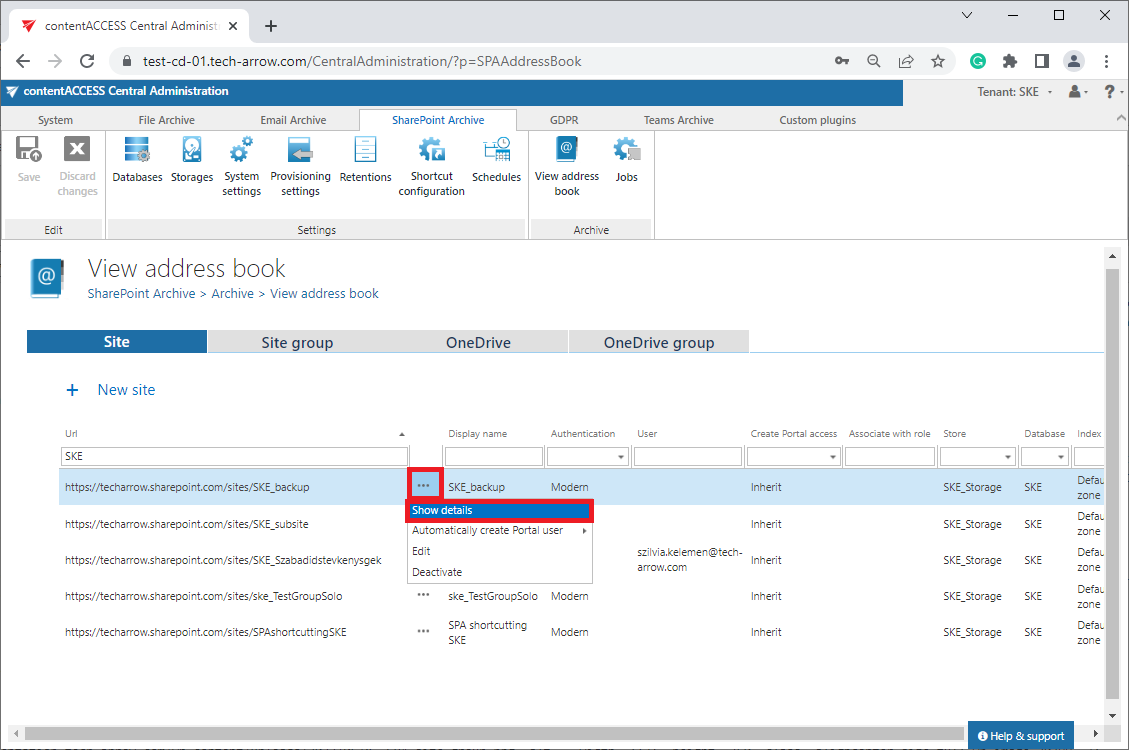
Select the desired site and click Show details in its context menu.
-
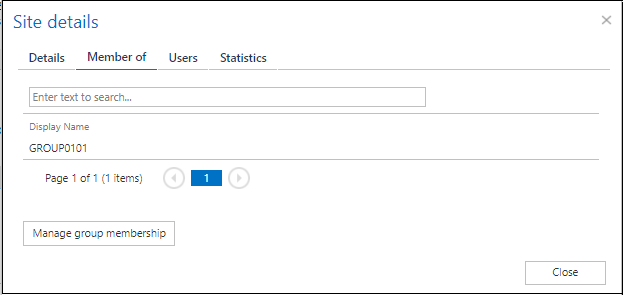
Switch to the Member of tab and click Manage group membership.
-
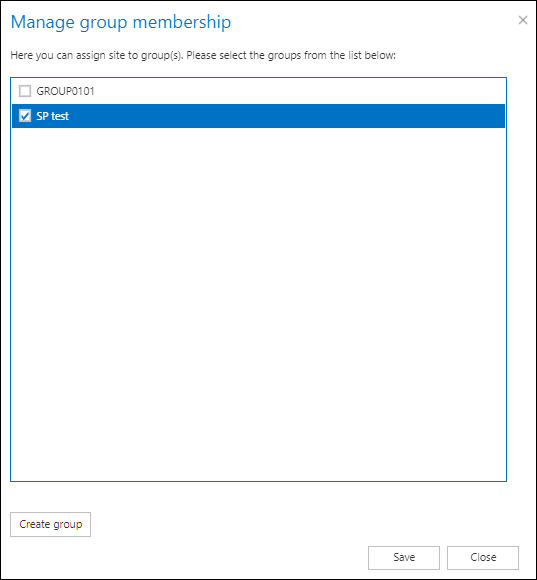
Create a group or assign the site to existing group(s).
-
Click Save.
Site
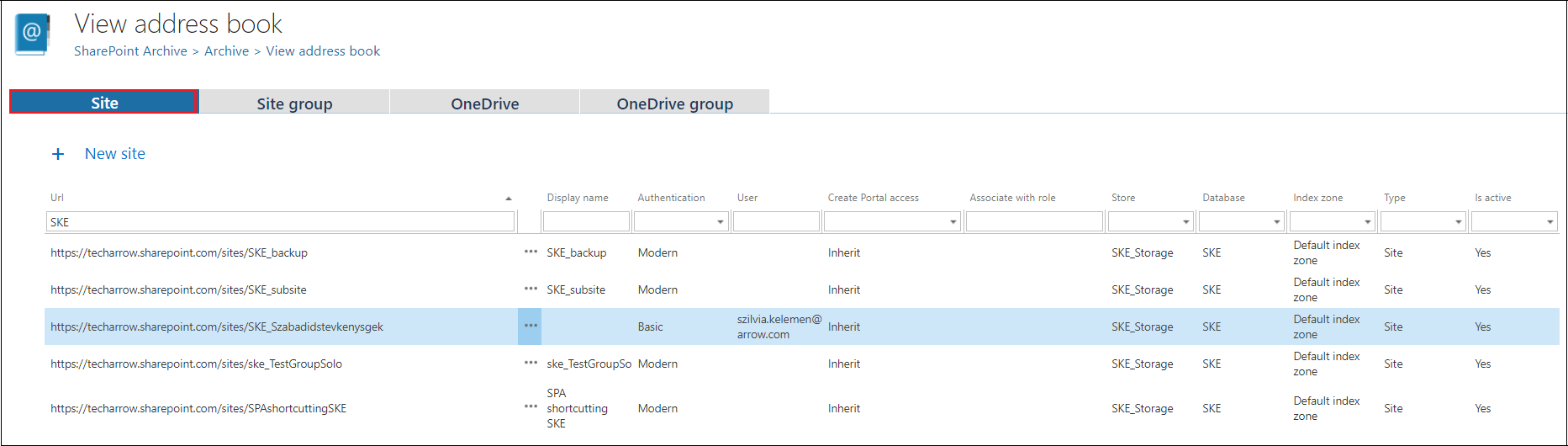
The Site tab shows all provisioned SharePoint sites. The following columns are displayed:
- URL – the URL of the SharePoint site where the content of the site is stored.
- Display name – the name under which the SharePoint site will be listed in the Portal after the archive job.
- Authentication – shows the configured authentication type (from the Site connections tab) for the SharePoint site(s). For more information, refer to the Site connections in the SharePoint archive chapter.
- User – has a value only when the basic authentication type was used for the site connection settings. Shows the configured user.
- Create contentACCESS Portal access – indicates if there is a command for the Provisioning job to create contentACCESS Portal users for the selected object. The Inherit value at the Site level means that the value set for the group of the site will be used. Once contentACCESS Portal access is granted (the provisioning job must be run), every user of the provisioned object will be able to access the archived content of the objects for which they have the necessary permissions.
- Associate with role – displays the role assigned/to be assigned for the object by the next running Site provisioning job. By default, objects inherit the default role specified in the SharePoint archive Provisioning settings, but the administrator can decide to assign custom roles for the objects.
- Store, Database, Index zone – show the assigned database, store, and index zone for the objects. Database and storage are assigned automatically by the first running archive job, or manually using the object's context menu (used when the selected site to archive does not have an associated database and storage). If a site does not have an index zone assigned, the next running index job will assign the index zone set in its configuration.
- Type – shows whether the selected object is a site or something else (for example, a OneDrive account).
- Active – shows whether the respective object is active in contentACCESS. This feature allows administrators to deactivate no longer used objects, keeping the licenses under control. Deactivated objects are not touched by the SharePoint archive job, nor are they counted toward the licensed objects. To set an object to active/inactive, the telemetry job must also be run. It runs automatically every day or can be started manually on the Licensing page (System tab => Services group => Licensing, option "update telemetry").
Using the site's context menu, an administrator with the necessary permissions can:
- view object details;
- automatically create a contentACCESS Portal user (with custom permissions);
- edit the site's connection (authentication, database, storage, and index zone);
- activate/deactivate the site directly from the context menu.
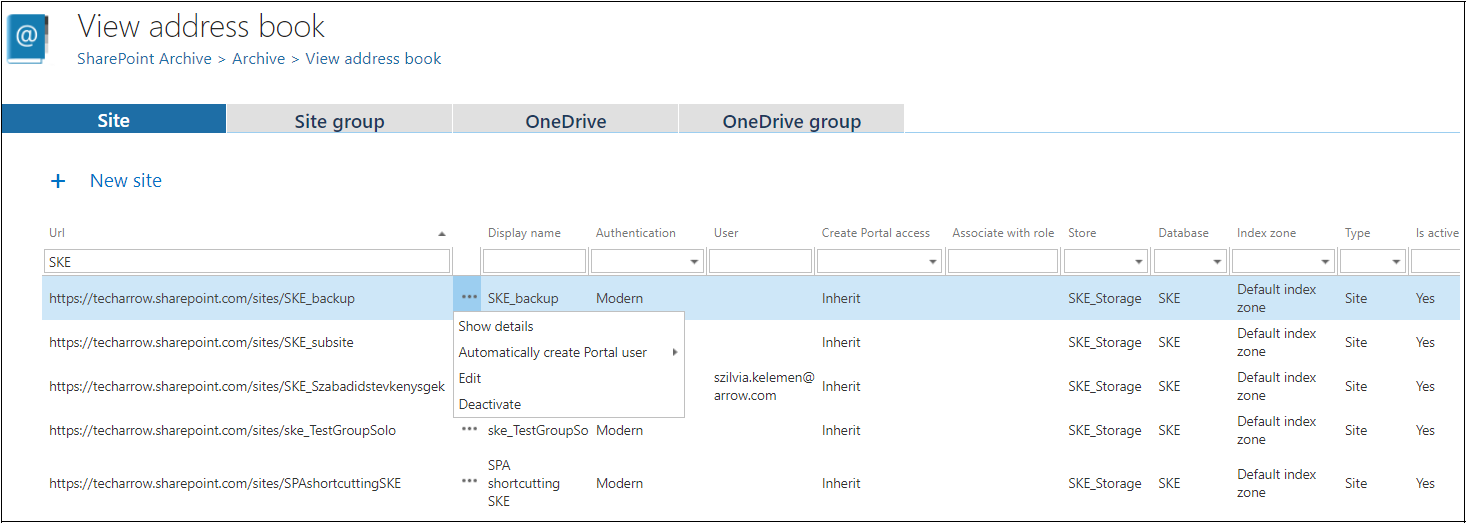
Clicking Show details opens a pop-up window with the following tabs:
1. Site details
Shows basic information about the site (for example, name, storage, index zone, etc.).
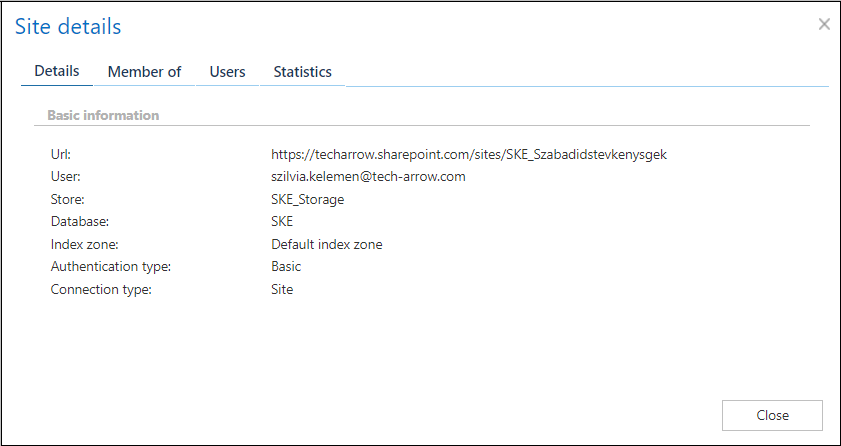
2. Members of
Shows the list of groups where the site is a member. It is also possible to create a new group or assign the site to group(s) by clicking Manage group membership.
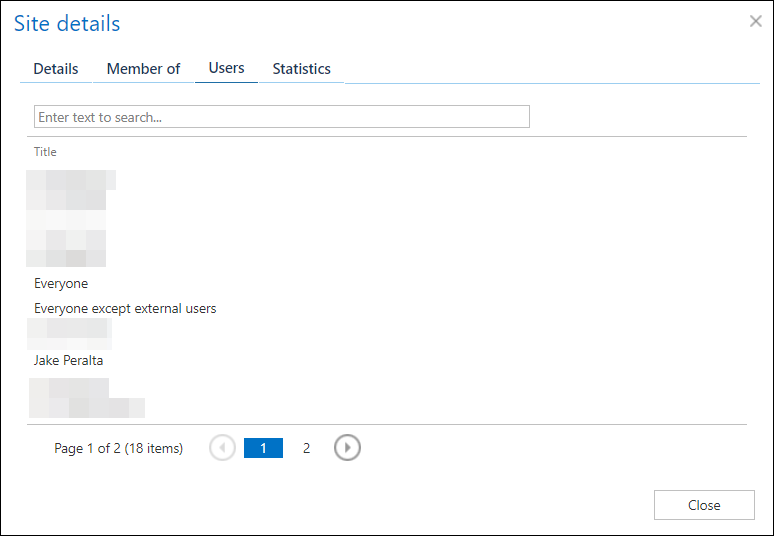
3. Users
Shows the members that belong to the currently selected site.
Note: Members only appear on the Users tab if the site was previously archived and the provisioning job for that site was restarted.
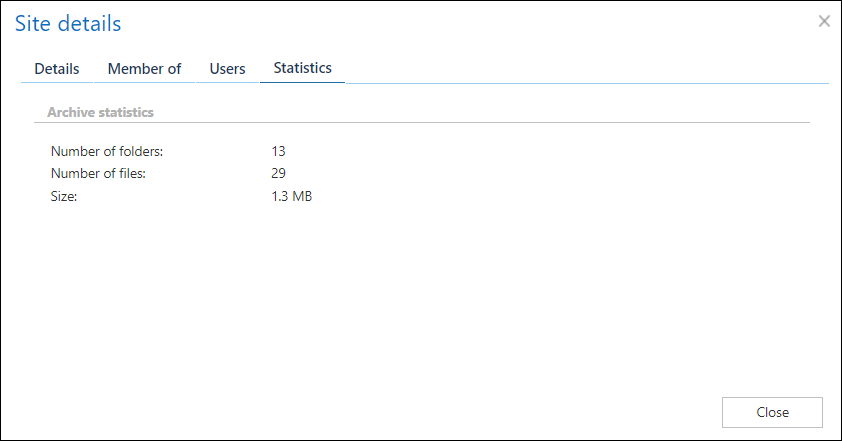
4. Statistics
Shows the archive statistics and index statistics of the currently selected site.
Site group
The Site group tab lists the provisioned or created groups. The following columns are displayed:
- Display name – the name of the group.
- Description – shows the description written for the selected group.
- Create Portal access – indicates (as on the Site tab) if there is a command for the Provisioning job to create contentACCESS Portal users for the selected object.
- Associate with role – displays the role assigned/to be assigned for the object by the next running provisioning job.
- Archive database, store, index zone – show the assigned database, store, and index zone for the objects.
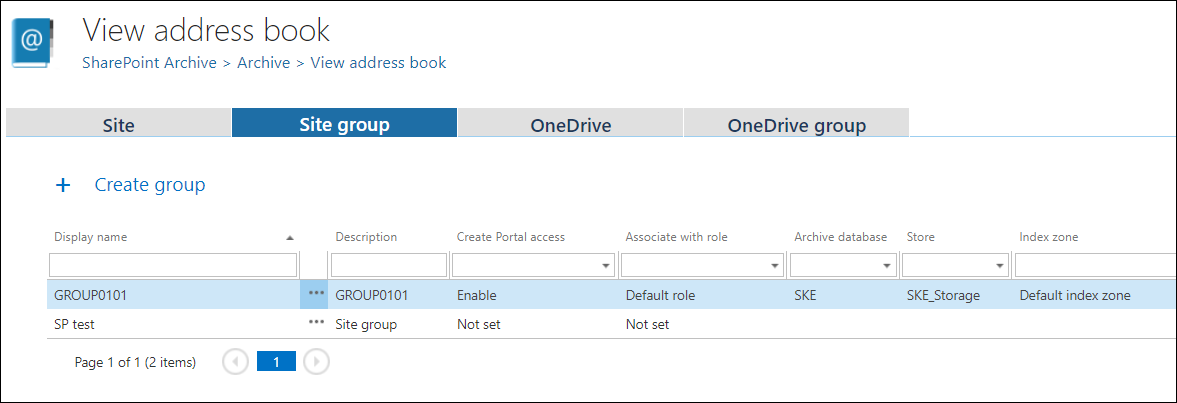
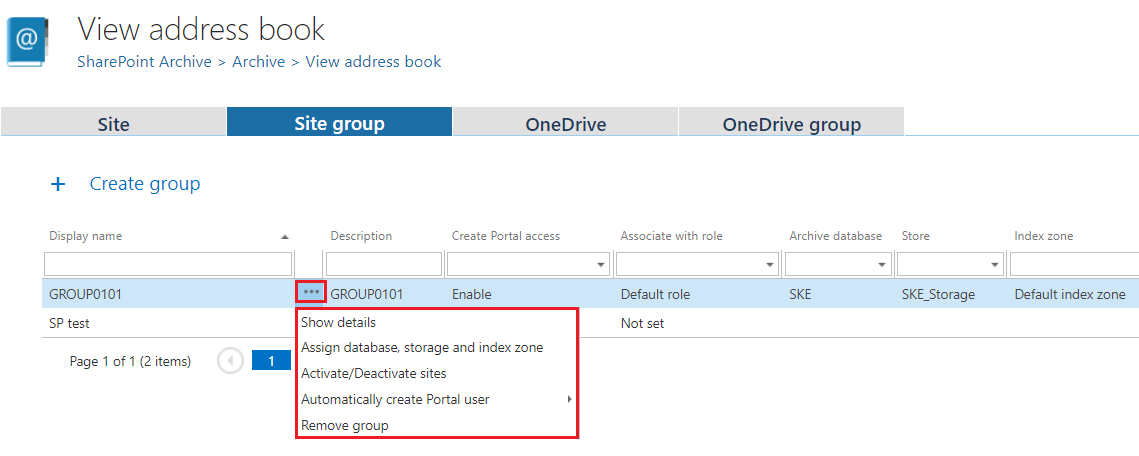
Using the group's context menu, an administrator with the necessary permissions can:
- show details;
- assign database, storage, and index zone;
- activate/deactivate sites;
- automatically create a Portal user;
- remove the group.
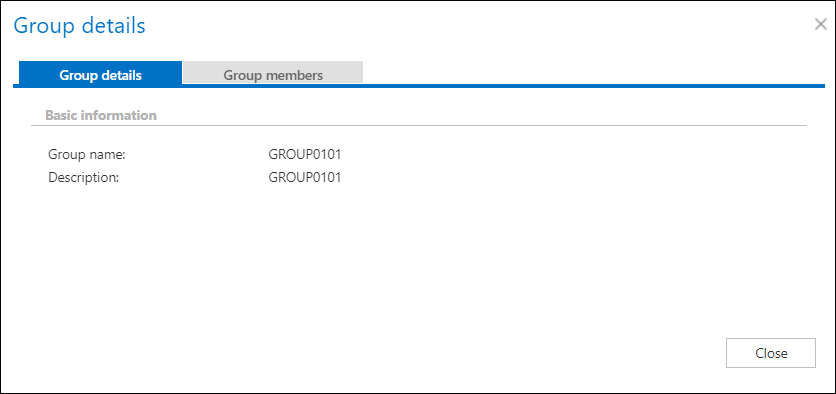
Clicking Show details opens a pop-up window with the following tabs:
1. Group details
Shows the name and description of the currently selected group.
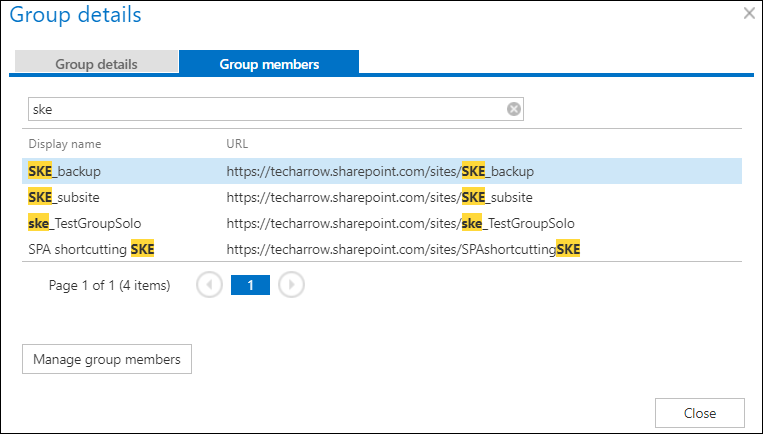
2. Group members
Shows the members of the currently selected group and their SharePoint URL. It is also possible to create a new group from here by clicking Manage group membership.
OneDrive
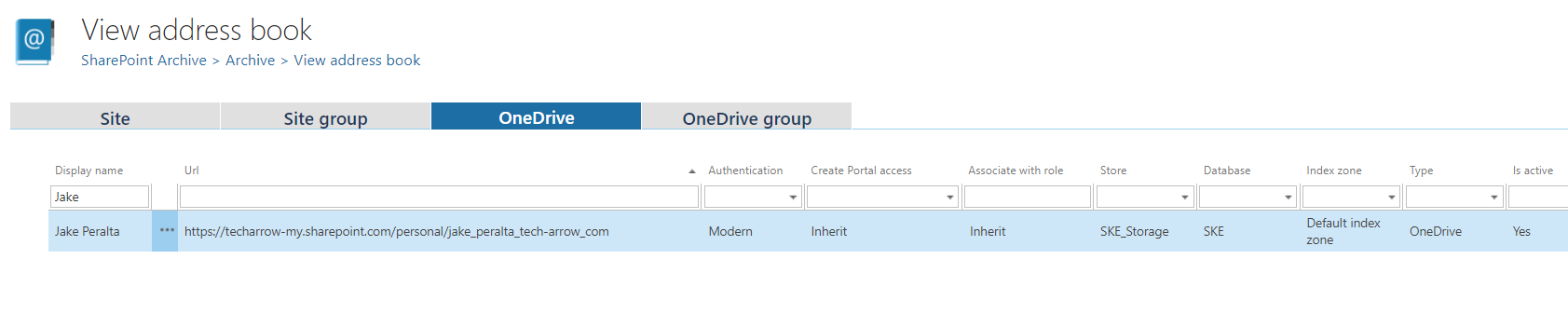
The OneDrive tab lists the OneDrive connections. The following columns are displayed:
- Display name – the owner of the OneDrive account. The OneDrive entity will be listed under this name in the Portal after the archive job.
- URL – the URL of the OneDrive account where the content is stored.
- Authentication – shows the configured authentication type: modern, basic, or integrated. For more information, refer to the Site connections in the SharePoint archive chapter.
- Create contentACCESS Portal access – indicates if there is a command for the Provisioning job to create contentACCESS Portal users for the selected object. The Inherit value at the OneDrive level means that the value set for the object will be used. Once contentACCESS Portal access is granted (the provisioning job must be run), every user of the provisioned object will be able to access the archived content of the objects for which they have the necessary permissions.
- Associate with role – displays the role assigned/to be assigned for the object by the next running provisioning job. By default, objects inherit the default role specified in the SharePoint archive Provisioning settings, but the administrator can decide to assign custom roles for the objects.
- Database, Store, Index zone – show the assigned database, store, and index zone for the objects. Database and storage are assigned automatically by the first running archive job, or manually using the object's context menu (used when the selected OneDrive to archive does not have an associated database and storage). If a OneDrive does not have an index zone assigned, the next running index job will assign the index zone set in its configuration.
- Type – shows whether the object is a OneDrive or something else (for example, a SharePoint site).
- Is active – shows whether the respective object is active in contentACCESS. This feature allows administrators to deactivate no longer used objects, keeping the licenses under control. Deactivated objects are not touched by the OneDrive archive job, nor are they counted toward the licensed objects. To set an object to active/inactive, the telemetry job must also be run. It runs automatically every day or can be started manually on the Licensing page (System tab => Services group => Licensing, option "update telemetry").
Using the OneDrive's context menu, an administrator with the necessary permissions can:
- show details;
- automatically create a Portal user.

Clicking Show details opens a pop-up window with the following tabs:
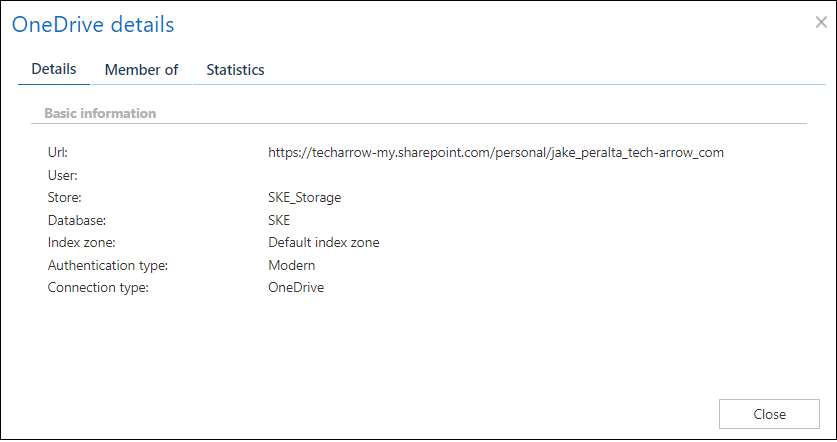
1. OneDrive details
Shows basic information about the OneDrive (name, storage, index zone, authentication type, etc.).
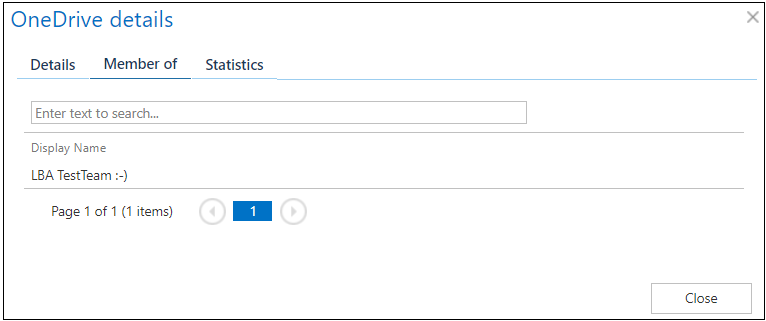
2. Member of
Shows the list of groups where the OneDrive object is a member.
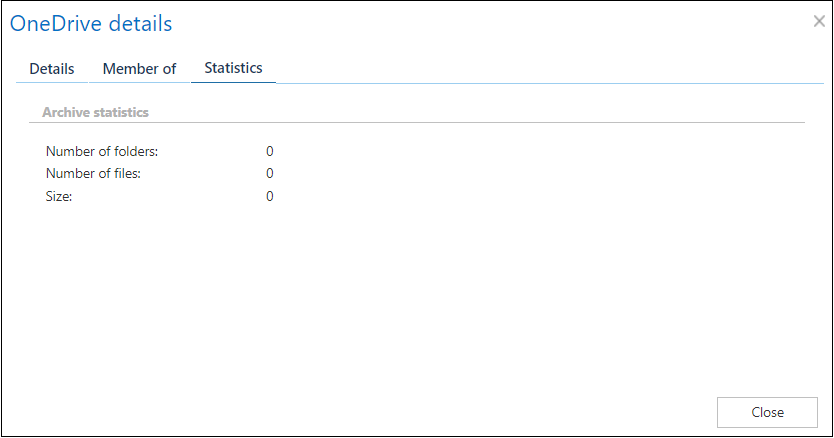
3. Statistics
Shows the archive statistics and index statistics of the currently selected OneDrive.
OneDrive group
The OneDrive group tab shows the list of AAD (OneDrive groups to provision) groups which are provisioned if OneDrive archiving is enabled under System settings. The following columns are displayed:
- Name – the name of the selected group.
- SID – shows the security identifier of an AAD group.
- Create Portal access – indicates if there is a command for the Provisioning job to create contentACCESS Portal users for the selected object.
- Associate with role – displays the role assigned/to be assigned for the group by the next running SharePoint provisioning job.
- Deleted – shows whether the selected OneDrive group was deleted.
- Deleted on – if the selected OneDrive group was deleted, shows the time of deletion.
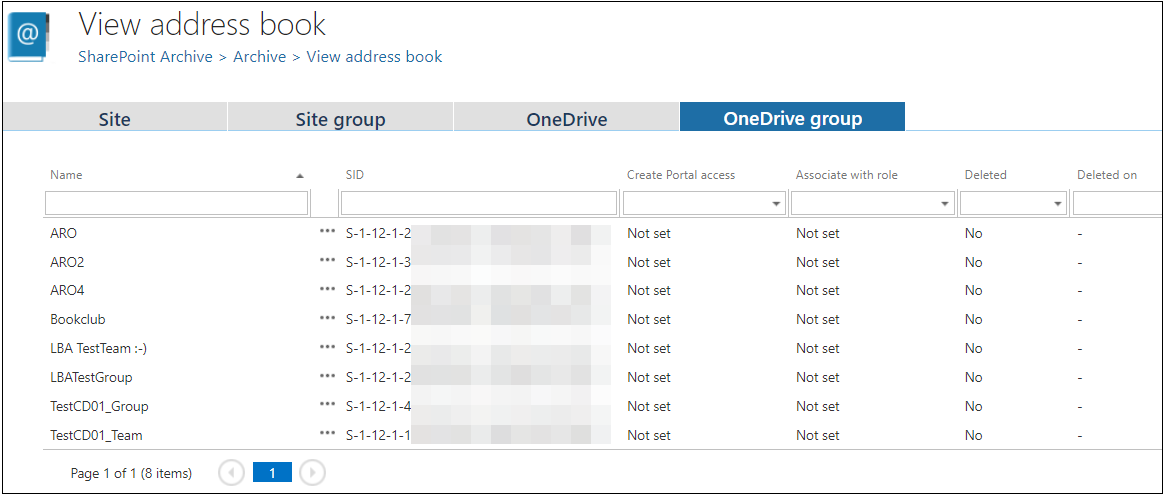
Using the OneDrive group's context menu, an administrator can:
- show details;
- automatically create a Portal user;
- remove the group.
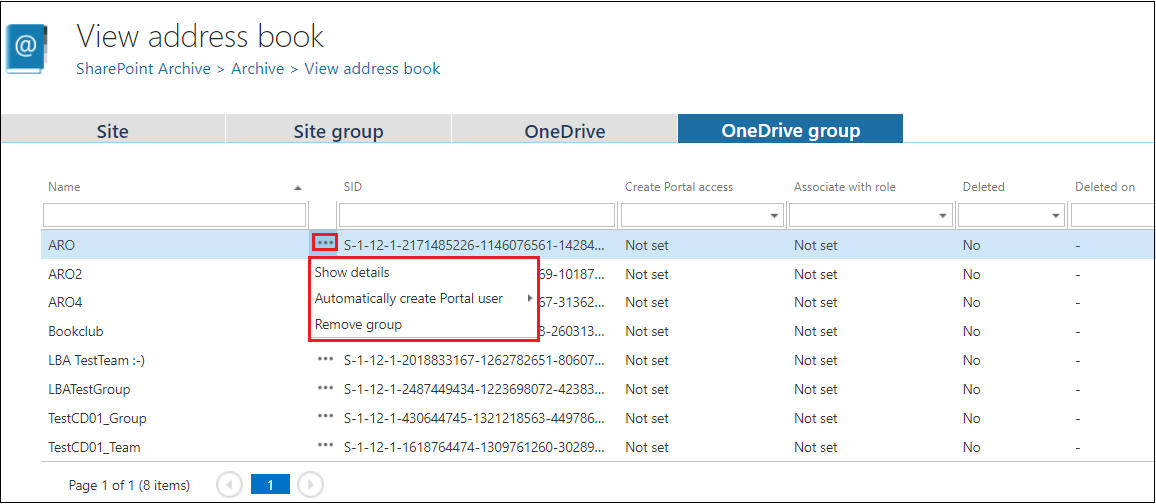
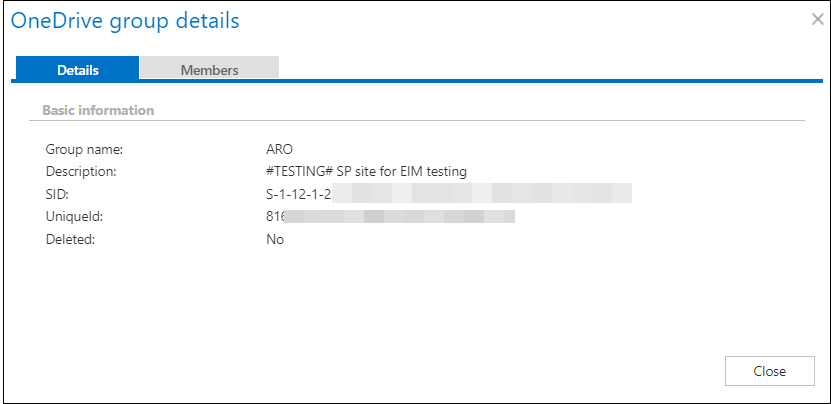
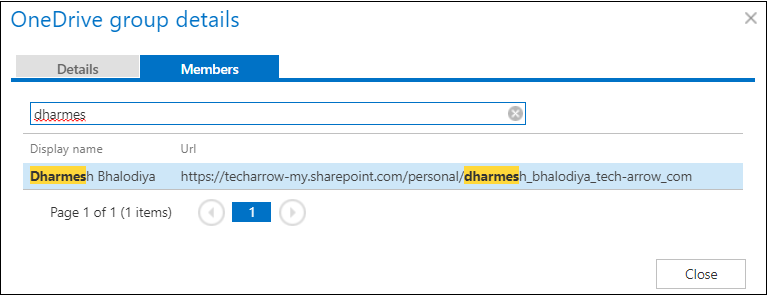
Clicking Show details opens a pop-up window where the administrator can view basic information on the Details page and check the members of the group on the Members tab.