SharePoint Archive job configuration
Introduction
The SharePoint Archive job allows administrators to configure how SharePoint content is archived, converted to shortcuts, or deleted from SharePoint sites. This page describes how to create a new SharePoint Archive job and how to configure its settings, including report mode, scheduling, retention, archive settings, filtering and shortcut options, sites to process, notifications, and resource allocation.
Create a SharePoint Archive job
After you have configured all necessary settings, you can create and configure a SharePoint Archive job.
- Go to the Jobs page (SharePoint Archive tab → Archive group → Jobs).
- Click + new.
- Fill in the required settings (Job type, Run on node, Display name) in the pop-up window.
- Click Add.

To configure the job immediately, click Yes in the next pop-up window. Alternatively, you can configure it later using the Configure option in the job's context menu.
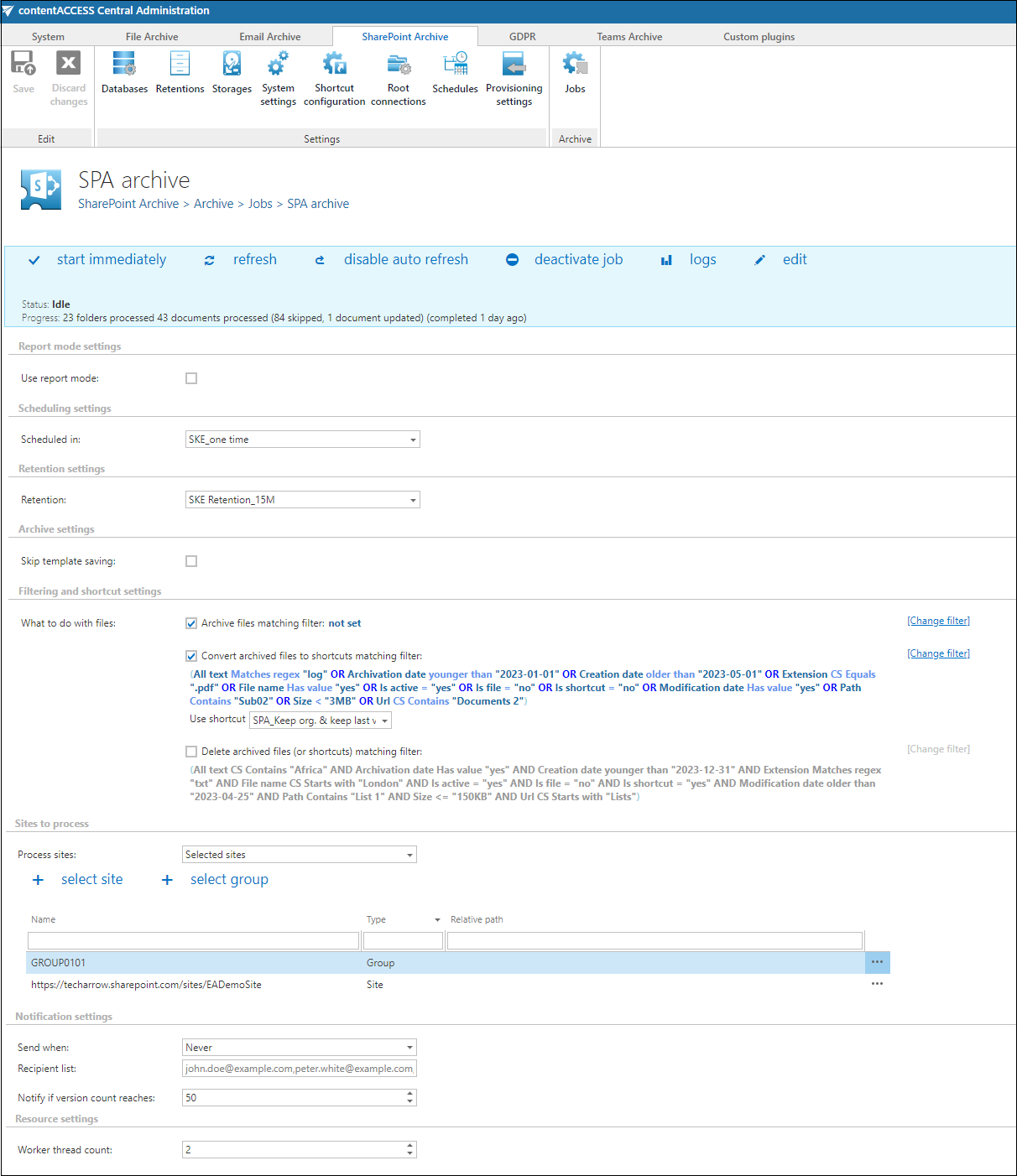
On the job's configuration page, go through the following sections. Most of them are mandatory; filtering settings are optional.
Report mode settings
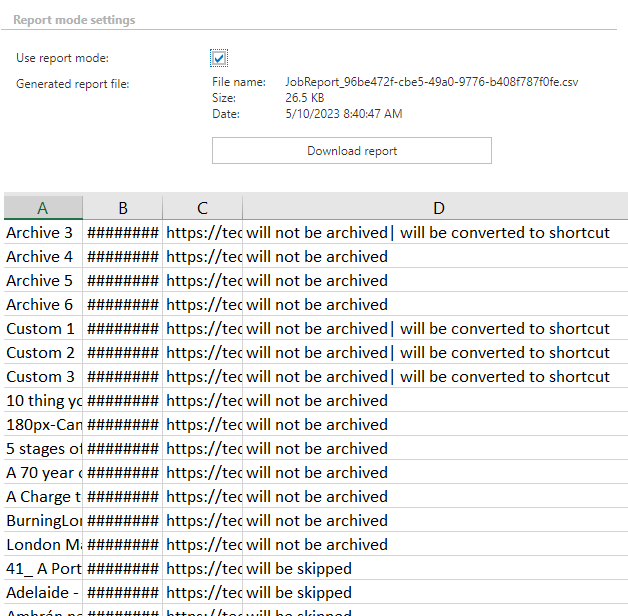
If the Use report mode checkbox is checked, the job runs in report mode. Once the job finishes, the user can download a .csv report from this section. The file contains a list of items belonging to the site(s) or related path(s) selected in the Connections to process section of the job, along with information about whether each item will be processed.
Scheduling settings
Select the running times of the archive job by choosing a scheduler from the list or by creating a new one. For archiving jobs, it is recommended to set up a scheduler that runs continuously or at certain times during the week.
For more information about how to set schedules, refer to the Schedules page.

Retention settings
Under retention settings, the administrator can select a previously configured retention period. During this time, it will not be possible to delete the archived items from the storage. It is recommended to set a time interval based on data recording regulations required by the law of the country or by internal company policies.
For more information about how to set retentions, refer to the Retentions page.

Archive settings
It is possible to skip template saving by checking the checkbox in this section.

Filtering and shortcut settings
In this section, the user configures what will be archived and how it will be archived. It is also possible to create shortcuts from already archived items or delete them.
There are three options available in the Filtering and shortcut settings section:
1. Archive files matching filter
This option allows the user to archive new files from the selected site(s) or create new versions from already archived items. It can be used independently from the other options and does not modify the item(s) in SharePoint in any way.
If the site (or libraries/lists from the site) has not been archived yet (is archived for the first time), check the Archive files matching filter [not set] checkbox. Items are archived with their whole version history (if the filter allows it), or the version history can be filled up during the next run. The job compares items with the database and archives whatever is missing.
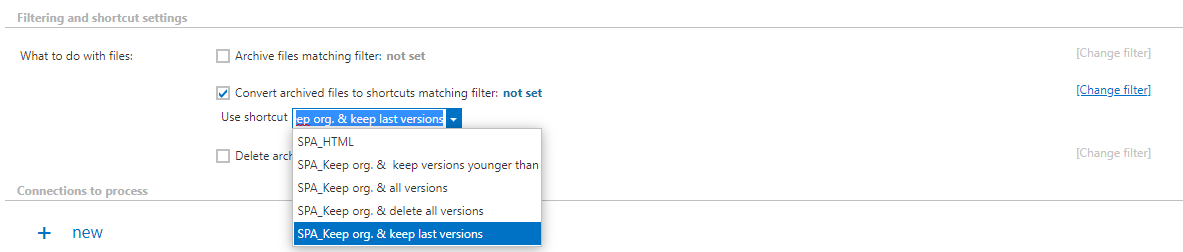
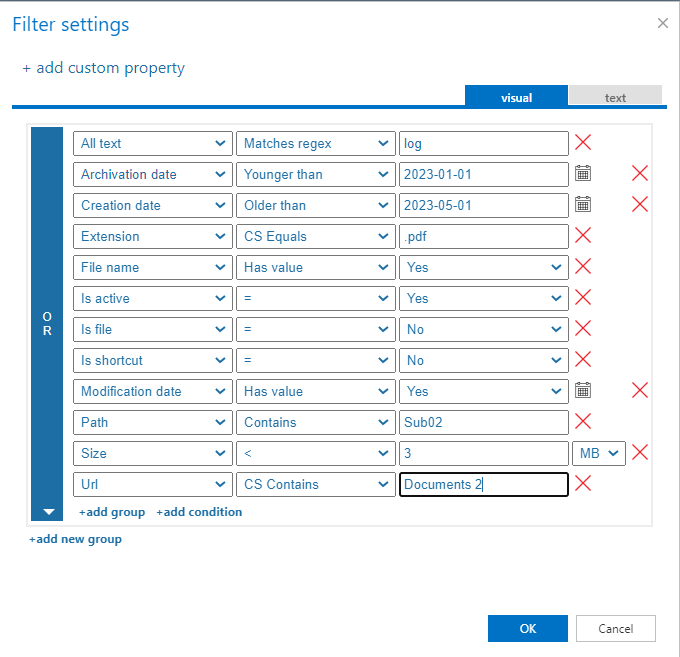
The user can set which files/items will be archived using the filtering settings by clicking not set or Change filter. Learn more about the filtering settings on the Filtering in jobs page.

2. Convert files to shortcuts matching filter
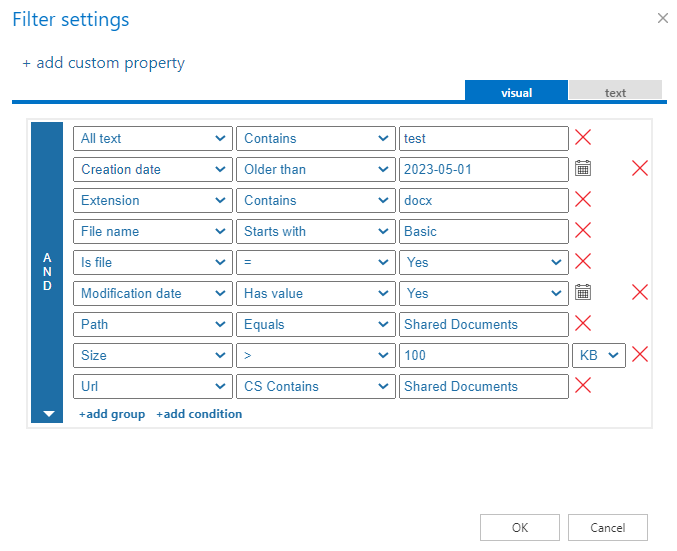
If files are already archived (using option 1) but need to be replaced with shortcuts, check this checkbox. This option can be used independently or together with option 1. If an item matches both option 1 and option 2, the options are executed sequentially within the same job run — the item is archived first, then converted to a shortcut.
Before a shortcut is created, the item(s) are checked and actualized: any missing versions are archived before shortcutting. This prevents data loss before the file is modified.
When this option is selected, the Use shortcut dropdown menu becomes available. Here, the user can select the preferred shortcut type, which is configured on the Shortcut configuration tab.
Shortcutting works on both ListItems and files:
- For files, the job manipulates the version history based on the settings, renames the file to HTML, and overwrites the contents (creates a shortcut).
- For ListItems, the job does not modify the content or rename the file (does not create a shortcut).
Important: For ListItems, it is not possible to delete the version history!
The user can set which files will be replaced using the filtering settings by clicking not set or Change filter. For more information about how to work with filtering settings, refer to the Filtering in jobs page.
Options 1 and 2 can also be configured within the same job. In this case, the job runs in two stages: during the first run, the items or missing versions are archived; during the second run, the archived files are replaced by shortcuts.
Important: The Convert files to shortcuts option is only accessible if Microsoft 365 is selected on the System settings page. In On-premise mode, only the archive and delete options are available.
Note: If you rename an HTML shortcut on the SharePoint site, the archive job or shortcutting option will not be able to process the changes. The shortcut will keep its original name.
3. Delete files (or shortcuts) matching filter
This option allows the user to delete already archived items from the original site. The delete function can be used separately or together with the other two options. In this case, the item is deleted immediately — no shortcut is created.
The user can set which items will be deleted using the filtering settings by clicking not set or Change filter. To learn more about how to work with filtering settings, refer to the Filtering in jobs page.

Note: When using the Delete files (or shortcuts) matching filter option, the All text filter cannot process shortcuts. If shortcuts are targeted, the job will not find any matching content, and no files will be reported or deleted.
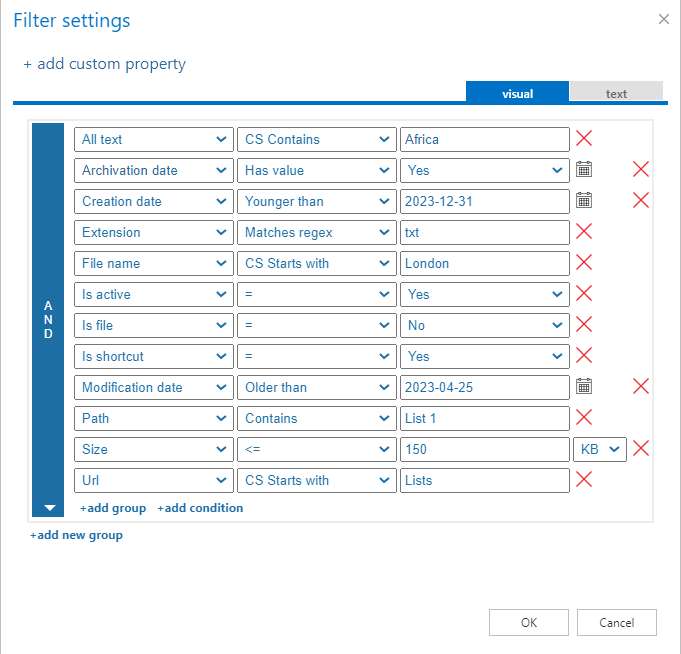
Important: If the content of an already archived item is changed — for example, a picture is deleted from the file and the file is saved to the original location, reducing its size (e.g., from 110 kB to 85 kB) — and a file size filter is set to greater than 100 kB, the SharePoint Archive job will not archive the newly created item during the next processing run. The newly created item remains only in the original location. For this reason, it is recommended to always check the size filter settings first if a file has not been archived by the archiving process.
Sites to process
In this section, the user decides which site(s) or group(s) will be processed. The available options change based on the System settings.
On-premise mode: Only the select site option is available. Click + select site and specify the root connection and the relative URL in the pop-up window. A root can be a site collection, a subsite, a library, or a folder already defined in the Site section.

Microsoft 365 mode: The user can process all sites (all provisioned sites will be archived), or select selected sites and/or groups in this section.
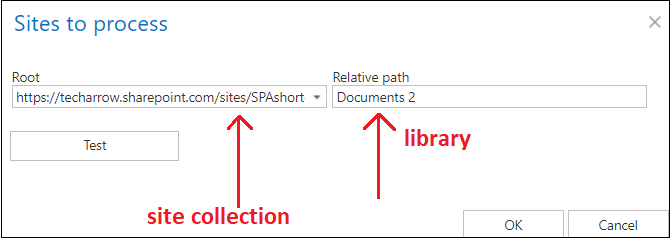
When selected sites is selected from the drop-down list, click + select site or + select group and specify the root connection and the relative URL in the pop-up window. A root can be a site collection, a subsite, or a library. It is also possible to test the connection using the Test button.

Notification settings
Select when notification emails should be sent from the SharePoint Archive job. In the Recipient list textbox, insert the email address(es) of the person(s) who will receive these notifications. It is also possible to configure notifications to be sent only when the version count reaches a certain number.

Resource settings
The number of worker threads responsible for the archiving processes can be set here. By default, this value is set to 2.

Once the job is configured, save your changes and wait until it starts based on the defined schedule, or start it manually from the status bar.