SharePoint archive System settings
Introduction
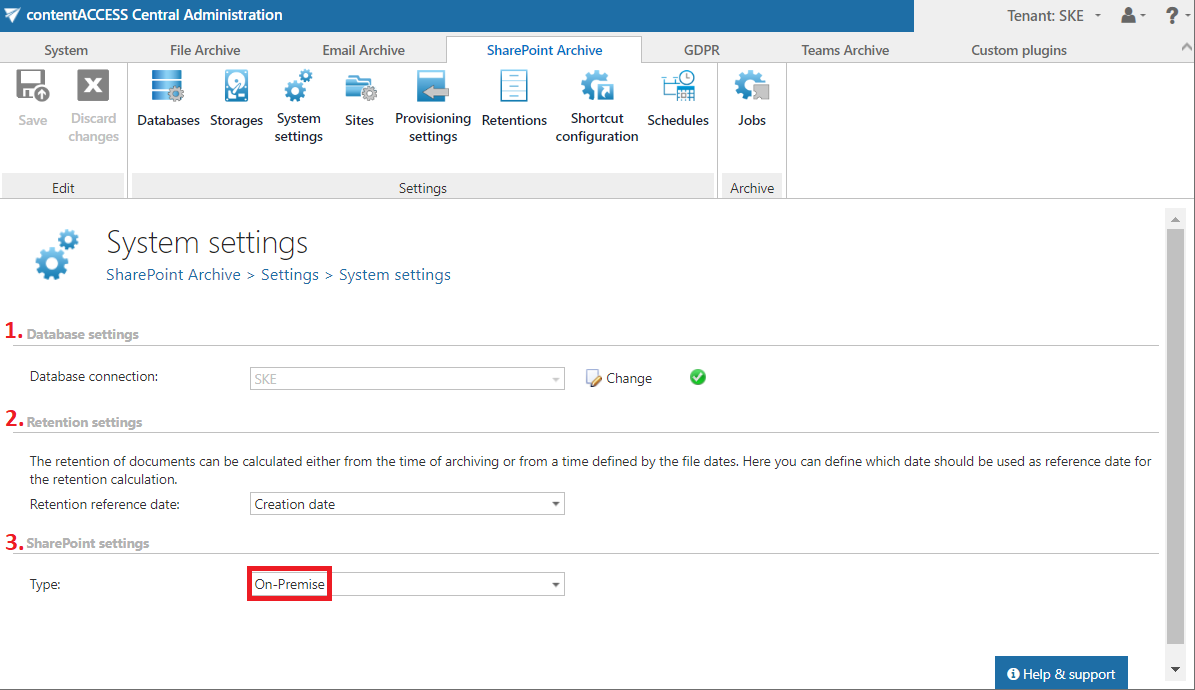
The System settings page in SharePoint Archive allows administrators to configure the general system-level settings required for archiving SharePoint content. To access this page, navigate to SharePoint Archive => Settings => System settings on the ribbon.
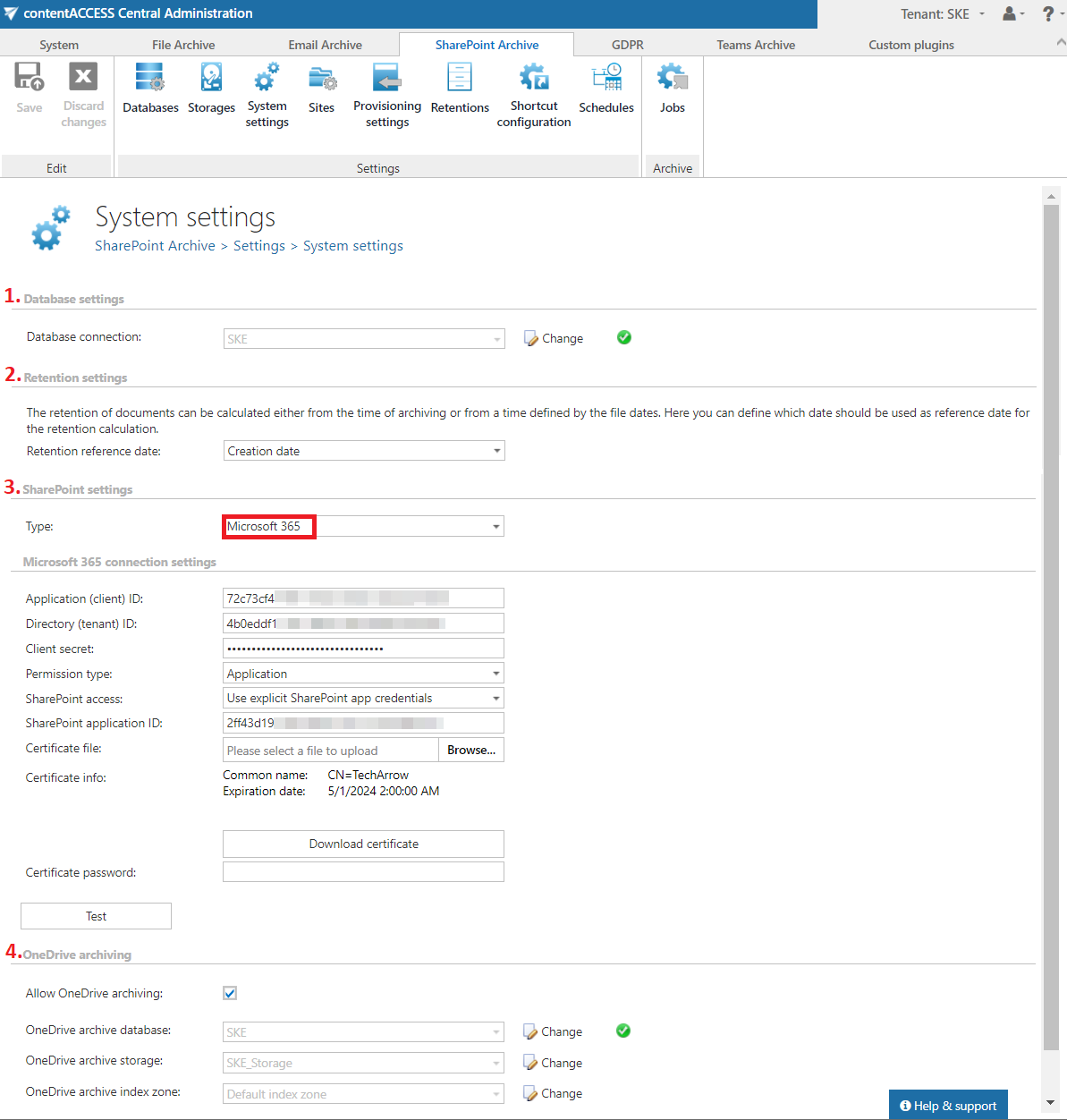
From this page, administrators can configure the main archive database, define how item retention is calculated, choose between On-premise and Microsoft 365 SharePoint connections, and enable OneDrive archiving.
Database settings
The main system database for the SharePoint Archive is selected here. This database is previously configured on the Teams Archive => Settings => Databases page. All site connections and their settings are kept in this database.
Select the database connection to be applied from the dropdown list, deploy it by clicking Deploy in the warning message if needed, and save your settings.
Retention settings
The date from which the retention of items is calculated can be selected here. Choose the setting to be applied from the dropdown list. There are three types of retention reference dates:
- Creation date: the date when the document was originally created. If you select Creation date as the retention reference date, the retention period is calculated starting from when the document was first created.
- Modification date: the date when the document was last modified or updated. Selecting Modification date means the retention period begins from the last time the document was edited or changed.
- Most recent date: the most recent significant date associated with the document, which could be either the creation date or the last modification date, depending on which is later. Using Most recent date as the retention reference means that the retention period is calculated from the latest relevant activity on the document.

SharePoint settings
In this section, the administrator decides whether SharePoint Archive is used with On-premise SharePoint or Microsoft 365 SharePoint.
On-premise SharePoint
If the On-premise type is selected:
- The Sites tab becomes visible, and the administrator can configure the SharePoint site connections to be archived. For more information, refer to the Site connections in the SharePoint Archive chapter.
- The Authentication type can be configured as Basic or Integrated:
- With Basic authentication, dedicated SharePoint credentials (user name and password) are used for the connection.
- With Integrated authentication, SharePoint is accessed with the contentACCESS service user. This works only if the service is configured as a different user on the Service settings page.
- In On-premise mode, provisioning processes the created site connections without the Sites to process and OneDrive groups to provision (AAD) sections.

Microsoft 365 SharePoint
If the Microsoft 365 type is selected:
- The Microsoft 365 connection settings and OneDrive archiving sections become available.
- The connection with the Microsoft SharePoint application is configured here.
- Application ID and Directory ID are generated during the app registration on the Azure Portal.
- The Client secret can be generated manually in Certificates & secrets after registration.
- SharePoint archive registration is described in the Azure app registration for Microsoft 365 archiving section.
Permission type has two options in the dropdown list:
- Application: allows you to connect to the SharePoint endpoint of the Graph API without providing the username and password. To grant this permission type, it is necessary to contact Microsoft. For more information, see How to request access to Microsoft Protected API.
- Delegated: if you do not have the application permission type, you can specify the user who is able to access all sites with this option. The superuser must also be the owner of all sites to be archived. It is recommended to use the explicit SharePoint app credentials, but the administrator can use the Teams account to connect to SharePoint if necessary.
SharePoint access has two options:
- Use explicit SharePoint app credentials: select this option if the SharePoint-related permissions are registered in your application on the Azure Portal.
- Use the Teams app credentials: select this option if the SharePoint-related permissions are registered in a separate app.
The following settings apply:
- SharePoint application ID: the application ID of the registered SharePoint app. This must be filled in if Use explicit SharePoint app credentials is selected.
- Certificate file: a
.pfxfile containing the private and public key of the certificate. This must be the same certificate as the.cerfile uploaded to Azure during app registration. The app can also be registered using this PowerShell script. - Certificate password: the password for the
.pfxfile.
It is also possible and recommended to test the connection by clicking the Test button.
OneDrive archiving
OneDrive archiving needs to be enabled on the System settings page. Check the Allow OneDrive archiving checkbox and set the following:
- OneDrive archive database: select an already configured connection from the dropdown list. Metadata is stored here. For further information on how to set database connections, refer to the Databases section.
- OneDrive archive storage: choose an already configured storage from the dropdown list. The processed binaries are stored here. For more information on how to set storages, refer to the Storages section.
- OneDrive archive index zone: set the Index zone that will be assigned to the items by the archive job.