SharePoint recovery job configuration
Introduction
The SharePoint recovery job allows administrators to recover already archived SharePoint items that have been deleted from their original SharePoint location, or to restore the shortcut to the original file. All items that can be archived by contentACCESS are also recoverable, including subsites, libraries, and folders — if these have been deleted, they do not need to be re-created manually before running the recovery job. The job can also recover complete sites together with their settings, provided the connection set in Connections to process is a site.
This page describes how to create and configure a SharePoint recovery job, including report mode, scheduling, recovery behavior, site selection, filtering, notifications, and resource settings.
Create a SharePoint recovery job
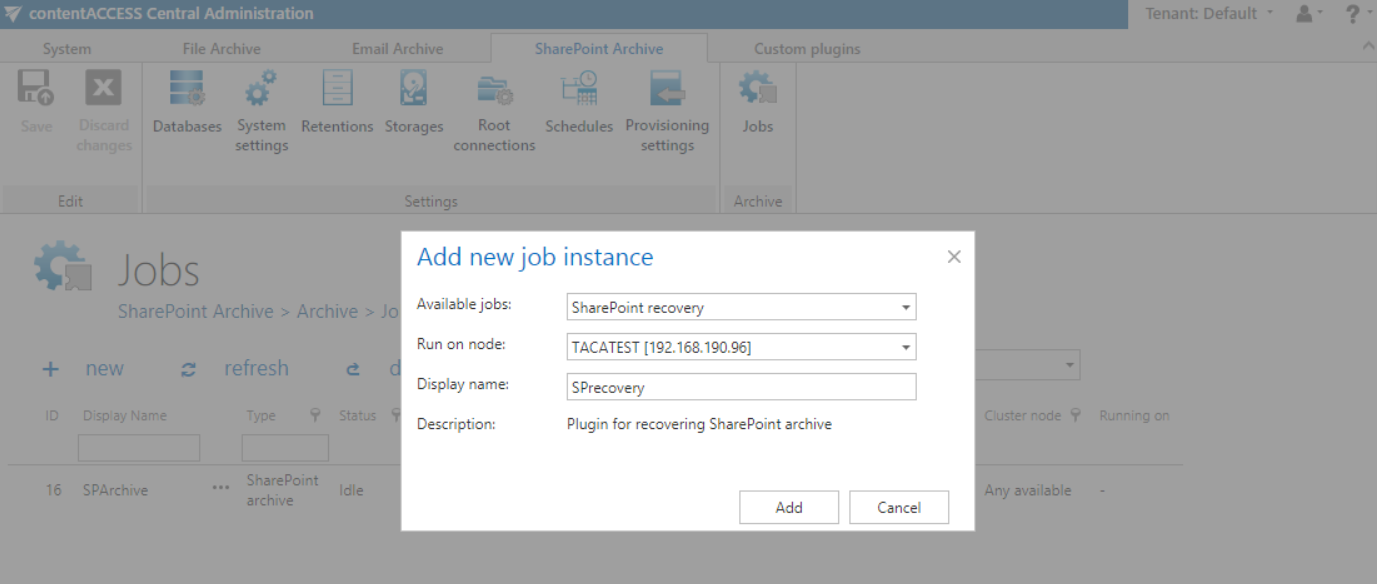
To create a SharePoint recovery job, create a SharePoint recovery job instance on the SharePoint archive's Jobs page.
Report mode settings
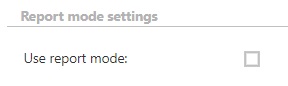
If the Use report mode checkbox is checked, the job will run in report mode. After the job finishes running in this mode, a .csv report file becomes available for download in this section. The file contains a list of files/items belonging to the folder(s)/list(s) of the site(s) selected in the Connections to process section of the job, along with information about them, including whether they will be processed or not.
Scheduling settings
In this step, select the running times of the recovery job. You can either select an existing scheduler from the list or create a new one using the create new option.
Recovery jobs are run only in specific cases. In most cases, it is recommended to set a One time scheduler for the recovery job (for example, with a start date of September 7th at 6 PM), or to start the job manually from the status bar.
For more information about setting up schedulers, refer to the Schedules page.

Recovery settings
In this section, configure what will be recovered and how it will be recovered.
Recover all site related settings
Recovers site-related settings.
Recover
Specifies what will be recovered:
- Files and structure – the recovery job creates the archived folder structure and recovers the items from the archive, or restores the shortcuts based on the filtering settings. The shortcut must have a
.htmlextension and must be in the database for it to be restored. - Structure only – the recovery job creates the archived folder structure, but no items are recovered.
Overwrite existing file
Specifies when to overwrite an item if it already exists in the target location. Recovery and shortcut restoring follow the logic described below, depending on the selected setting.
-
Never – if the item exists, it will not be processed. Recovery scenarios:
- If versioning is enabled on the SharePoint site and all versions are recovered → recovers the full version history (missing/deleted items) or just the missing versions (existing items).
- If versioning is disabled on the SharePoint site and all versions are recovered → recovers only the latest archived version (missing/deleted items) or no action (existing items).
- If versioning is enabled and last or specific version is recovered → recovers the selected version (missing/deleted items) or no action (existing items).
- If versioning is disabled and last or specific version is recovered → recovers the selected version (missing/deleted items) or no action (existing items).
-
Always – always overwrites existing items with the archived version. Recovery scenarios:
- If versioning is enabled and all versions are recovered → recovers the full version history (missing/deleted items) or just the missing versions (existing items).
- If versioning is disabled and all versions are recovered → recovers only the latest archived version (missing/deleted or existing items).
- If versioning is enabled and last or specific version is recovered → recovers the selected version (missing/deleted items), or recovers the selected version and sets it as the latest version, overwriting the current version (existing items).
- If versioning is disabled and last or specific version is recovered → recovers the selected version (missing/deleted or existing items).
-
If older/newer than the archived version – the item is processed only if its latest version in SharePoint is older/newer than the archived one. Recovery scenarios:
- If versioning is enabled and all versions are recovered → recovers the full version history (missing/deleted items) or just the missing versions (existing items).
- If versioning is disabled and all versions are recovered → recovers the latest archived version (missing/deleted items), or recovers the latest archived version for items whose last modified date fulfills the condition (existing items).
- If versioning is enabled and last or specific version is recovered → recovers the selected version (missing/deleted items), or recovers the selected version of items if their latest version fulfills the condition and becomes the latest version (existing items).
- If versioning is disabled and last or specific version is recovered → recovers the selected version (missing/deleted items), or recovers the selected version for items whose last modified date fulfills the condition (existing items).
Set the modification date of recovered items to
- Original – the modification date of the archived item is set on the recovered file.
- Recovery date – the date on which the recovery job runs is set on the recovered file.
What to recover
- All versions – recovers the full version history of items, or the missing versions if the items exist.
- Last known version – recovers the latest archived version of the item if it does not exist in SharePoint.
- Specific date – recovers the version from the specified (modification) date or before, if the item does not exist in SharePoint.

Sites to process
In this section, specify the folder(s) of the site that were deleted and need to be recovered from the archive. The available options depend on the system settings.
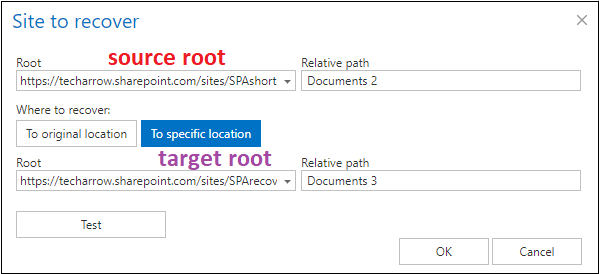
- On-premise mode – the select site option is available. Add a new connection using the + select site button; this opens the Site to recover dialog.
- Microsoft 365 type – you can process all sites (all provisioned sites will be recovered), or selected sites and/or groups. Add a new connection using the + select site or + select group button, and specify the root and the relative URL in the pop-up window.
First, select the Root (source) site path from the dropdown list and enter the folder/list in the Relative path text box if necessary. Next, select where the items from the folder/list will be recovered to:
To original location – items will be recovered to the place where they were archived from.
Click To original location. You can test the accessibility by clicking Test, then click OK.

To specific location – items will be recovered to a different site/folder.
Click To specific location. A new dropdown list will appear, where you can select the destination site for the recovery (it must also have been previously configured as a site connection). You can also enter the folder/list in the Relative path text box if necessary. You can test the accessibility by clicking Test — in this case, it checks the accessibility of both the source (upper) and target (lower) locations. Click OK.
Filtering settings
Click Change filter and set the filtering according to your needs and/or regulations. To learn more about working with filtering settings, see the Filtering in jobs page.
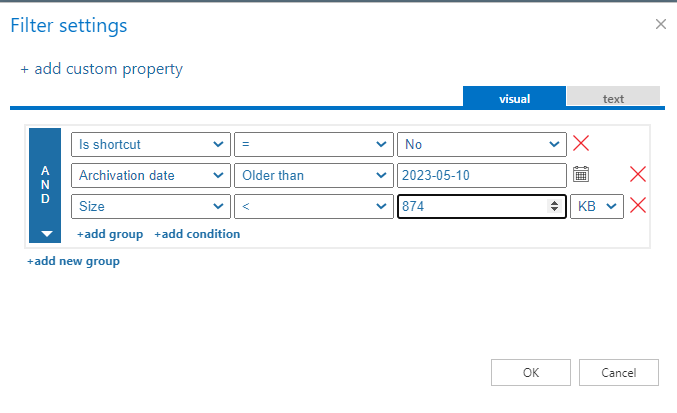
Important: "Is shortcut" is not an archive property. It only allows the job to restore shortcuts if shortcuts exist in SharePoint. When the site/library is empty, the "Is shortcut=yes" filter will not process anything. If shortcuts exist in the selected site/library, the "Is shortcut=yes" condition will be met, and the shortcuts will be replaced by the original files. However, missing files will not be recovered.
Notification settings
Select the cases in which notifications should be sent from the recovery job. Notification emails can be configured to be sent only in case of errors or warnings, or in all cases. In the Recipient list text box, enter the email addresses of the people who should receive these emails. Notification emails can be useful tools during troubleshooting.

Resource settings
Specify the number of worker threads running in parallel. Save your settings and wait until the scheduler starts the recovery process, or start it immediately using the status bar.
