Teams archive job
Introduction
The Teams archive job allows administrators to archive Microsoft Teams conversations, files, and Teams-connected SharePoint data. The job can be configured to process all data or only selected data, apply filters to messages and files, convert archived files to shortcuts, delete archived files, and send notification emails about the job's execution.
This page describes how to create and configure a Teams archive job, including report mode, scheduling, database and storage settings, retention settings, processing and filtering options, address book object selection, notification settings, and resource settings.
Important: Teams archive and Teams chat archive jobs are not able to archive conversations with external participants coming from a different Microsoft Entra tenant. We recommend using the Teams compliance archive job for processing conversations with external participants.
Create a new Teams archive job
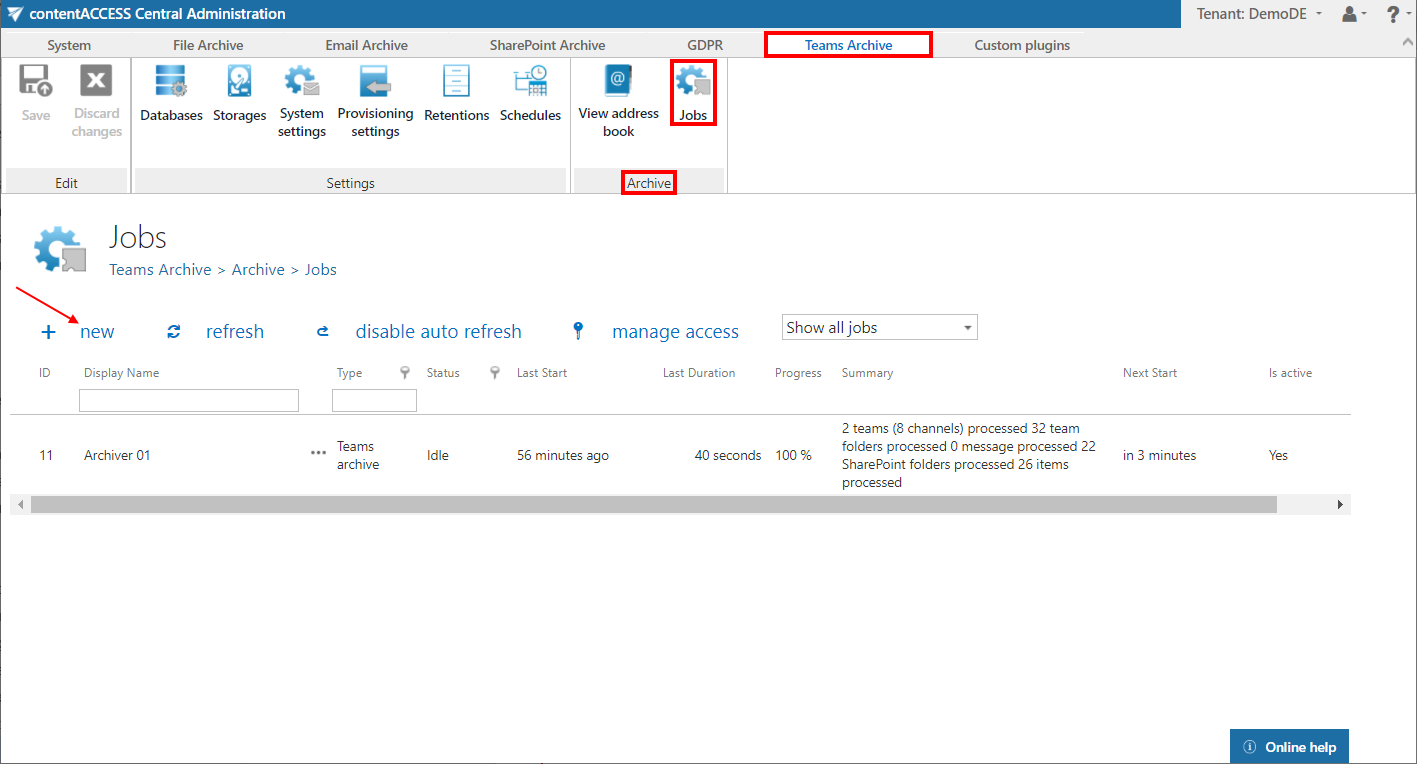
- Navigate to Teams Archive -> Archive -> Jobs.
- Click +new.
- In the Add new job instance dialog, select Teams archive from the Available jobs dropdown list, select the node where the job will run (Run on node), and enter a name into the Display name field.
- Click Add.

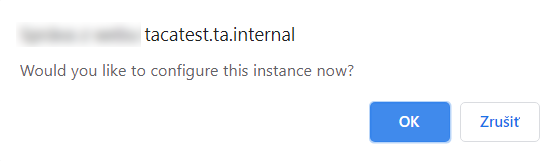
- If you want to configure the job immediately, click OK in the pop-up window. The job configuration page opens automatically. Otherwise, the configuration page can be accessed at any time using the Configure option in the job's context menu.
Configure the job
On the job's configuration page, go through the following sections.
Report mode settings
If the Use report mode checkbox is checked, the job runs in report mode. After the job finishes its run in this mode, you can download a .csv report file in this section. The file contains a list of items belonging to the objects selected in the Address book objects to process section, together with information about whether they will be processed or not.

Scheduling settings
Select the running time(s) of the Teams archive job. You can either select an existing scheduler from the list or create a new one using the create new … option from the dropdown list. For more information about setting schedulers, refer to the Schedules page.

Database settings
Select an already configured database connection from the dropdown list. The job's metadata will be stored here. For further information on setting up database connections, refer to the Databases page.

Storage settings
Choose an already configured storage from the dropdown list. The processed binaries will be stored here. For more information on setting up storages, refer to the Storages page.

Retention settings
Choose an already configured retention time from the dropdown list. Archived objects are stored for this period in the storage, and it will be impossible to delete them during that time. It is highly recommended to select a retention time required by the law of your country. For more information about setting up retentions, refer to the Retentions page.

Processing and filtering settings
In this section, you define which items will be processed during the archive job. First, select what to process: all data or selected data. With the all data option, the archive job includes all channels' messages, files, and non-channel-related SharePoint data.

If you select the selected data option, the Filter team data settings appear, offering the following options:

-
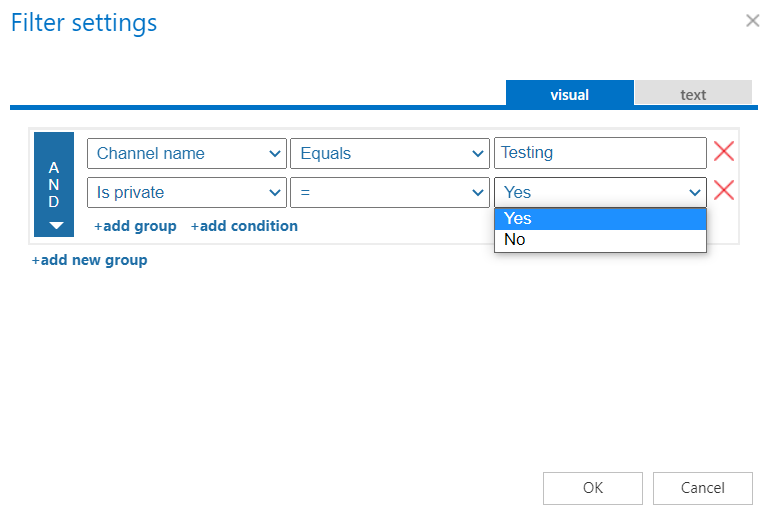
Process all channels (or filter them out) – decide whether all channels will be archived or only the channels matching the filtering settings. Channels can be filtered by name or by type (
IsPrivate=Yes/No).infoNote: The default channel in Teams is General, which is created automatically with the team. This channel is displayed in the background as "General" even if users configure or use a different language in the Teams client. Because of this, when filtering out the default channel by name, it must be entered in English (other channels can be filtered using the supported languages), otherwise the job will not process this channel.
 info
infoNote: If the Process channels filter is active (channels are filtered out), but no messages or files are selected, then the job will not do anything. Without selecting files or messages to process, this configuration means "Nothing to process".

-
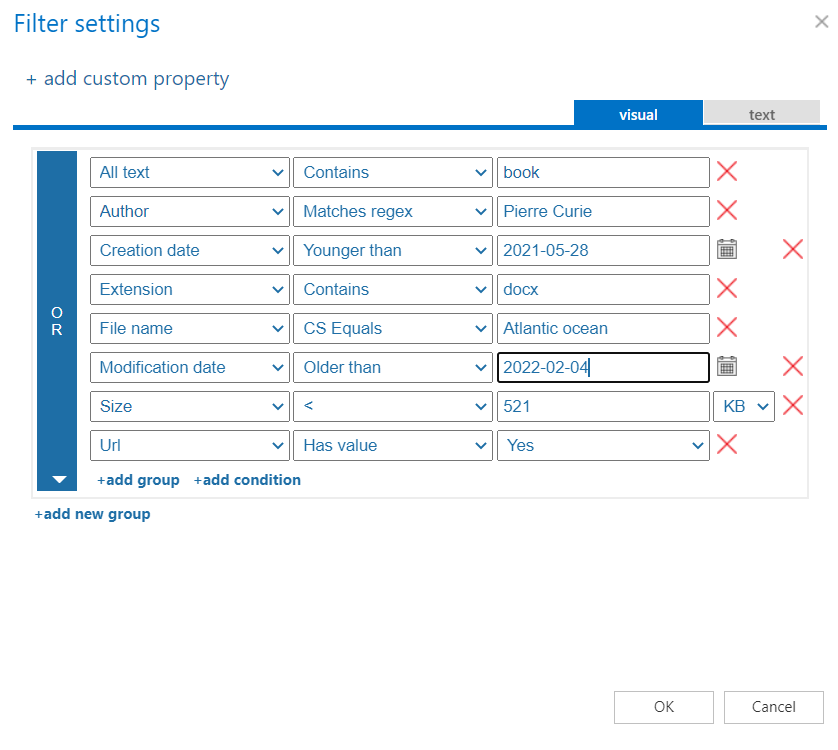
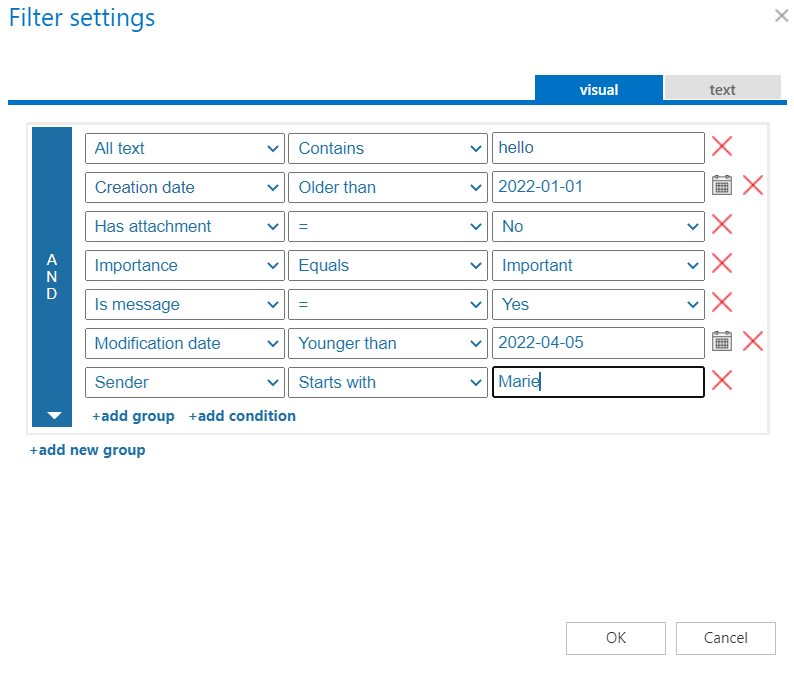
Process messages where filter is [not set] – only messages (all or filtered) will be archived if this checkbox is selected. If no filter is added, all messages are processed from the defined channels. It is also possible to archive only selected messages from the team(s) by clicking the Change filter button (or not set). This opens the Filtering settings window, where you can set the filters for the archive job.
-
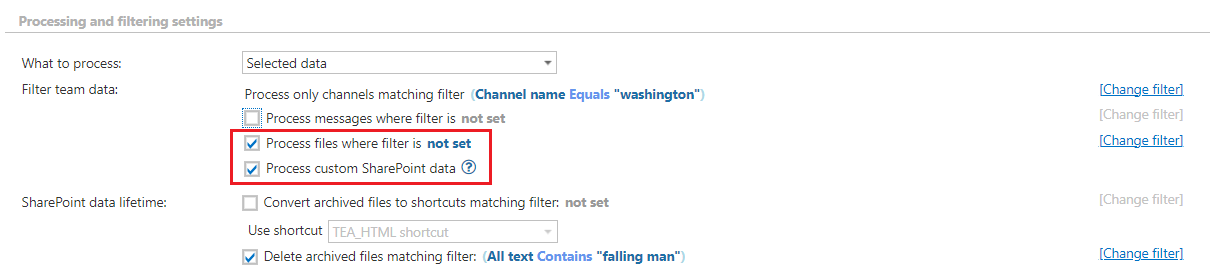
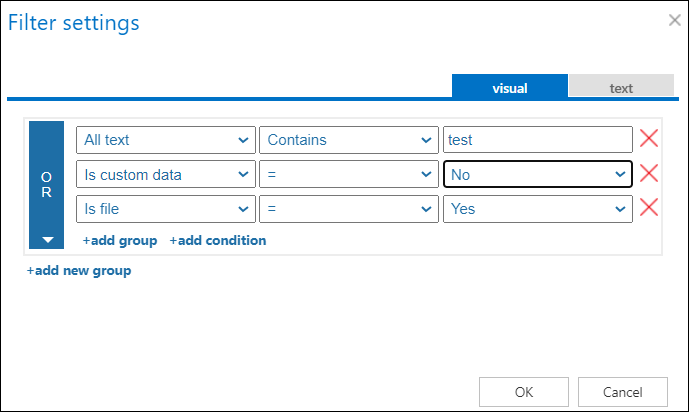
Process files where filter is [not set] – only files (all or filtered) will be archived from the selected team(s) and/or from the Teams-connected SharePoint sites if this option is selected. If no filter is added, all files are processed from the defined channel(s). It is also possible to archive only selected files by clicking the Change filter button (or not set). This opens the Filtering settings window, where you can set the filters for the archive job. You can also filter out channel-related files or files from the Teams-connected SharePoint sites using the Is custom data=Yes/No filter.
-
Process custom SharePoint data – SharePoint is deeply integrated into Teams. Files stored in Teams reside in SharePoint sites, and these sites can be used by Teams for file storage (referred to as Teams-connected sites). These sites are created automatically whenever a user creates a team. Files stored in both Teams and SharePoint sites can be processed using the Process files option, but items available only on the SharePoint sites (lists, tasks, calendar items, contacts, manually created document/picture libraries) are skipped with that option. To archive those items, the Process custom SharePoint data option must be selected. This option allows you to process or skip custom SharePoint lists/document libraries. For more information about Teams and SharePoint integration, read this article.
 warning
Important: The Process custom SharePoint data function does not work by itself. The Process files option must also be selected, otherwise the job will run without doing anything. However, files can easily be filtered out (for example,
NOT Creation date has value=no), so that only the SharePoint data is processed.warningImportant: Teams archive cannot process custom SharePoint data (manually created document libraries, lists) for private channels. When a private channel is created, a new site is created. This site is isolated from the team site and has separate permissions. It has its own Shared Documents document library, which is used in the Teams client. Teams archive processing has only one link to the SharePoint site of the private channel — the URL of the Shared Documents library. If there is anything else besides that, the Teams archive job will not be able to archive the custom SharePoint data, even if the checkbox is selected.
-
Convert archived files to shortcuts matching filter [not set] – allows you to replace (old) archived files with shortcuts. This option can be used independently or together with the Process files and Process custom SharePoint data options. When used together, and items match all options, the job executes them sequentially in the same job run: first, the items are archived and the version history is checked and updated for already archived items, then they are converted into shortcuts. Before a shortcut is created, the item(s) are checked and actualized (missing versions are archived) to prevent losing any data before the file is modified.
When you select this option, the Use shortcut dropdown menu becomes available. Here, you can select the preferred shortcut type, configured on the Shortcut configuration tab.

Shortcutting works on both list items and files. For files, the job manipulates the version history based on the settings, renames the file to HTML, and overwrites the contents (creates a shortcut). For list items, the job does not modify the content or rename the file (does not create a shortcut).
warningImportant: For list items, it is not possible to delete the version history.
You can set which files will be replaced using the filtering settings by clicking the not set or Change filter buttons. For more information about working with filtering settings, refer to the Filtering in jobs page.
 warning
Important: The Convert files to shortcuts option is accessible only if Microsoft 365 is selected on the System settings page. In On-premise mode, only the archive and delete options are available.
infoNote: If you rename an HTML shortcut on the SharePoint site, the archive job or shortcutting option will not be able to process the changes. The shortcut will keep its original name.
-
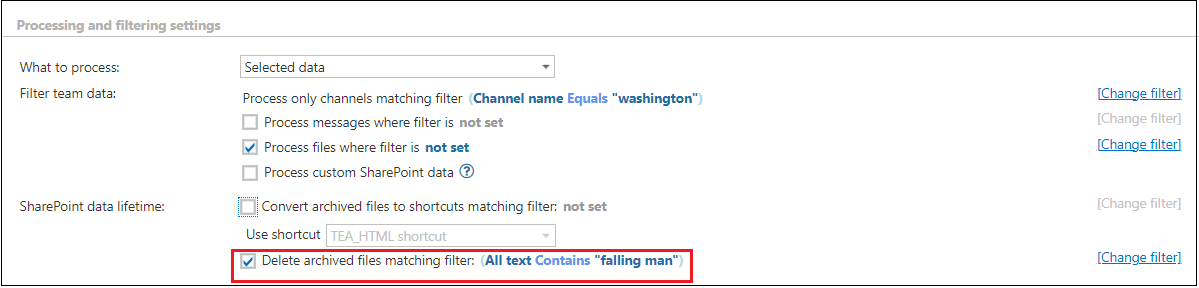
Delete archived files matching filter [not set] – allows you to delete already archived files from the team and the Teams-connected SharePoint sites. The delete function can be used separately or together with the other options. In this case, the item is deleted immediately — no shortcut is created.
You can set which files will be deleted using the filtering settings by clicking the not set or Change filter button. For more information about working with filtering settings, refer to the Filtering in jobs page.
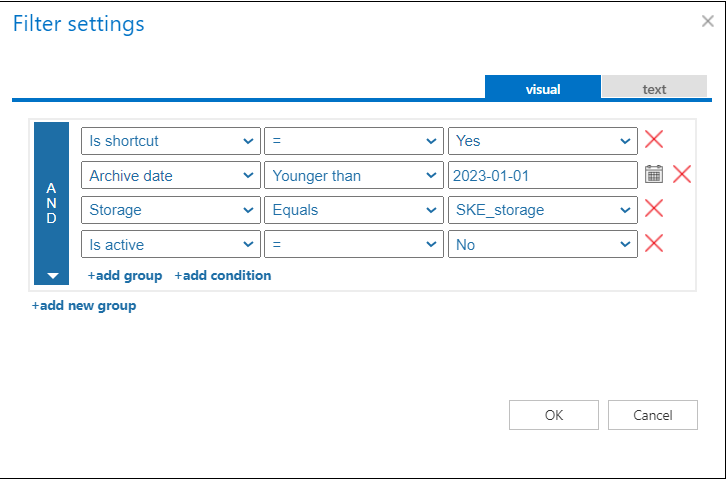
Important: Setting filters is optional, but selecting the items to process is mandatory. If none of these options are selected, the job runs without doing anything.
To set the filtering settings, click the Change filter or not set button and configure the filtering according to your needs and/or regulations. To learn more about working with filtering settings, refer to the Filtering in jobs page.
Address book objects to process
Select the teams and groups that will be processed by the archive job. You can choose all teams or only selected teams from the dropdown menu.
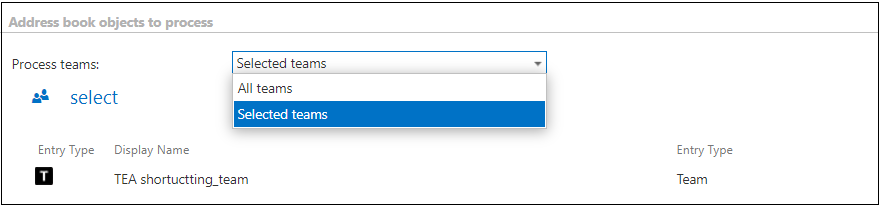
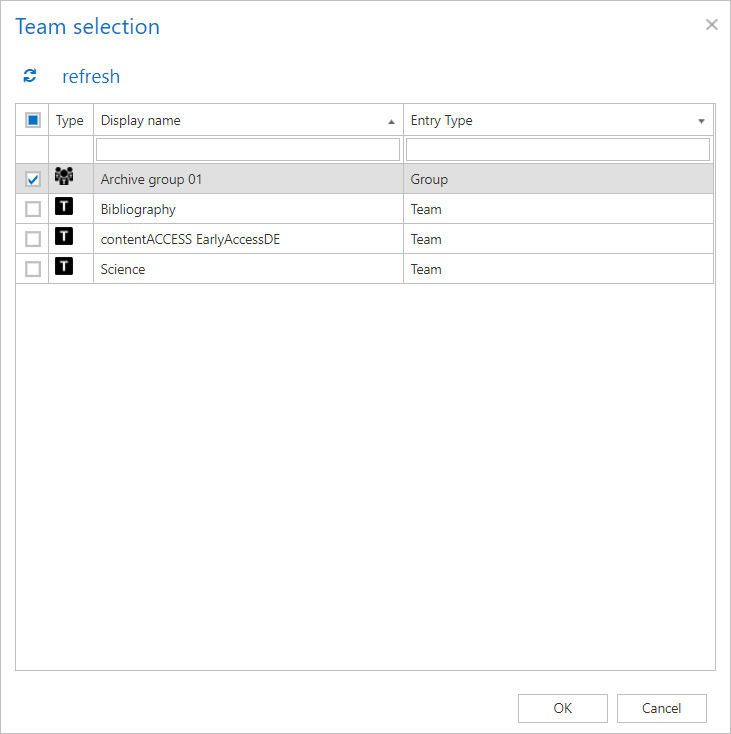
If you choose the selected teams option, click the  select option and check the desired teams or groups in the Team selection window, then click OK.
Notification settings
Select when notification emails should be sent from the Teams archive job. You can set whether you need such a notification email always, never, or only when an error/warning occurs during the archiving process — for example, if the archiving of one or more items fails. Into the Recipient list textbox, insert the email address(es) of the person(s) who will receive these notifications. Notifications should be used if the administrator does not use the System logs feature.

Resource settings
Set the value that determines how many items will be processed simultaneously by the Teams archive job. The recommended value is 2.

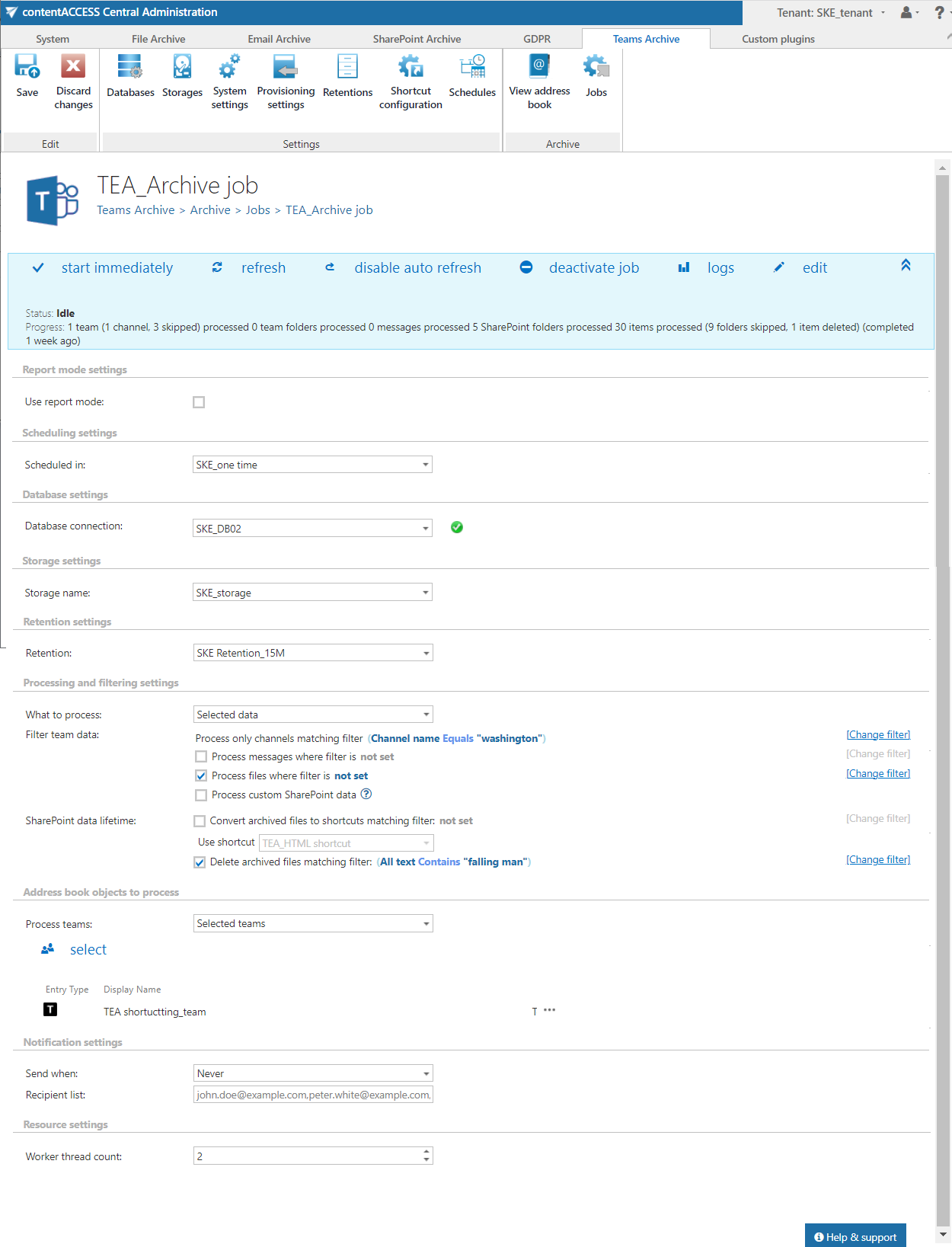
Save your changes and start the job manually, or wait until the scheduler starts the job automatically.